
Projects
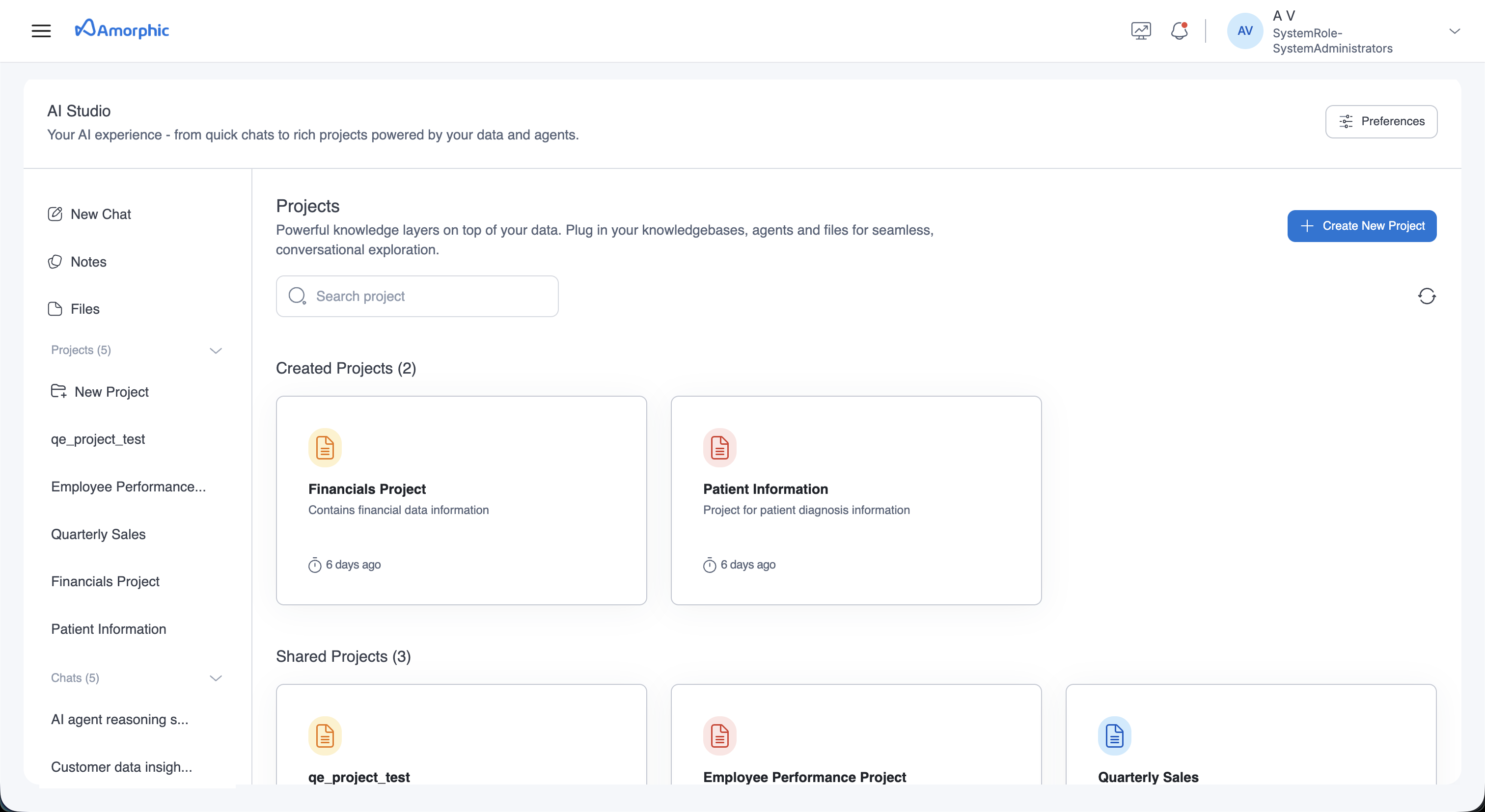
Projects in AI Studio enable you to create powerful, context-aware AI assistants that combine knowledge bases, agents, datasets, and files into a unified conversational experience. Each project acts as a specialized AI workspace with its own persona, instructions, and resource configurations.
Overview
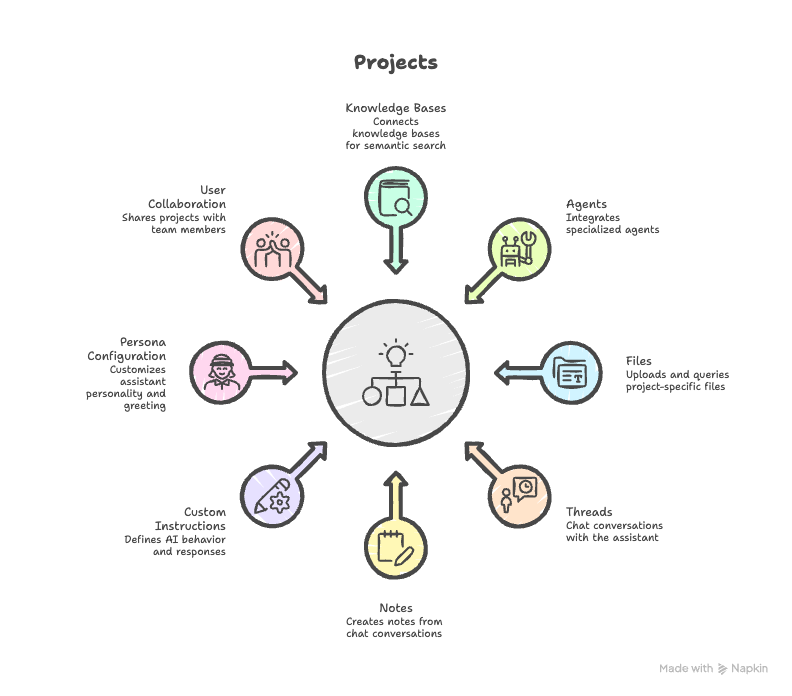
Projects provide a structured way to organize AI interactions around specific business domains or use cases. A project can include:
- Knowledge Bases: Connect knowledge bases for semantic search and retrieval and also for natural language queries over structured data
- Agents: Integrate specialized agents
- Files: Upload and query project-specific files
- Custom Instructions: Define how the AI should behave and respond
- Persona Configuration: Customize the assistant's personality and greeting
- User Collaboration: Share projects with team members using role-based access control (Owner, Editor, or Read-only permissions). Projects can be shared with individual users or access tags, enabling collaborative work on shared AI projects while maintaining appropriate access controls
Projects vs Chats
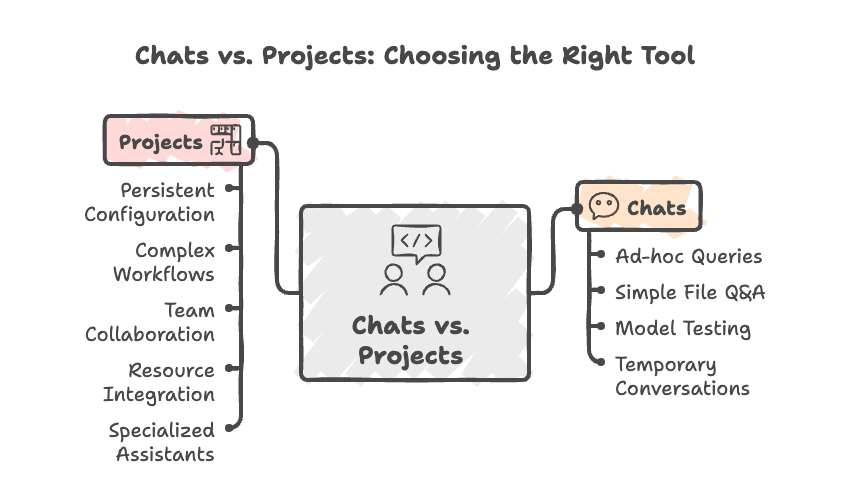
AI Studio offers two primary ways to interact with AI: Projects and Chats. Understanding the differences helps you choose the right approach for your needs.
Chats
Chats are quick, standalone conversation sessions ideal for:
- Ad-hoc Queries: One-off questions or quick interactions
- Simple File Q&A: Asking questions about individual files
- Model Testing: Experimenting with different models or configurations
- Temporary Conversations: Short-lived interactions that don't need persistent configuration
Projects
Projects are structured workspaces designed for:
- Persistent Configuration: Reusable settings across multiple conversations
- Complex Workflows: Multi-step tasks requiring orchestration
- Team Collaboration: Shared workspaces with access control
- Resource Integration: Combining knowledge bases, agents, and files in a unified context
- Specialized Assistants: Custom personas and instructions for domain-specific use cases
When to Use Each
Choose Chats when:
- You need a quick, one-time interaction
- You're testing different models or configurations
- The conversation doesn't require persistent context or configuration
- You're working independently without team collaboration needs
Choose Projects when:
- You need consistent configuration across multiple conversations
- You're working on a specific domain or use case repeatedly
- You want to integrate multiple resources (knowledge bases, agents, files)
- You need team collaboration and shared access
- You require custom instructions or persona customization
- You're handling complex, multi-step queries that benefit from orchestration
Creating a Project
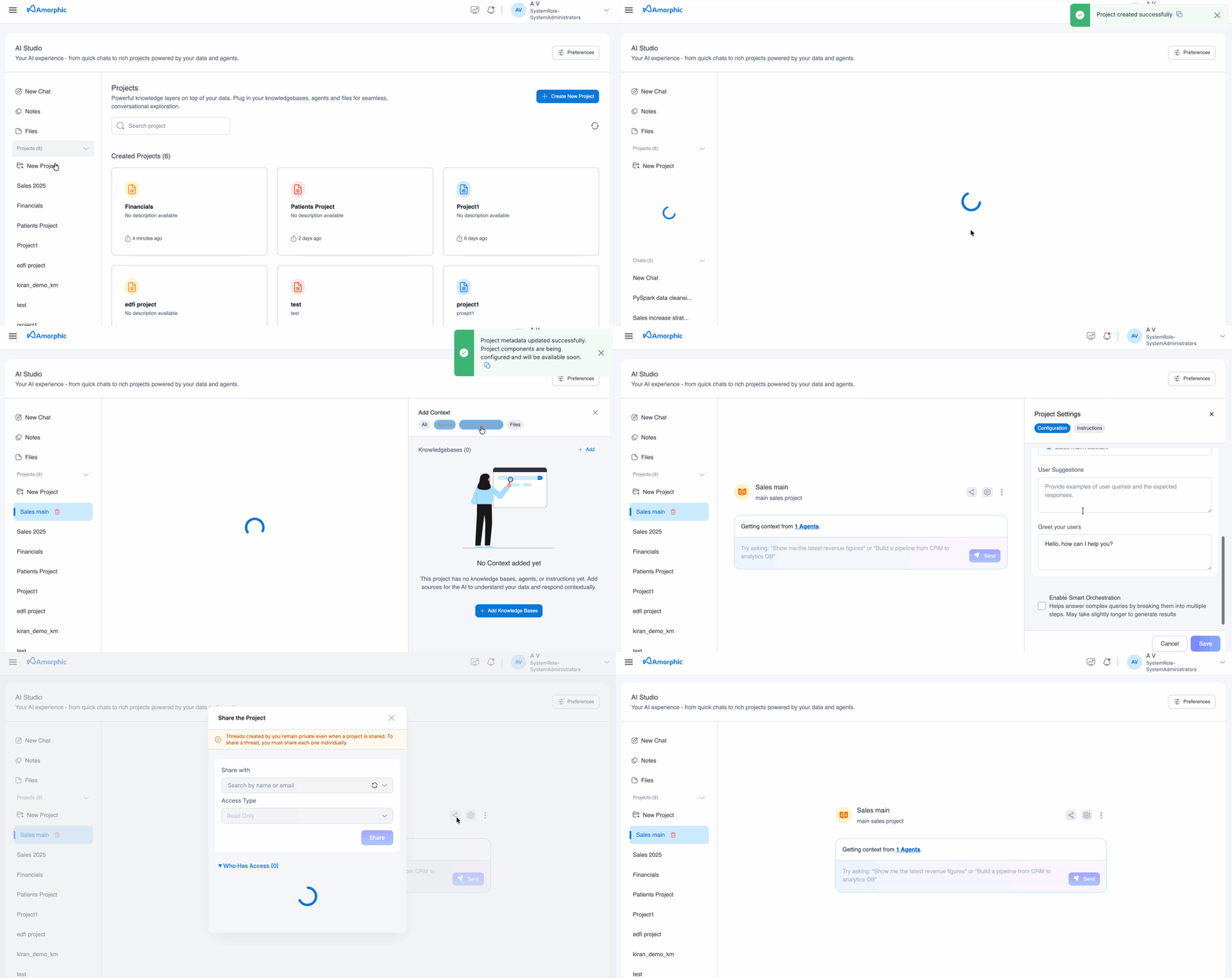
Project Creation Process
- Navigate to AI Studio from the main menu
- Click + Create New Project button in the Projects section
- Fill in the project details:
- Project Name: Enter a unique name for your project
- Project Description (Optional): Describe the project's purpose
- Keywords: Add tags for better organization (e.g., "Owner: username")
- Configure Enforce Resource Access (optional):
- When enabled, access permissions on knowledge bases and agents are enforced when users interact with the project through chats
- This ensures users can only access resources they have permission to use
- Click Create Project to complete the setup
Project Configuration
Projects can be configured through two main tabs: Configuration and Instructions.
Configuration Tab
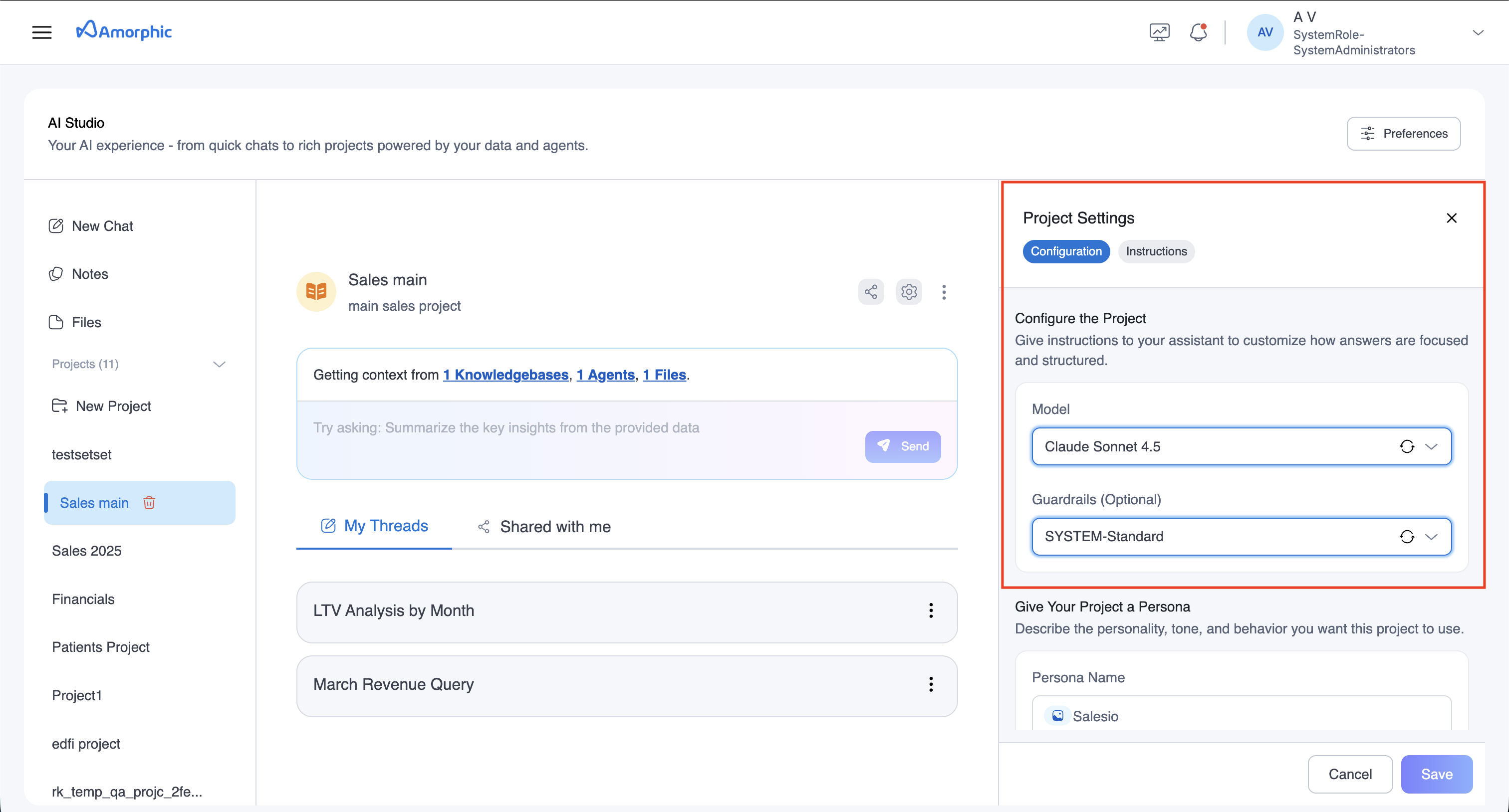 The Configuration tab allows you to customize the core settings of your project assistant:
Model: Select which AI model will drive your project assistant’s responses. Only models that have been set up for Chat Interactions in the Manage AI Services section will be available.
Guardrails: Apply content filtering and safety measures. Select from available guardrails configured for the Chat Interactions component
To use models or guardrails in your projects, they must be assigned for the Chat Interactions component from the Manage AI Services section. For detailed configuration instructions, refer to the Manage AI Services documentation.
Instructions Tab
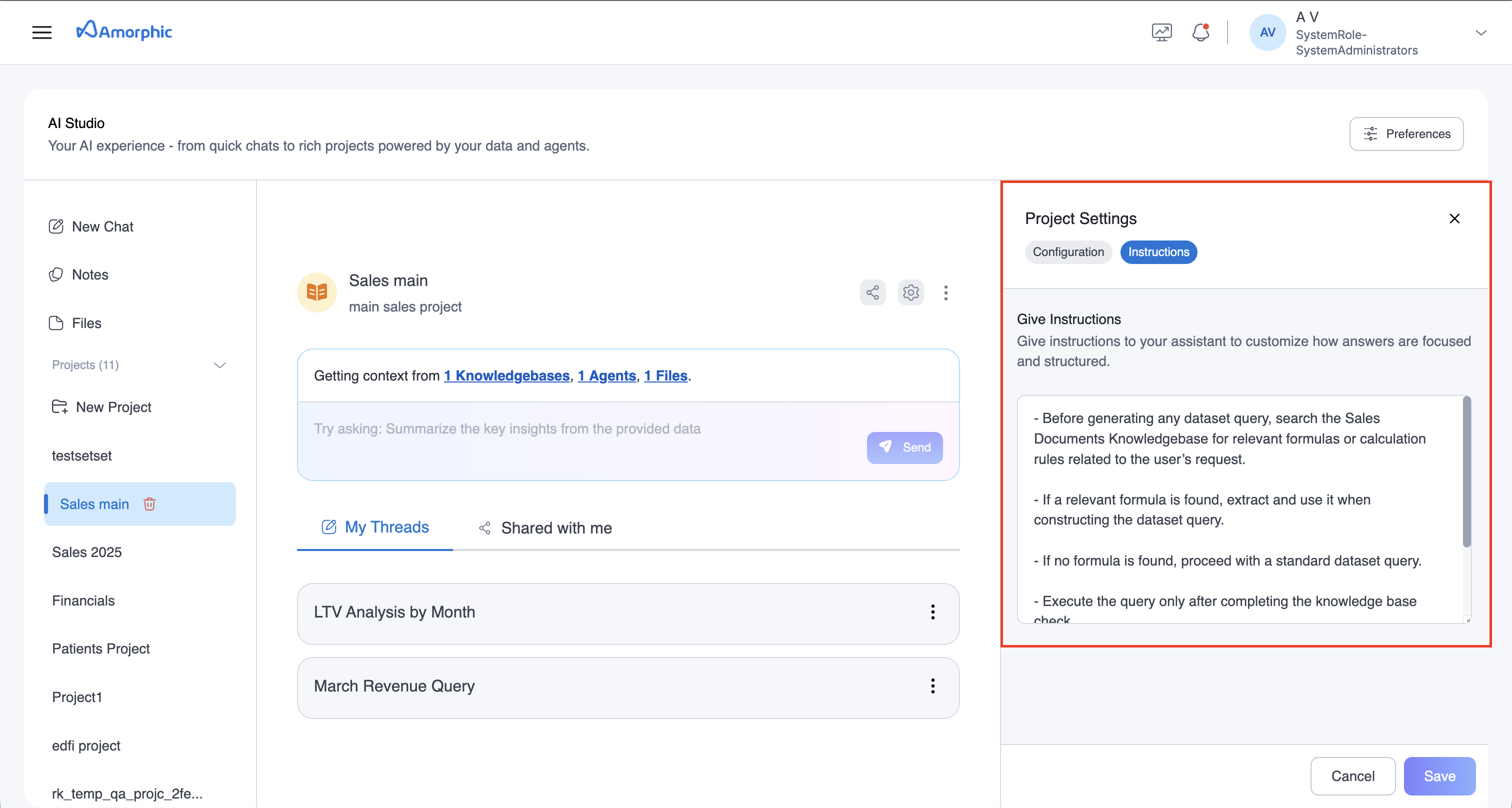 The Instructions tab allows you to provide custom guidance to your project assistant:
Custom Instructions
Add detailed instructions to customize how the assistant answers questions and structures responses:
- Purpose: Define the assistant's role and focus area
- Response Style: Specify tone, format, and level of detail
- Context Handling: Guide how the assistant should use project resources
- Limitations: Set boundaries for what the assistant should or shouldn't do
Example Instructions:
You are a financial analysis assistant. When answering questions:

1. First, search the "Financial Data KB" knowledge base for relevant historical data and reports.

2. For calculations or SQL operations, use the "Data Analysis Agent". For forecasting, use the "Forecasting Agent".

3. Always provide data-driven insights with specific numbers and percentages.
Character Limit: Instructions are limited to 2000 characters to ensure optimal performance.
Project Persona
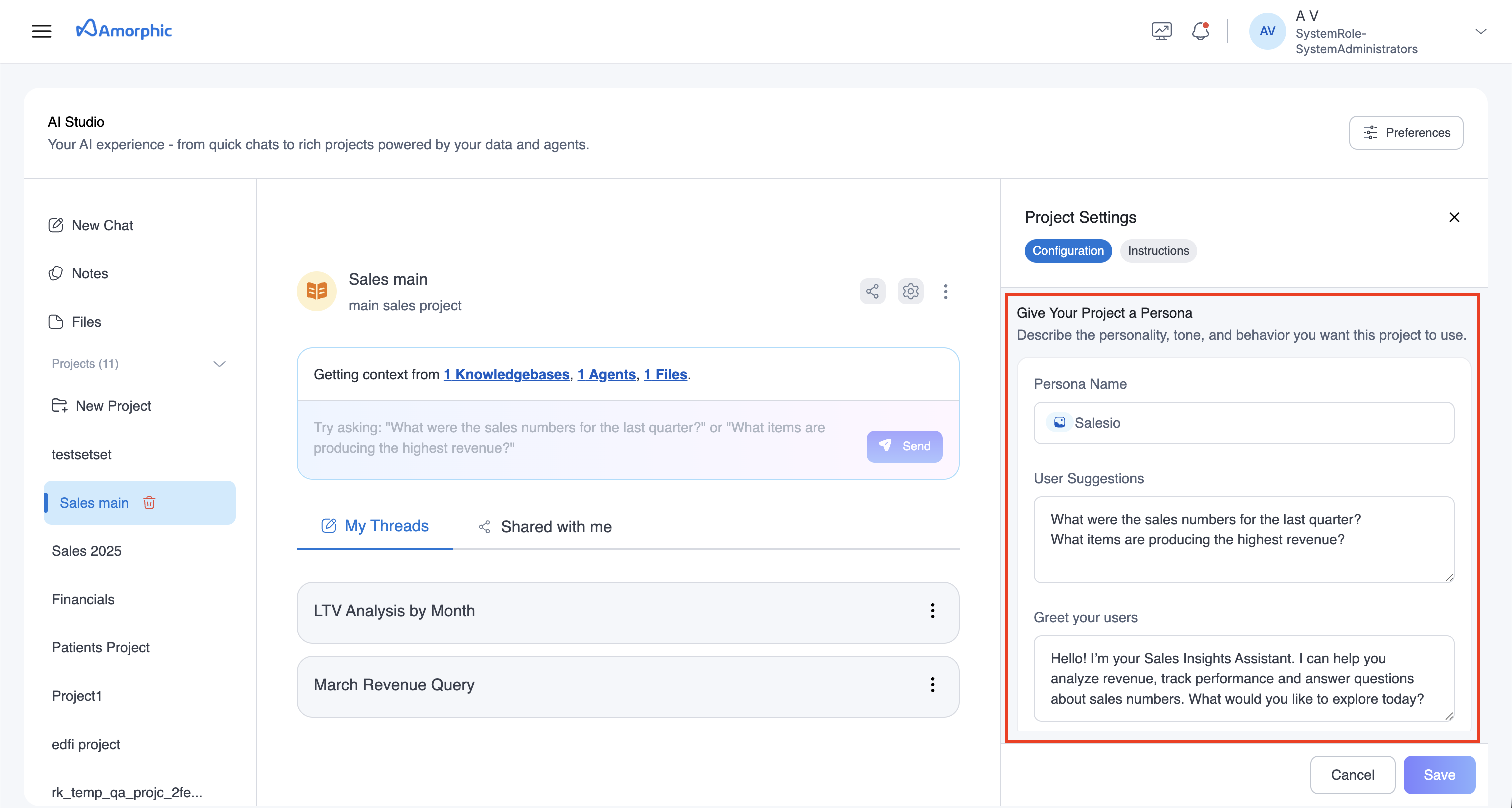
The Persona feature allows you to customize the personality and behavior of your project assistant:
-
Persona Name: Set a friendly name for your assistant
-
User Suggestions: Provide examples of user queries. This will show up in the input box for the project threads.
-
Greeting Message: Customize the greeting used by the assistant
Smart Orchestration
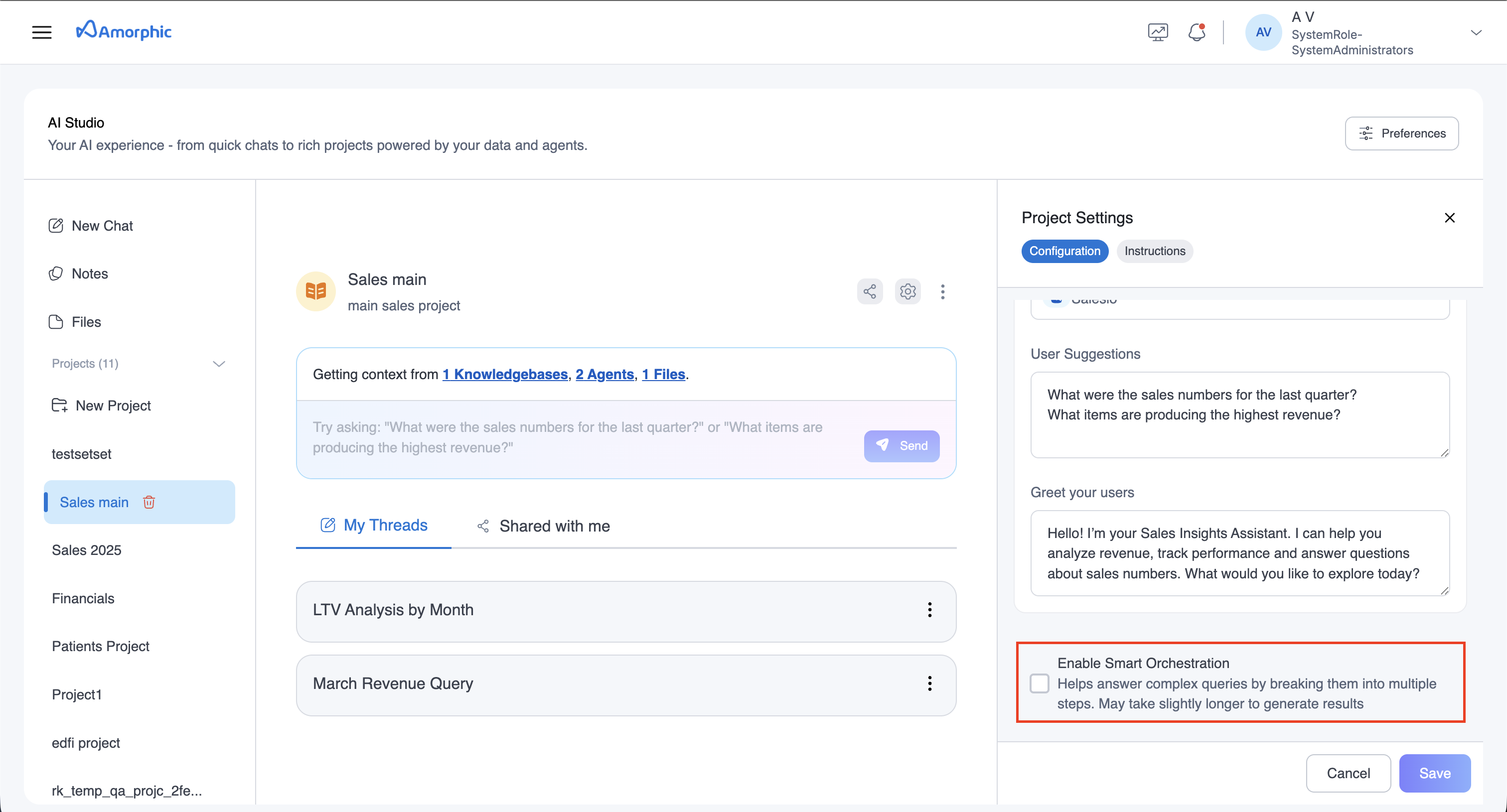 Smart Orchestration is an advanced feature that helps the project agent handle complex queries by breaking them into multiple steps.
Enabling Smart Orchestration
- Toggle the Enable Smart Orchestration checkbox in project settings
- When enabled, a planner agent analyzes complex queries and creates execution plans
- The planner agent breaks down multi-step tasks into manageable operations
How It Works
- Query Analysis: The planner agent analyzes the user's query
- Task Breakdown: Complex queries are decomposed into sequential steps
- Resource Mapping: Each step is mapped to appropriate resources (knowledge bases, agents, files)
- Execution Planning: A structured plan is created and executed step-by-step
- Result Aggregation: Results from multiple steps are combined into a cohesive response
When to Use
Smart Orchestration is beneficial for:
- Multi-step Queries: Questions requiring information from multiple sources
- Complex Analysis: Tasks that need sequential processing
- Cross-resource Queries: Questions spanning knowledge bases, datasets, and agents
Note: Smart Orchestration may take slightly longer to generate results due to the planning and multi-step execution process.
Project Context and Tools
Projects can integrate various context and tools to enhance their capabilities:
Knowledgebases: Provide semantic search and document retrieval. Also provide structured data query over datasets attached to the knowledgebases
When you ask structured data related queries, the system uses SQL AI to generate and execute the SQL queries required, even if structured knowledgebases are attached to the project. In case, structured queries need to be run in your project, SQL AI has to be enabled from the Manage AI Services section.
Agents: Provide specialized agents that the assistant can invoke to perform specialized Actions
Files: Provide ad-hoc files as context to the assistant
Project Threads
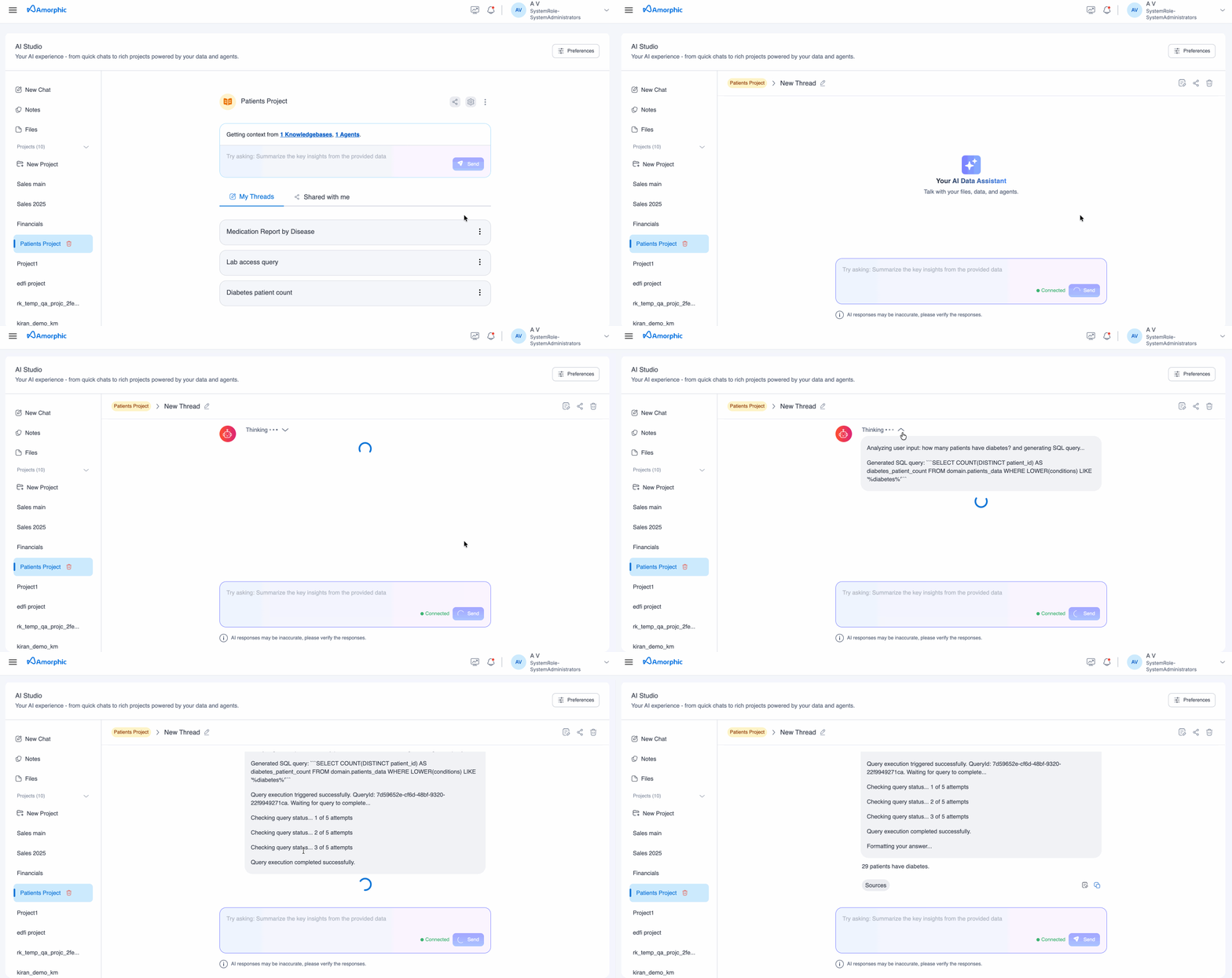
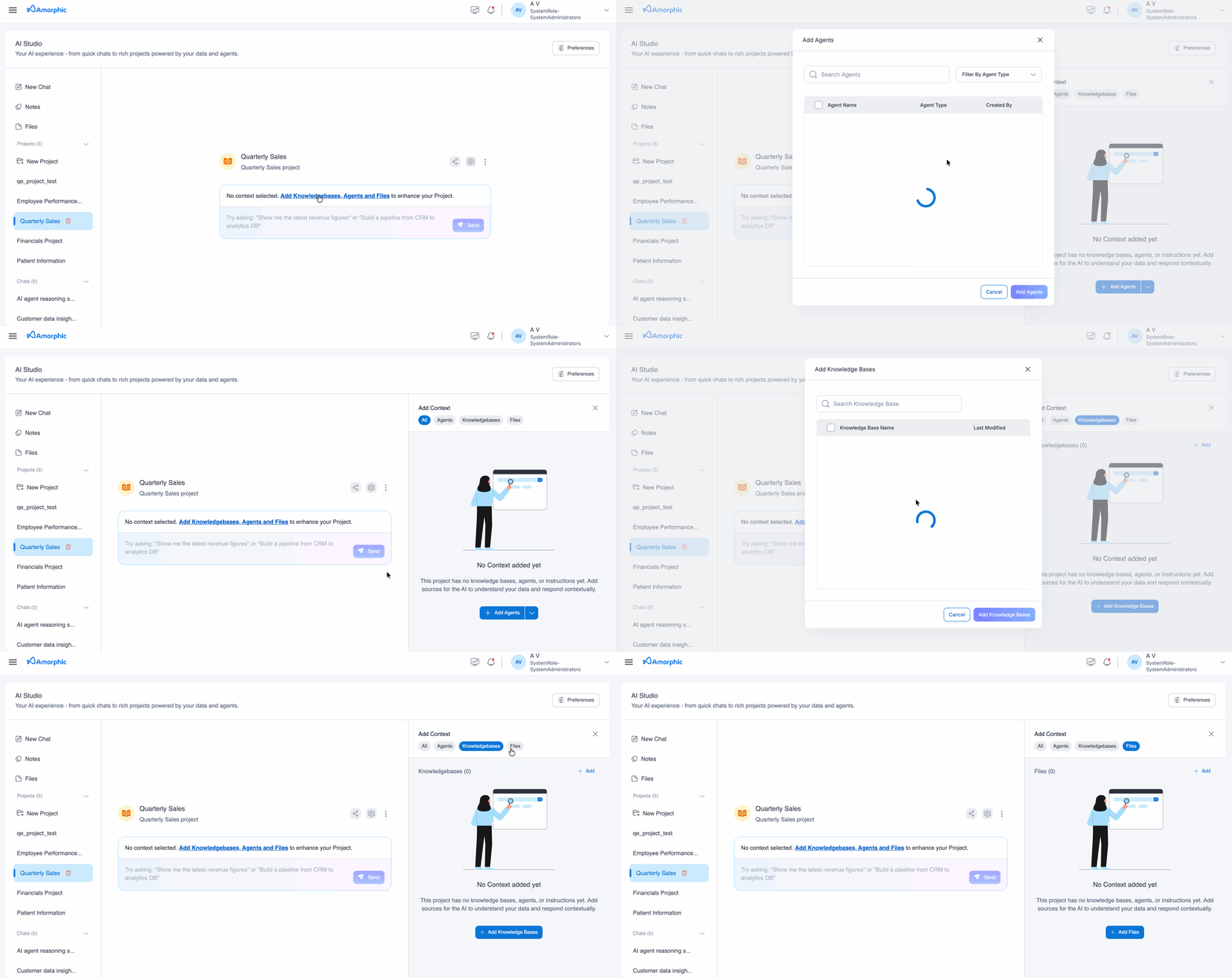
Projects support multiple conversation threads (chats) within a single project. Each conversation within a project is a separate thread Threads maintain their own conversation history and are scoped to the project and inherit project configuration. Any thread created is private to the user. Only the user who created it can access it. It can be shared to other users in the project by making it public.
Developer/Technical View vs End-User View
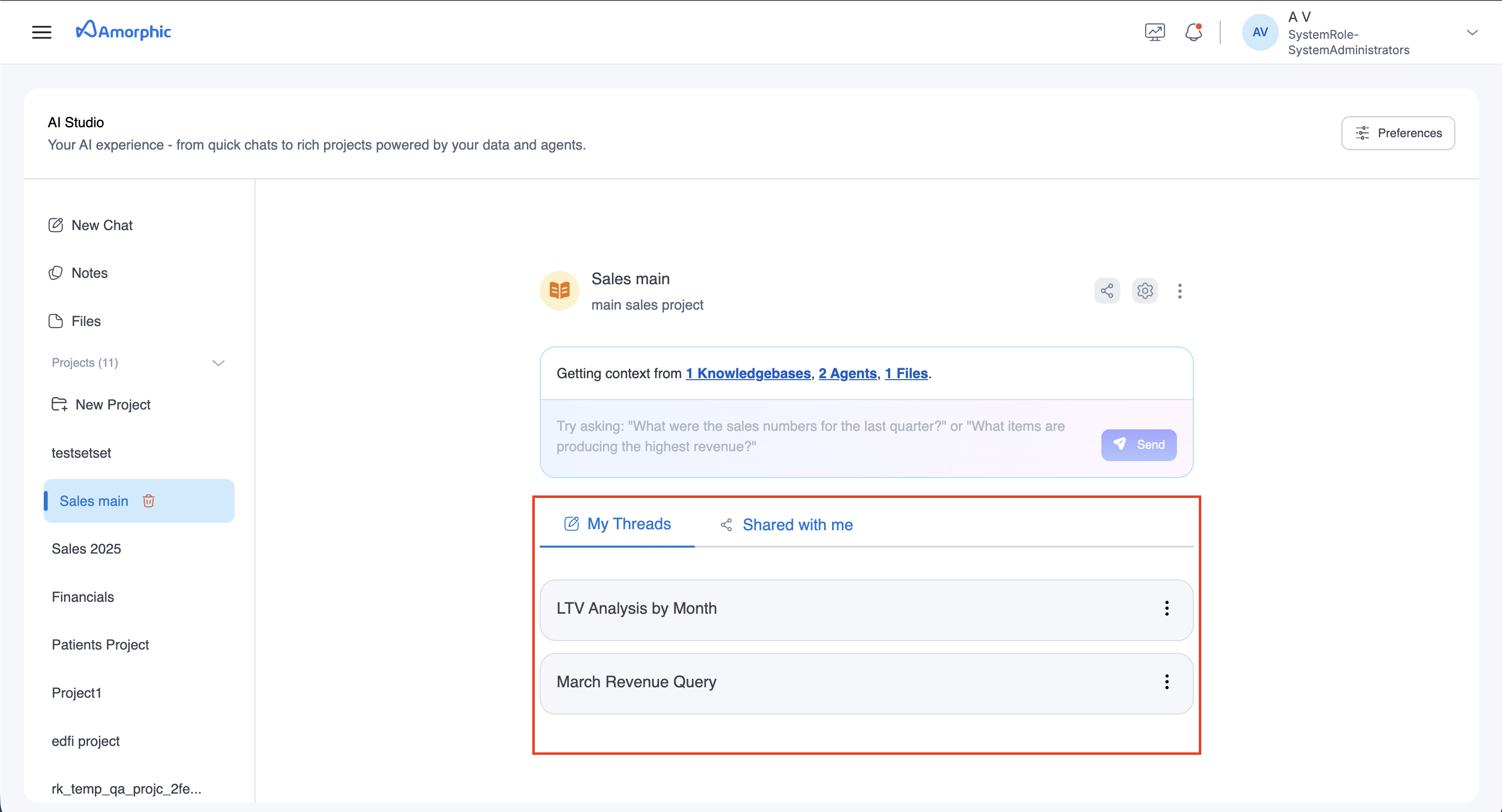
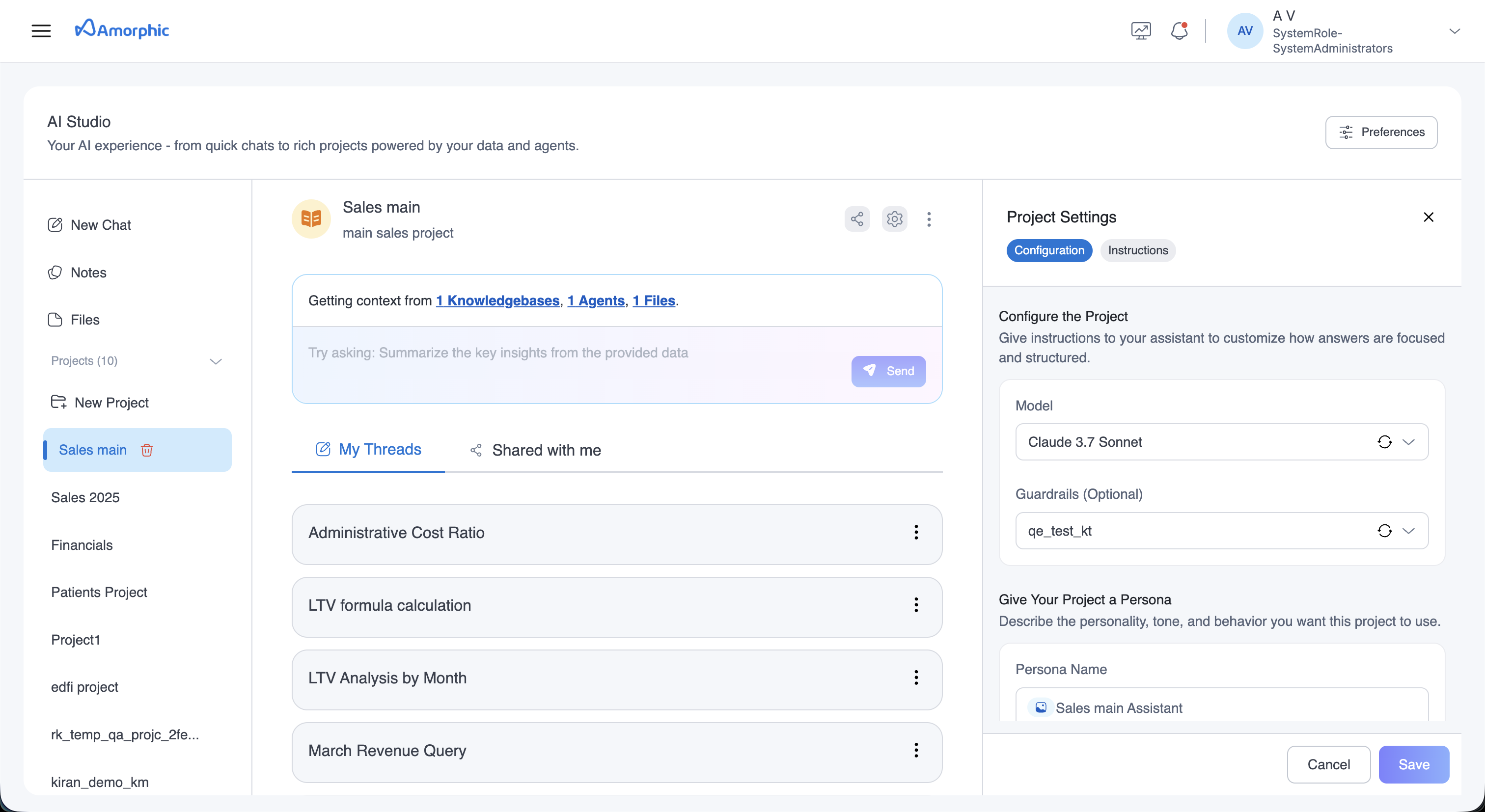
Projects are geared towards two personas with different capabilities and responsibilities: Developer and End-User. To optimize user experience and reduce unnecessary complexity, projects offer two distinct interface views—one for Developers and one for End-Users—based on each user's role and permissions. This tailored approach ensures that users only see tools and actions relevant to their responsibilities: Developers get access to advanced configuration and management options, while End-Users are presented with a streamlined interface focused on conversation and resource usage. By aligning the experience to the user's persona, we improve clarity, speed up workflows, and reduce cognitive overload.
Developer View
Developers (Owners and Editors) configure and manage the project infrastructure:
Configuration Responsibilities:
- Project Setup: Create projects and define their purpose
- Resource Integration: Add and configure knowledge bases, agents, and files
- Model Selection: Choose the AI model and configure guardrails
- Custom Instructions: Write detailed instructions that define how the assistant should behave and use resources
- Persona Configuration: Set the assistant's name, greeting, and user suggestions
- Smart Orchestration: Enable advanced orchestration features for complex workflows
- Access Management: Share projects with users and manage permissions
- Resource Access Enforcement: Configure access control settings for knowledge bases and agents
Key Capabilities:
- Full access to project settings and configuration tabs
- Ability to modify project structure and resources
- Control over how the assistant responds and behaves
- Management of project-wide settings that affect all threads
End-User View
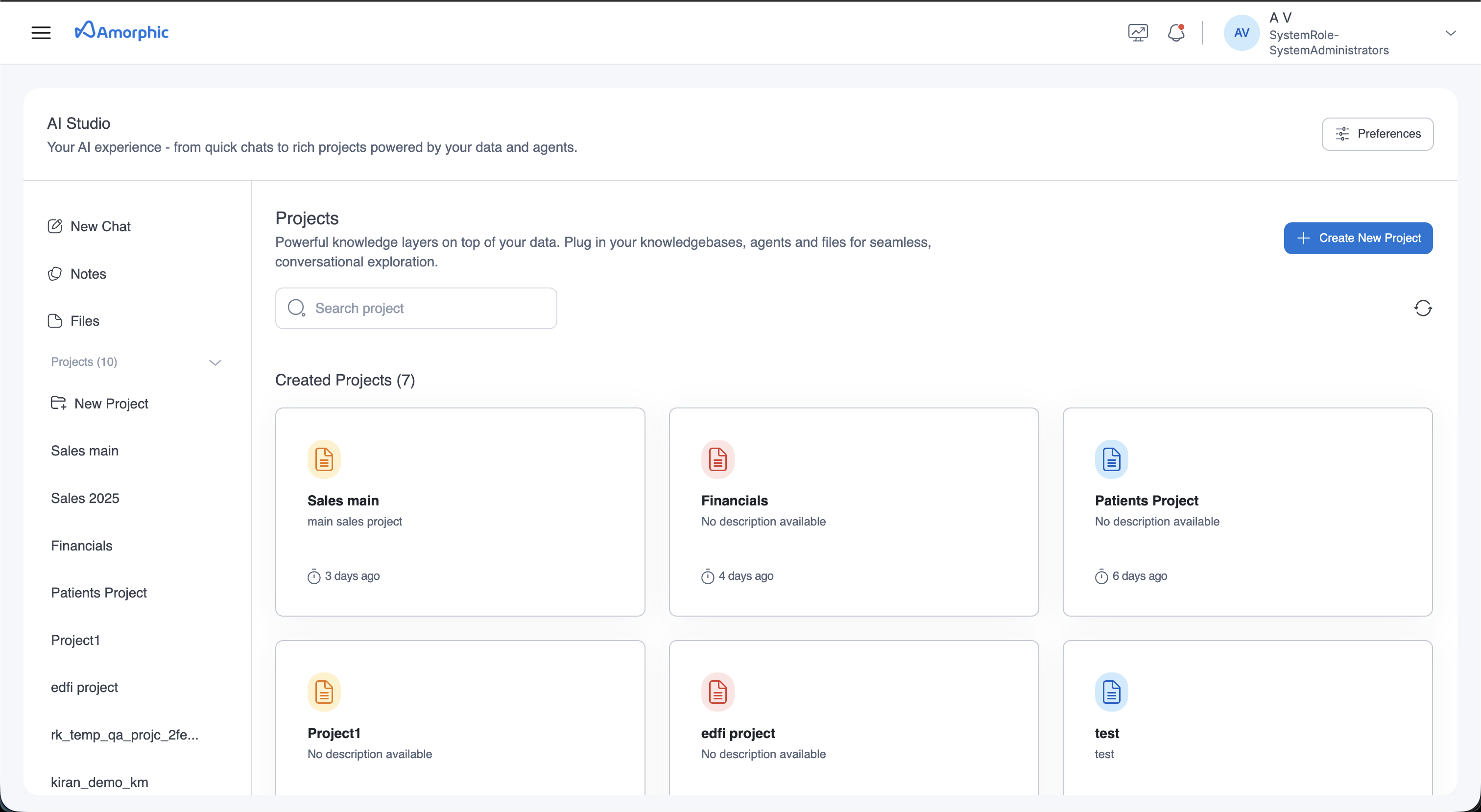
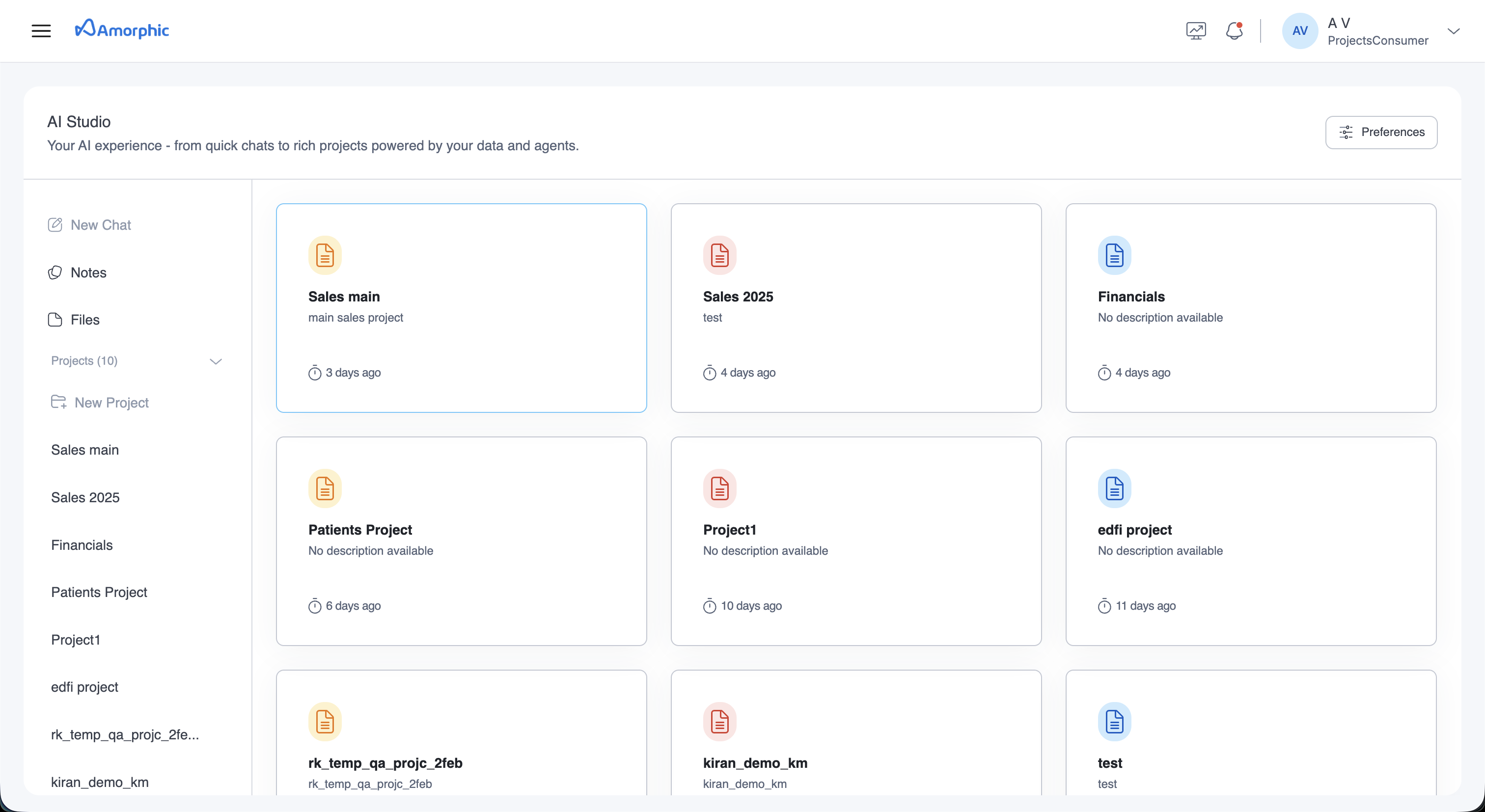
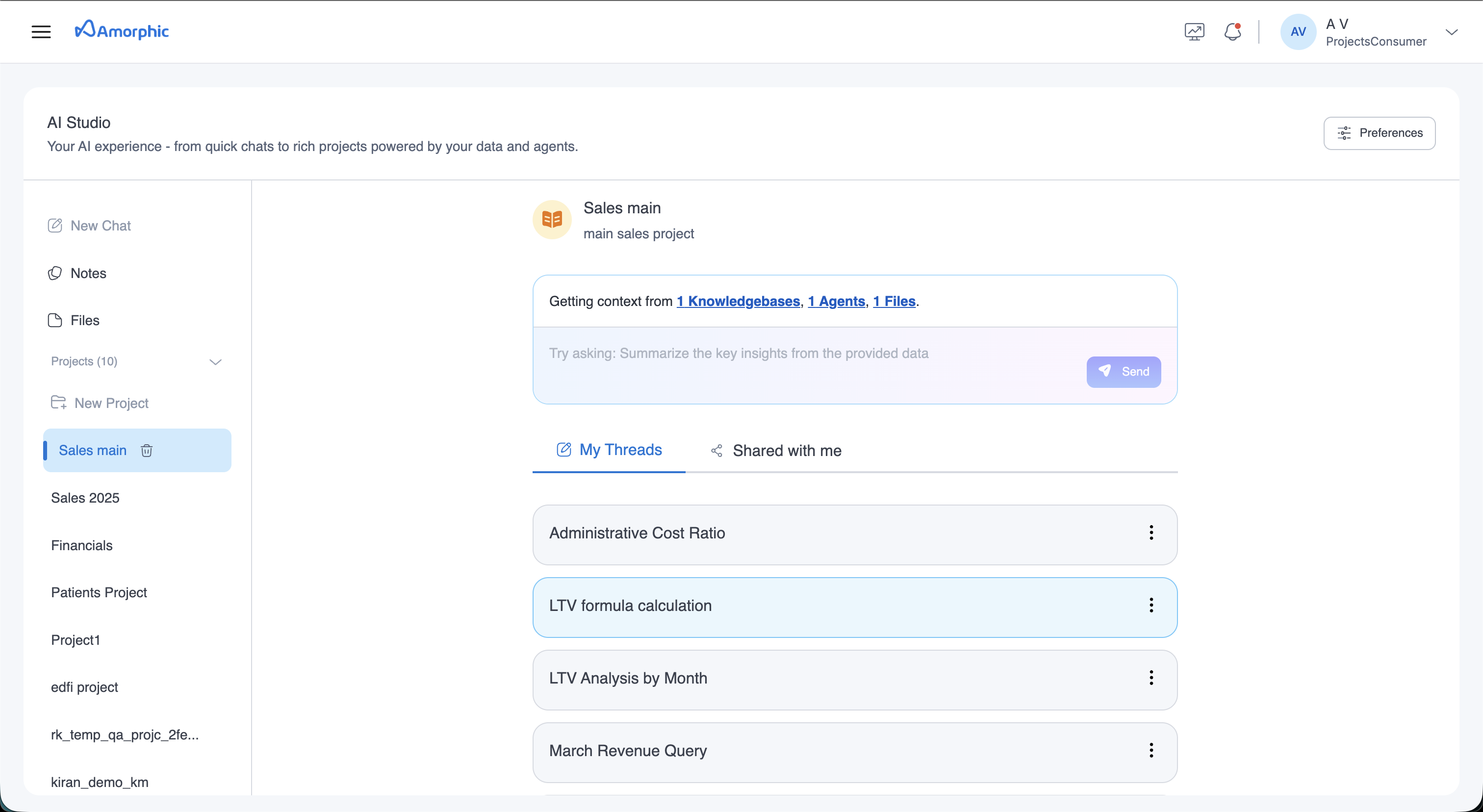
End-User (users with ai.view permissions only and read-only access to projects) interact with the configured project through threads:
Interaction Responsibilities:
- Thread Creation: Create new conversation threads within the project
- Conversations: Chat with the assistant using the project's configured resources
- Thread Management: Manage their own threads (rename, delete, share)
- Resource Usage: Leverage the knowledge bases, agents, and files configured by developers
Key Capabilities:
- Access to all project resources configured by developers
- Inherit project configuration (model, instructions, persona) automatically
- Create and manage personal conversation threads
- View shared/public threads from other users
- Cannot modify project configuration or resources
Workflow Example
-
Developer Setup: A developer creates a "Customer Support" project, adds a product documentation knowledge base, configures a refund processing agent, and writes custom instructions: "First search the knowledge base for product info, then use the refund agent if needed."
-
End-User Usage: An end-user opens the project, sees the configured resources, and creates a thread asking "How do I process a refund for order #12345?" The assistant automatically follows the developer's instructions, searches the knowledge base, and invokes the refund agent as configured.
-
Shared Experience: All end-users benefit from the same configuration, ensuring consistent behavior and access to the same resources across all threads.
Access Control
Projects implement the same access control levels supported for other Amorphic resources: owner, editor, read-only
Access Types
- Owner: Full control including deletion and configuration changes
- Editor: Can update project details and components
- Read-only: Can view and interact with the project but cannot modify. Can create threads and converse with the assistant
- When a project is shared with a user, all notes within the project are automatically shared with that user
- All public threads in the project are accessible to all users with whom the project is shared
Resource Access Enforcement
When Enforce Resource Access is enabled:
- Users can only access knowledge bases they have permission to use
- Users can only invoke agents they have access to
- Access is validated before each resource operation
Project Management
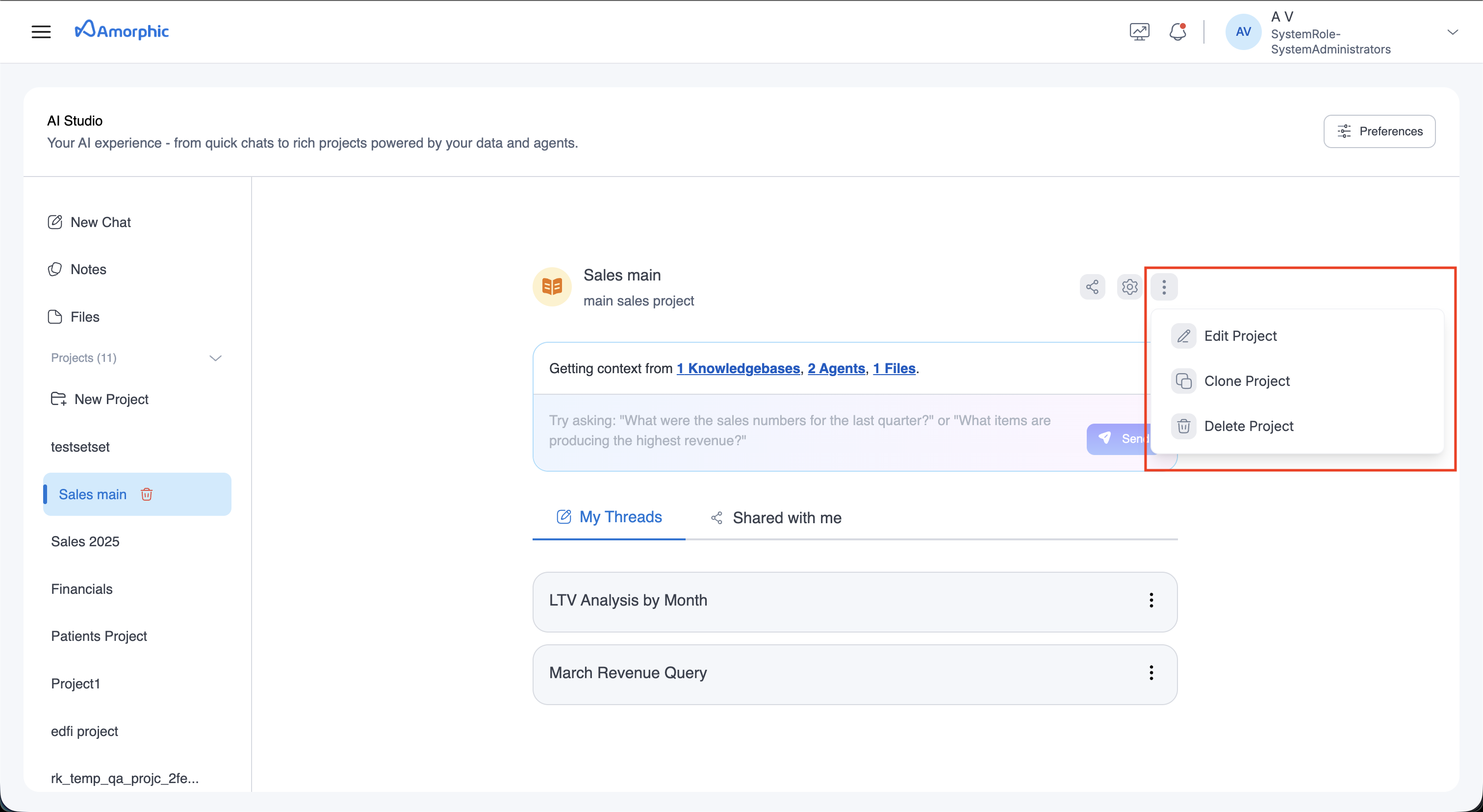
Editing a Project
Owners and Editors can edit project metadata using the edit option.
Cloning a Project
The clone feature allows you to quickly create a new project using the same configuration and context as the original.
Ad-hoc files from the original project are not duplicated in the clone.
Deleting a Project
Only project owners can delete projects. Deletion permanently removes all project data including metadata, notes, threads, files and avatar. Deletion is irreversible and processed asynchronously.
Limitations
- The more context (files, knowledge bases, resources) you include in a project, the longer it may take to generate an answer.
- Without clear and detailed descriptions for each resource, the assistant may overlook some resources or take longer to respond since it must consider all attached resources during each query.
- Newly uploaded ad-hoc files require up to one minute before their content is available for questions.
- There is currently no status indicator to show when ad-hoc files are ready to be used in conversations.
- Answers generated from ad-hoc files do not include citation references.
- Notes cannot be shared individually, they are only accessible when the entire project is shared.
- File ingestion may not work properly for files containing images or scanned text. For best results, move these files into a dataset and attach the dataset to a knowledge base.
Best Practices
Resource Configuration
- Knowledge Bases and Agents: Provide clear, descriptive names and descriptions for knowledge bases and agents to help the assistant understand their purpose and capabilities
- File Management: Use descriptive file names and include file names in queries for targeted questions. We recommend using at most 5 files per project. For larger datasets, consider moving files to a dataset instead
- Resource Selection: For queries involving multiple data types or sources, use knowledge bases rather than individual files for better results
Model and Performance
- Model Selection: We recommend using Claude Sonnet 4.6 or models that support caching for better performance
- Context Management: Maintain clean context by removing unused resources and keeping project scope focused for more relevant results
Query Optimization
- Resource Guidance: If the assistant doesn't select the correct resource automatically, try explicitly mentioning the resource name in your query to guide the assistant