
Unstructured Knowledge Bases
Unstructured Knowledge Bases allow you to transform your documents and files into intelligent, searchable repositories in the Amorphic Cloud Platform. This powerful feature uses advanced AI technology to create, manage, and query knowledge bases from datasets and domains containing PDF, DOCX, TXT, and other file types. Whether you're building a document search system, creating a Q&A interface, or organizing enterprise knowledge, unstructured knowledge bases provide the tools to make your data more accessible and intelligent.
With KnowledgeBase, you can:
- Create and manage knowledge bases with multiple data sources
- Sync and index your files present in your dataset, domain
- Query knowledge bases using natural language
- Get intelligent responses based on your data content along with citations
- Track indexing metrics and sync status
- Manage access permissions and resource associations
This guide will walk you through everything you need to know to leverage KnowledgeBase's capabilities effectively.
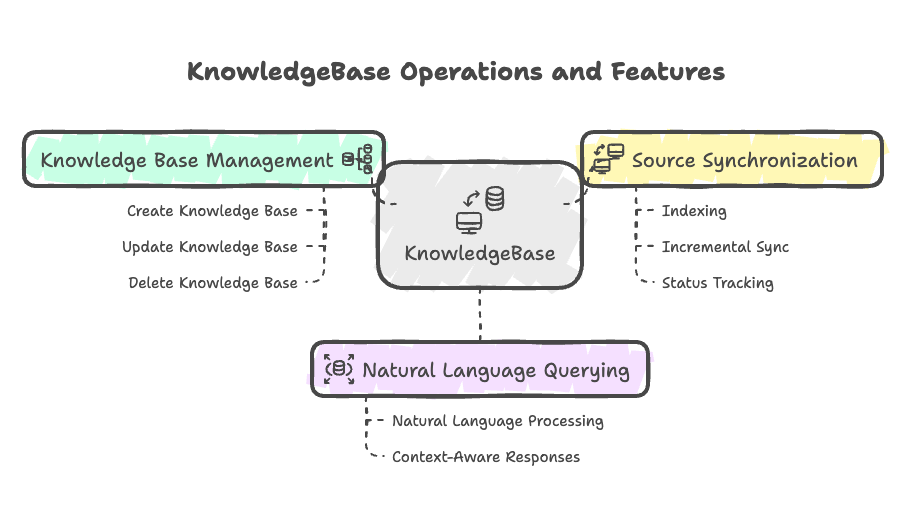
Knowledge Base Operations
Amorphic provides the following operations for Knowledge Base:
| Operation | Description |
|---|---|
| Create Unstructured Knowledge Base | Creates an unstructured knowledge base in AWS Bedrock and other necessary AWS resources. |
| View Unstructured Knowledge Base | View the details of an existing unstructured knowledge base. |
| Update Unstructured Knowledge Base | Update an existing unstructured knowledge base configuration. |
| Add Sources | Add new data sources to an existing knowledge base. |
| Sync Knowledge Base and Sources | Sync data sources in a knowledge base to update indexed content. |
| View Sync Status | View sync status and metrics for a knowledge base. |
| Query Knowledge Base | Query a knowledge base using natural language. |
| Remove Sources | Remove data sources from a knowledge base. |
| Delete Knowledge Base | Delete an existing knowledge base. |
Getting Started
Overview
Unstructured KnowledgeBase is an AI-powered data repository system that enables you to:
- Transform your unstructured datasets and files into searchable knowledge bases
- Query your data using natural language
- Get intelligent responses based on your actual data content along with citations
- Sync and index new or updated data
- Manage multiple sources within a single knowledge base
The system integrates with AWS Bedrock to provide advanced natural language processing and retrieval capabilities, making your data more accessible and useful.
All sources must be properly registered in the Amorphic platform and accessible to your user account. The system automatically handles file format detection and content extraction during the indexing process.
Key Features
Knowledge Base Management
KnowledgeBase provides comprehensive management capabilities for creating, updating, and maintaining your data repositories.
| Feature | Description |
|---|---|
| Knowledge base creation | Create new knowledge bases with custom names and descriptions |
| Source association | Attach multiple datasets, domains to a knowledge base |
| Sync management | Sync and index sources with status tracking |
| Access control | Manage permissions and user access to knowledge bases |
| Metrics tracking | Monitor indexing statistics and sync performance |
- Knowledge bases are created with unique identifiers and can contain multiple data sources
- Sync operations are performed sequentially to avoid conflicts
- You can choose to sync either the entire knowledge base or individual sources one at a time
- All operations are logged for audit and compliance purposes
- Access permissions are inherited from the underlying data sources
Natural Language Querying
KnowledgeBase leverages advanced LLMs to enable natural language interactions with your data:
| Feature | Description |
|---|---|
| Natural language processing | Query your data using plain English |
| Context-aware responses | Get answers based on your actual data content |
| Chunk-based retrieval | Intelligent document chunking for better responses |
| Response formatting | Structured responses with source attribution |
Source Synchronization
The system provides robust synchronization capabilities for keeping your knowledge bases up-to-date:
| Feature | Description |
|---|---|
| Indexing | Detect and index new or modified files |
| Incremental sync | Only process changed content for efficiency |
| Status tracking | Monitor sync progress and completion status |
| Error handling | Retry logic with exponential backoff |
| Email notifications | Notify owners and editors of sync completion |
Create Unstructured Knowledge Base
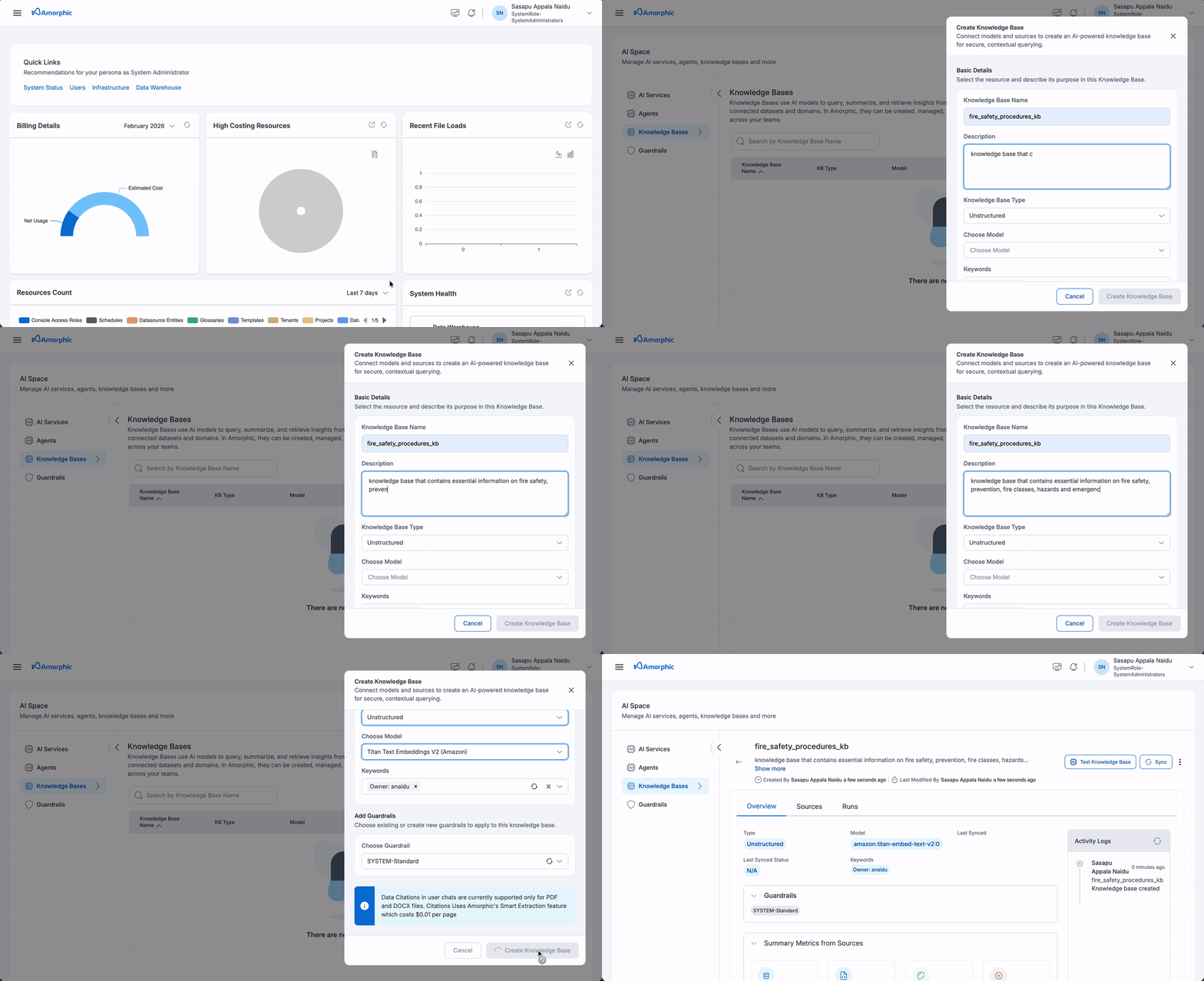
To create an Unstructured Knowledge Base:
- Navigate to the
AI Servicessection in the left sidebar - Select
Knowledge Basesfrom the available options - Click on
+ Create Knowledge Base. - Fill in the details shown in the table:
| Attribute | Description |
|---|---|
| Knowledge Base Name | Give your knowledge base a unique name. |
| Description | Describe the knowledge base's purpose and relevant details. |
| Knowledge Base Type | Choose the knowledge base type Whether it is unstructured or structured |
| Models | Select the Embedding Models enabled in your account. These models convert text into numerical vectors for semantic search. |
| Keywords | Add relevant keywords to the knowledge base. |
| Guardrail | Select a relevant guardrail for the knowledge base. If no guardrail is specified, the system will apply a default guardrail automatically. |
| Access Control | Configure access permissions for the knowledge base. By default, the creator has full access. |
When you query a knowledge base through AI Studio Chats or Projects, the response includes inline citations that link back to the source documents. For full details, see Understanding Citations.
- Provide a clear and detailed description that accurately reflects the content and purpose of your knowledge base sources
- A well-written description helps users understand the knowledge base scope and enables agents to effectively access and utilize the information
- Include key topics, data types, and intended use cases in the description for better discoverability
View Unstructured Knowledge Base
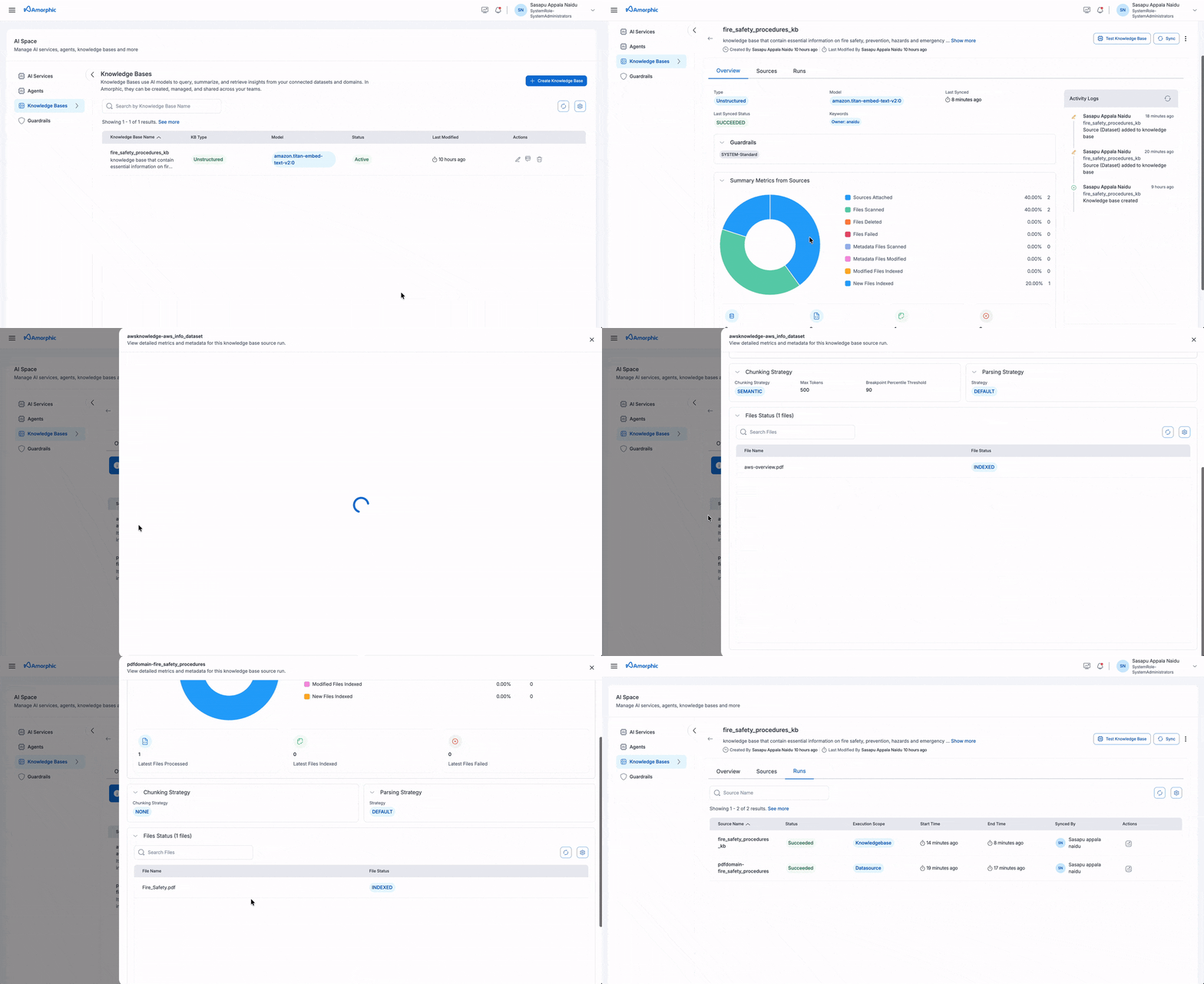 The Unstructured Knowledge Base details page provides comprehensive information organized into three main tabs:
| Tab | Component | Description |
|---|---|---|
| Overview | Basic Information | Knowledge Base Name: Unique identifier Description: Purpose and content details Created: Creator and creation date Updated: Last modifier and modification date |
| Model Information | Model: Embedding model (e.g., amazon.titan-embed-text-v2:0) Last Synced: Most recent sync timestamp Last Synced Status: Current sync state (SUCCEEDED/FAILED/IN_PROGRESS) | |
| Keywords | Associated tags and owner information | |
| Donut Chart Metrics | Sources Attached: Connected datasets/domains Files Scanned: Total processed files Files Deleted: Removed files Files Failed: Failed indexing attempts Metadata Files Scanned: Processed metadata files Metadata Files Modified: Updated metadata files Modified Files Indexed: Re-indexed existing files New Files Indexed: Successfully indexed new files | |
| Summary Cards | Sources Added: Total attached sources Latest Files Processed: Recent processing count Latest Files Indexed: Recent indexing success count Latest Files Failed: Recent indexing failure count | |
| Sources | Source Management | Information about connected data sources and their status |
| Runs | Sync Operations | Details about synchronization operations and their outcomes |
| Activity Logs | Timeline Events | Creation events Source addition records Sync operation history Knowledge base modifications Each log entry includes: User who performed the action Action description and timestamp |
The Knowledge Base details page provides comprehensive information about your knowledge base, including its configuration, metrics, and activity history. The page is organized into three main tabs: Overview, Sources, and Runs.
- The Overview tab provides the most comprehensive view of your knowledge base status and performance
- Use the Test Knowledge Base button to verify your knowledge base is working correctly
- Monitor the Activity Logs to track all changes and operations performed on your knowledge base
- The metrics help you understand the scope and health of your indexed content
Update Unstructured Knowledge Base
To update an Unstructured Knowledge Base (for example, its description or guardrail):
- Navigate to the Knowledge Base details page
- Click on the
Editaction button - Update the description and/or guardrail as needed
- Click
Saveto apply the changes
Only the description field and guardrail can be modified after a knowledge base is created. The name and models configurations cannot be changed.
Add Sources
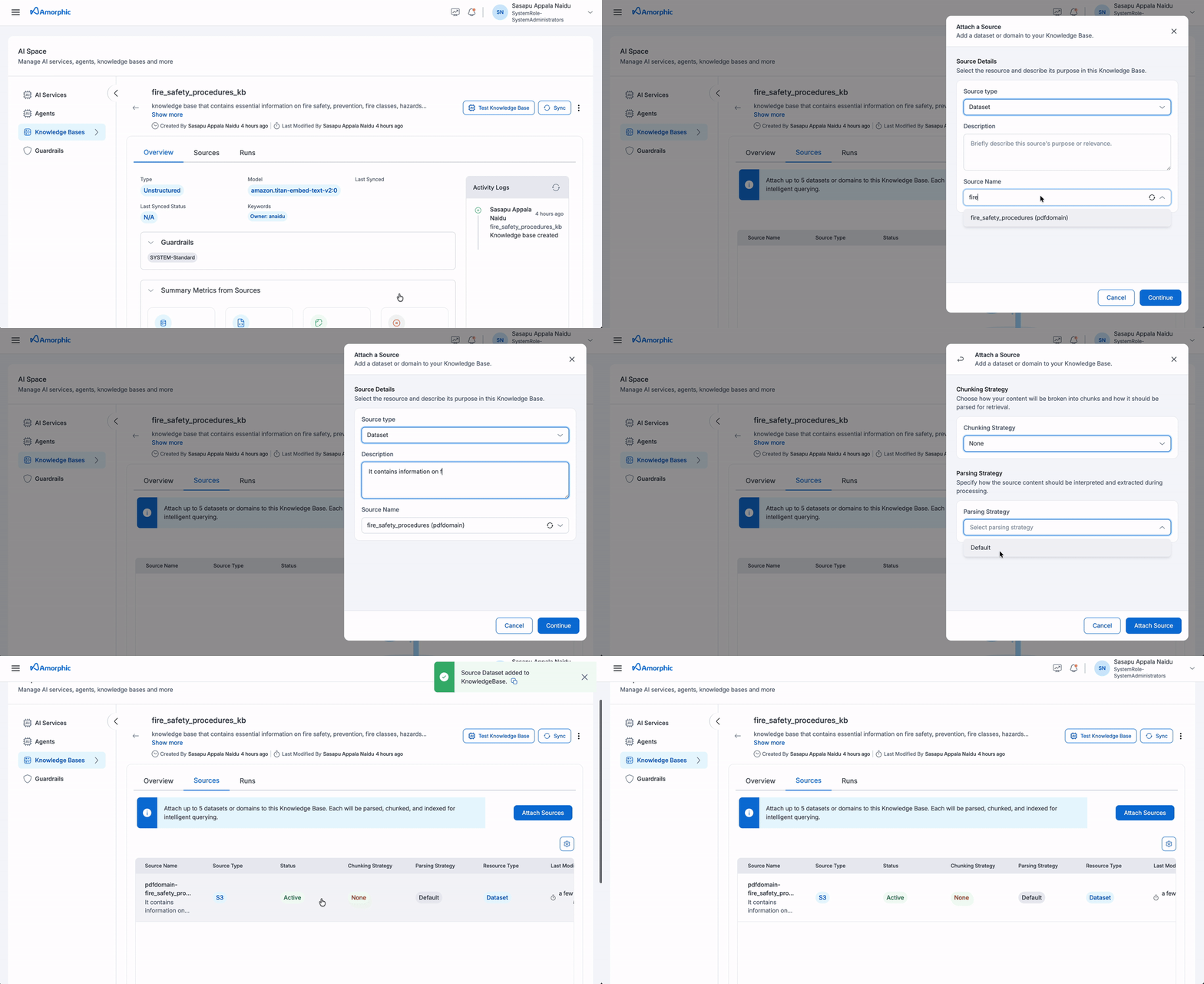 To add sources to your Knowledge Base:
- Navigate to the Knowledge Base details page
- Click the
Add Sourcebutton - Select your source type (Dataset or Domain)
- Configure the required fields
- Click
Saveto attach the source
The following fields need to be configured when adding a source:
| Field | Description |
|---|---|
| Source Type | Select between Dataset or Domain as the source type |
| Name | Select from the list of available datasets or domains based on the chosen source type |
| Description | Add details about the source content and purpose |
| Chunking Strategy | Select a chunking strategy for how your documents are split into searchable chunks. See the Chunking Strategies table below for details. |
| Parsing Strategy | Select how content is extracted from your files. See Parsing Strategies below. |
Chunking Strategies
The chunking strategy determines how your documents are divided into smaller, searchable pieces for indexing and retrieval. Choose a strategy based on the structure and type of your documents:
| Chunking Method | When to Use |
|---|---|
| No Chunking | Use when data is already optimally chunked outside of Amazon Bedrock and you plan to use it as-is with Amazon Bedrock Knowledge Bases. |
| Fixed Size Chunking | Ideal for documents with loose semantic connections between paragraphs and texts, such as FAQs, data reports, statistics, news, newsletters, or news articles. Also suited to files containing structured data like CSVs. |
| Semantic Chunking | Best suited for documents with strong semantic relationships between paragraphs and texts, such as reviews, customer conversations, sales and marketing materials. |
| Hierarchical Chunking | Recommended for documents with clear hierarchies (headers, sections, subsections, paragraphs, etc.), such as technical manuals, research papers, and legal contracts. |
When using No Chunking, the entire document content is processed as a single chunk. Ingestion will fail if the document's total content exceeds the input token limit of the selected embedding model (e.g., 8,192 tokens for Amazon Titan Text Embeddings). This strategy should only be selected when documents are guaranteed to fall within these model-specific constraints.
Parsing Strategies
Parsing is how the system extracts content from your raw files (e.g., text from PDFs or Word documents) before chunking and indexing.
In Amorphic, only the Default parsing strategy is supported. It uses the Amazon Bedrock default parser to extract text from supported file types.
Important limitations:
- Currently in version 3.3, only the Default Parsing Strategy is supported for processing source content
- Maximum 5 sources can be attached per knowledge base
- If a domain is selected as a source, individual datasets from that domain cannot be added separately
- This limitation helps optimize query performance across the knowledge base
- For structured files, Fixed size is the ideal chunking strategy to select. Other chunking strategies may lead to sync failures with larger structured files.
- In the event the knowledgebase sync fails for a structured file, the file content may still be consumed through the projects feature. This is due to the retrieval being backed up by SQL AI.
Sync Knowledge Base and Sources
Individual Source Sync
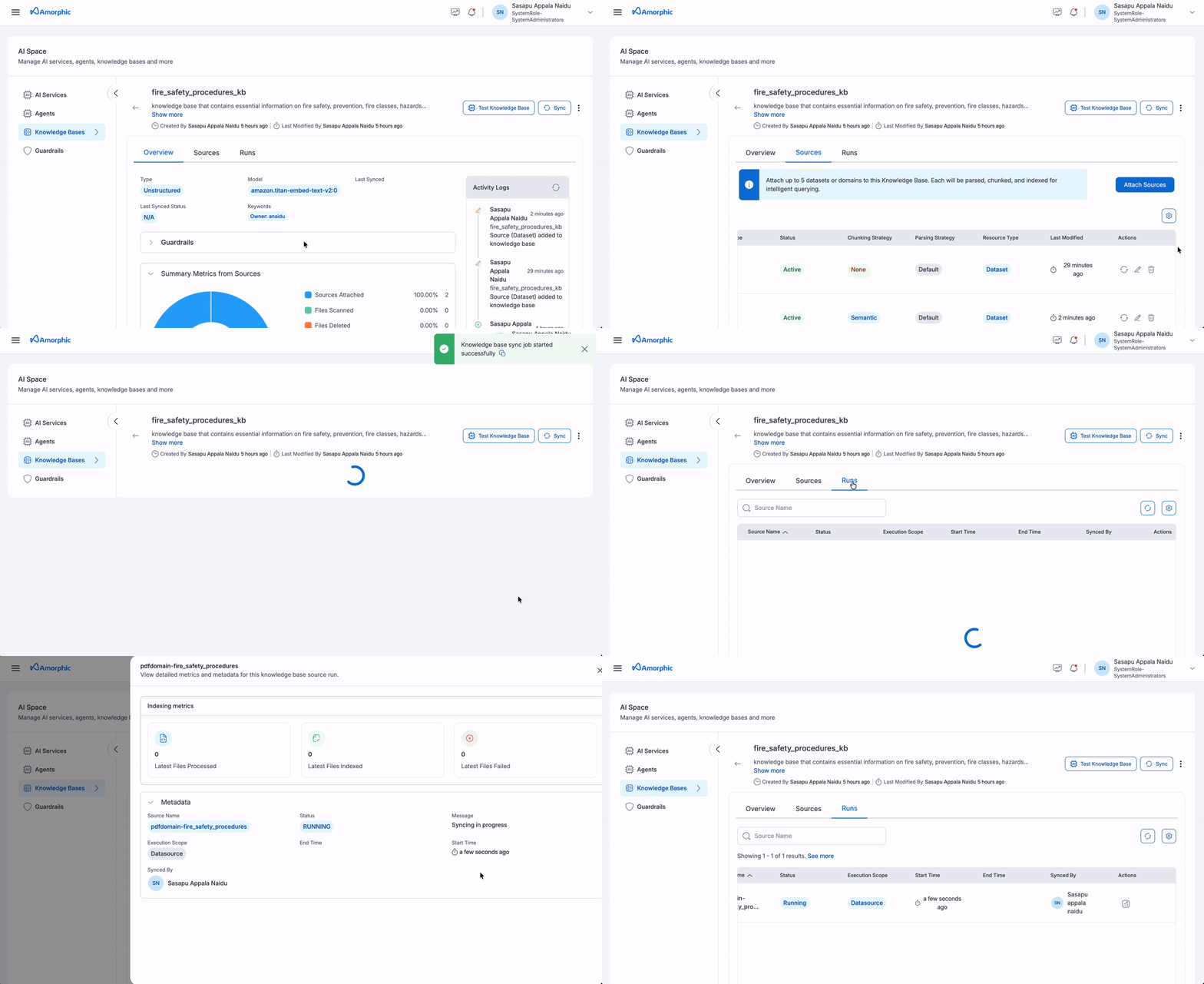
| Step | Action | Details |
|---|---|---|
| 1 | Navigate | Go to the Sources tab |
| 2 | Initiate | Click Sync on your target source |
| 3 | Monitor | Track progress in the Runs tab |
| 4 | Review Metrics | View detailed source metrics: • Files scanned, deleted, and failed • Metadata files processed and indexed • New files indexed • Latest processing status |
| 5 | Verify | Check file status (INDEXED or FAILED) |
Complete Knowledge Base Sync
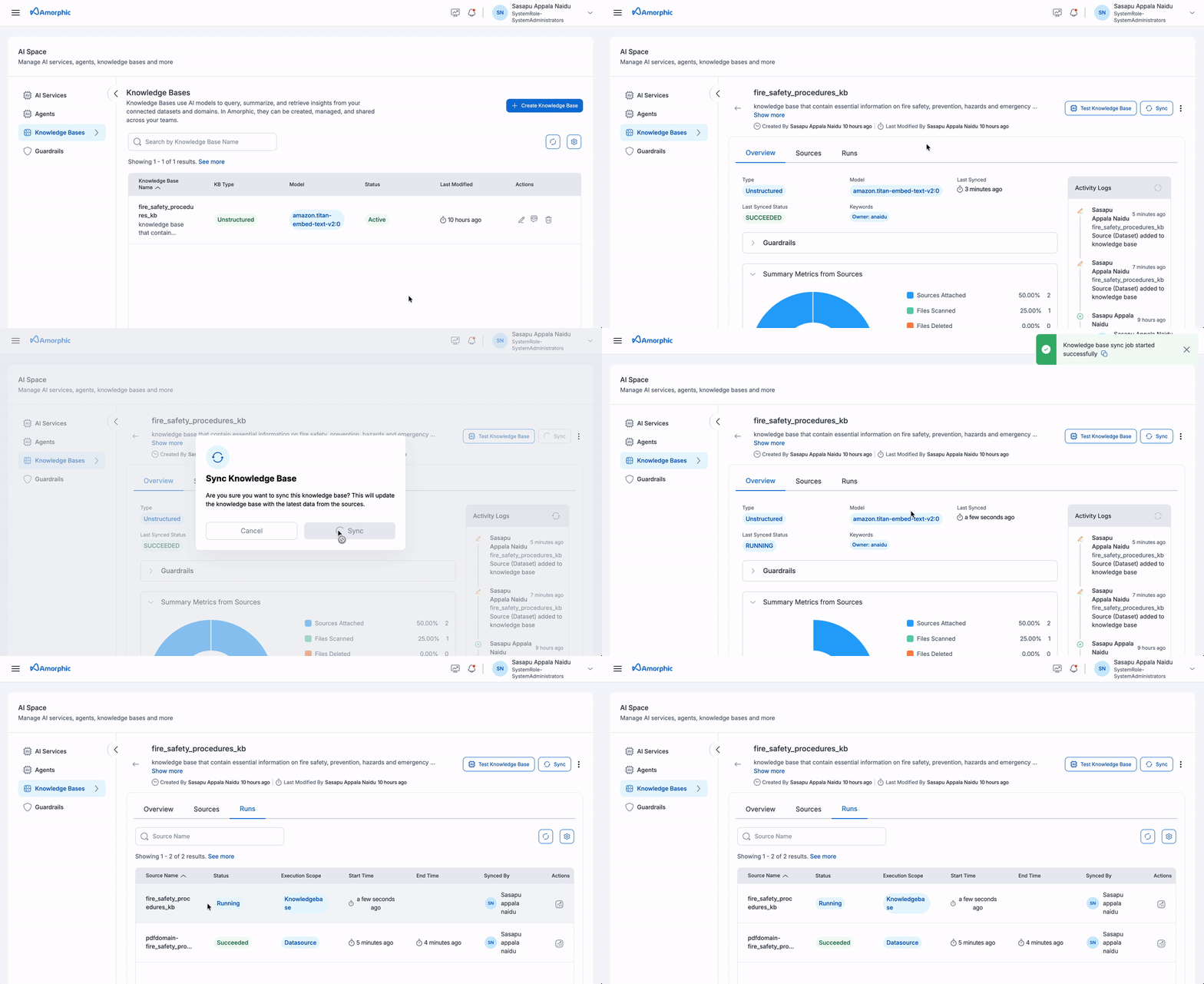
| Step | Action | Details |
|---|---|---|
| 1 | Initiate | Click Sync at knowledge base level |
| 2 | Monitor | Track progress in Runs tab |
| 3 | Review | Check metrics for all sources |
Important considerations:
- Only one sync operation can run at a time per knowledge base
- Sync operations run sequentially to prevent conflicts
- Sync duration can take up to a maximum of 6 hours
- Average sync duration depends on file count and size; large files require more processing time. For example, a sync involving 10 files averaging 10MB will take 15-20 minutes
- If a sync operation times out, please try syncing again
- Email notifications confirm completion
- Failed syncs automatically retry with exponential backoff
View Sync Status
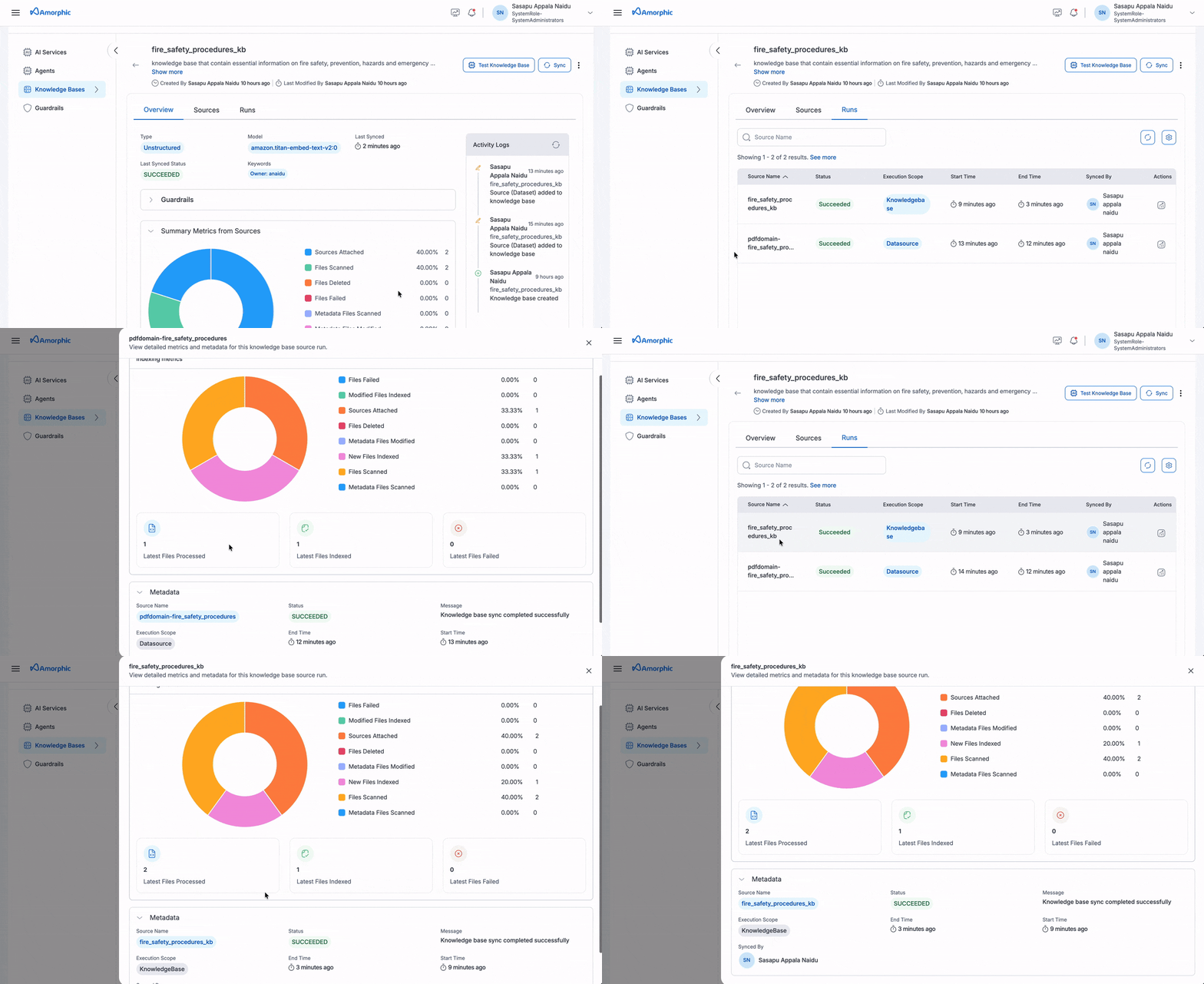
Monitoring Dashboard
Navigate to the Runs tab to view comprehensive sync details:
| Information | Description |
|---|---|
| Source Name | Individual source or knowledge base |
| Execution Scope | Datasource/KnowledgeBase |
| Status | Current sync status |
| Start Time | Operation start timestamp |
| End Time | Operation completion timestamp |
| Synced By | User who initiated the sync |
Detailed Metrics
Each sync operation provides:
| Metric Type | Details Tracked |
|---|---|
| File Processing | • Files scanned • Files deleted • Failed files |
| Metadata Status | • Files scanned • Files modified • Files indexed |
| Index Updates | • New files indexed • Processing status • Latest results |
Query Knowledge Base
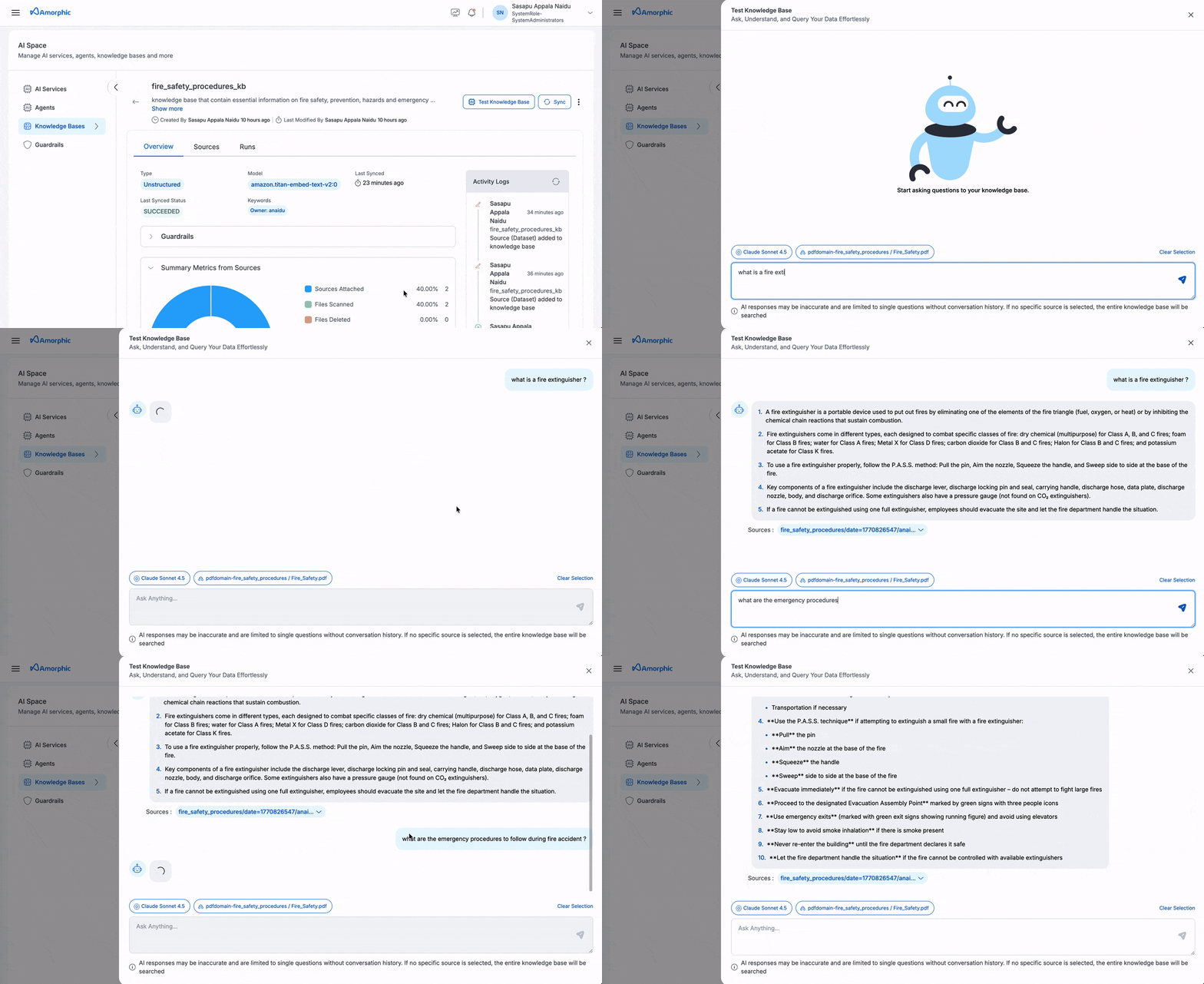 The Knowledge Base provides an intuitive interface for querying your indexed content using natural language.
| Step | Field | Description |
|---|---|---|
| 1 | Access Query Interface | Select your target knowledge base from the list Click the Test Knowledge Base button in the top rightA chat interface window will appear |
| 2 | Configure Query Scope | Choose your preferred scope: • Query the entire knowledge base • Select a specific data source • Target an individual file • Combine source and file selection |
| 3 | Select AI Model | Choose an appropriate AI model for your query Recommended models for optimal results: • Claude-4.5-Sonnet • Other advanced models |
| 4 | Submit and Review | Enter your natural language query Click Submit to processReview the AI-generated response Examine source references provided as chunks below each response |
Important considerations:
- Queries only work on successfully indexed content
- Use specific, well-formed questions for better accuracy
- All responses include source references for verification
- Access control ensures users only receive information from files they have permission to view
For optimal results:
- Use advanced models like Claude-4-Sonnet or other advanced models
- Craft clear and specific prompts
- Review source references to validate responses
- Start with broader queries, then refine as needed
Understanding Citations
When you query an unstructured knowledge base through AI Studio Chats or Projects, the system provides precise inline citations in the response. Citations allow you to trace each piece of information back to its exact location in the source PDF or DOCX files, ensuring transparency and verifiability.
Citations are only available when querying through AI Studio Chats or Projects. They are not available when using the "Test Knowledge Base" feature.
What are Citations?
Citations are reference markers embedded in responses that link specific statements back to their source documents. When a response is generated, it includes numbered references (e.g., [1], [2], [3]) that correspond to specific elements in your indexed documents.
Key Features:
- Inline References: Citations appear as clickable numbered tags (e.g.,
[1],[2]) directly within the response text - Element-Level Precision: Each citation points to a specific document element (paragraph, table, image, etc.)
- Page Image: An image of the source page is displayed in the right-side Citation panel
- Visual Context: The cited content is highlighted with bounding boxes on the page for precise identification
- Page-Level Navigation: Citation include page number, File Name, Dataset Name, Domain Name for easy document navigation
Citations in AI Studio Chats
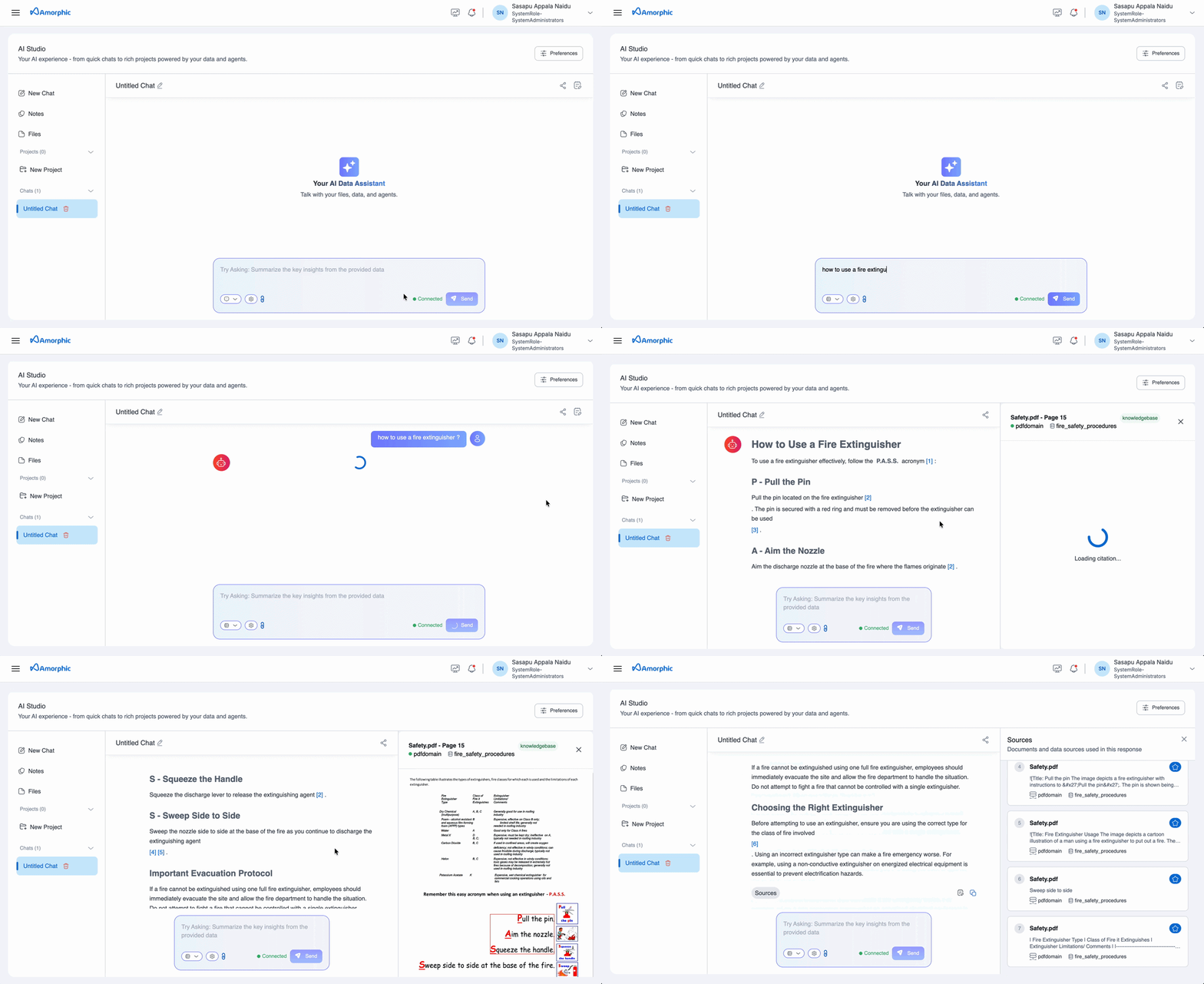
When you query a knowledge base through AI Studio Chats, the response includes inline citation markers (e.g., [1], [2]). Clicking a citation opens a Citation Panel on the right side, displaying the source page image and metadata for verification.
Citations in AI Studio Projects
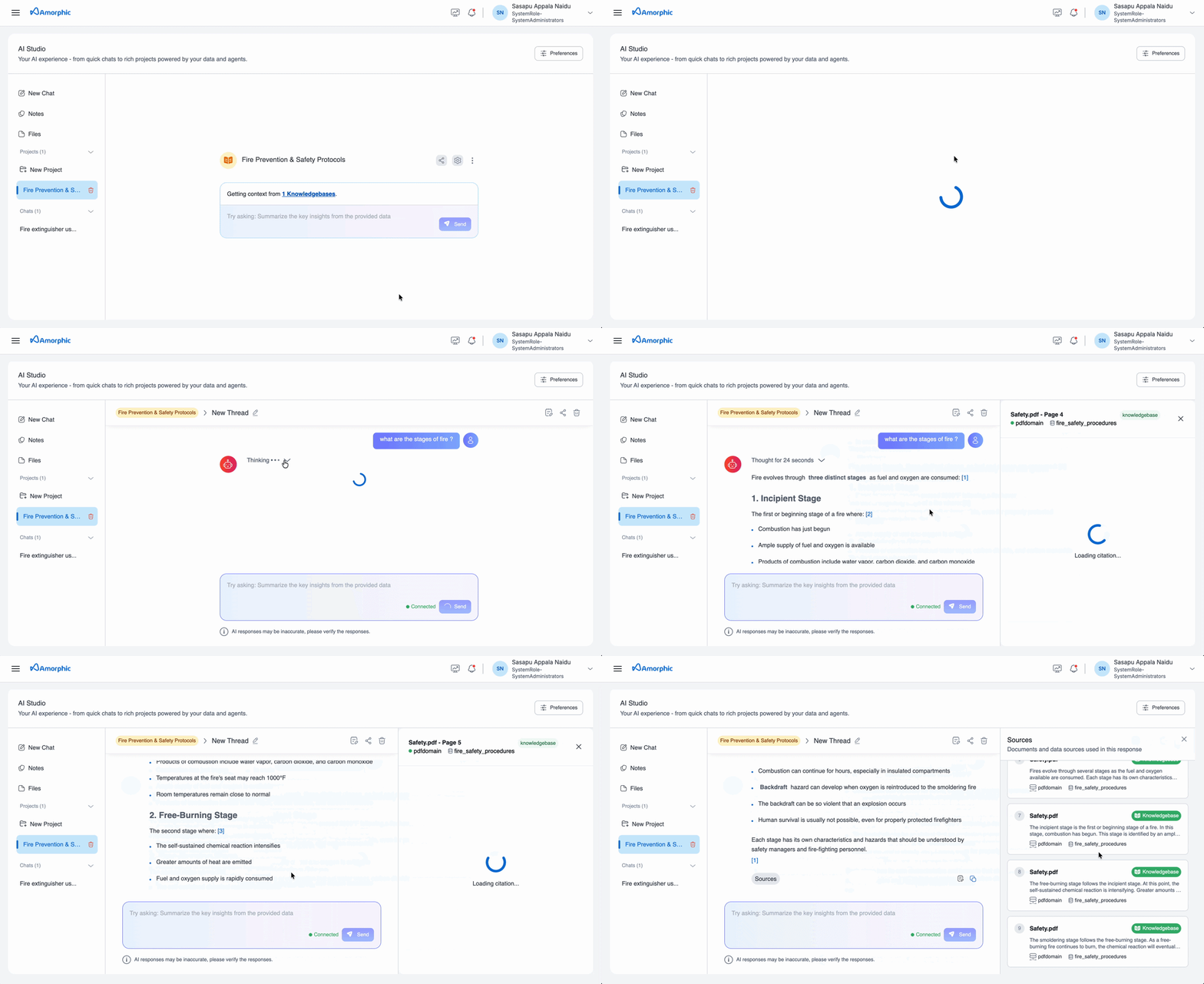
Projects provide the same citation experience as Chats. When you query a knowledge base from within a Project, the response includes numbered citation markers, and the Citation Panel displays the source document page with metadata for verification.
How Citations Work
Citations are automatically generated when you query a knowledge base through AI Studio Chats or Projects:
- During Sync: Smart Extraction processes PDF and DOCX files, breaking them into searchable chunks while preserving information about paragraphs, tables, images, and their exact locations in the document
- During Query: When you ask a question, the system finds the most relevant content from your documents
- In Response: The system generates an answer and adds citation numbers (e.g.,
[1],[2]) wherever it references specific information from your documents - In Citation Panel: You can see the exact source page and verify the information yourself
File Type Support
Citations require Smart Extraction, which is only available for specific file types in specific regions:
| Requirement | Details |
|---|---|
| Supported File Types | PDF (.pdf) and Word (.docx) only |
| Regional Availability | Citations are not supported in US East (Ohio) and Canada (Central) due to Smart Extraction unavailability |
| Cost | Smart Extraction is billed at $0.01 per page during sync operations |
Access Control and Permissions
Citations respect your knowledge base's access control settings:
- Dataset-Level Access: Users only see citations from files in datasets they can access
- Domain-Level Access (DLA): Users with DLA see citations from all datasets in the domain
- File-Level Access (TBAC): For read-only users with tag-based access control, citations are filtered based on file-level tags
- Deleted Files: Citations from deleted source files are not accessible
Remove Sources
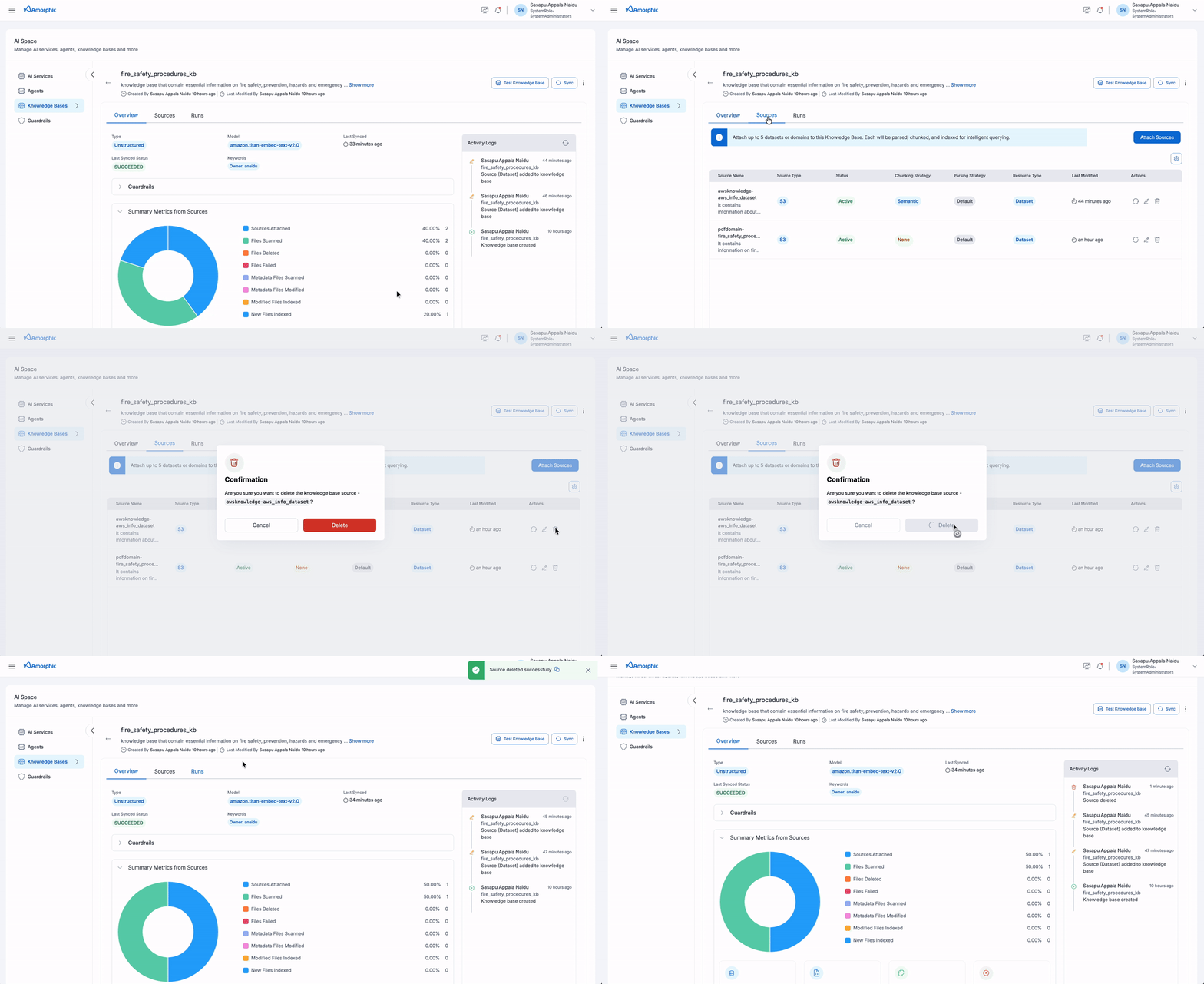 To remove sources from a knowledge base:
- Navigate to Knowledge Base: Go to the knowledge base details page
- Select Remove Sources: Choose the option to remove data sources
- Confirm Removal: The data sources will be detached from the knowledge base
- Clean Up: Associated metadata will be cleaned up automatically
- Removing sources will make their content unavailable for querying
- The operation cannot be undone
- Associated metadata will be cleaned up automatically
Delete Knowledge Base
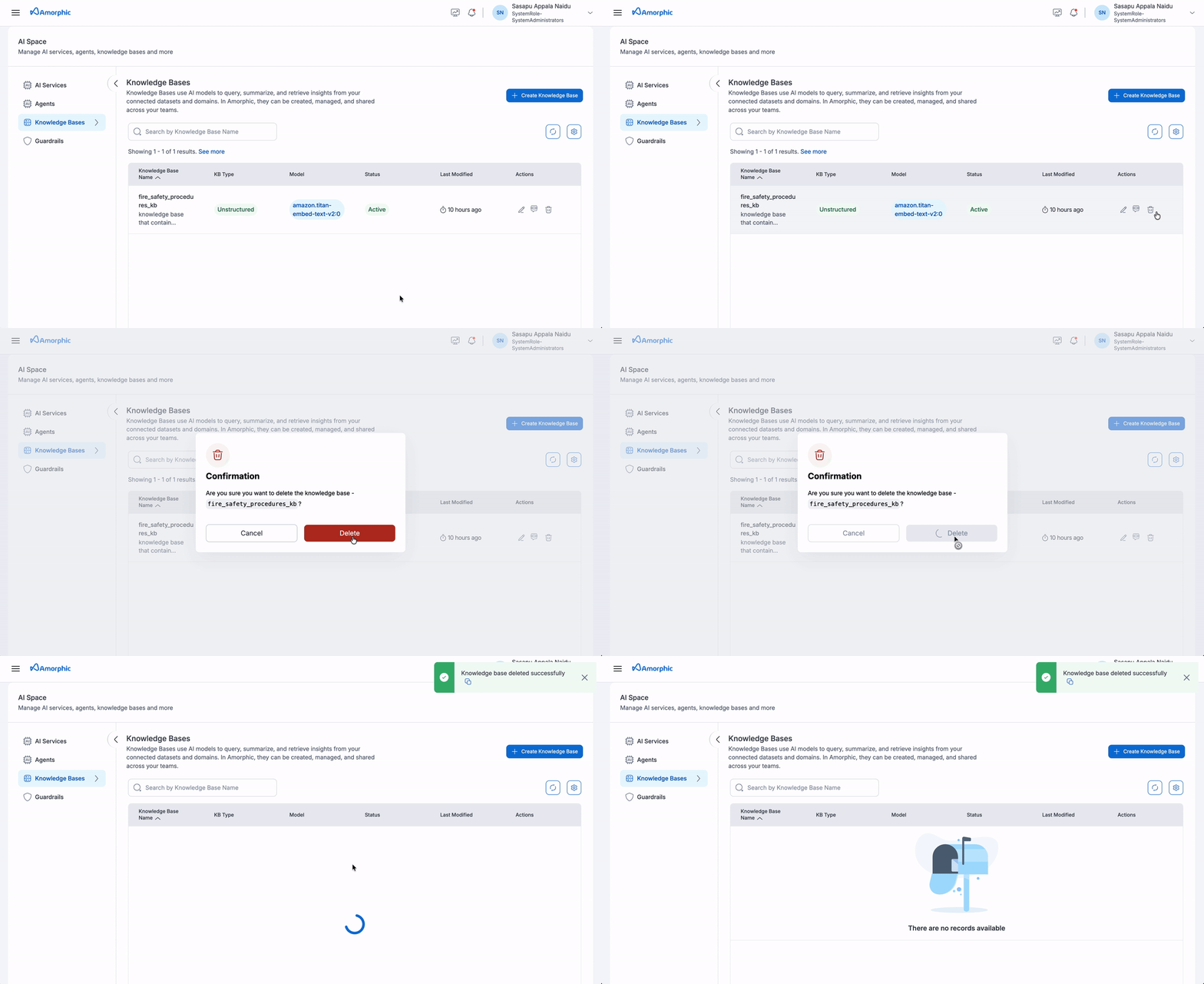
To delete a knowledge base:
- Navigate to Knowledge Base: Go to the knowledge base details page
- Select Delete Option: Click the delete button in the top right
- Confirm Deletion: Review the warning message and confirm deletion
- Automatic Cleanup: The system will automatically:
- Remove all associated data sources
- Delete corresponding indexed files
- Clean up related metadata
This action is permanent and cannot be undone. Make sure you want to delete the knowledge base before confirming.
The knowledge base must be in Active state in order to perform the delete operation on it.
Access Control and Permissions
The system implements robust access control:
- Owner Access: Full control over knowledge base operations
- Editor Access: Can modify and sync knowledge bases, including adding/removing sources and updating settings, but cannot delete knowledge bases
- Reader Access: Can query knowledge bases
- Resource-level Permissions: Inherited from underlying data sources
Best Practices
To get the most out of KnowledgeBase, consider these best practices:
-
Organize Sources
- Group related datasets and files logically
- Use descriptive names for knowledge bases
- Consider domain-based organization
-
Optimize Sync Operations
- Monitor sync status and address failures promptly
- Use incremental syncs when possible
-
Query Optimization
- Be specific in your questions for better results
- Use context from previous queries when relevant
- Review source attribution for accuracy verification
-
Access Management
- Regularly review and update access permissions
- Monitor usage patterns and adjust accordingly
- Implement least-privilege access principles
Using clear and descriptive file names and metadata will significantly improve KnowledgeBase's ability to provide accurate responses. Consider adding tags and descriptions to your data sources when possible.
| File Type | Extension |
|---|---|
| Plain text (ASCII only) | .txt |
| Markdown | .md |
| HyperText Markup Language | .html |
| Microsoft Word document | .doc/.docx |
| Comma-separated values | .csv |
| Microsoft Excel spreadsheet | .xls/.xlsx |
| Portable Document Format |
- Maximum of 100 Knowledge Bases can be created per account
- Individual file size must not exceed 50MB quota
- Only S3 datasets are currently supported as data sources
- Maximum 5 data sources can be attached per Knowledge Base
- Knowledge Base names must be unique within your account
- Sync operations run sequentially - only one sync can be active at a time
- Sync operations have a maximum duration of 6 hours; if a timeout occurs, try syncing again
- Knowledge base queries are limited to indexed content only
- Large files may take significant time to index
- Query responses are based on indexed chunks and may not include full context
- Real-time updates require manual sync operations