Overview
Dashboards provide a personalized and powerful way to access key features, monitor data, and track activities related to your tasks, datasets, and other resources within the application. They offer a centralized view, allowing you to quickly understand the state of your data and infrastructure. When you first log in, you'll be greeted by your default dashboard. This dashboard is pre-configured to provide a general overview of your data and resources, along with a powerful search functionality for exploring your data.
Starting with Amorphic 3.0, Insights are no longer a standalone module. As part of the upgrade from 2.7 to 3.0, Insights were merged into Dashboards. Use the Insights Details widget on a dashboard to monitor Jobs, Dataset Metrics, Data Pipelines, and Dataflow runs.
No action is required from users. During the upgrade, existing Insights are automatically moved into Dashboards.

Users can create custom dashboards as per their preference and switch between them.
How to create a custom dashboard?

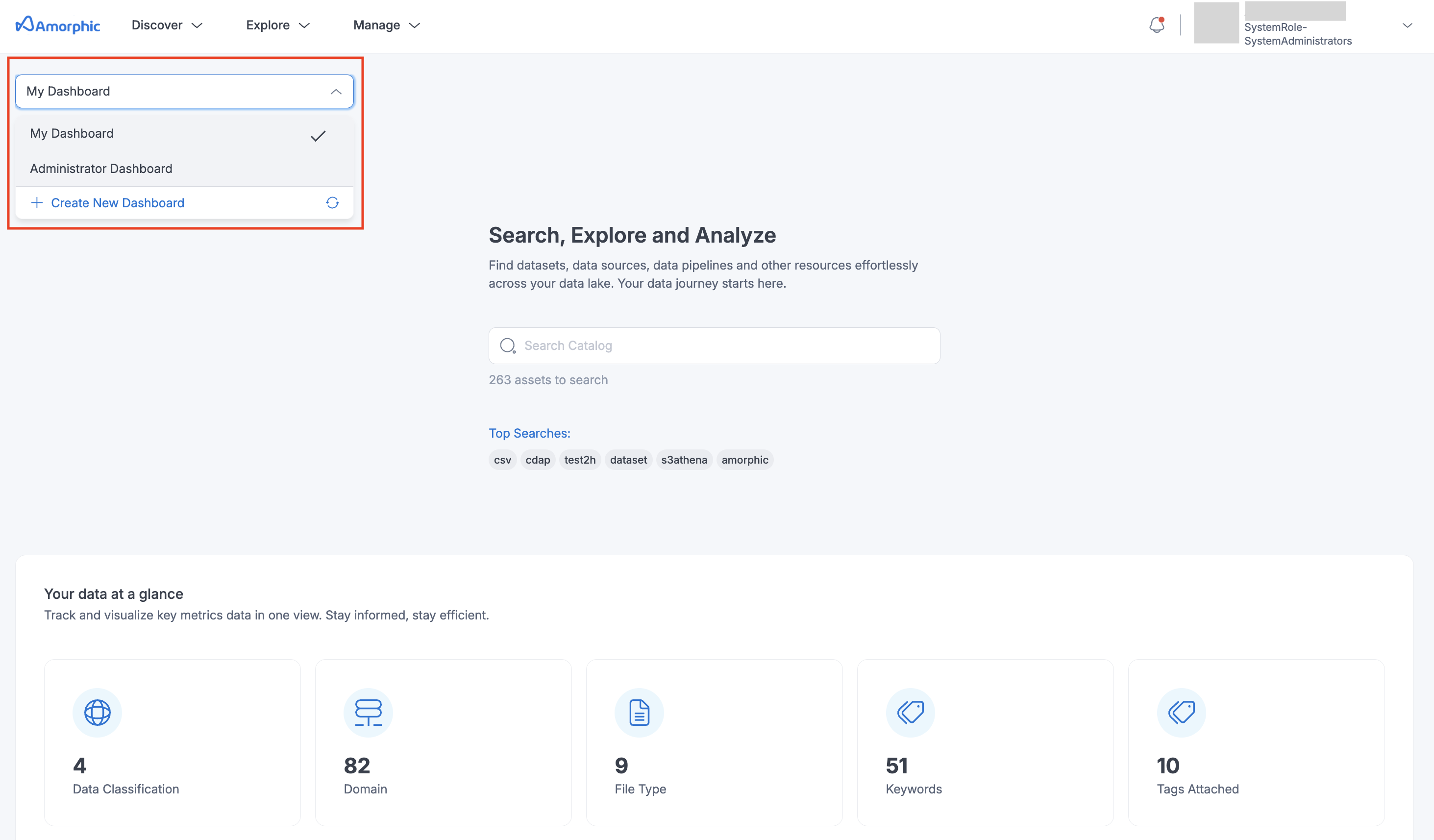
To organize related information and conveniently access it, you can construct multiple dashboards and toggle between them on the home page. To create a dashboard, follow the outlined steps and the accompanying GIF:
- Locate the dropdown menu located at the top left corner of your screen.
- Select the
Create New Dashboardoption. - Provide a descriptive name for your dashboard.
- Browse the available widgets from the provided list and select the ones that best suit your needs.
- Customize the selected widgets by modifying their attributes as required.
- Once all the desired widgets have been added, click the “Save” button to finalize the dashboard creation.
Widgets
A dashboard is built up using widgets. Each widget will show you the relevant information in a graph or other visual formats. By using widgets, you can easily track the following features:
| Attribute | Description |
|---|---|
| Access Requests | List of Access requests for datasets access, both sent and received |
| Billing Details | Current and Estimated usage stats for the current month |
| Catalog Search | Search for amorphic resources in the catalog |
| Dataset Lineage | To track the dataset journey |
| FlexiQuery | Quick query to run on your data |
| High Costing Resources | List of all High costing resources in the application |
| Quick Links | Any links within and/or outside the application |
| Quick Sight Dashboard | Render a QuickSight dashboard you have access to |
| Recent File Loads | Recent and current file load executions count |
| Resources Cost | To check the cost of resources per day |
| Resources Count | Check the count of resources per server over time |
| System Health | Track system health status for each service |
To select a different dashboard, you can use the drop-down list as shown in the image below.