
Roles
Role-Based Access Control (RBAC) in Amorphic is a feature that helps system administrators manage user access to sensitive information and reduce the risk of data breaches. This feature allows administrators to control which users have access to which services within the application, making it more efficient to authorize users and align with user management compliance. Amorphic RBAC is designed to be adaptable and support any new services that are added to the application, making it more versatile and useful.
Amorphic RBAC provides the following capabilities:
- User can have multiple roles attached and has the ability to switch between them to perform various actions based on their responsibilities.
- Customize user role permissions to a granular level. User can select from three levels of permissions: full access, manage and view.
- Flexibility to choose the type of Amorphic view upon login.

What is a Role?
In Amorphic, a role determines the level of access a user has in the Amorphic application.
RBAC improves data security by limiting users' access to sensitive information and helps with compliance. Additionally, it allows users to switch between different roles to perform different tasks.
Role has the following properties:
- A Role can have multiple users attached to it.
- A Role can have many permissions.
- A Role can have multiple role managers who can perform update and delete operations on the role
Types of Roles in Amorphic
In Amorphic, we have two types of Roles:
- System Roles: Pre-defined roles provided by the application by default.
- Custom Roles: Created by users to meet specific organizational needs.
System Roles
Amorphic offers seven system roles with predefined permission sets to accommodate various user types across organizations:
| Role | Primary Focus | Key Permissions |
|---|---|---|
| System Administrator | Complete system control | Full access to all features and services, including AI and AI Admin |
| Data Engineer | Data pipeline management | Full control over datasets, jobs, pipelines, and ML models; AI manage |
| IT Admin | System configuration and user management | Manages users, system settings, roles, and infrastructure; AI full access and AI Admin |
| Business User | Data consumption and analysis | Full access to datasets, tenants, and insights; AI manage |
| Data Scientist | Advanced analytics and model development | Works with datasets, pipelines, and ML models; AI full access |
| Business Analyst | Reporting and basic analytics | Focus on datasets and insights with view access to advanced features; AI manage |
| Default Users | Basic application access | Limited view access with ability to manage templates (no AI permissions) |
Roles in Amorphic have a precedence that affects user experience:
- Administrator and IT Admin roles have the highest precedence by default.
- For all other roles, precedence is calculated based on the number of full access, manage, and view permissions.
- When a user is assigned multiple roles, the highest precedence role becomes their default role.
Detailed System Role Permissions
System Administrator Role
Complete administrative control with unrestricted access to all services and features in the Amorphic platform, including AI full access and AI Admin (model management and AI configuration updates).
System Data Engineer Role
Has full control over most resources, including datasets, jobs, data pipelines, and ML models. Can manage lifecycle configurations and templates but has only view access to catalog and roles. Includes AI manage for operational AI tasks (for example, updating agents and knowledge bases, RAG cluster/metrics) without create/delete of AI resources or model-admin actions.
System IT Admin Role
Manages users, system settings, roles, and tags with full access. Has control over jobs, data warehouses, and templates but does not handle datasets or ML models. Includes AI full access and AI Admin, so this role can perform model management (sync, enable/disable, inference/config updates) and update AI service configurations.
System Business User Role
Has full access to datasets, tenants, and insights, with management rights for data labs and templates. Limited to viewing data sources, code repositories, and shared libraries. Includes AI manage.
System Data Scientist Role
Works extensively with datasets, data pipelines, and ML models. Can manage jobs, schedules, and data labs while having limited access to catalog and parameters. Includes AI full access (create/update/delete AI resources such as agents and knowledge bases), but not AI Admin—model sync/enable and AI configuration updates require AI Admin.
System Business Analyst Role
Focuses on datasets and insights with full access while having view access to ML models, parameters, and the catalog. Can manage templates. Includes AI manage.
System Default Users Role
Provides basic view access to catalog, datasets, and domains, with the ability to manage templates. Does not include AI permissions.
AI Permissions and AI Admin
AI access is controlled by the AI service permissions (ai.view, ai.manage, ai.fullaccess) plus a separate AI Admin service (ai-admin.fullaccess).
Previously, only the System Administrator role carried AI permissions. AI permissions are now assigned across several system roles as listed above. Model management was intentionally separated from AI full access: granting ai.fullaccess alone is no longer enough for model-admin tasks. This was done to provide a formal access separation for more sensitive model-management tasks, so that factors such as cost can be managed better by a smaller set of roles possessing this permission.
AI Admin (ai-admin.fullaccess):
- Depends on AI full access (
ai.fullaccess). - Required for model management and AI configuration updates:
PUT /ai— update AI configurations (enable/disable services, model assignment/unassignment, set default) in Manage AI ServicesPUT /ai/models— sync models on the AI Models and Management pagePUT /ai/models/{modelId}— enable/disable a model, update inference parameters, set default inference type, or update cost tags
- Among system roles, System Administrator and IT Admin include AI Admin.
RAG Engine (/rag and /rag/metrics) requires AI manage (not AI view). In the UI, the RAG Engine tab in Manage AI Services should be shown only to users with at least AI manage (AI Admin users inherit this via AI full access).
| Action area | ai.view | ai.manage | ai.fullaccess | ai-admin.fullaccess |
|---|---|---|---|---|
| Agents — list / view / invoke | Yes | Yes | Yes | Yes |
| Agents — update / share (grant/revoke) | No | Yes | Yes | Yes |
| Agents — create / delete | No | No | Yes | Yes |
| Knowledge bases — list / view / citations / runs / get resource | Yes | Yes | Yes | Yes |
| Knowledge bases — update / sync / query / add or update resources / share | No | Yes | Yes | Yes |
| Knowledge bases — create / delete KB / delete resource | No | No | Yes | Yes |
| Guardrails — list / view / get default | Yes | Yes | Yes | Yes |
| Guardrails — update / set default / test chat / share | No | Yes | Yes | Yes |
| Guardrails — create / delete | No | No | Yes | Yes |
| Reasoning policies — list / view / build details / results | Yes | Yes | Yes | Yes |
| Reasoning policies — update | No | Yes | Yes | Yes |
| Reasoning policies — create / delete / start or cancel builds / delete build | No | No | Yes | Yes |
| Playground chats — list / create / view / update metadata / message / upload / delete files | Yes | Yes | Yes | Yes |
| Playground chats — delete chat / share / update chat config | No | Yes | Yes | Yes |
| Playground notes — create / view / update | Yes | Yes | Yes | Yes |
| Playground notes — delete / share | No | Yes | Yes | Yes |
| AI models — list / view / invoke | Yes | Yes | Yes | Yes |
| AI models — update model / model config | No | No | No | Yes |
| AI models — sync models | No | No | No | Yes |
| AI config (GET /ai) | Yes | Yes | Yes | Yes |
| AI config (PUT /ai) | No | No | No | Yes |
| RAG migration (POST /ai) | No | Yes | Yes | Yes |
| RAG cluster / metrics | No | Yes | Yes | Yes |
| Projects — list / view / comments / threads (create/view/update) | Yes | Yes | Yes | Yes |
| Projects — update / stewards / share / delete thread | No | Yes | Yes | Yes |
| Projects — create / delete | No | No | Yes | Yes |
| System role | AI | AI Admin |
|---|---|---|
| System Administrator | fullaccess | fullaccess |
| Data Engineer | manage | — |
| IT Admin | fullaccess | fullaccess |
| Business User | manage | — |
| Data Scientist | fullaccess | — |
| Business Analyst | manage | — |
| Default Users | — | — |
For a fresh deployment of Amorphic, the first user to sign up will automatically become the Role Manager for all seven system roles.
When a user first signs in, they receive the Default Role. The Role Manager can update any user's role based on their responsibilities, and the user's default role will be determined based on role precedence.
Custom Roles
User can create a custom role for a user by selecting permissions from a list of specific access permissions for each service. To create a role see, how to create a Custom Roles
For Example, A user can create custom Data scientist role and provide access to only ML notebooks.
Users are not allowed to create custom roles that start with the word "System".
Role Metadata Information
Amorphic RBAC Role contains the following information:
| Type | Description |
|---|---|
| Role Name | The unique name identifying the role's functionality. |
| Role Description | A brief explanation of the role's purpose. |
| Permissions | Specific actions defined for a particular service. Permissions determine the level of access within Amorphic. Permissions can be assigned to multiple roles and vice versa. |
| Role Managers | The list of users who can update or delete the role |
| UsersAttached | The list of users to whom the role is attached. |
| CreatedBy | The user who created the role. |
| LastModifiedBy | The user who last updated the role. |
| LastModifiedTime | The timestamp of the last time the role was updated. |
Role Operations
Along with Amorphic RBAC, user can perform basic CRUD operations (shown in the below table) on a role if user has sufficient permission.

| Functionality | Description |
|---|---|
| Create Role | Create a custom role by choosing from a list of permissions and attach to a User. |
| View Role | View existing Role Metadata Information |
| Update Role | Update an existing role. |
| Delete Role | Delete an existing role. |
| Switch Role | This functionality helps user to switch between multiple roles attached. |
| Update User Default-Role | Helps user to customize the landing page view. Example: if User frequently uses Machine learning services, one can pick say a "Data scientist Role" as default login view for quicker access. |
- Role's managers can update the role or delete it. The user who creates a role automatically becomes a role manager. Users can list or view a role only if they are a role manager or if they are attached to the role. Even if a user's role has the roles.update and roles.delete permissions, they will not be able to update/delete a particular role unless they are a role manager for that role.
- If there is an update to v3.0 from the previous version then managers of system administrator role will become the managers of new system default roles that is being provided.
Create Role

To create a new role in Amorphic, follow these steps:
- Go to the
Administrationmenu and selectRoles. - Click on the
New Rolebutton. - Fill in the information required, such as role permissions and user names who will be attached to the role.
- Drag and Rearrange the order of your resources to be accessible in the sidenav.(User Persona)
- Click on
Createto create the new role.
User Persona

This section lets a user customize their sidenav to display only the resources that will be used by the user using the corresponding role that is being created/updated.
- User can drag and drop and rearrange the resources according to the user's preferences.
- User can toggle on/off submenus or individual resources to be shown in the sidenav.
- Resources will be displayed only if the user have their respective permissions.
- User can reset the order of the resources by using the
Reset to default menubutton.
There are no permissions specifically for Bulk Management.
Currently we only manage datasets so the bulk management page is only available for users with the datasets.update permission
Switch Role
Switch Role functionality is enabled for users with more than one Role attached to them.
How to switch roles in Amorphic:
- Click on the User Profile icon
- Select
Switch Rolefrom the dropdown menu. - Pick a role from the list to switch to.

How to update user default-role?

The Update Default Role feature allows users who have more than one role to choose which role they want as their main role.
- Click on the User Profile icon located on the top right corner of the page.
- Select the
Profile & Settingsoption from the drop-down menu. - User will be taken to the
User Profilepage, where user will find theDefault Rolefield. - Click on the
Changebutton beside theDefault Rolefield. - A drop-down list of roles that the user is attached to will appear.
- Select one of the roles from the list to switch to it as the default role.
To simplify the process of creating, updating, and managing roles, the permissions structure has been streamlined. Instead of using multiple fine-grained permissions, users now select from three predefined permission levels for each service: View: Grants basic access to view and list resources. Manage: Allows for operational tasks like running jobs and generating reports. Full Access: Provides complete control, including the ability to create, update, and delete resources.
AI Admin is an additional service permission (ai-admin.fullaccess) used for model management and AI configuration updates. It depends on AI full access and is separate from the standard AI view/manage/fullaccess levels. See AI Permissions and AI Admin.
Migration to the New Permissions Model
All existing roles will be automatically transitioned to the new permissions model, ensuring uninterrupted user activity. Please note that this migration is irreversible, and the previous detailed permissions will no longer be supported.
As part of the RBAC v3 update, several services have been consolidated into unified permissions to streamline complexity and improve the user experience. The table below presents a comparison of the old and new permissions:
| Old Service (Replaced) | New Service (Replacement) |
|---|---|
| datasets, views, data-quality-checks | datasets |
| notebooks, studios | datalabs |
| notebooks-lifecycleconfigurations | datalabs-lifecycleconfigurations |
| workflows | data-pipelines |
| connections, streams, appflows | datasources |
| costmgmt-tags | cost-mgmt |
Retired Permissions
The following permissions have been retired in this update:
- deepsearch-indices, dashboards
- There are no separate 'manage' permissions for roles. If a user has 'roles.view' access and is designated as a role manager for a specific role, they will have the ability to manage all aspects of that role.
- The 'users.view' permission has been removed, as listing basic user details is accessible to all users. To manage all users in the system and view their associated resources, a user must have the 'users.manage' permission.
- Following the migration, roles may potentially have no permissions if all previous permissions have been deprecated or replaced. Users are required to update the permissions for these roles in accordance with the new V3 model.
AWS Role
AWS Roles is a feature in Amazon Web Services (AWS) that allows an administrator to control access to specific resources and actions within AWS for different users or groups. The Amorphic team can set up custom roles for customers based on their needs.
AWS-Roles in Amorphic used to switch to the AWS console from Amorphic. This feature helps the users to view their resources in AWS.
In amorphic we have some pre-defined system generated Aws-Roles. User can have multiple AWS-Roles attached and has the ability to switch to AWS console using these roles. In AWS console, these Roles only have View Permissions.
Types of System AWS-Roles
These are Roles created by Amorphic in AWS.
In Amorphic we have three types of system AWS-Roles:
- DMS View Role : System generated AWS-Role with view only permissions for DMS service.
- Glue View Role : System generated AWS-Role with view only permissions for Glue service.
- All System View Role : System generated AWS-Role with view only permissions for All AWS services which are part of Amorphic.
AWS-Roles has the following properties:
- An AWS-Role can have multiple users attached to it.
- A System generated AWS-Role only have view permissions in AWS console and these can't be deleted.
- With v2.0 users can have custom AWS roles which helps them to switch to AWS console with set of permissions defined by them.
DMS View Role
DMS view role only has view permissions of DMS service in AWS. Once user switches to AWS console using this Role, user will see resources in DMS and its logs from a particular log group of cloudwatch.
Log groups that are part of this AWS-Role:
- log-group:/...replicationTaskCreation
- log-group:/...connections
Glue View Role
Glue view role only has view permissions of glue service in AWS. Once user switches to AWS console using this Role, user will see all resources associated with the Glue service and its logs from a particular log group of cloudwatch.
Log groups that are part of this AWS-Role:
- log-group:/aws-glue/jobs/error
- log-group:/aws-glue/jobs/logs-v2
- log-group:/aws-glue/jobs/output
All System View Role
This AWS-Role only have view permissions of AWS services that are supported by Amorphic. Once the user switch to AWS console using this Role, user will be able to see resources of all AWS services which are part of Amorphic.
For now, list of AWS Services supported by All System View role:
- Amazon Athena
- Amazon Comprehend
- Amazon Comprehend Medical
- AWS Database Migration Service(DMS)
- Amazon DynamoDB
- Amazon Forecast
- AWS Glue
- Amazon Kendra
- Amazon Kinesis
- Amazon Kinesis Data Analytics
- Amazon Kinesis Data Firehose
- AWS Lake Formation
- Amazon RDS
- Amazon Redshift
- Amazon Rekognition
- Amazon SageMaker
- AWS Step Function
- Amazon Textract
- Amazon Transcribe
- Amazon Translate
AWS-Role Metadata Information
| Type | Description |
|---|---|
| Role Name | Role Name, which uniquely identifies the functionality of the role. |
| Role Description | A brief explanation of the aws-role typically the functionality for what it is used. |
| Consolidated AWS Permissions | Permission is an action defined for a particular AWS service. Each aws-role consists of a group of permissions. These permissions determines the level of access within AWS. |
| UsersAttached | The list of users to whom the role is attached. |
| CreatedBy | Who created the role. |
| LastModifiedBy | Who has recently updated the role. |
| LastModifiedTime | Timestamp when the role was recently updated. |
Role Operations
If a users has sufficient permission they can perform the below operations on AWS-Roles.
| Functionality | Description |
|---|---|
| View Role | View existing Role Metadata Information. |
| Update Role | Update users attached on existing AWS-Roles. |
| Switch To Console | This functionality helps user to switch to AWS console using these AWS-Roles. |

The below gif shows Switch to Console feature.

Custom AWS Roles use case
An administrator wants to create a role with full read access to the DynamoDB service and assign this role to a set of users. The users who access the AWS console using this custom role will only have access to the DynamoDB service and will not be able to access other resources or perform other actions within AWS.
Step 1
The administrator will need to provide an IAM policy template in .txt file to the Amorphic team. This policy template should contain access to full dynamodb view permission. The Amorphic team will use this policy template to create the role in your AWS account.
Step 2
After receiving the IAM policy template, the Amorphic team will verify the policy to ensure it meets the user's needs and the security requirements. Once the policy is verified, the team will create the role in the user's Amorphic account.
Step 3
The administrator can view the newly created role and assign users to it through the Amorphic interface.
Step 4
Once a user has been assigned a role, they will be able to access the AWS console by selecting the "Switch to AWS Console" option under the profile section. The user will only have access to the resources and actions defined in the role's permissions.
Custom AWS Roles and Operations
The custom roles created through Amorphic are unique to the user's account and can be managed by the user's administrator. The user will have access to the resources and actions defined in the role's permissions and it is important to keep the permissions updated as per the requirement.
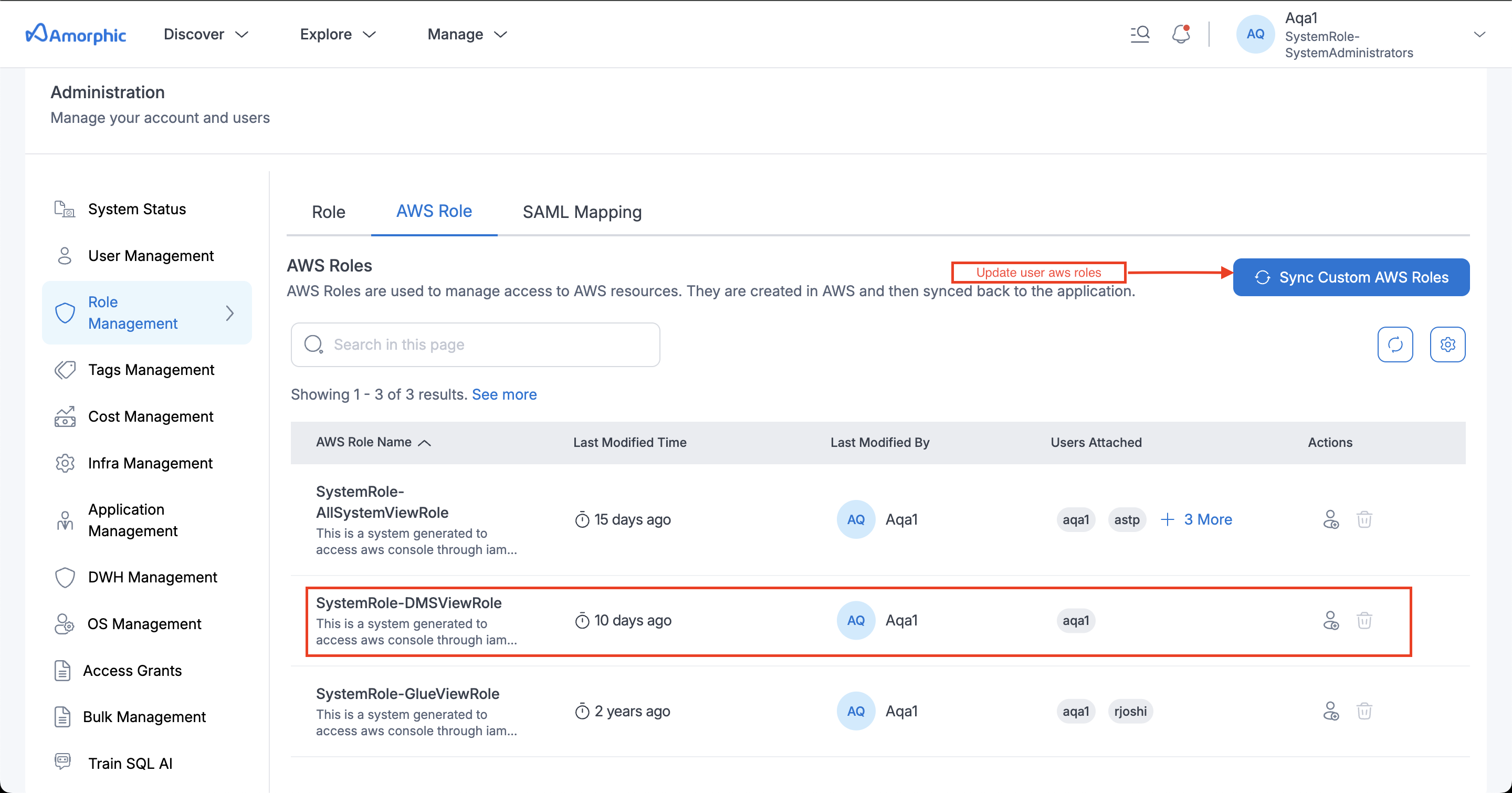
Sync Custom Roles Option
If the user wants to update the IAM permissions for a role, they will need to provide an updated policy document to the Amorphic team. Once the Amorphic team updates the policy document in S3, the user will need to click the "Sync Custom Roles" button to apply the updated permissions.
SAML Mapping
SAML (Security Assertion Markup Language) is an XML-based standard for exchanging authentication and authorization data between an identity provider (IdP) such as Okta or Microsoft Entra ID, and a service provider (SP) such as Amorphic. In Amorphic, users are authenticated via Cognito, and the SAML assertion carries the groups the user belongs to in the IdP. Amorphic uses those groups to automatically grant or revoke role access on every login.
SAML Group Role Mappings link an IdP group to one or more Amorphic roles. When a user logs in via SSO, Amorphic reads their group memberships and automatically syncs their roles to match the current mappings. To learn more about roles in Amorphic, see Role Base Access Control - (RBAC).
SAML groups can also be mapped to Amorphic tags for resource-level access. Tag mappings are managed separately — see SAML Mapping in Tags Management.
What is a SAML Role Mapping?
A SAML role mapping links an IdP group to one or more Amorphic roles. An administrator creates and manages these mappings. When a user logs in via SSO, their role access is automatically synced — roles are granted for groups the user has joined and revoked for groups they have left.
If a user belongs to multiple SAML groups, they receive the combined set of all roles mapped across all their groups.
SAML Role Mapping Metadata
| Field | Description |
|---|---|
| SamlGroupId | The group name from the IdP, entered exactly as defined there (case-sensitive). |
| Roles | One or more Amorphic roles attached to this group. Up to 50 roles per group. |
| CreationTime | Timestamp when the mapping was created. |
| CreatedBy | Administrator who created the mapping. |
| LastModifiedTime | Timestamp of the most recent update. |
| LastModifiedBy | Administrator who last modified the mapping. |
SAML Mapping Operations
An Amorphic administrator can create, edit, or delete role mappings for SAML groups.
- Add New Mapping — Create a new role mapping by entering a SAML group name and selecting one or more roles.
- Edit Mapping — Update the list of roles attached to an existing mapping.
- Delete Mapping — Remove all role mappings for a SAML group.
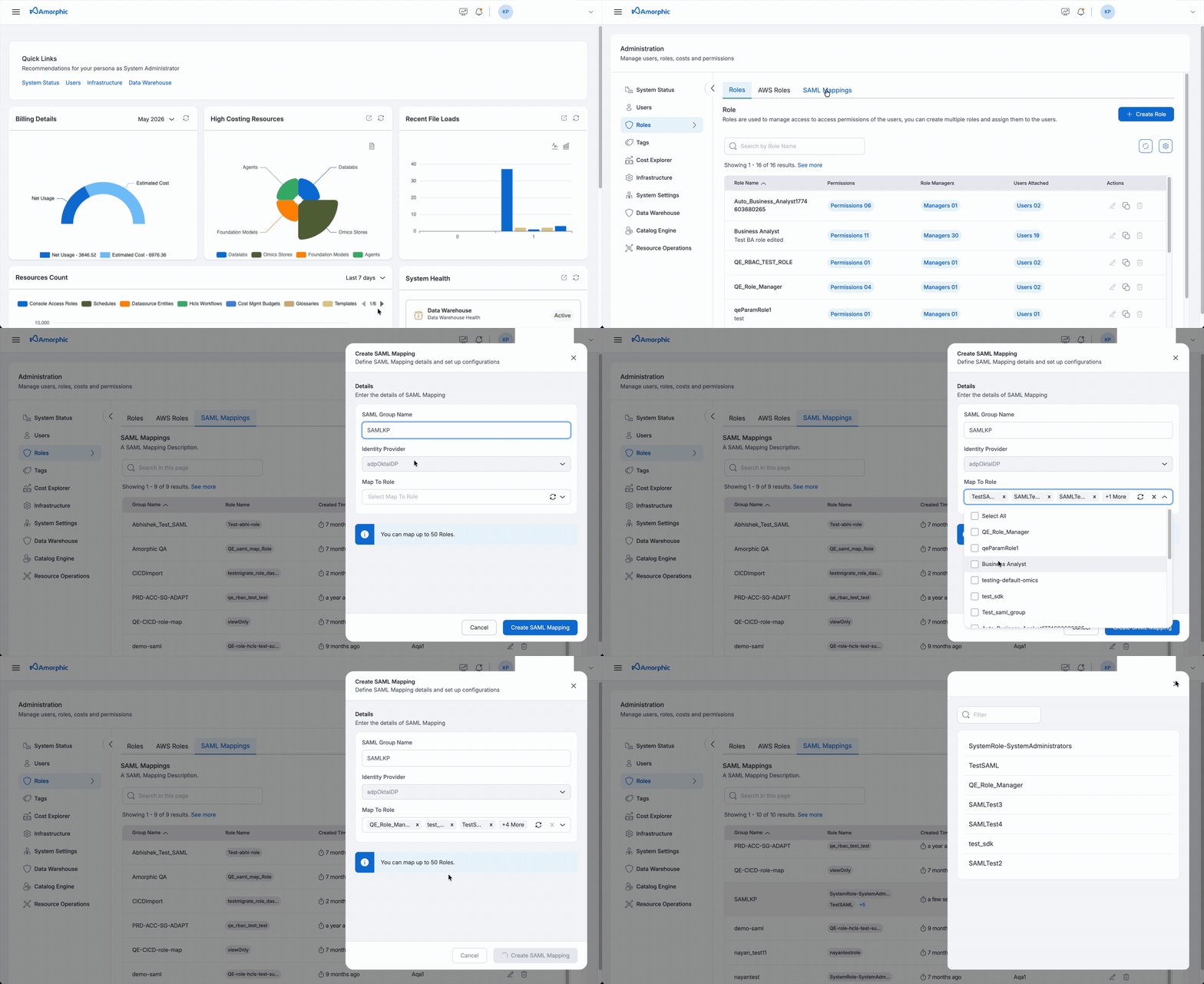
Add New Mapping
Enter the SAML group name exactly as defined in the IdP and select one or more Amorphic roles to attach — up to 50 roles per mapping.
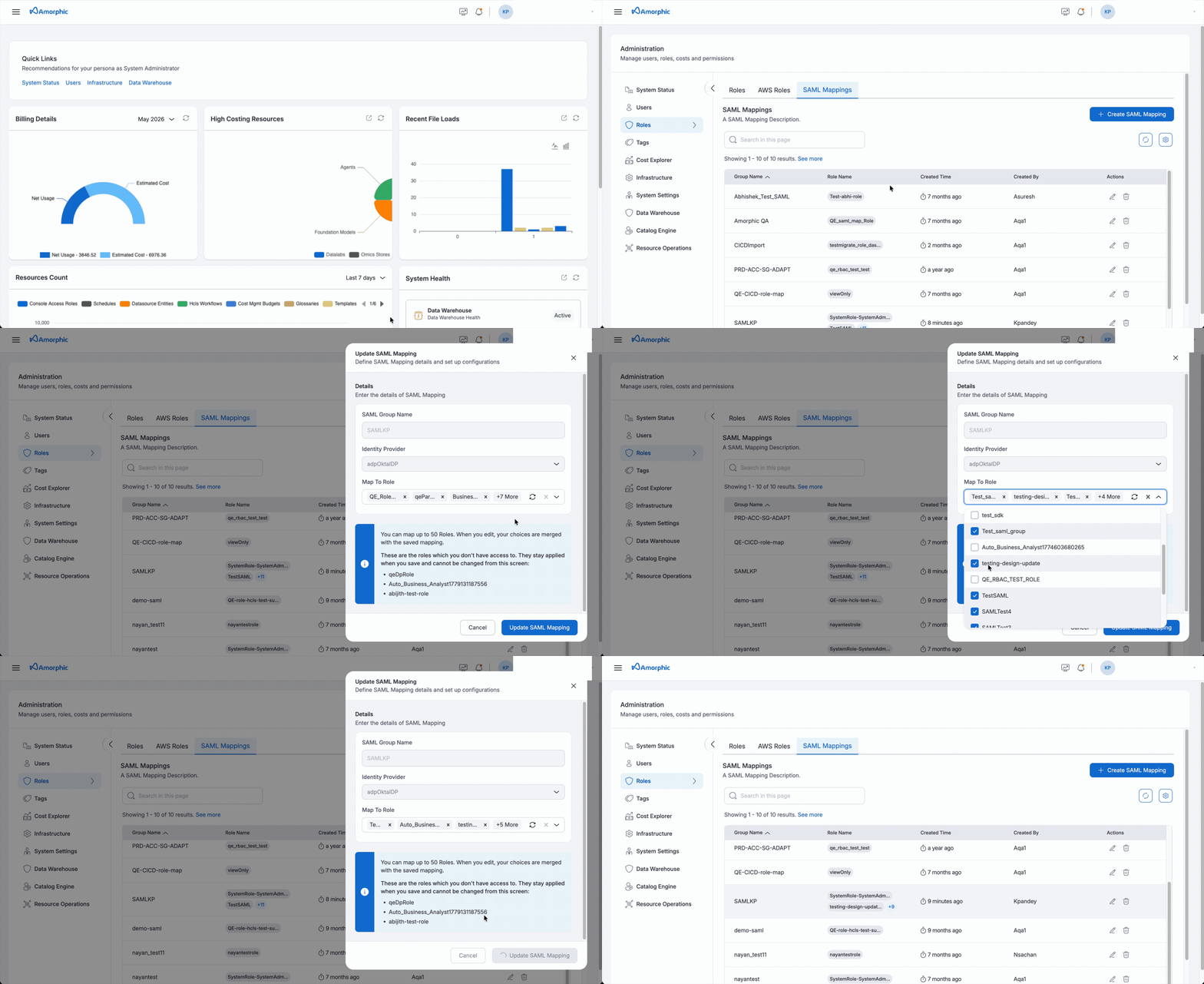
Edit Mapping
An administrator can update the list of roles attached to an existing mapping. The update is applied as a diff — roles added to the list are granted to the group's users, and roles removed from the list are revoked. The group name itself cannot be changed; to rename a group, delete the existing mapping and create a new one.
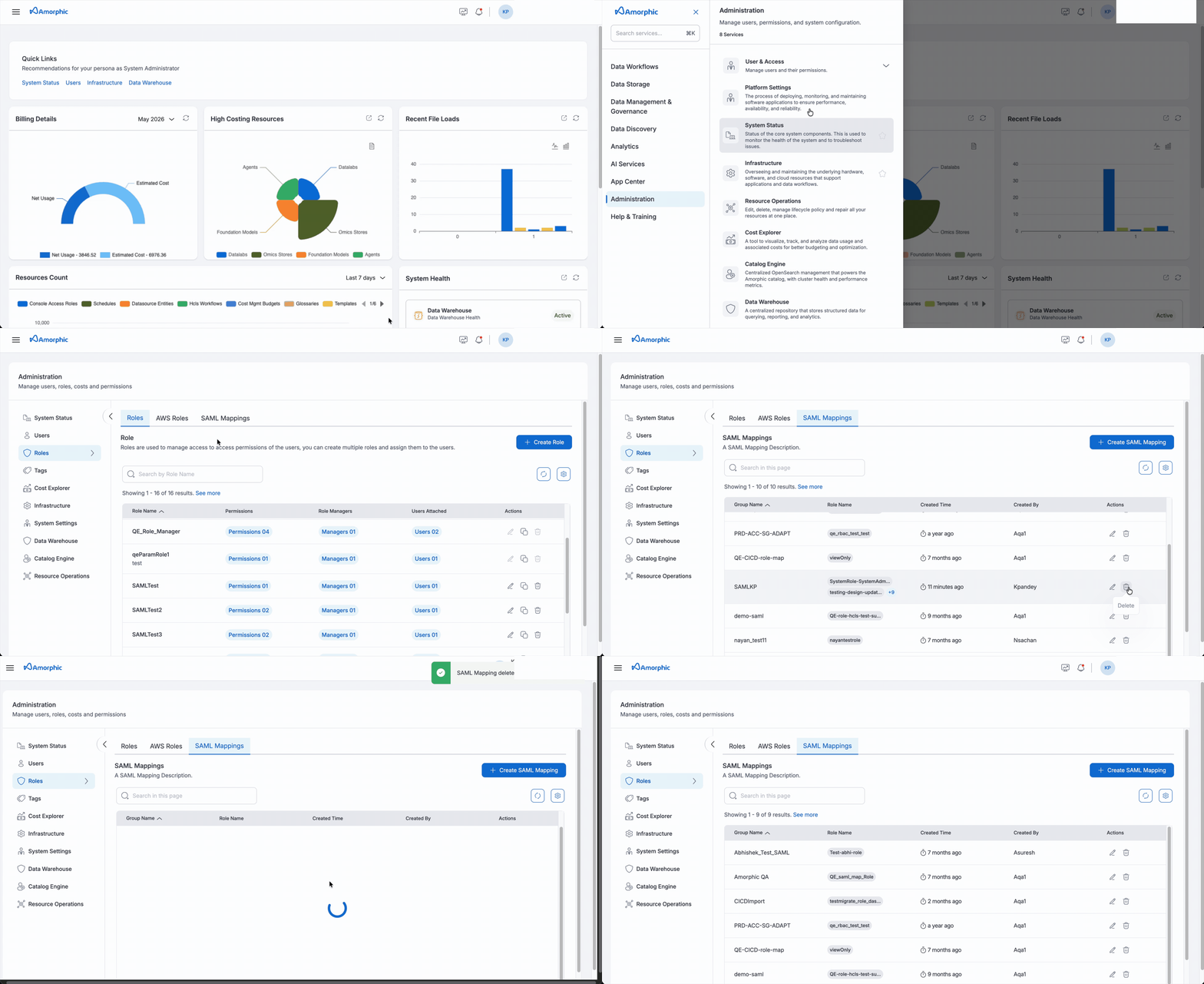
Delete Mapping
An administrator can delete all role mappings for a SAML group. Deleting a mapping removes the role access from all users who had it solely through that group.
Below are some important points the Amorphic administrator needs to keep in mind when a mapping is added, edited, or deleted.
- If a user is a part of a SAML group and the mapping between that group and an Amorphic role is deleted, or the user is removed from the group in the IdP, the user will lose access to that role on their next login.
- This does not apply to the system default role — if a SAML group is mapped to a default role and the mapping is deleted or the user is removed from the group, access to the default role is preserved and a fallback system default role is assigned automatically.
- If a user belongs to multiple SAML groups, their role access reflects the union of all role mappings across all their groups. Removing a group mapping only revokes the roles that were exclusively granted by that group.
- Each group mapping supports a maximum of 50 roles.
- If a user makes a
/users/{id}call for themselves using a PAT Token, role access from SAML group mappings will be re-synced and any roles no longer covered by current group mappings will be revoked.