
Projects
Projects in AI Studio enable you to create powerful, context-aware AI assistants that combine Knowledge Bases, Agents, Datasets, and Files into a unified conversational experience. Each project acts as a specialized AI workspace with its own persona, instructions, and resource configurations.
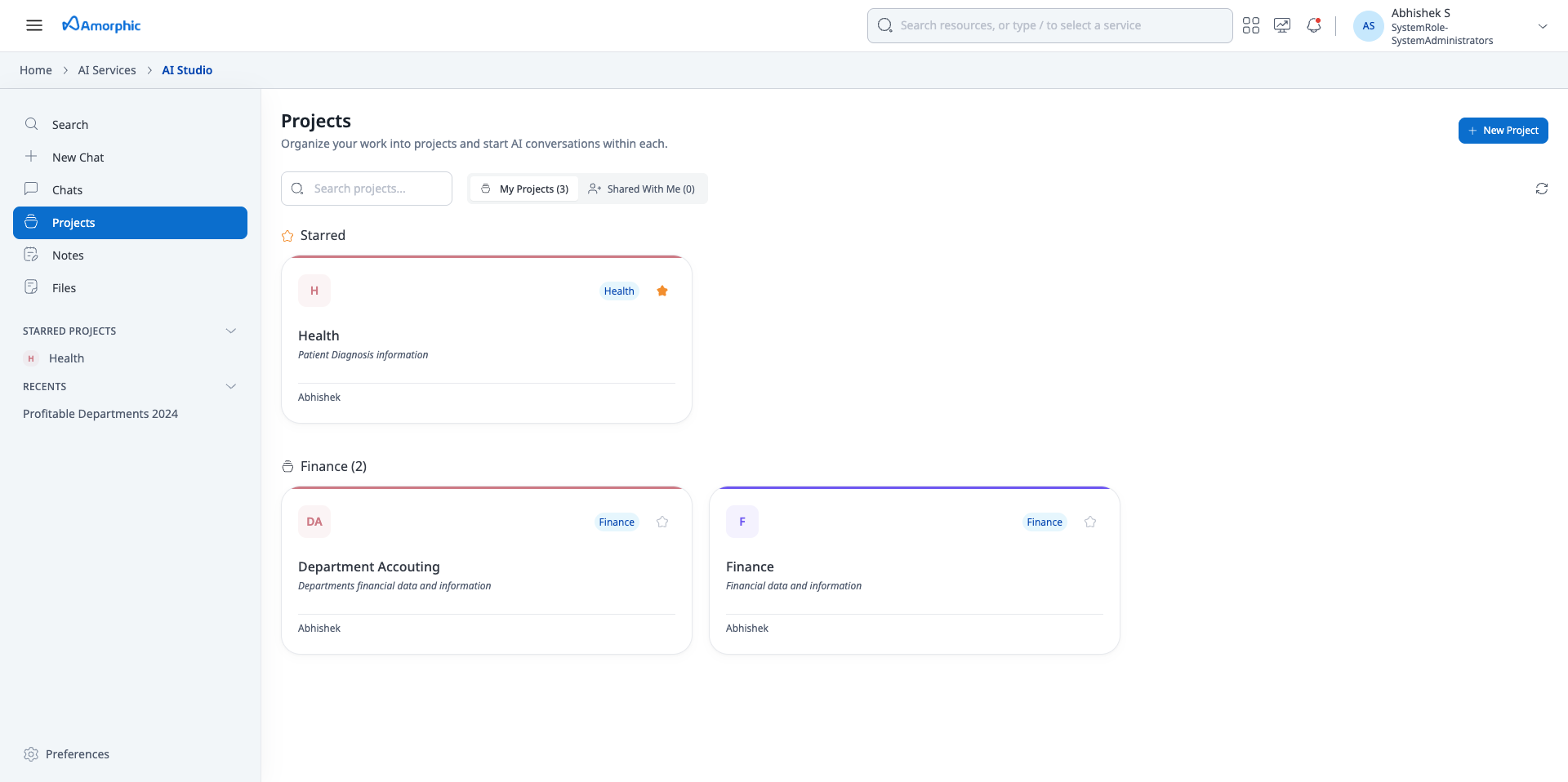
Overview
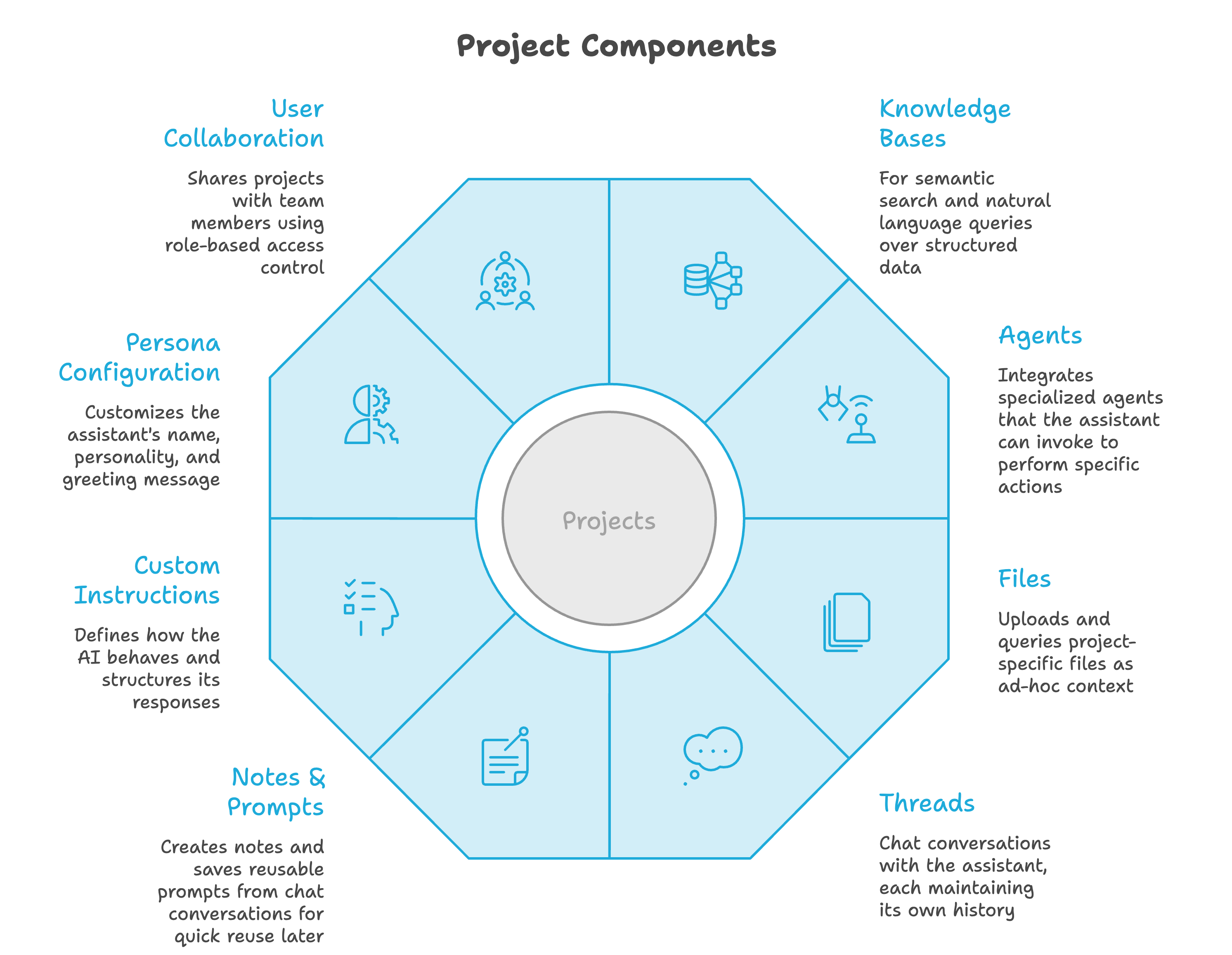
Projects provide a structured way to organize AI interactions around specific business domains or use cases. A project can include:
- Knowledge Bases: Connect knowledge bases for semantic search and retrieval, and for natural language queries over structured data. Up to 5 knowledge bases can be attached per project
- Agents: Integrate specialized agents that the assistant can invoke to perform specific actions. Up to 10 agents can be attached per project
- Files: Upload ad-hoc files as project-specific context. Up to 10 files can be added per project, and they're automatically deleted 30 days after upload — use a Knowledge Base for files you need to keep long-term
- Threads: Hold multiple, separate conversations with the assistant within the same project, each maintaining its own history
- Notes & Saved Prompts: Capture key takeaways from a conversation as notes, or save a prompt to reuse later
- Custom Instructions: Define how the assistant should behave, structure its responses, and use the project's resources
- Persona Configuration: Customize the assistant's name, personality, greeting, and suggested starter queries
- User Collaboration: Share projects with team members using role-based access control (Owner, Editor, or Read-only permissions). Projects can be shared with individual users or access tags, enabling collaborative work on shared AI projects while maintaining appropriate access controls
Projects vs Chats
AI Studio offers two ways to interact with AI: Chats for quick, one-off interactions, and Projects for persistent, resource-rich workspaces you return to repeatedly.
| Chats | Projects | |
|---|---|---|
| Best for | One-off questions, quick file lookups, testing models | Recurring work on a domain or use case |
| Configuration | Nothing persists between sessions | Model, instructions, and persona are saved and reused across threads |
| Resources | small set of files | Knowledge bases, agents, and files combined in a single context |
| Collaboration | Private to you | Shareable with a team via role-based access |
| Complex queries | Not built for multi-step reasoning | Supports Thinking Mode for multi-step, analytical questions |
When to use each
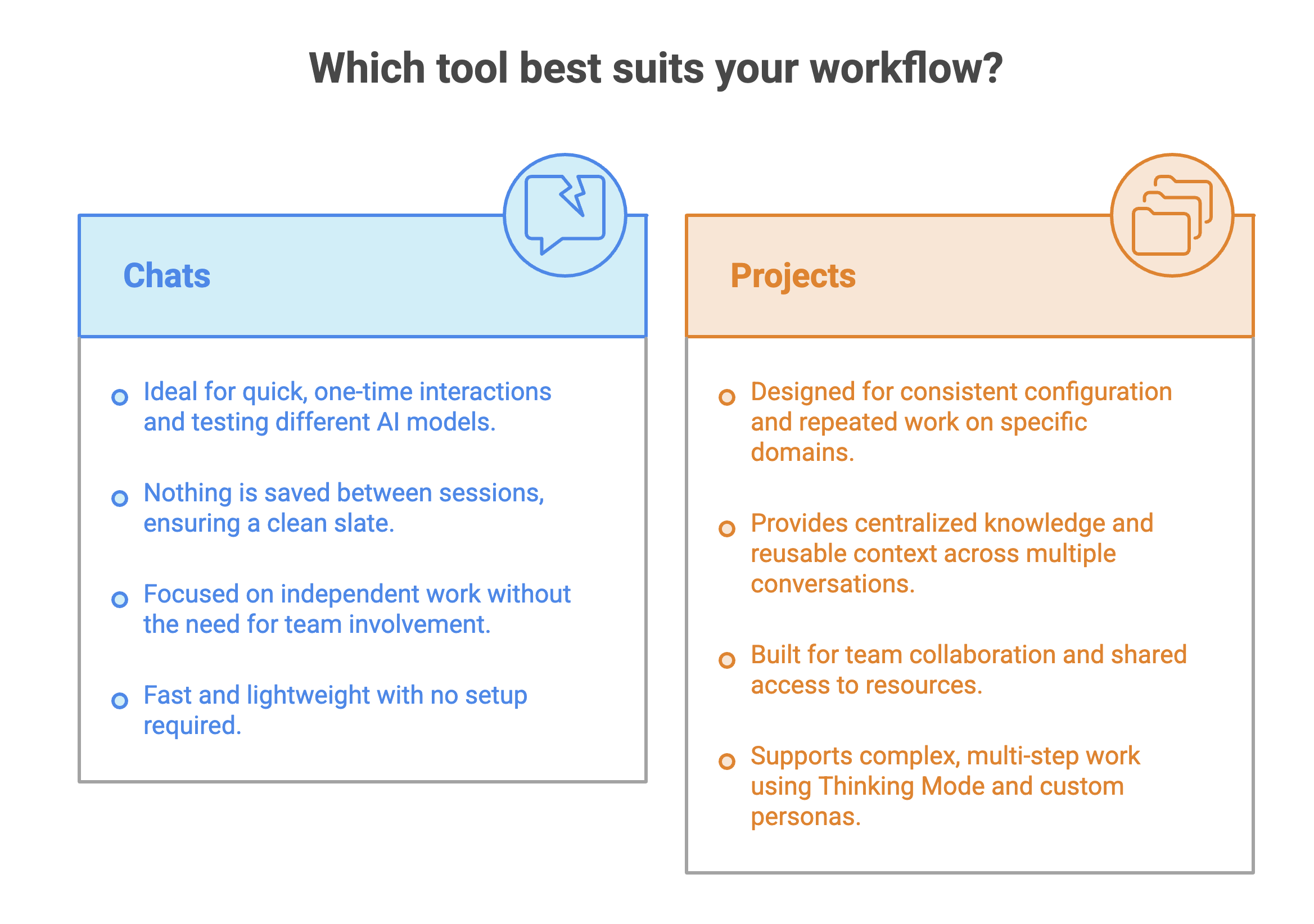
Use Chats for a quick question you won't revisit. Use Projects when you're setting up something you and your team will come back to.
Creating a Project
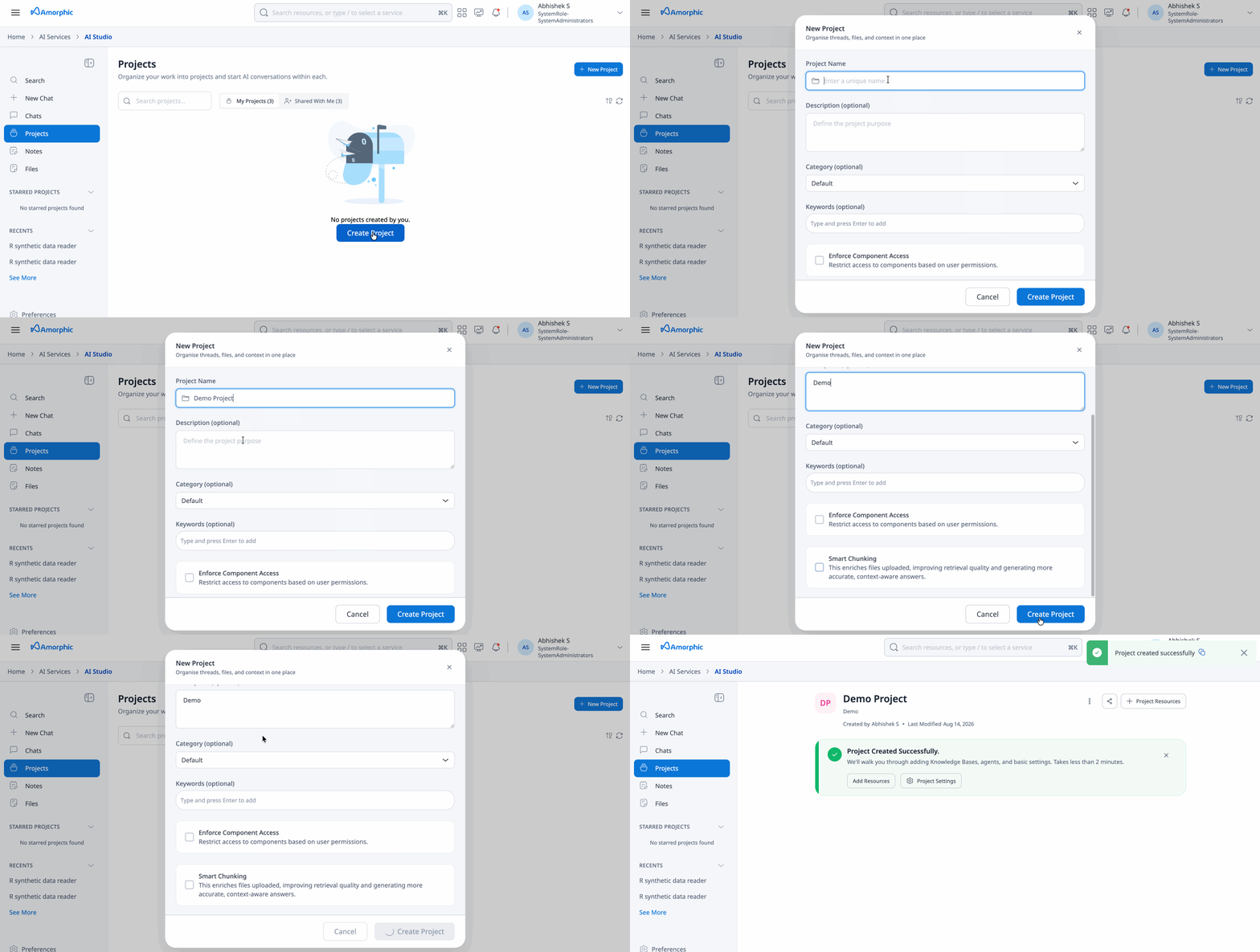
Project Creation Process
- Navigate to AI Studio from the main menu
- Click + New Project button in the Projects section
- Fill in the project details:
- Project Name: Enter a unique name for your project
- Project Description (Optional): Describe the project's purpose
- Category: Assign a category to group the project on the homepage (leave blank to use the default category)
- Keywords: Add tags for better organization (e.g., "Owner: username")
- Configure Enforce Resource Access (optional): When enabled, access permissions on knowledge bases and agents are enforced when users interact with the project through threads. This ensures users can only access resources they have permission to use
- Configure Smart Chunking (optional): When enabled, ad-hoc uploaded files are enriched to improve retrieval quality, resulting in more accurate and context-aware responses. Enabling Smart Chunking incurs additional processing costs.
- Click Create Project to complete the setup
- Once Project is created, users can add resources and update the project settings for various use cases.
Project Configuration
Projects can be configured through two main tabs: Configuration and Instructions.
Configuration Tab
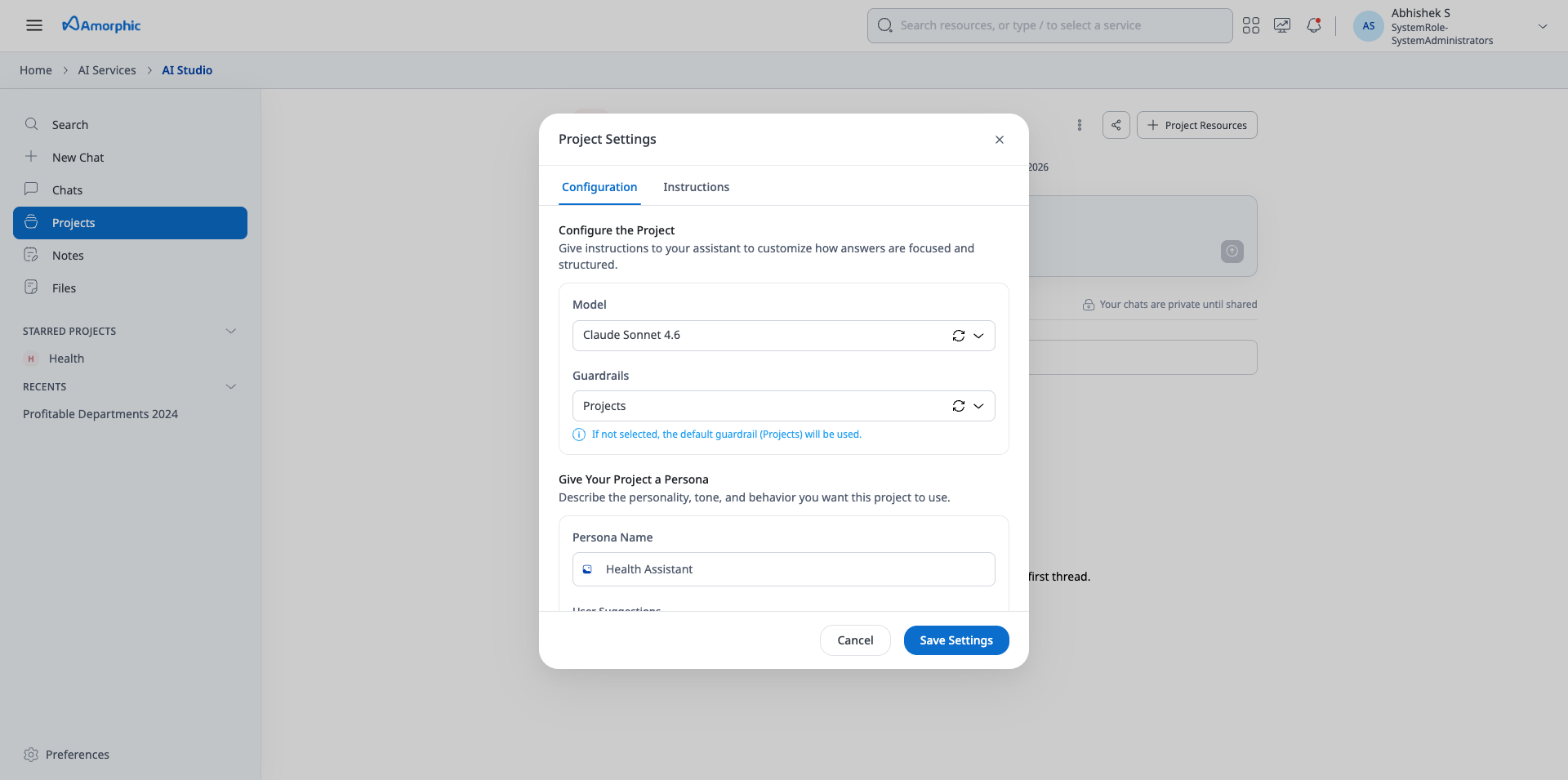
The Configuration tab allows you to customize the core settings of your project assistant:
Model: Select which AI model will drive your project assistant’s responses. Only models that have been set up for Chat Interactions in the Manage AI Services section will be available.
Guardrails: Apply content filtering and safety measures. Select from available guardrails configured for the Chat Interactions component. We recommend creating a custom guardrail to ensure the filtering configuration aligns with your domain and use case, providing the appropriate level of content moderation.
To use models or guardrails in your projects, they must be assigned for the Chat Interactions component from the Manage AI Services section. For detailed configuration instructions, refer to the Manage AI Services documentation.
Project Persona
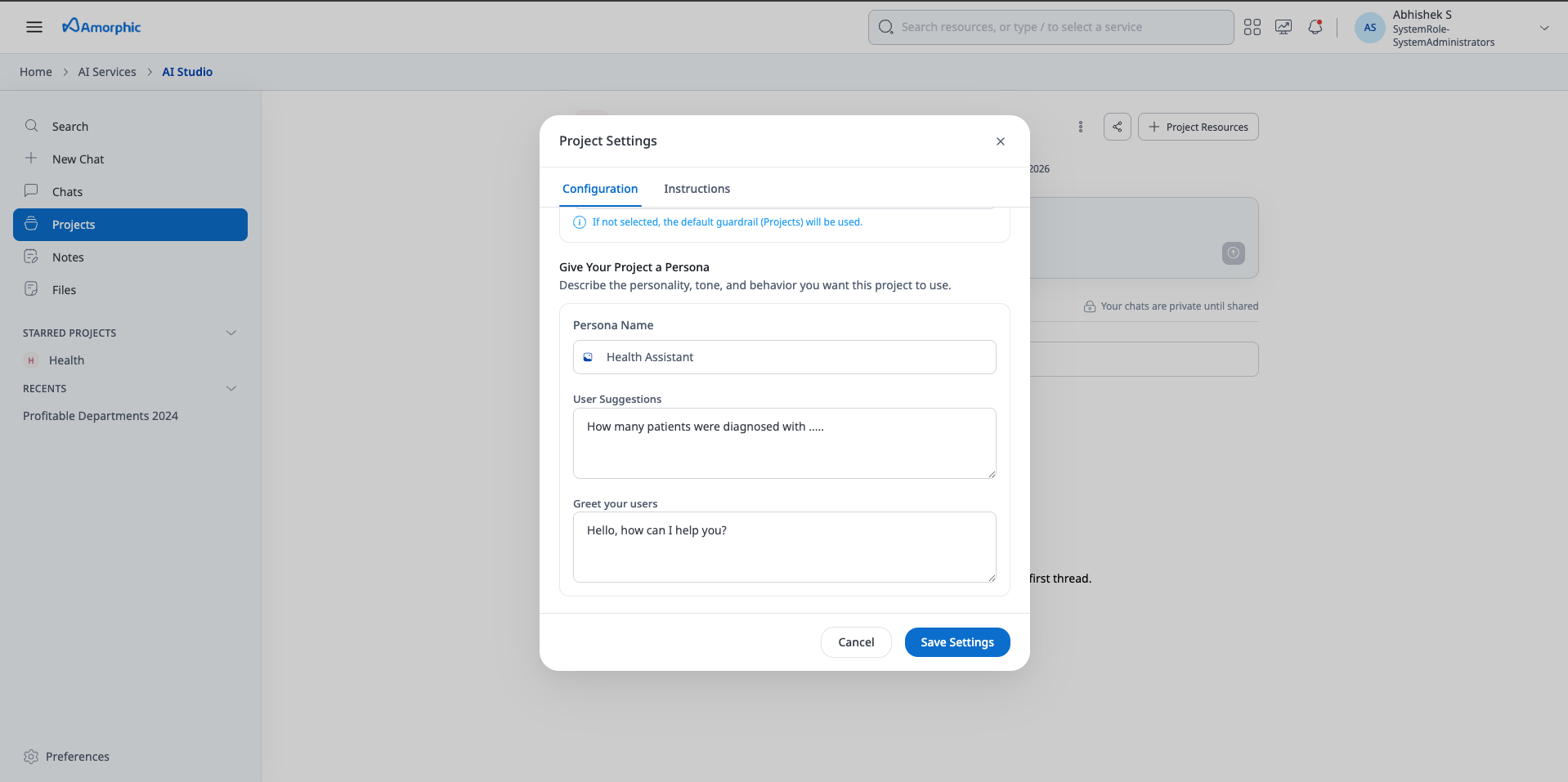
The Persona feature allows you to customize the personality and behavior of your project assistant:
- Persona Name: Set a friendly name for your assistant
- User Suggestions: Provide examples of user queries. This will show up in the input box for the project threads.
- Greeting Message: Customize the greeting used by the assistant
Instructions Tab
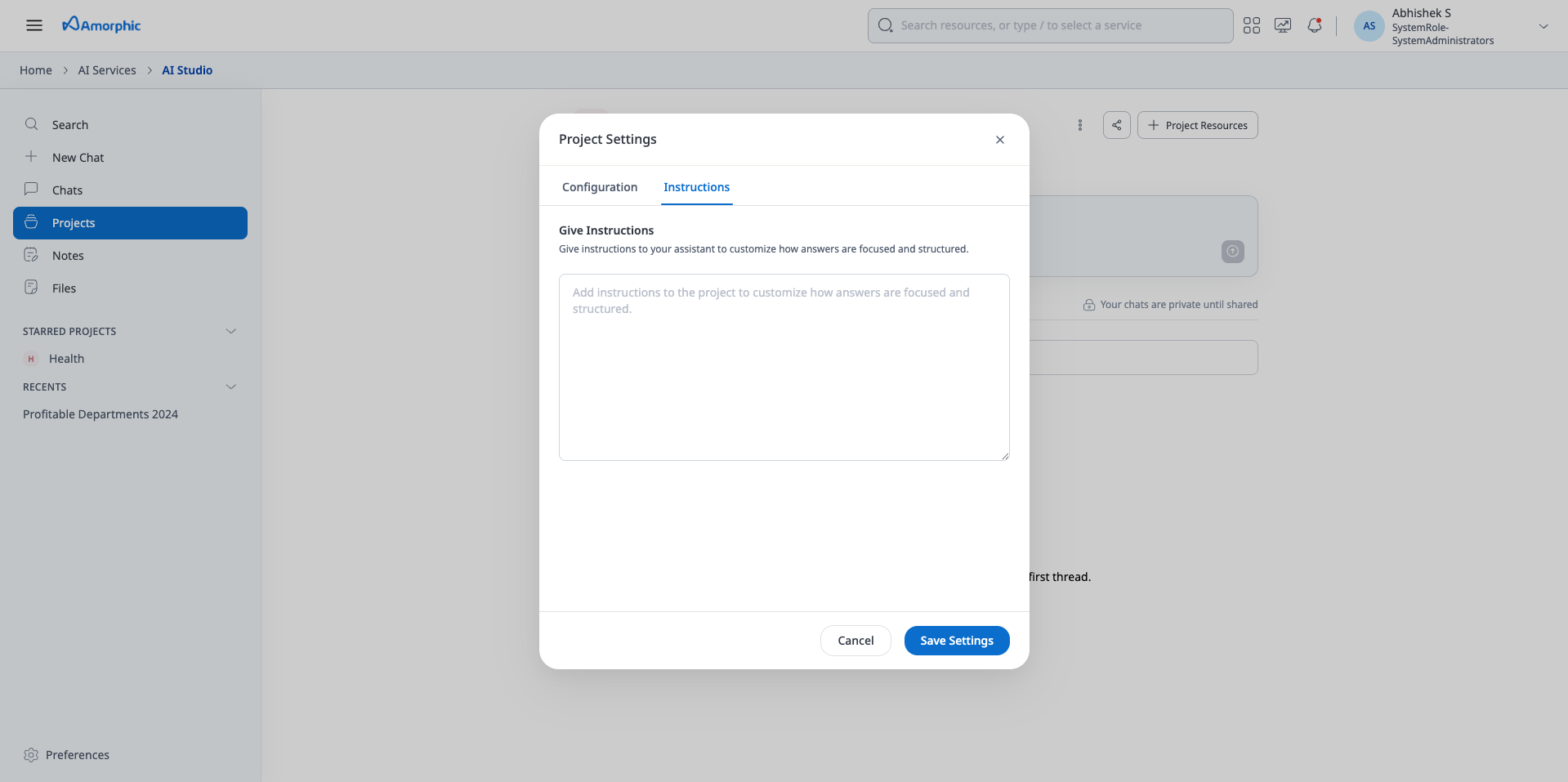
The Instructions tab allows you to provide custom guidance to your project assistant:
Custom Instructions
Add detailed instructions to customize how the assistant answers questions and structures responses:
- Resource Sequencing: Define the order in which knowledge bases, files, or agents should be queried
- Context Handling: Add domain-specific context — business terms, date conventions, or filtering criteria — that the assistant should apply when using project resources
- Conditions: Set conditions for when a specific resource should be used
Custom instructions cannot change the assistant's role or identity — the assistant is always framed as an AI assistant for the project. Only its display name, greeting, and suggested queries are customizable, via Persona Configuration.
Example Instructions:
For a customer support project, these instructions make the assistant check documentation first, only escalate to the refund agent when explicitly needed, and follow the team's conventions for dates and currency:
When answering questions:

1. First, search the "Support Docs KB" for troubleshooting steps and policy details.
2. Only invoke the "Refund Agent" if the user explicitly asks to process or check the status of a refund.
3. Treat "business day" as Mon-Fri, excluding public holidays, and always quote amounts in the customer's local currency from their account record.
Character Limit: Instructions are limited to 15,000 characters.
Do's and Don'ts
Do:
- Define the order in which knowledge bases, files, or agents should be queried (e.g., "search the Financial Data KB first, then use the Forecasting Agent")
- Set conditions for when a specific resource should be used
- Add domain-specific context — business terms, date conventions, or filtering criteria — that the assistant should apply when using tools like structured data queries
- Keep instructions specific and scoped to the project's use case; vague instructions are more likely to be skipped or misapplied
Don't:
- Try to change the assistant's role, identity, or response format rules (e.g., "you are now...", "ignore previous instructions", "override your instructions") — these are automatically ignored, since custom instructions cannot override the assistant's core behavior
- Paste raw sensitive data (credentials, PII) into instructions — treat this field like any other persisted project configuration
- Rely on custom instructions for formatting/length control — use Response Style for that instead
Project Context and Tools
Projects can integrate various context and tools to enhance their capabilities:
Knowledge Bases: Provide semantic search and document retrieval. Also provide structured data query over datasets attached to the knowledge Bases. Citations to source documents are included by default — toggle this per message from the message toolbar. Up to 5 knowledge bases can be attached per project
When you ask structured data related queries, the system uses SQL AI to generate and execute the SQL queries required, even if structured knowledge bases are attached to the project. SQL AI queries the actual datasets attached to the knowledge base or, if a domain is attached instead of individual datasets, every dataset within that domain. In case, structured queries need to be run in your project, SQL AI has to be enabled from the Manage AI Services section.
Agents: Provide specialized agents that the assistant can invoke to perform specialized Actions. Up to 10 agents can be attached per project
Files: Provide ad-hoc files as context to the assistant. Up to 10 files can be added per project, and files are automatically deleted 30 days after upload — for permanent context, use a Knowledge Base instead
Web Search: When enabled by an administrator, the assistant can search the web for up-to-date information beyond its configured resources. Toggle it on or off per message from the message toolbar
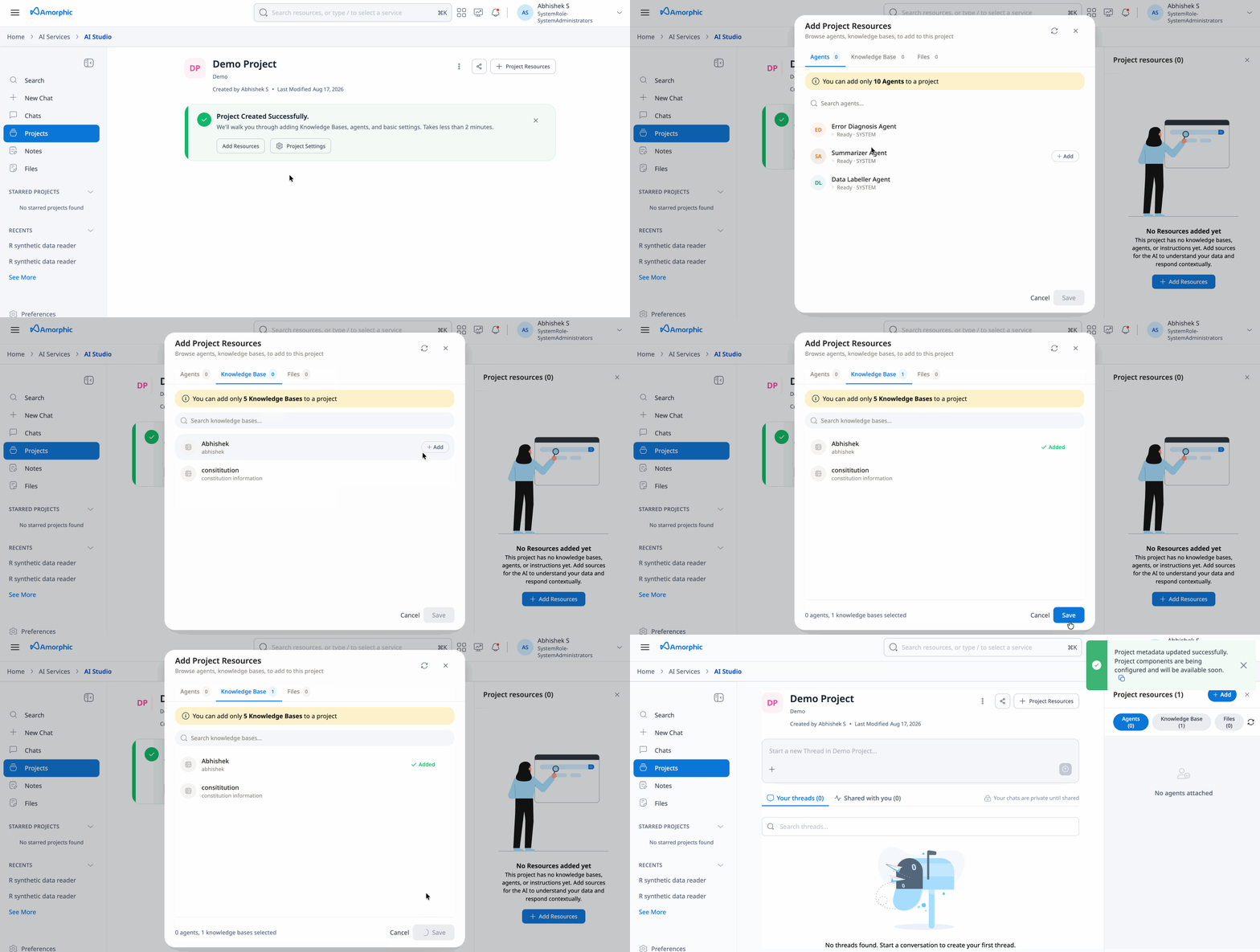
Project Threads
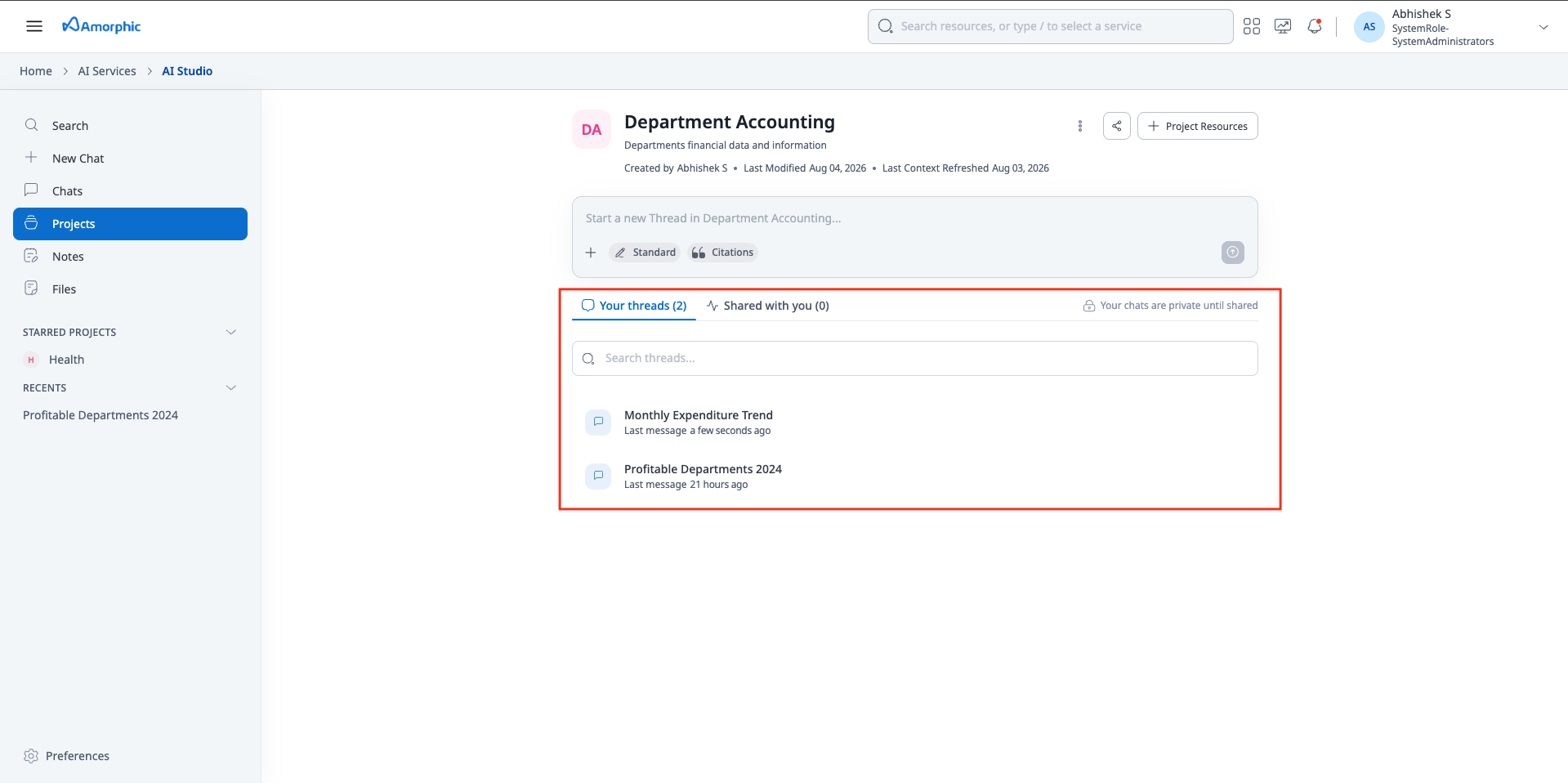
Projects support multiple conversation threads (chats) within a single project. Each conversation within a project is a separate thread. Threads maintain their own conversation history and are scoped to the project and inherit project configuration. Any thread created is private to the user. Only the user who created it can access it. It can be shared to other users in the project by making it public.
Message Controls
Every message in a project thread can be customized from the message toolbar (click + next to the input box). Active controls are shown as pills below the input box.
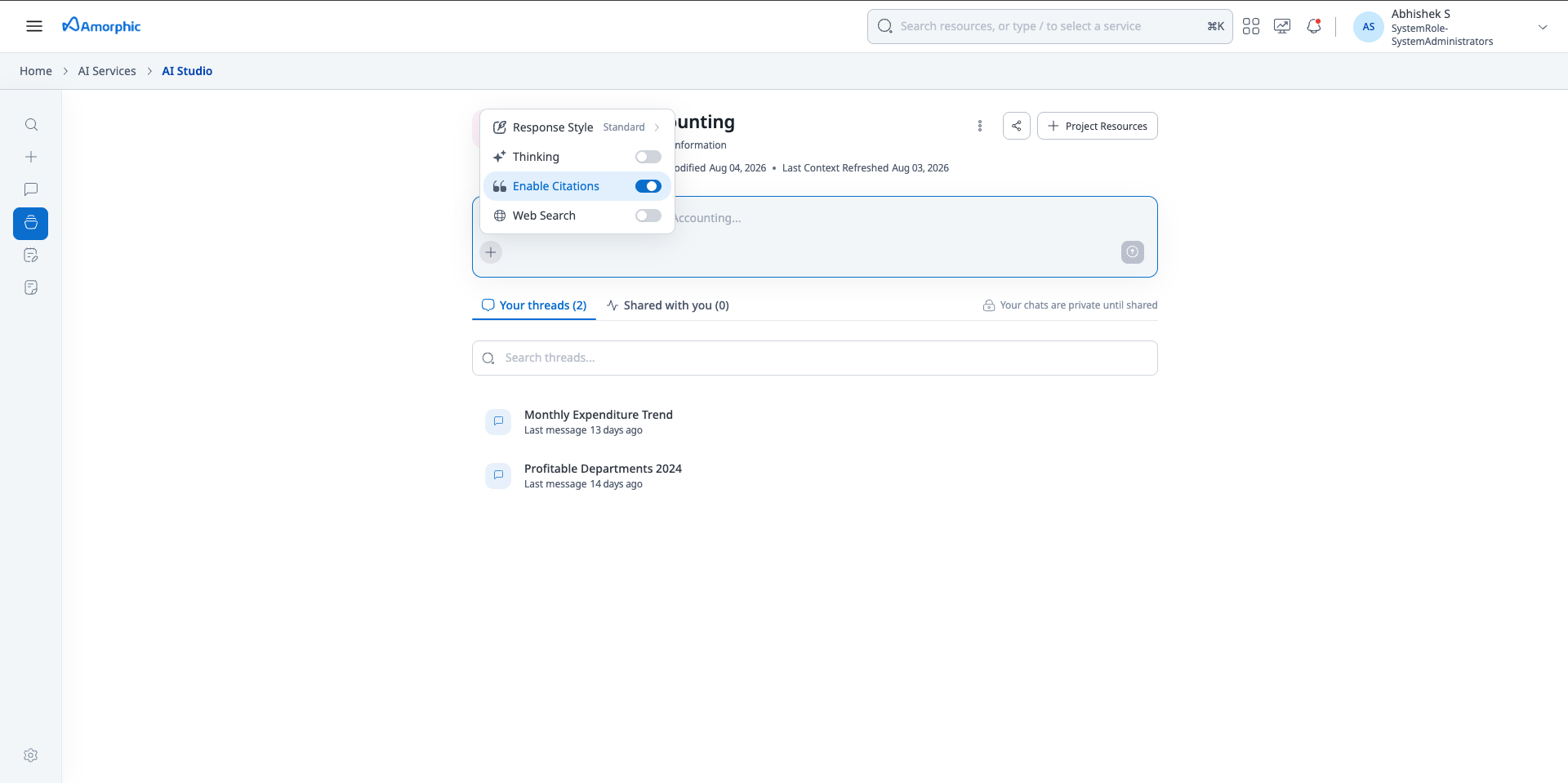
- Response Style / Thinking Mode: Controls how the assistant reasons through and formats its answer — only one can be active per message
- Enable Citations: Include source-document citations for PDF and DOCX files in the response, including files from knowledge bases and ad-hoc project files. Enabled by default
- Web Search: Search the web for this message, if Web Search has been enabled for the project by an administrator
Response Style
Response Style controls how long and detailed an answer is. Use it when working with unstructured data and you need a specific response length:
- Brief: Short, to-the-point answers (roughly 150 words), best for quick facts and lookups
- Standard: Balanced default length (up to about 400 words), suited for most everyday questions
- Detailed: In-depth answers (up to about 1200 words), best for complex analysis or step-by-step explanations
Thinking Mode
Thinking Mode replaces the previous Smart Orchestration feature. When enabled, the assistant reasons through a query internally before responding, which can improve answers to complex or multi-step questions. Use it when working with structured data. For structured data that requires analytics, use at least Medium effort. If the question is complex move to higher effort levels. Low can be used with unstructured data when you want assitant to decide the response formatting based on the query. Thinking Mode supports selectable effort levels:
- Low: Minimal internal reasoning, fastest turnaround.
- Medium: Moderate reasoning depth for everyday complex questions. Recommended minimum for structured data that requires analytics
- High: Deeper reasoning for multi-step or ambiguous problems
- Xhigh: Extended reasoning for difficult analytical tasks
- Max: Maximum reasoning depth for the hardest problems, slowest response time
- Effort levels depend on the selected model — not all models support Thinking Mode.
- Only one of Response Style or Thinking Mode can be active on a message at a time. Choose based on the kind of data you are querying:
- Use Response Style with unstructured data (files, or knowledge-base text) when you want to control how long the answer is
- Use Thinking Mode with structured data. For analytics or multi-step analysis, use at least Medium effort. Use Low effort with unstructured data when you want the assistant to decide response formatting from the kind of query
Notes & Saved Prompts
The Notes panel serves two purposes: capturing notes from a conversation and saving reusable prompts.
- Notes: Capture key takeaways or summaries from a conversation for later reference
- Saved Prompts: Save a prompt so you can run it again later without retyping it
Stewards and Comments
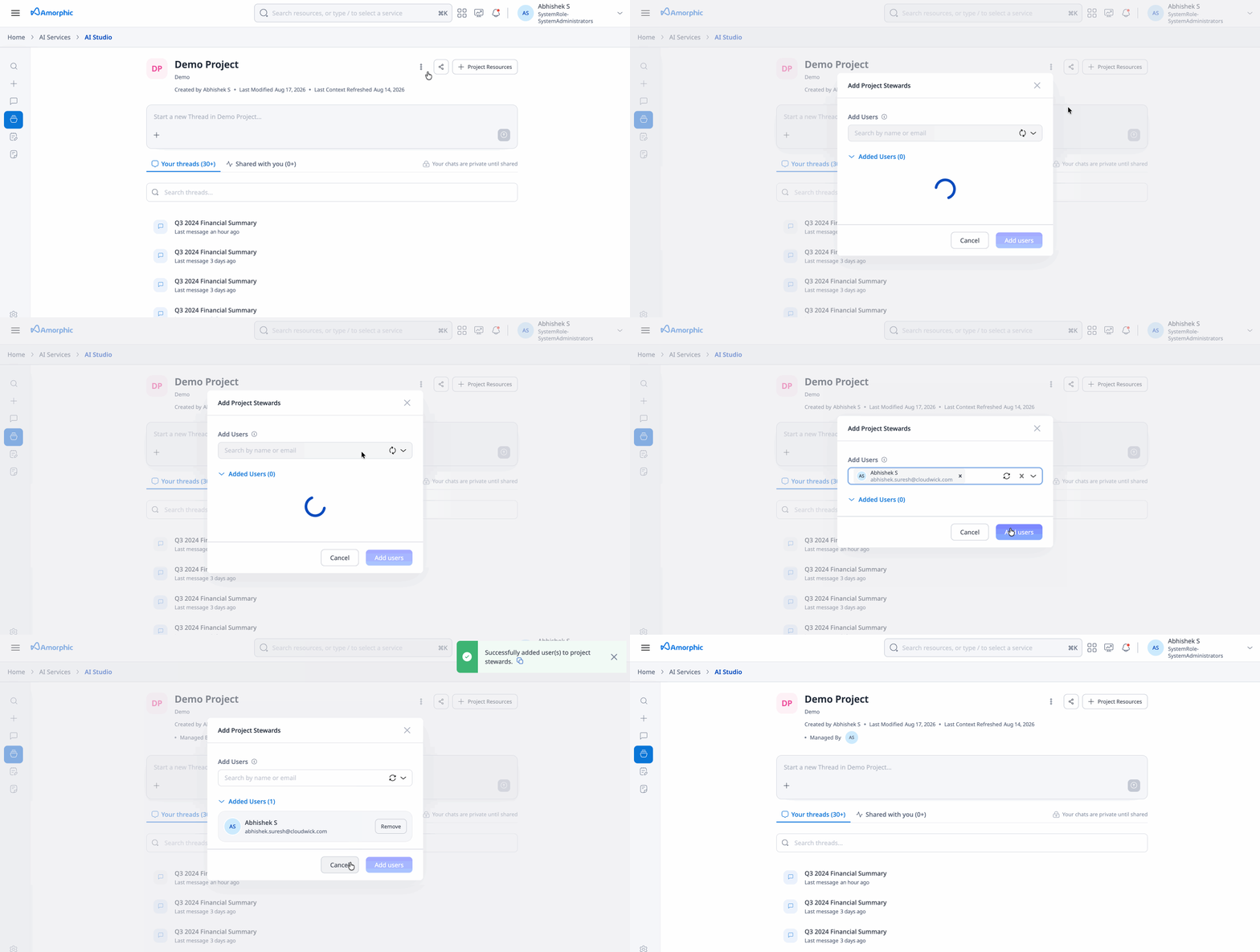
Projects can have one or more Stewards — users responsible for maintaining the project's knowledge and context. Any user with Owner or Editor access can be assigned as a steward.
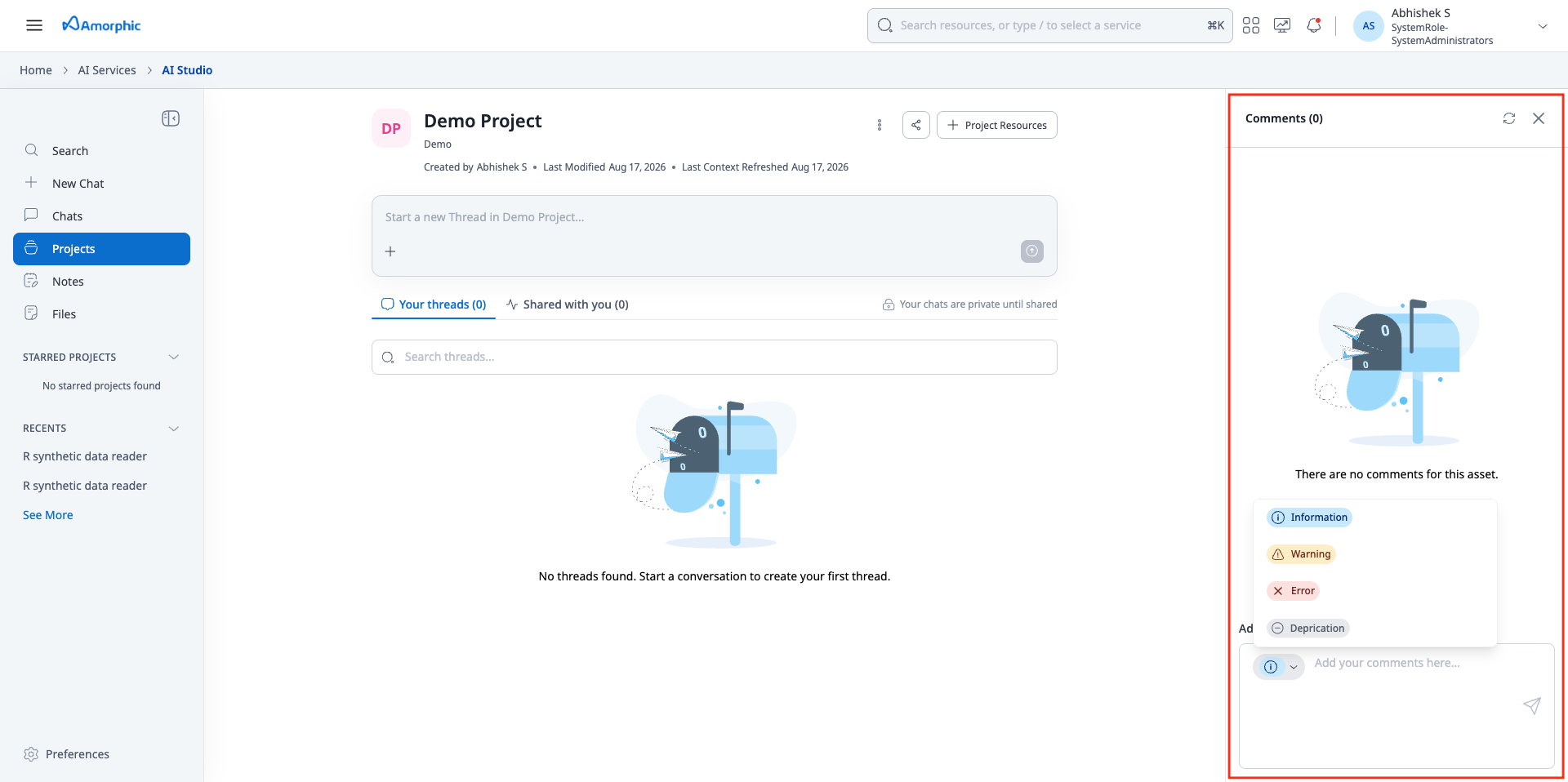
Users with access to the project can add comments to share context, flag issues, or call out changes. When you add a comment, choose a comment type so readers can see how urgent or important it is.
- Information: General notes, guidance, or background that does not indicate a problem. Use this for tips, updates, or useful context.
- Warning: Something users should watch for — for example, incomplete context, a known limitation, or a change that may affect answers.
- Error: A known problem that affects using the project, such as a broken resource, incorrect data, or a configuration that produces wrong results.
- Deprecation: Marks a resource, instruction, or approach that is being phased out and should no longer be relied on.
Developer/Technical View vs End-User View
Projects are geared towards two personas with different capabilities and responsibilities: Developer and End-User. To optimize user experience and reduce unnecessary complexity, projects offer two distinct interface views—one for Developers and one for End-Users—based on each user's role and permissions. This tailored approach ensures that users only see tools and actions relevant to their responsibilities: Developers get access to advanced configuration and management options, while End-Users are presented with a streamlined interface focused on conversation and resource usage. By aligning the experience to the user's persona, we improve clarity, speed up workflows, and reduce cognitive overload.
Developer View
Developers (Owners and Editors) configure and manage the project infrastructure:
Configuration Responsibilities:
- Project Setup: Create projects and define their purpose
- Resource Integration: Add and configure knowledge bases, agents, and files
- Model Selection: Choose the AI model and configure guardrails
- Custom Instructions: Write detailed instructions that define how the assistant should behave and use resources
- Persona Configuration: Set the assistant's name, greeting, and user suggestions
- Access Management: Share projects with users and manage permissions
- Resource Access Enforcement: Configure access control settings for knowledge bases and agents
- Stewards: Assign Owners or Editors as stewards so that they manage the project resources
Key Capabilities:
- Full access to project settings and configuration tabs
- Ability to modify project structure and resources
- Control over how the assistant responds and behaves
- Management of project-wide settings that affect all threads
- Assign and manage project stewards
End-User View
End-User (users with ai.view permissions only and read-only access to projects) interact with the configured project through threads:
Interaction Responsibilities:
- Thread Creation: Create new conversation threads within the project
- Conversations: Chat with the assistant using the project's configured resources
- Message Controls: Choose Response Style or Thinking Mode, and toggle citations or Web Search, for each message
- Thread Management: Manage their own threads (rename, delete, share)
- Resource Usage: Leverage the knowledge bases, agents, and files configured by developers
- Comments: Add comments to share context or flag issues with project stewards
- Notes & Saved Prompts: Capture takeaways from a conversation or save a prompt to reuse later
Key Capabilities:
- Access to all project resources configured by developers
- Inherit project configuration (model, instructions, persona) automatically
- Create and manage personal conversation threads
- View shared/public threads from other users
- Use per-message controls (Response Style, Thinking Mode, citations, Web Search)
- Add comments and use notes
- Cannot modify project configuration, resources, or steward assignments
Workflow Example
-
Developer Setup: A developer creates a "Customer Support" project, adds a product documentation knowledge base, configures a refund processing agent, and writes custom instructions: "First search the knowledge base for product info, then use the refund agent if needed."
-
End-User Usage: An end-user opens the project, sees the configured resources, and creates a thread asking "How do I process a refund for order #12345?" The assistant automatically follows the developer's instructions, searches the knowledge base, and invokes the refund agent as configured.
-
Shared Experience: All end-users benefit from the same configuration, ensuring consistent behavior and access to the same resources across all threads.
Access Control
Projects implement the same access control levels supported for other Amorphic resources: owner, editor, read-only
Access Types
- Owner: Full control including deletion and configuration changes
- Editor: Can update project details and components
- Read-only: Can view and interact with the project but cannot modify. Can create threads and converse with the assistant
Note sharing
Notes in a project support two complementary access models:
| Access model | Description |
|---|---|
| Project-level access | Set on the note (none, read-only, editor, or owner). When set to a level other than none, everyone who has project access receives that note access level. New notes default to none, so linking a note to a project alone does not share it with project members. |
| Individual sharing | Share the note directly with specific users or access tags (owner / editor / read-only), the same way other Amorphic resources are shared. This works with or without project access. |
When both apply, the effective access is the higher of the two levels. Changing project-level access updates note access for current project members; setting it back to none removes that project-level contribution while keeping any individual shares.
- Notes are not automatically shared when a project is shared. Project members see a note only after Project-level access is set to something other than
none, or after the note is shared with them individually. - Comments are visible to users with access to the project. Stewards are notified when a new comment is added
- All public threads in the project are accessible to all users with whom the project is shared
Project Management
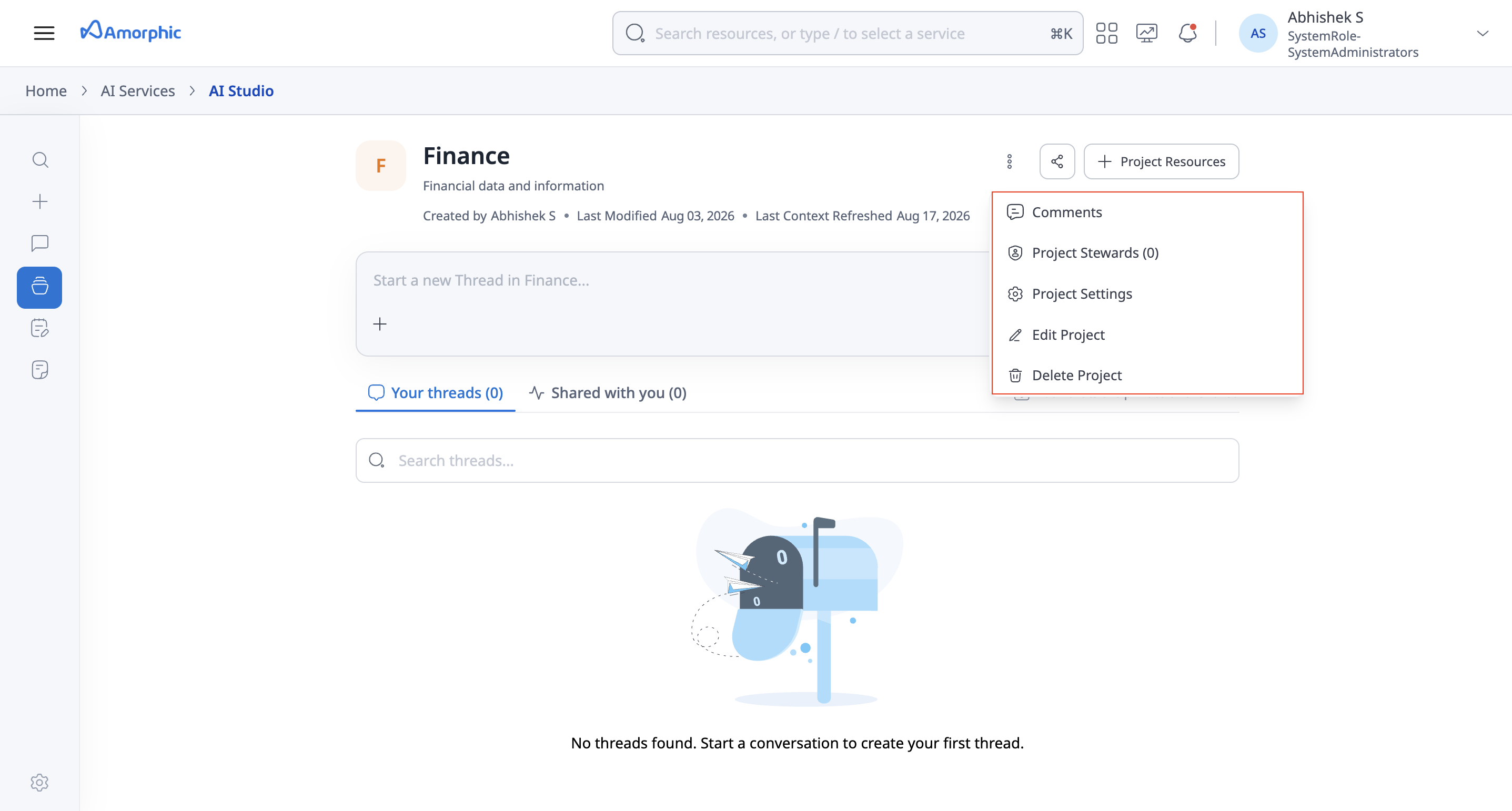
Editing a Project
Owners and Editors can edit project metadata using the edit option.
Cloning a Project
The clone feature allows you to quickly create a new project using the same configuration and context as the original.
Ad-hoc files from the original project are not duplicated in the clone.
Deleting a Project
Only project owners can delete projects. Deletion permanently removes project metadata, comments, threads, files, and avatar. Deletion is irreversible and processed asynchronously.
Notes linked to the project are orphaned, not deleted. The project association is removed so each note becomes a standalone note. Note content and existing note access (including individual shares) are preserved for users who already have access to those notes.
Limitations
- The more context (files, knowledge bases, resources) you include in a project, the longer it may take to generate an answer.
- Without clear and detailed descriptions for each resource, the assistant may overlook some resources or take longer to respond since it must consider all attached resources during each query.
- Newly uploaded ad-hoc files require up to one minute before their content is available for questions.
- Ad-hoc files are automatically deleted 30 days after upload. Use a Knowledge Base for files you need to keep long-term.
- File ingestion may not work properly for files containing images or scanned text. For best results, move these files into a dataset and attach the dataset to a knowledge base.
Best Practices
Resource Configuration
- Knowledge Bases and Agents: Provide clear, descriptive names and descriptions for knowledge bases and agents to help the assistant understand their purpose and capabilities
- Structured Knowledge Bases: Attach only the datasets (or domains) relevant to the project, and make sure they're cleaned beforehand. Attaching more datasets than needed, or datasets with unclean data, can reduce SQL AI's accuracy
- File Management: Use descriptive file names and include file names in queries when you want to target specific files. You can also ask questions across multiple files in a thread. Ad-hoc files are capped at 10 per project and are automatically deleted 30 days after upload — for files you need to keep long-term or query repeatedly, add them to a Knowledge Base instead
- Resource Selection: Multi-file querying works well for a small set of attached files. For queries over large collections or mixed data types and sources, use knowledge bases rather than individual files for better results
Model and Performance
- Model Selection: We recommend using Claude Sonnet 4.6 or models that support caching for better performance
- Context Management: Maintain clean context by removing unused resources and keeping project scope focused for more relevant results
Prompting Your Assistant
- Give context: State what you want, why you want it, and any relevant background — vague requests get vague answers
- Resource Guidance: If the assistant doesn't select the correct resource automatically, try explicitly mentioning the resource name in your query to guide the assistant
- Specify constraints: Define requirements explicitly so that assitant can deliver expected results
- Break complex tasks into steps: Guide the assistant through multi-step reasoning instead of asking for everything at once
- Iterate: Prompting is rarely one-shot. Refine your request based on the response, or ask follow-up questions to get the required answer
Examples
| Weak prompt | Improved prompt | What was added |
|---|---|---|
| A customer got a damaged item. Can they get a refund or a replacement? | For a US customer who received a damaged item 18 days ago, summarize refund vs replacement. Cover eligibility, required evidence, and timeline. Skip international shipping rules. | Customer region and timeframe, the sections to cover, and what to leave out |
| Compare Q1 revenue to last year. | Compare monthly revenue for Q1 this year vs Q1 last year in APAC, excluding returns. For each month give revenue and % change, then call out the three biggest movers. If a month has no actuals, say so instead of filling in zero. | Region and filters, the output shape, and how to handle missing data |
| Can order #12345 be refunded? | Check refund status for order #12345 with the Refund Agent. If it qualifies under the 30-day damaged-item policy, tell me the next step and what you need from me. Do not submit anything until I confirm. | The specific record, the agent to run, and an explicit stop before taking action |
| Summarize this file. | Summarize q3-board-deck.pdf in under 200 words for an executive audience. Lead with the three decisions that need sign-off, then list the risks flagged in the appendix. | The exact file name, length limit, audience, and the structure of the answer |
Each improved prompt adds the same three things: who or what the question is about, any filters or constraints, and the shape of the answer. Naming a resource is only needed when the assistant picks the wrong one on its own, or when you want a specific agent to run.
Common mistakes to avoid:
- Assuming the assistant can infer unstated context
- Overloading a single message with multiple unrelated tasks
- Being vague about the request
- Not saying what the response should contain
- Not giving feedback on a response before asking a follow-up