
Agents
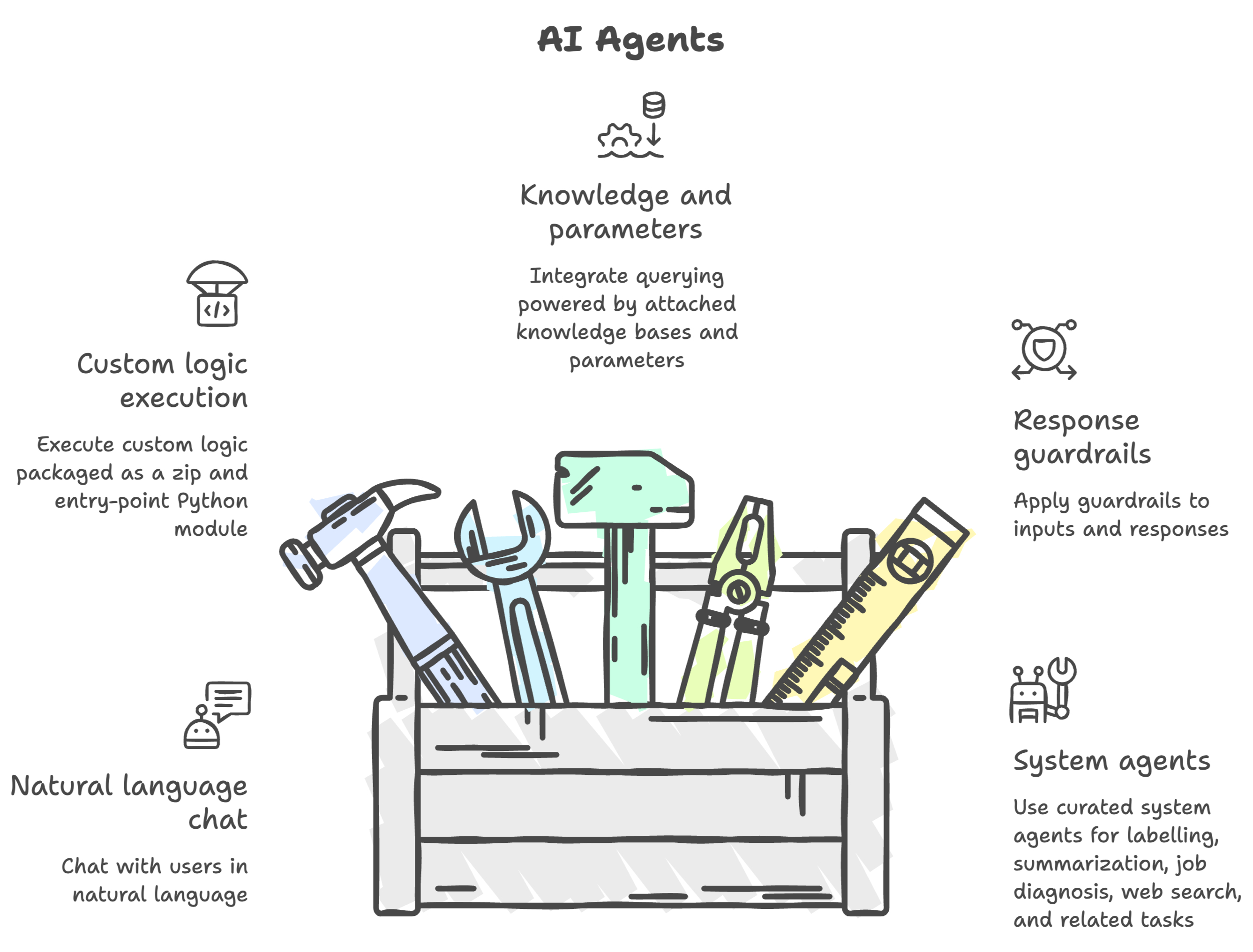
Agents are AI assistants that help you automate workflows and tasks. They understand natural language and can run custom business logic, use attached knowledge bases and parameters, and apply guardrails to model responses.
Amorphic Agents run on AgentCore Runtime for both custom (user-created) agents and system agents.
Agents can:
- Chat with users in natural language
- Execute custom logic packaged as a zip and entry-point Python module
- Use attached knowledge bases and parameters
- Apply guardrails to inputs and responses
- Use curated system agents for labelling, summarization, job diagnosis, web search, and related tasks
Custom agents no longer use Bedrock Agents with action groups, instructions, or in-form tool builders. They are provisioned on AgentCore Runtime from a zip package, Python version, and entry point.
Rebuild existing Bedrock-based custom agents as AgentCore packages before relying on chat, logs, or updates after the overhaul.
Prerequisites
- AI Core (Agents capability) must be enabled for the environment.
- At least one model must be available and assignable for the Agents component. See AI Services / Assign Models.
- For create/update of custom agents, prepare a zip package that contains your agent code and a Python entry-point file (see Agent package).
Agent Operations
Agents are available under AI Services > AI Agents. The listing shows agents you can access, including system agents.
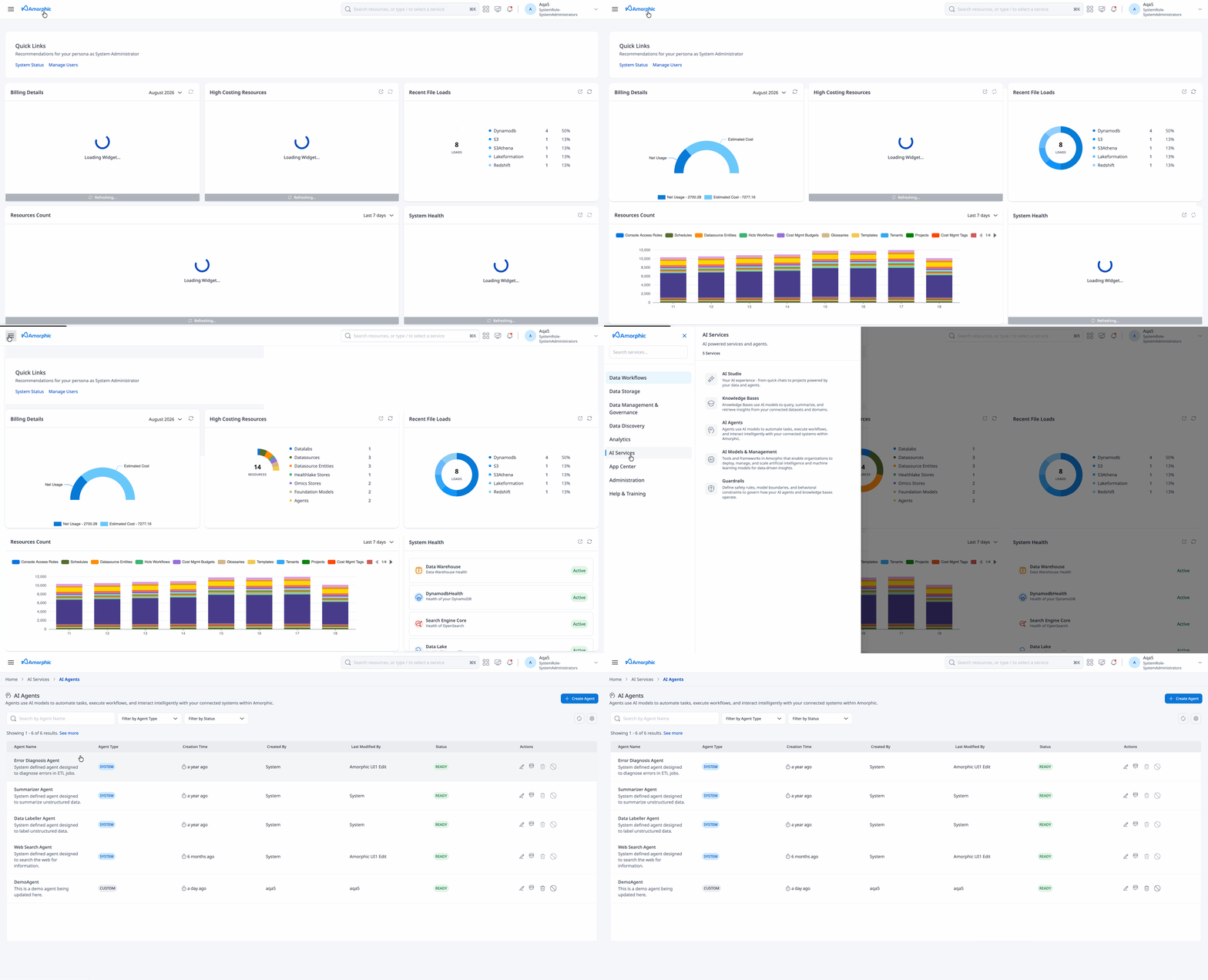
Supported operations for custom agents:
While an agent is in a transitional state (CREATING, UPDATING, or DELETING), avoid starting other create/update/delete or enable actions on that agent. Wait until the status settles.
Create Agent
Custom agents are created asynchronously on AgentCore Runtime. You upload the agent package first, then submit the create form using the generated agent id.
- Go to AI Services > AI Agents
- Start Create Agent
- Fill in the create attributes (see table below)
- Upload the agent package (zip).
- Optionally attach knowledge bases, guardrails, and parameters
- Click Create
For how to create and generate artefacts for agents, refer to How to create Agent Artifacts.
Agent Name must be 3–48 characters, start with a letter, and use only letters, numbers, and underscores. Hyphens are not allowed (AgentCore runtime naming).
| Attribute | Description |
|---|---|
| Agent Name | Unique name for the agent. 3–48 characters; pattern ^[a-zA-Z][a-zA-Z0-9_]{2,47}$ (no hyphens). |
| Description | Short description of what the agent does (required; max 200 characters). |
| Model | AI model enabled for Amorphic and available to the Agents component. |
| Python Version | Runtime Python version for the package. One of: PYTHON_3_10, PYTHON_3_11, PYTHON_3_12, PYTHON_3_13, PYTHON_3_14. |
| Entry Point | Path to the Python entry module inside the zip. Must end with .py. |
| Agent Package | Zip uploaded via the create upload step (agent_package.zip). Contains tools and logic the runtime executes. |
| Session Settings | Idle Timeout (seconds the chat session may stay idle) and Max Lifetime (maximum session lifetime). Defaults: Idle 900, Max 1800. Allowed ranges: Idle 60–28800, Max 60–86400. |
| Knowledge Bases | Optional. Attach ACTIVE knowledge bases the agent may use (see Connecting resources). |
| Guardrails | Optional. Attach guardrails for input/response validation. |
| Parameters | Optional. Attach accessible SSM parameters the agent package may read (up to 35). |
| Cost Tags | Optional, when Cost Management is enabled. Key/value tags for cost tracking. |
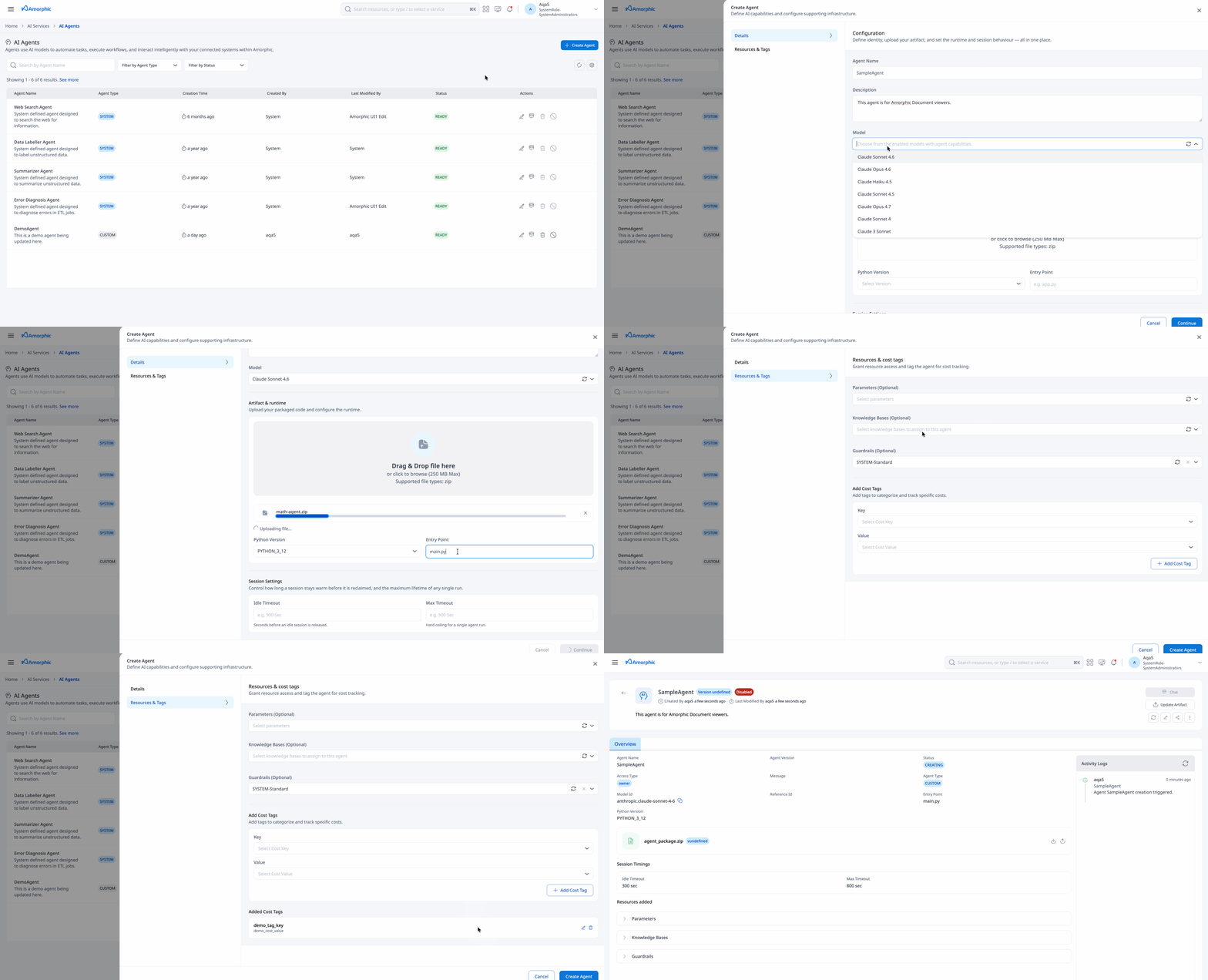
- Creation is asynchronous. Status moves from CREATING to READY when provisioning completes (or to CREATE_FAILED on failure).
- The agent starts disabled until create succeeds; on success it becomes READY and enabled.
- Shared libraries are not attached to AgentCore custom agents. Bundle dependencies inside the zip package instead.
View Agent
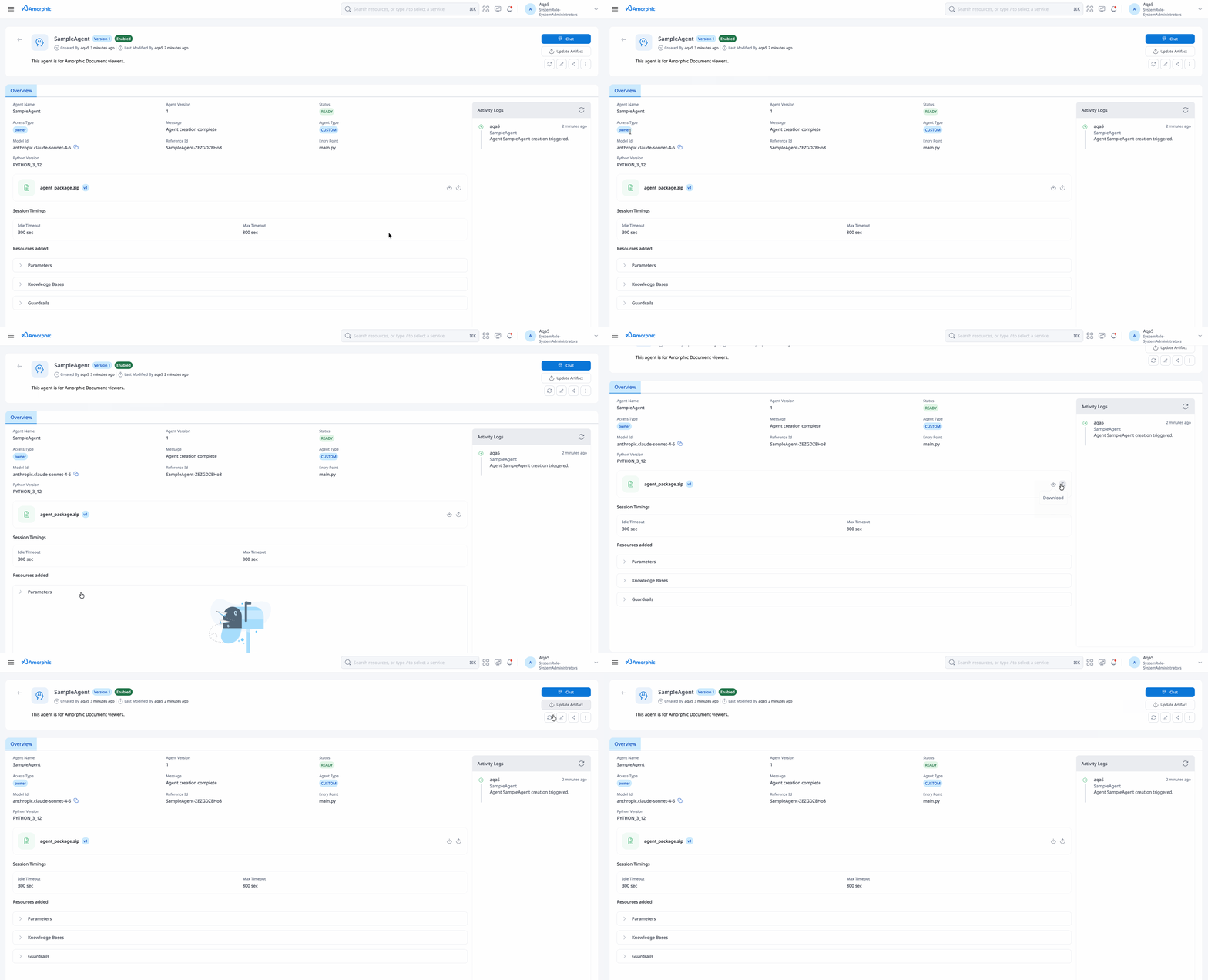
Open any agent to see its detail page: configuration, attached resources, package metadata (for custom agents), and chat.
On a custom agent details page you can:
- Open the Chat interface
- Review knowledge bases, guardrails, and parameters
- Enable or Disable the agent
- Open Logs and package upload/download actions (custom only)
- Edit the agent via the overflow (three-dots) menu
Chat requires the agent to be READY and enabled. If the agent is not ready or not enabled, the chat session returns an error until you wait for readiness or enable the agent.
- READY — Provisioned and available for enable/chat (when enabled)
- CREATING — AgentCore runtime is being created
- UPDATING — Agent is being updated
- DELETING — Agent is being removed
- CREATE_FAILED — Create failed; agent cannot be enabled until fixed via update/retry
- UPDATE_FAILED — Last update failed; you may update again or enable/disable per rules below
- DELETE_FAILED — Delete failed; retry delete when not in a transitional state
Avoid conflicting actions while status ends in ING.
Agents in CREATE_FAILED stay disabled and cannot be enabled. Fix the package or configuration and update (or recreate) the agent so provisioning can succeed.
Edit Agent
Update a custom agent from the three-dots menu on the agent details page when status is READY, UPDATE_FAILED, or CREATE_FAILED.
You can update:
- Display name and description
- Model
- Python version and entry point
- Session settings
- Resource access (knowledge bases, guardrails, parameters)
- Cost tags (when enabled)
- Agent package (re-upload zip via the upload-package action, then save)
Agent name and id are not changed after create.
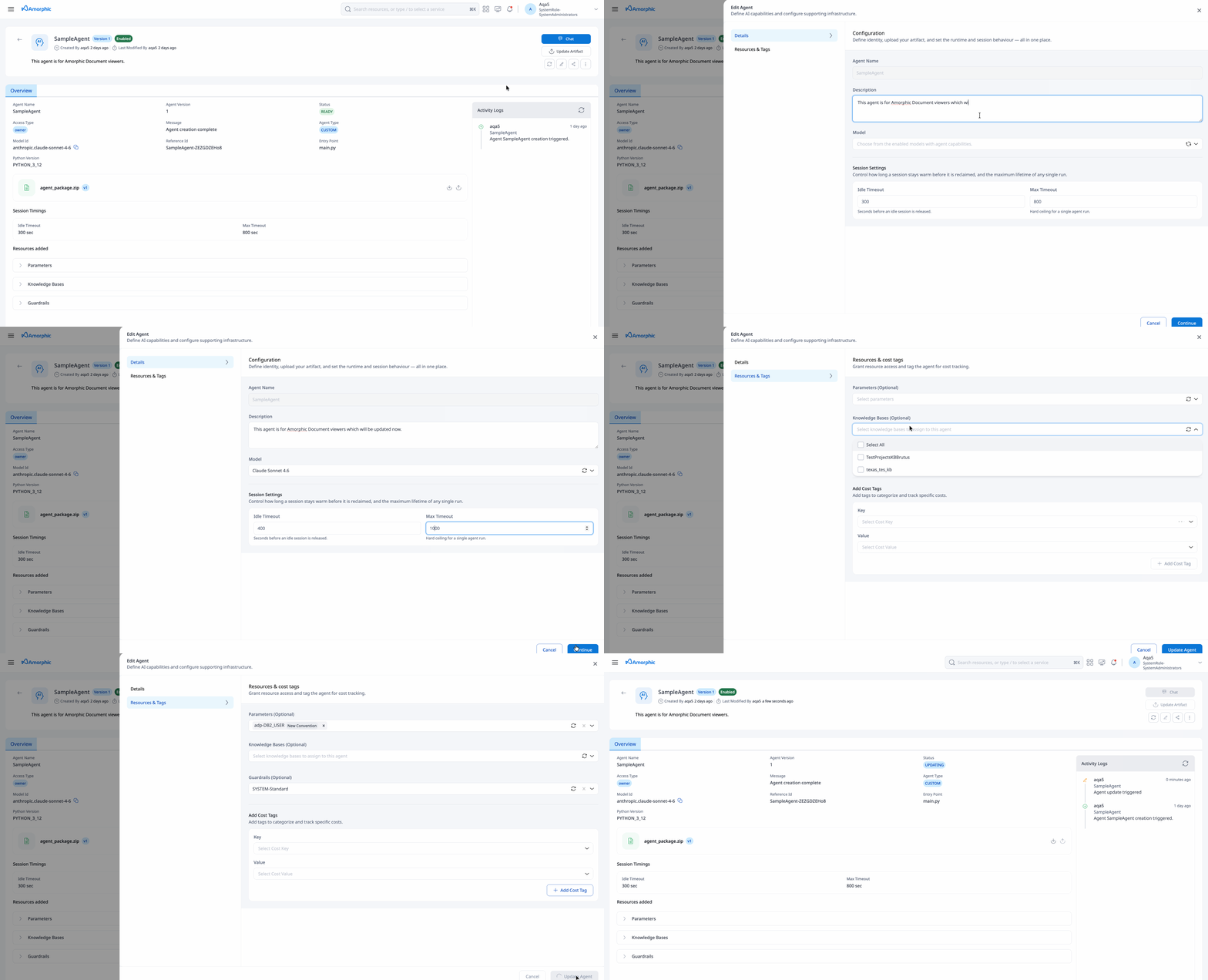
After an agent is updated, refresh an open chat session before continuing. The session may prompt you to refresh when the agent configuration has changed.
Enable or Disable Agent
Use Enable / Disable from the agent details actions.
- Enable is allowed when status is READY or UPDATE_FAILED.
- Disable is allowed when status is READY, UPDATE_FAILED, or CREATE_FAILED.
- CREATE_FAILED agents cannot be enabled.
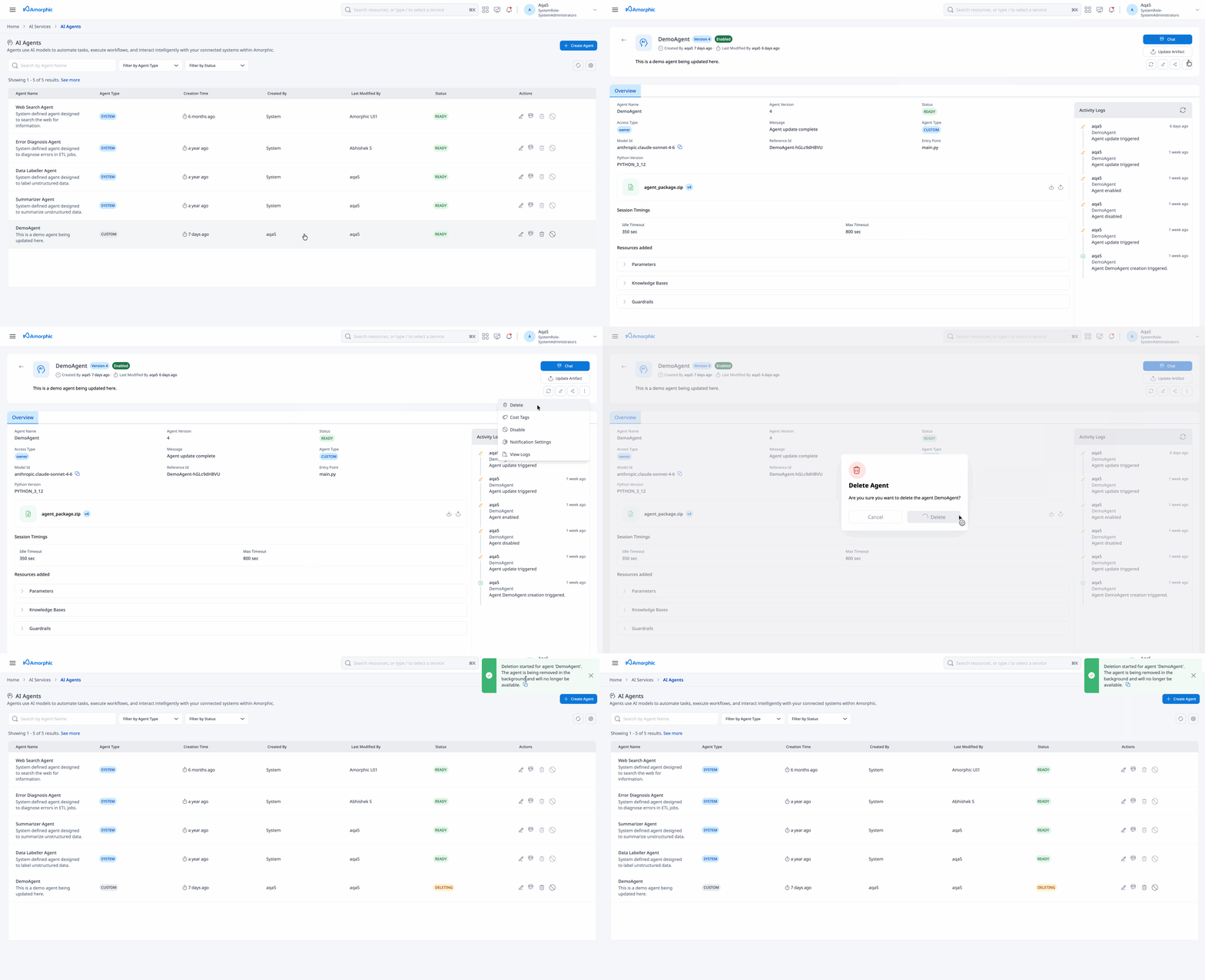
Delete Agent
Owners can delete a custom agent when it is not in a transitional (*ING) state.
- You cannot delete an agent that is attached to one or more AI projects. Remove the agent from those projects first, then delete.
- System agents cannot be deleted.
Connecting Resources
Knowledge Bases
Attach ACTIVE knowledge bases so the agent can use them at runtime.
- Choose knowledge bases you can access
- Each attachment includes a knowledge base id and name
- Up to 100 knowledge bases may be attached (subject to access and platform limits)
When attaching a knowledge base, it should be a Amorphic created KnowledgeBase. Only knowledge bases with status ACTIVE can be attached.
Permissions to the knowledge base (and underlying data sources, where applicable) are validated when you attach and when you chat.
For creating and managing knowledge bases, see Knowledge Bases.
Guardrails
Attach guardrails to validate user input and model responses.
- Choose from user-created and system-defined guardrails
- Agent traffic is evaluated against the attached rules
Every agent must have guardrail coverage. If you do not select a guardrail, the platform attaches a system default guardrail.
See Guardrails.
Parameters
Attach accessible Parameters (SSM parameter keys) that your agent package may read at runtime. Up to 35 parameters can be attached.
Agent Package
Custom agent behavior lives in a zip package uploaded to the platform (agent_package.zip), not in Bedrock action-group tool forms.
| Requirement | Detail |
|---|---|
| Format | Zip archive |
| Entry Point | Python file path ending in .py inside the package |
| Python Version | One of PYTHON_3_10 … PYTHON_3_14 |
| Upload (create) | Upload before create; use returned Agent Id |
| Upload (update) | Re-upload from the agent details / edit flow, then save |
| Download | Available for custom agents via retrieve-package / download action |
There is no in-product tool builder or sample tool template set for AgentCore custom agents. Author tools and handlers inside your package according to the AgentCore entry-point contract for your deployment. For layout, packaging, and upload steps, see Creating Agent Artifacts.
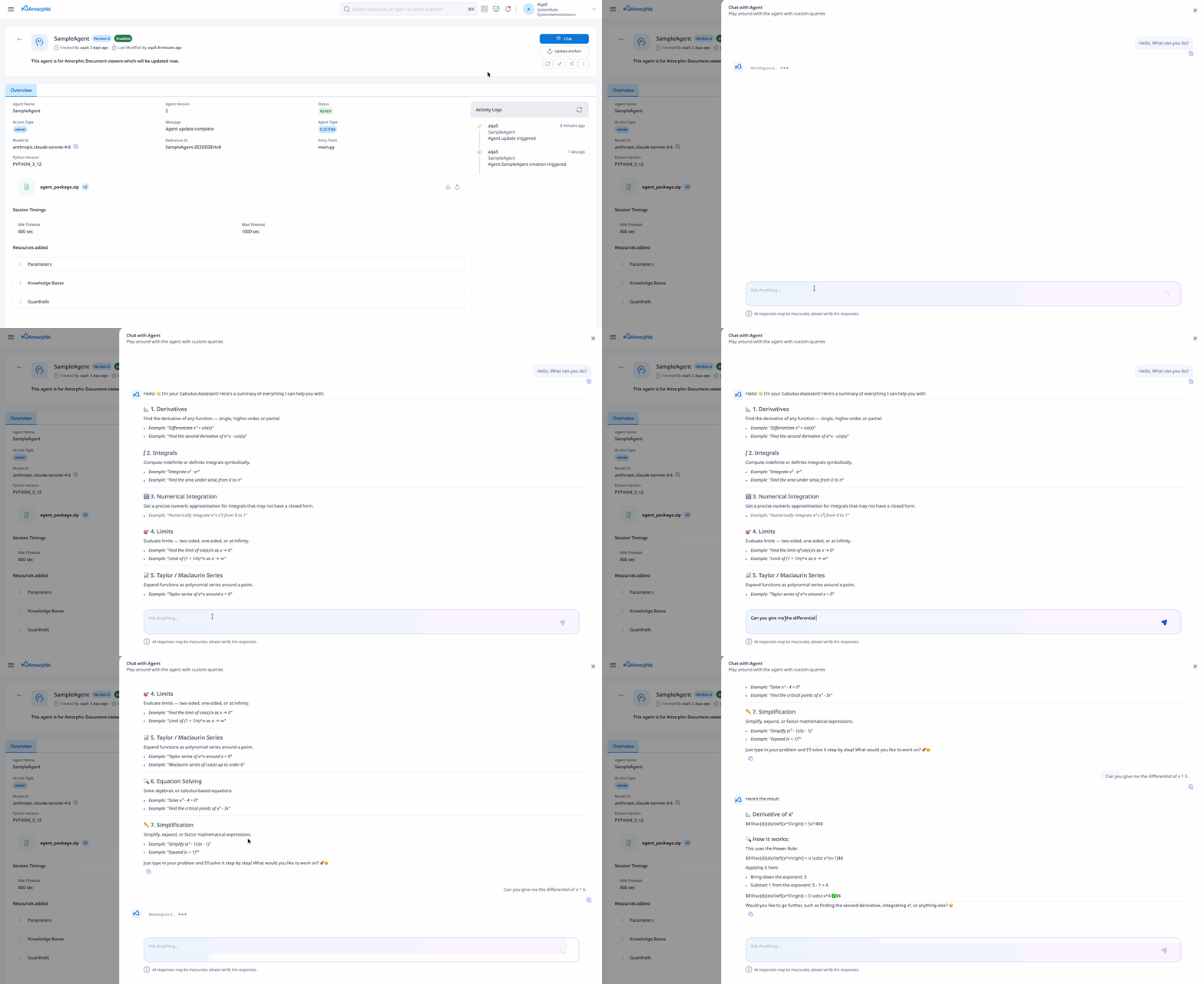
Chat
- Open a READY, enabled custom or eligible system agent
- Use the chat interface to send messages
- Responses stream from AgentCore Runtime
- Keep the agent enabled while chatting.
- Session idle behavior for custom agents follows Session Settings → Idle Timeout (default 900 seconds).
- If the agent was updated while a session is open, refresh the session when prompted before continuing.
Agent Logs
Logs are available for custom agents only (AgentCore runtime logs). System agents do not support generate / view / download logs or package download.
Open Logs from the overflow menu on the custom agent details page.
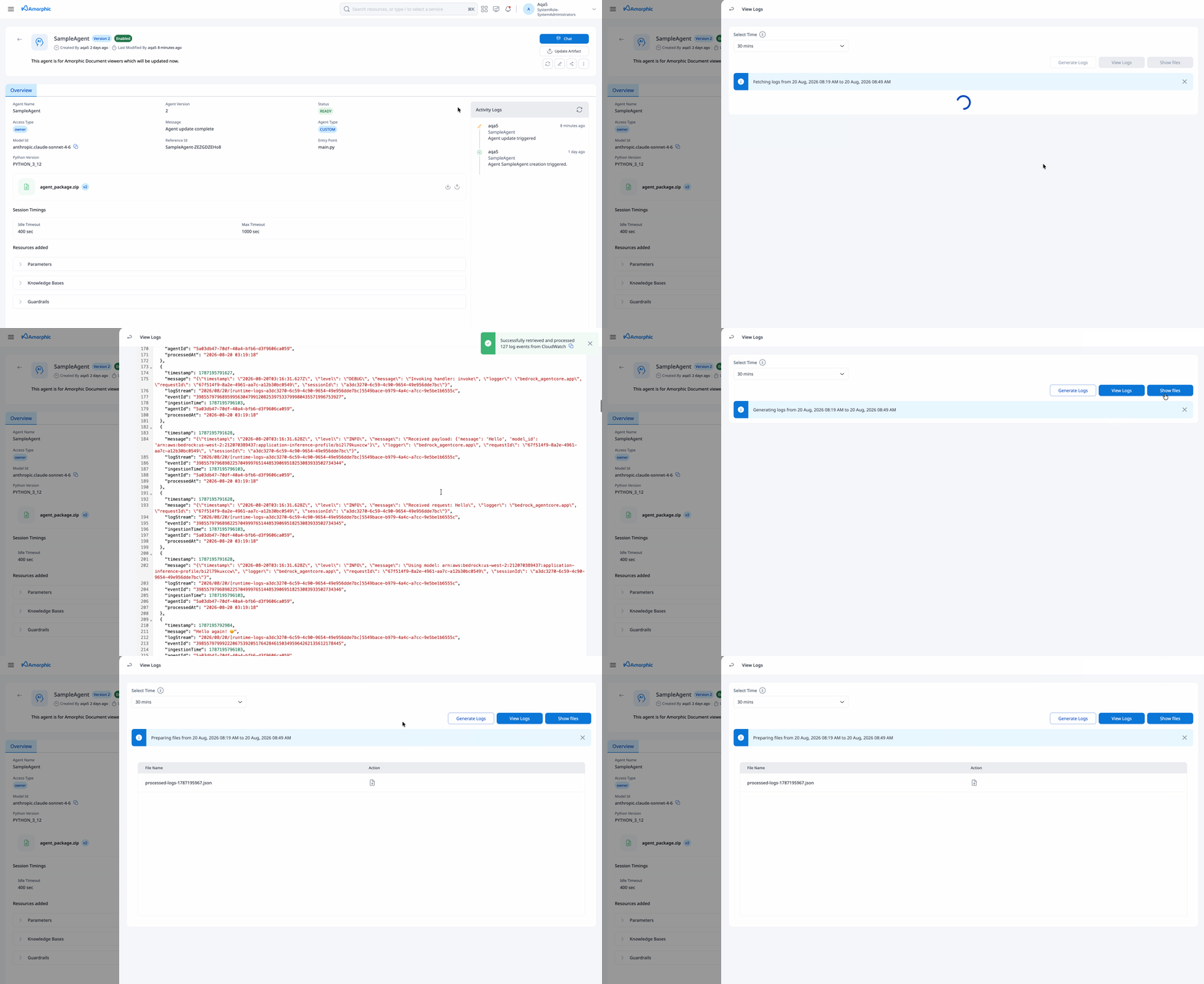
Generate Logs
Process logs into downloadable artifacts for a time range.
- Optionally select a date/time range
- Click Generate logs
View Logs
- Optionally specify a time range (default: last hour)
- Click View Logs
- Review runtime / package log output
Download Logs
- Optionally specify a time range
- View or list generated artifacts
- Download using the provided links
By default, Generate, View, and Download logs offer relative time ranges (for example last hour). When you choose CustomTimeRange, the window must be valid (start before end) and at most 30 days wide. Download links are valid for 1 hour (3600 seconds) from when they are generated.
Add logging statements in your agent package so logs are useful for debugging. If no logs appear, ensure the agent was invoked at least once after packaging logging into the code.
Common Use Cases
Customer Service Assistant
Package tools for ticketing or CRM calls, attach a knowledge base of FAQs, and attach a guardrail for safe responses.
Data Analysis Assistant
Package analysis helpers, attach parameters for connection settings, and point the agent at relevant knowledge bases or datasets your tools can access.
Document Processor
Package extraction/summarization tools and attach unstructured knowledge bases or dataset-backed sources your code can read.
System Agents
Amorphic provides curated system agents. They are managed by the platform, shared for use in AI Space, and run on AgentCore Runtime.
- Users cannot delete, sync, or download packages/logs for system agents. Interact with eligible system agents through chat (and related product surfaces).
- User is only allowed to update system agents model to suit their requirements.
System agents on the listing include:
- Datalabeller Agent
- Summarizer Agent
- Error Diagnosis Agent
- Code Generator Agent (not available in chat)
- Web Search Agent
Datalabeller Agent
Labels unstructured data from datasets or user-provided text.
Capabilities
- Label files in a dataset
- Label user-provided text passages
- Approve/reject AI-generated labels
- List files in a dataset
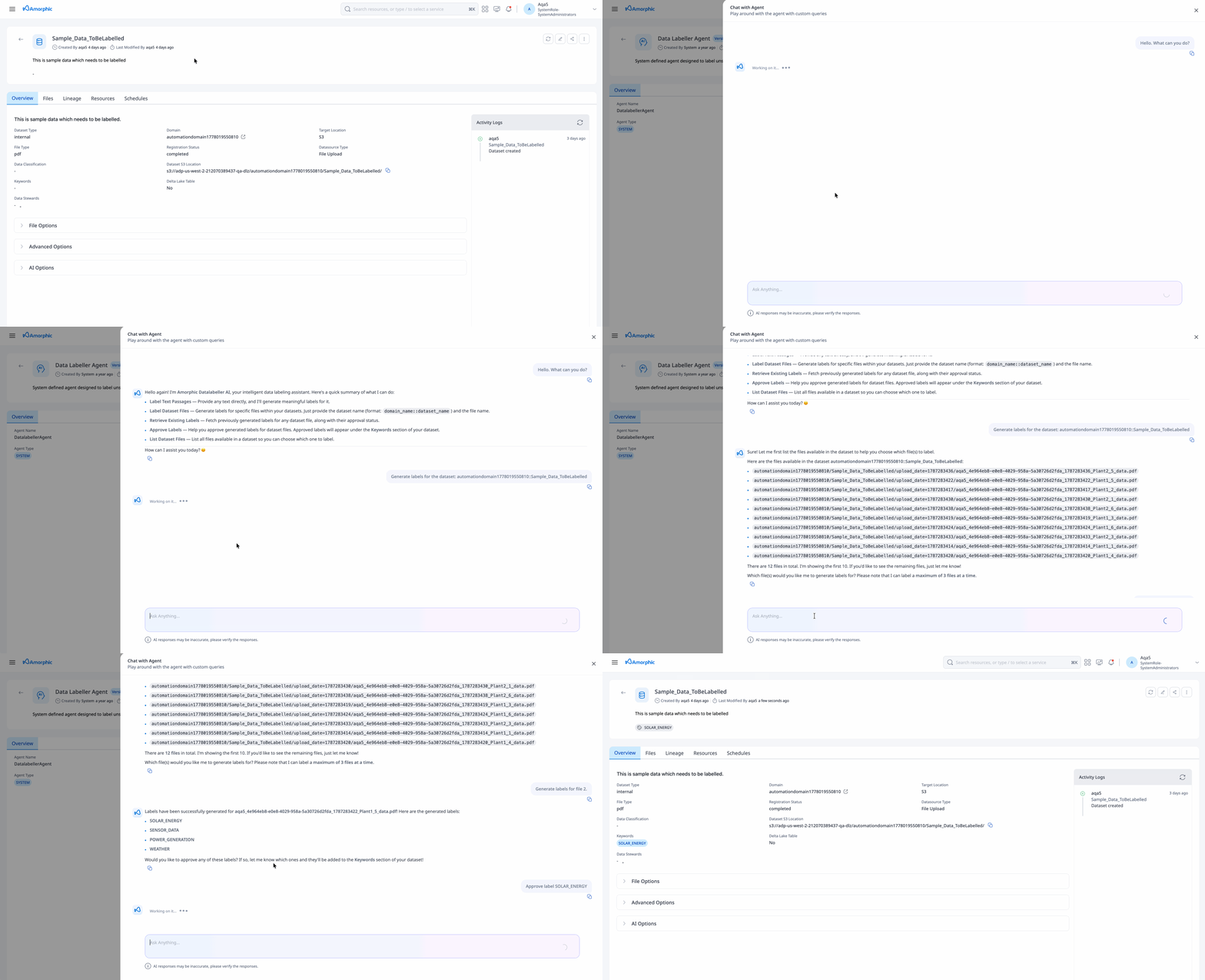
User-approved labels for a dataset file are stored under the Keywords section of the dataset for better searchability from Catalog. Users can remove approved labels later from the dataset.
Summarizer Agent
Summarizes dataset files or user-provided text.
Capabilities
- Summarize files in a dataset
- Summarize user-provided text passages
- List files in a dataset
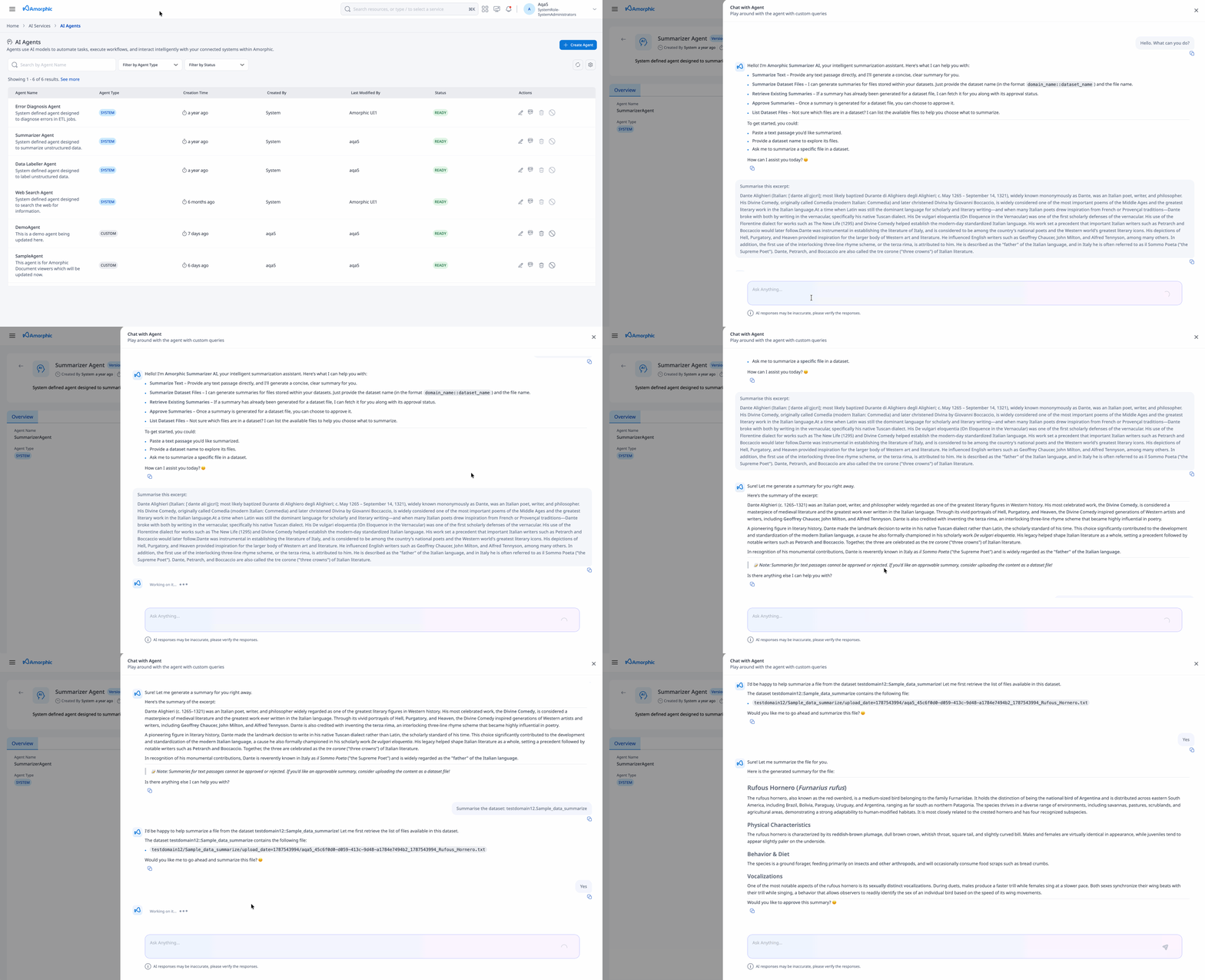
For Datalabeller and Summarizer agents, models must be configured for the Datasets component. See Assign Models.
Error Diagnosis Agent
Diagnoses failed ETL job executions.
Capabilities
- Explain the purpose and details of a job
- Diagnose errors in job executions
- Generate detailed diagnosis reports
- List previous job executions
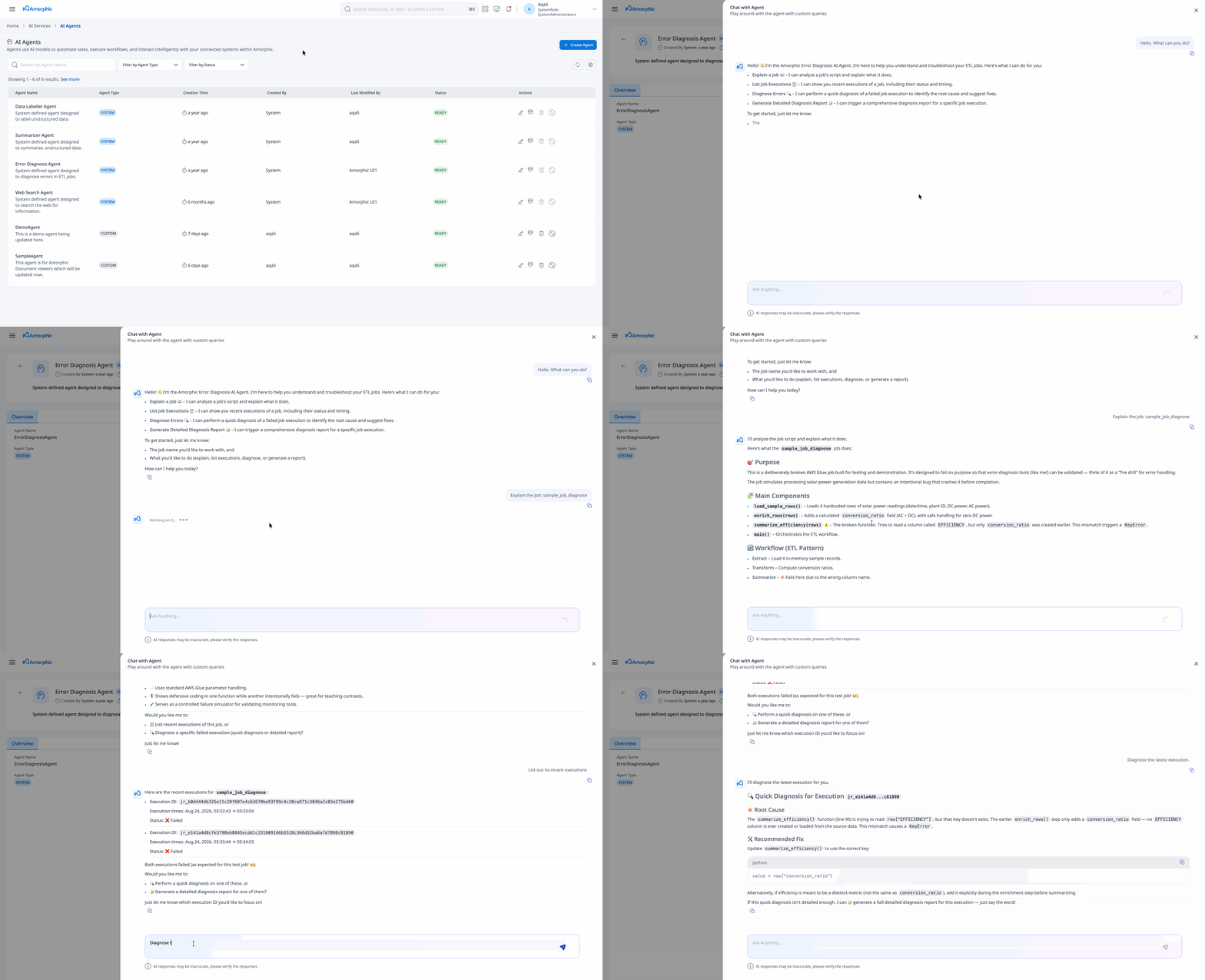
For Error Diagnosis, models must be configured for the Jobs component. See Assign Models.
Code Generator Agent
Platform-managed agent used for code-generation workflows. It appears among system agents but is not available in the Agents chat UI (UsableInChat: false).
Capabilities
- Generate or refine ETL job script content from user prompts
- Work with an existing job script in context (Edit Job Script)
- Support code-generation workflows outside Agents chat
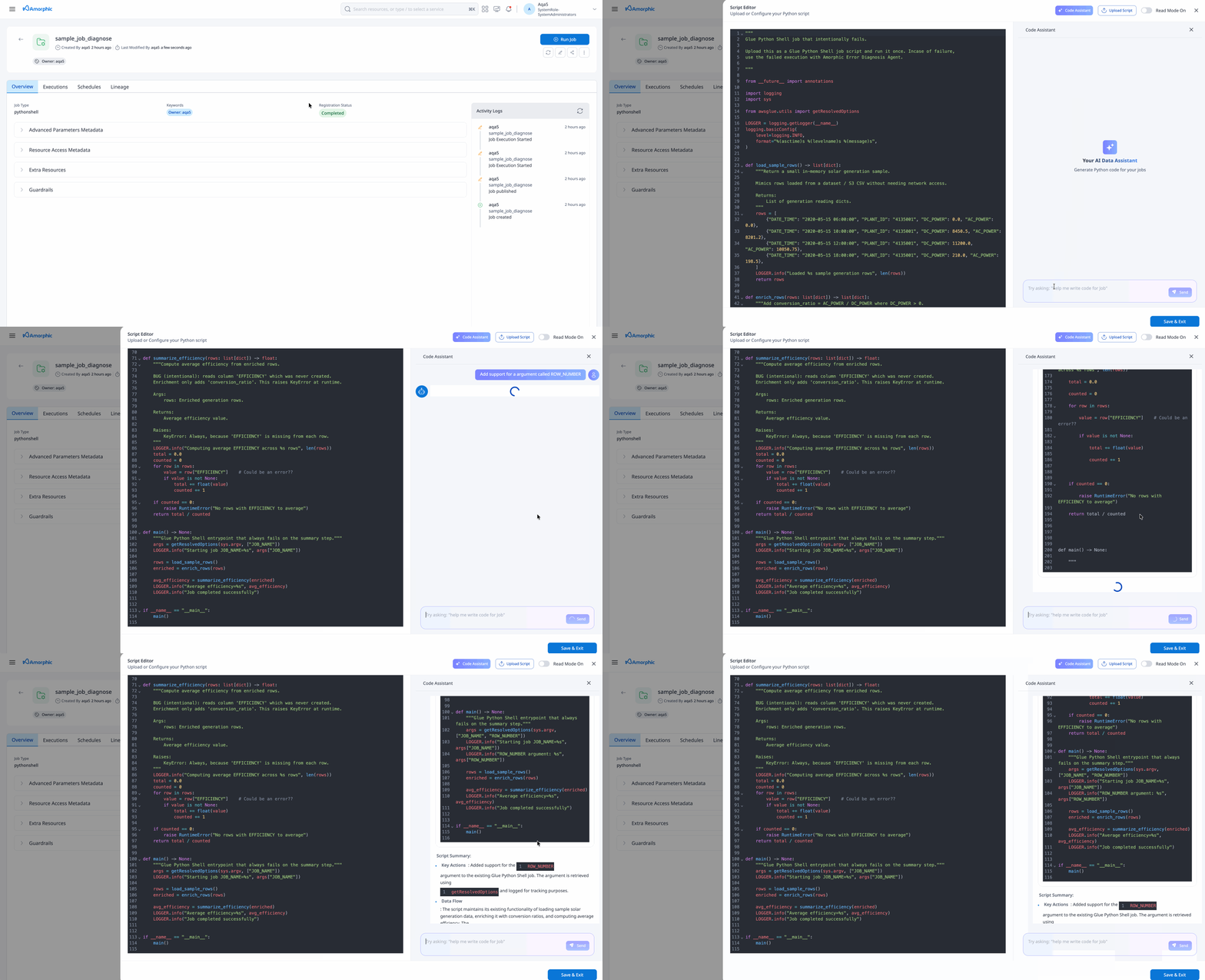
Use Code Generator from the Edit Job Script section when working on a user-provided script for ETL jobs.
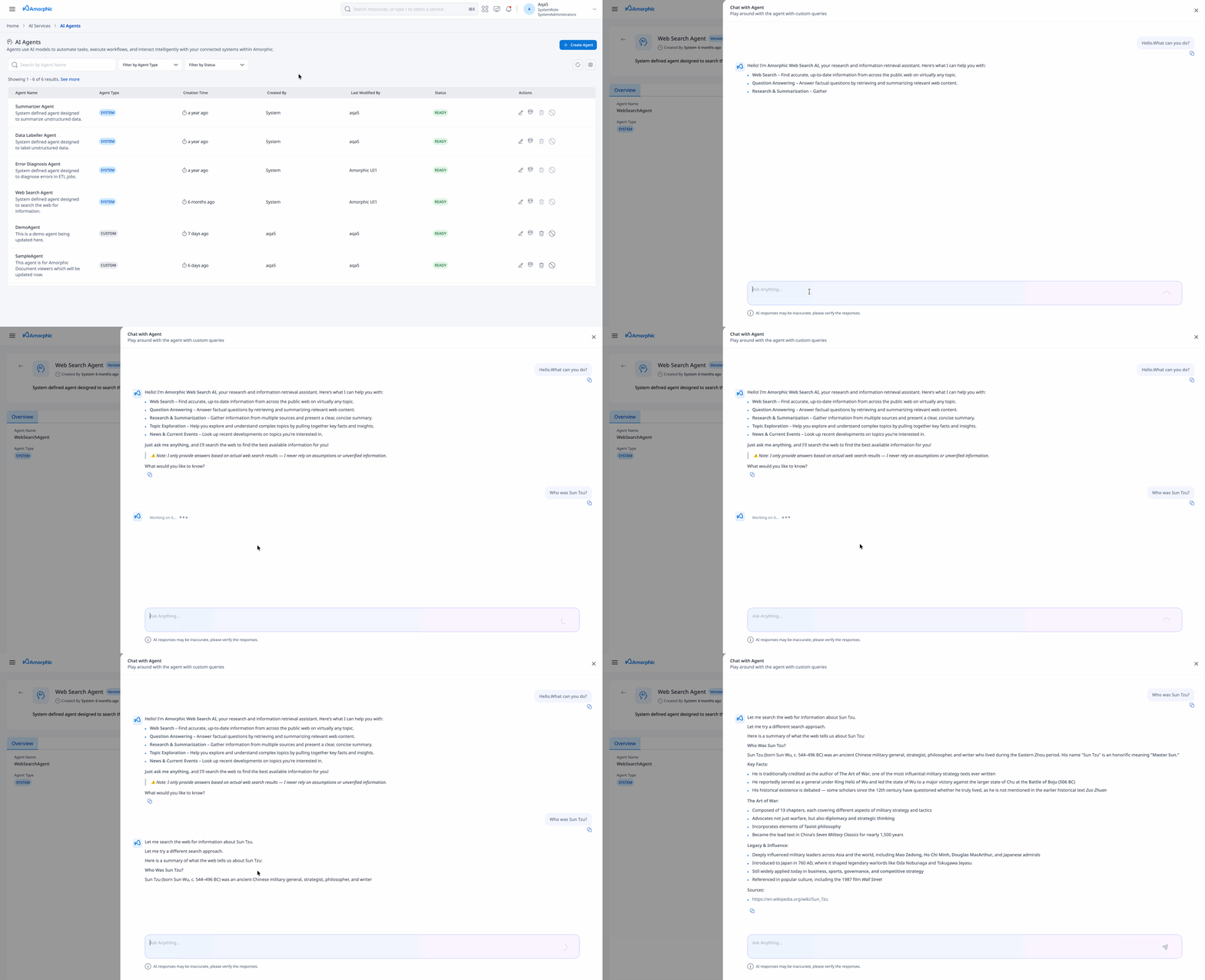
Web Search Agent
Retrieves up-to-date information from the public web when answers need external knowledge beyond internal datasets or knowledge bases.
By default, this agent uses the AgentCore Web Browser tool for live search and synthesis.
Capabilities
- Search the public internet for user queries
- Retrieve real-time information and recent updates
- Summarize findings from multiple web sources
- Answer questions requiring external knowledge not present in datasets or knowledge bases
Configurable Search Engines
You can configure alternative search providers instead of the default browser tool.
Supported engines:
TavilyExaPerplexity
To configure a different engine:
- Go to Administration → System Settings → AI Settings
- Update the Engine
- Provide the corresponding API Key
Once configured, the agent uses the selected engine for future searches.
- If no external engine is configured, the agent continues using the default AgentCore browser tool.
- The Web Search Agent enforces safety and compliance controls. It refuses illegal, harmful, sexually explicit, hateful, or extremist content, and will not assist with private personal data, surveillance, or bypassing access restrictions such as paywalls or
robots.txt. Custom guardrails can also evaluate user input and model responses.
Network Requirements for External Engines
Whitelist the following under System Settings → Whitelisted Proxy Domains:
| Search Engine | Domain to Whitelist |
|---|---|
| Tavily | api.tavily.com |
| Exa | api.exa.ai |
| Perplexity | api.perplexity.ai |
The default AgentCore browser performs full page browsing and rendering, which is slower and potentially more expensive than dedicated search APIs.
For faster responses and better cost efficiency, configure one of the supported search engines (Tavily, Exa, or Perplexity).
Since the Web Search Agent relies on external web access, responses may vary depending on search engine availability, API limits, or network restrictions in the deployment region.
Updating the Model of a System Agent
System Agents ship with a model chosen by the system, based on model performance and other factors. That model can become unavailable in a given account or region (for example, if the model is not enabled, is deprecated, or is blocked by a Service Control Policy), which makes the agent unusable. Administrators can now switch a System Agent to a different model directly from the System Agent details page.
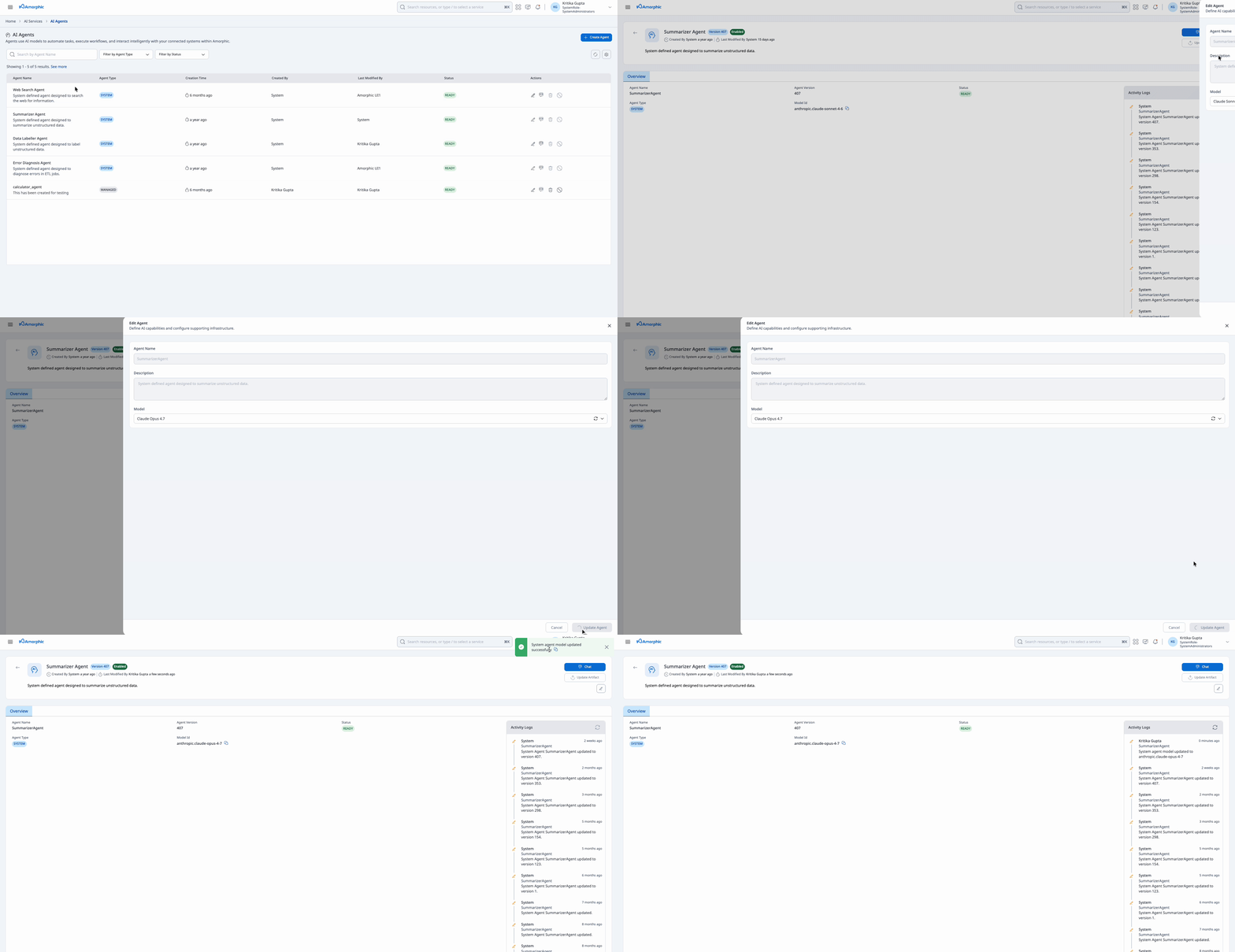
The model swap is applied immediately — the agent does not move into an UPDATING state and does not need to be recreated or synced. Subsequent interactions with the agent use the newly selected model.
Rules and prerequisites
| Rule | Details |
|---|---|
| Permission | The user must have ai-admin.fullaccess permission (super admins are allowed implicitly). Regular users with view access on System Agents cannot change the model. |
| Only the model can be changed | ModelId is the only field accepted for a System Agent update. Any other field in the request (instructions, tools, knowledge bases, etc.) is rejected — System Agents remain code-managed for everything else. |
| Model must be assigned to Agents | The target model must be enabled in Amorphic and assigned to the Agents configuration under AI Services > Manage AI Services. If no models are assigned to Agents, the update fails with a message asking you to contact your administrator. |
| Cost tracking | When cost management is enabled, the agent's cost inference profile is deleted and recreated for the new model so that cost attribution continues to work. |
| Audit trail | The change is captured in the agent's activity logs along with the user who made it. |