
Datasets
A dataset in Analytics Studio is a QuickSight dataset that defines how your data is structured and exposed for analysis. It connects a datasource to your assets—Analyses, Topics, and Dashboards—so you can build visuals and ask questions on top of Amorphic data without working directly in the QuickSight console for everyday tasks.
- On-demand creation: A dataset can be created when you build a new asset, or imported explicitly from the Datasets section in Analytics Studio.
- Amorphic dataset utilisation: Amorphic datasets are utilised to create new QuickSight datasets in Analytics Studio. When you select Amorphic data during import or asset creation, the application provisions the matching QuickSight dataset for you.
- External management: You can also view and manage datasets—including editing logic, deleting, sharing, or creating new ones—directly in the Amazon QuickSight console when advanced changes are needed.
How to create a dataset
Datasets are a separate asset type in Analytics Studio, alongside Topics, Analyses, Dashboards, and Datasources.
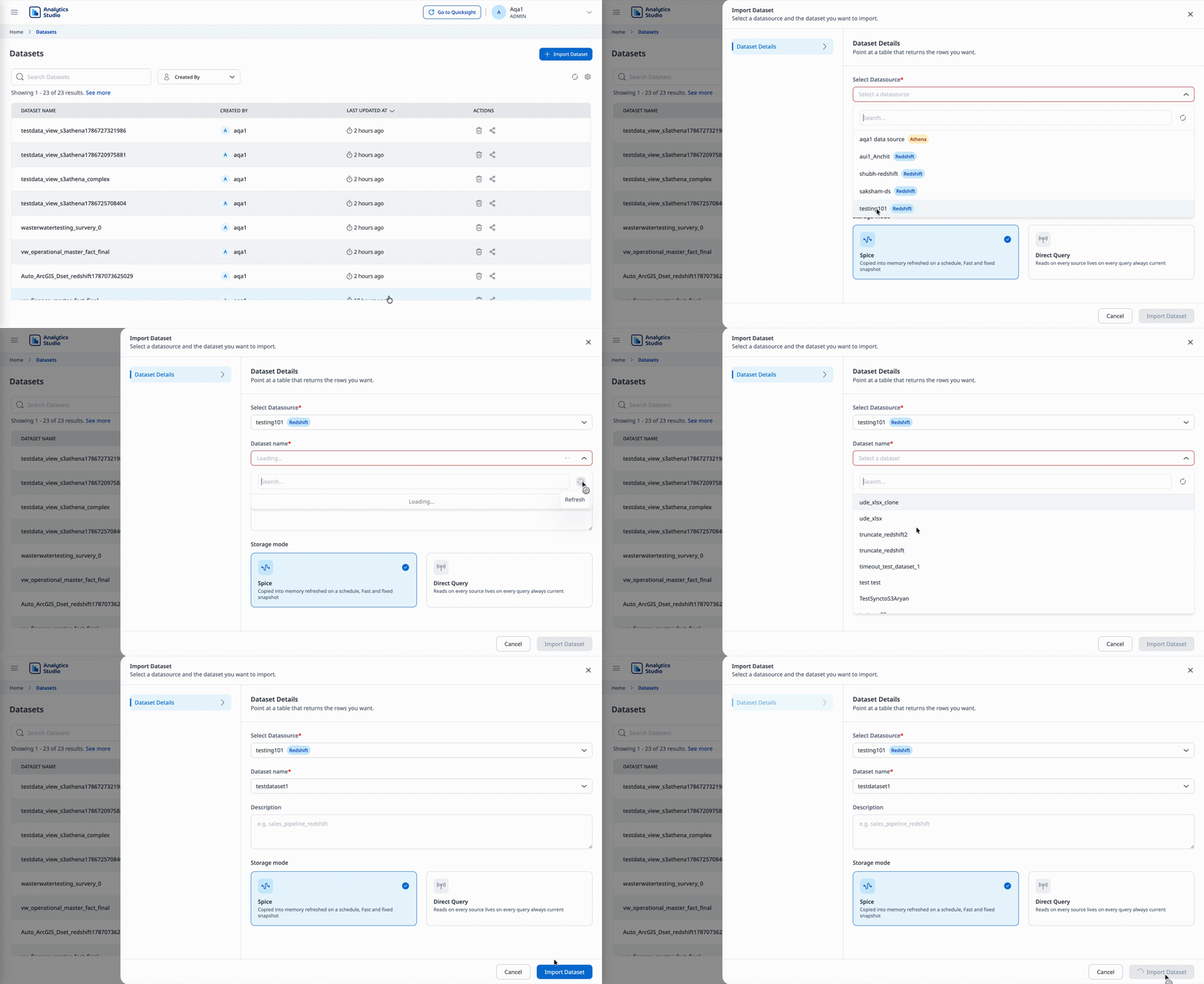
- Navigate to the Datasets section to view the list of datasets you have access to.
- Click Import Dataset in the top-right corner.
- Select a Datasource. Currently, Athena and Redshift datasources are supported for building datasets.
- Select the Amorphic dataset that QuickSight will use to create a corresponding dataset for Analyses, Topics, or Dashboards.
- Choose Direct Query or SPICE for the dataset configuration.
- Click Import Dataset at the bottom-right of the screen to finish.
Dataset detail page
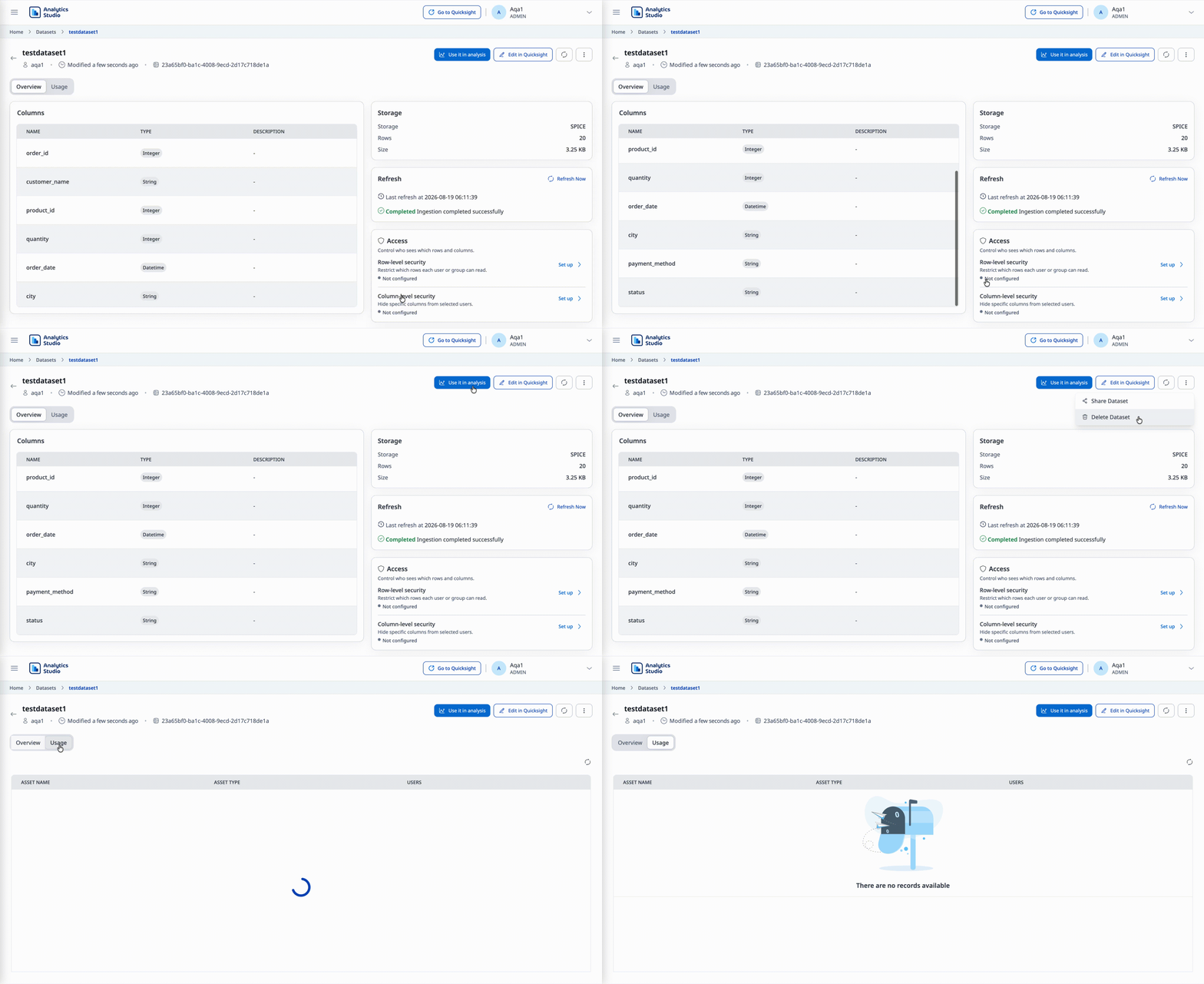
Open a dataset to view its details and related information.
- Schema: Review the fields and data types defined for the dataset.
- Usage: See which other assets use this dataset (for example, Analyses, Topics, or Dashboards).
- Dependent assets: View assets that depend on this dataset.
- Access details: Review the dataset's row-level security (RLS) and column-level security (CLS) configurations. For more information, see Row-level security and column-level security.
For SPICE datasets, the detail page also includes:
- Refresh: Starts ingestion so the latest data is loaded into the SPICE dataset.
- SPICE storage: Shows storage used by the dataset.
- Number of rows: Shows how many rows are currently stored in SPICE.
How to edit a dataset
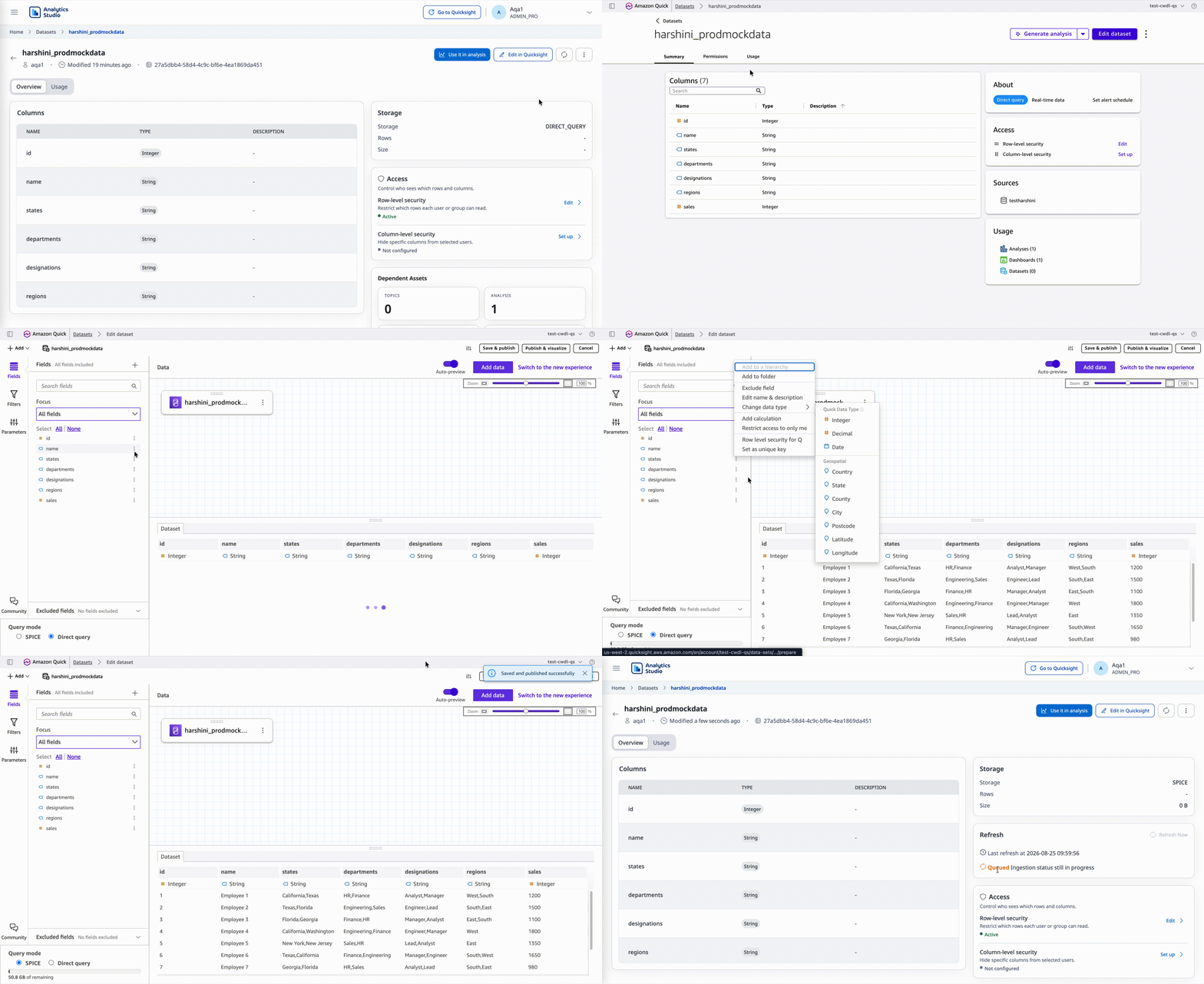
- Click Edit in QuickSight to open the dataset details page in the QuickSight console.
- On that page, click Edit dataset to open the edit canvas.
- User can make changes in the canvas.
- Click Save and publish to finalize the changes.
Saving and publishing triggers an edit event, and the updates are reflected in Amorphic Analytics Studio. If the dataset is converted from Direct Query to SPICE, an ingestion job also starts.
How to delete a dataset
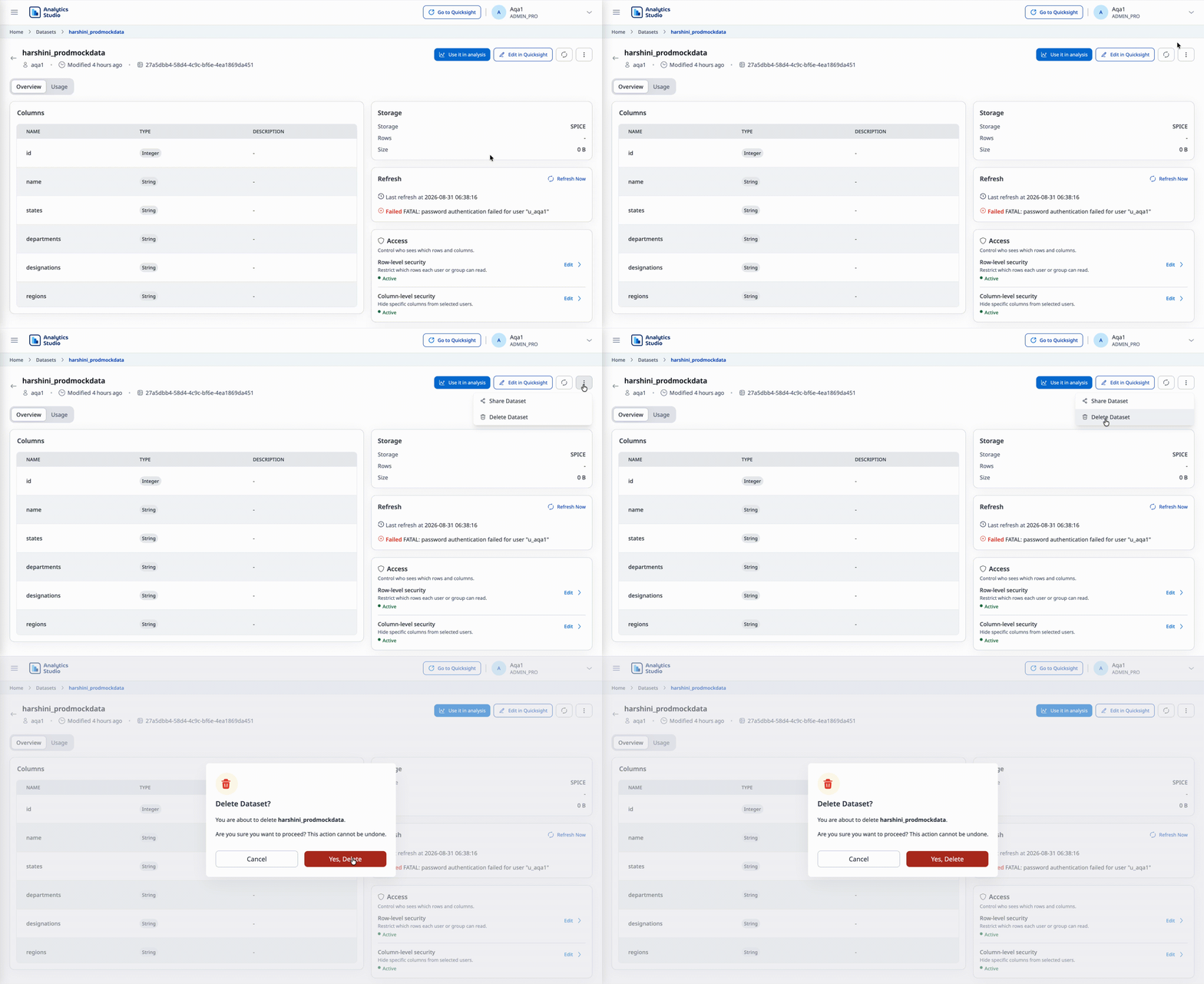
- Open the dataset and select the ⋮ (three-dot) menu in the top-right corner.
- Click Delete dataset.
Before deleting, make sure no other assets depend on the dataset. Remove or reassign dependent assets first, then delete the dataset.
How to share a dataset
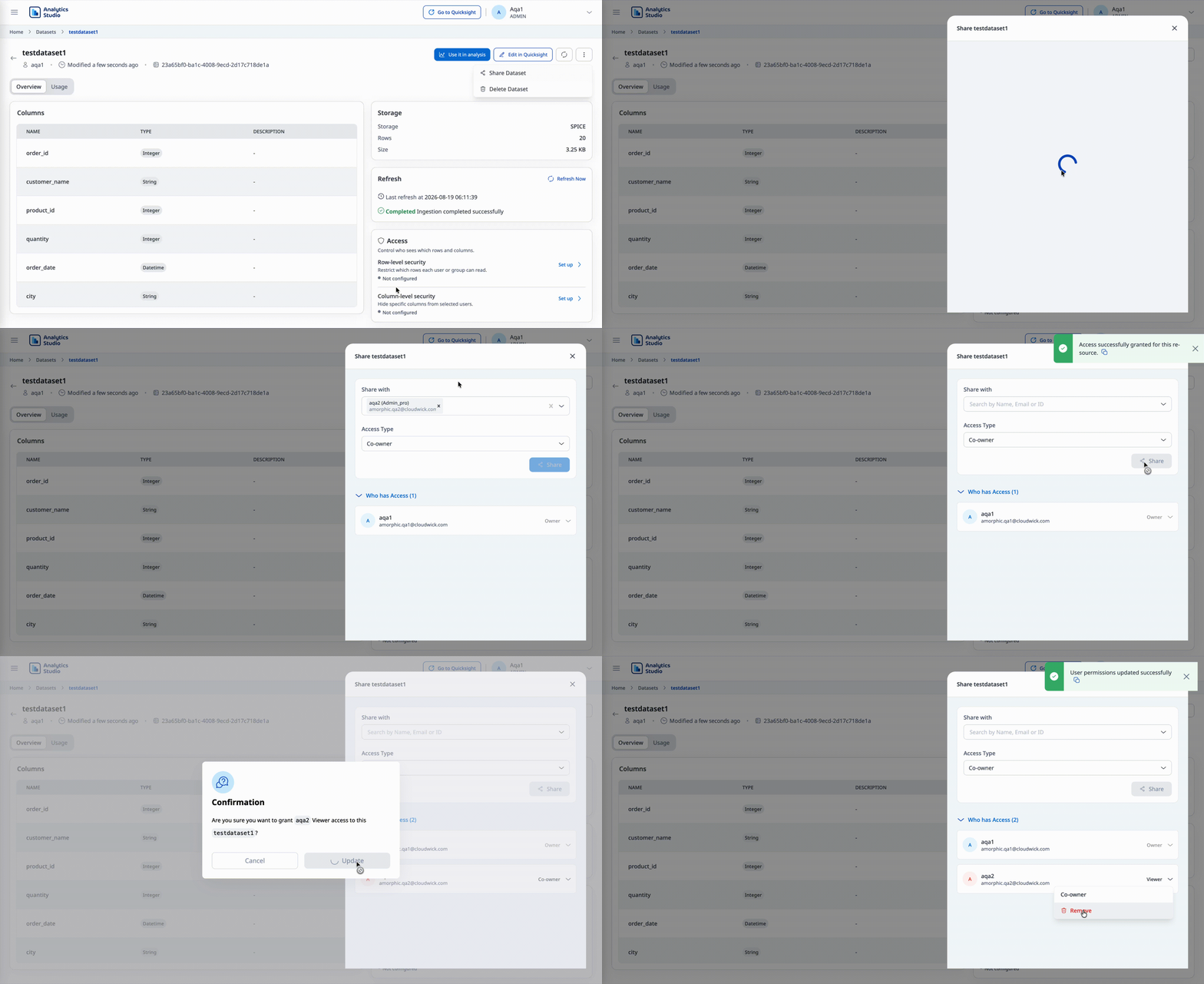
- Open the dataset and select the ⋮ (three-dot) menu in the top-right corner.
- Click Share dataset.
- Assign access to the required users.
Row-level security and column-level security
From the dataset details page, the Access card displays the current status of two independent security controls that a dataset owner can configure: row-level security (RLS) and column-level security (CLS). Both controls are applied to individual users available in Amazon QuickSight. If a selected user has not yet been registered in QuickSight, RLS or CLS cannot be enabled until that is resolved.
Only the dataset owner can open the RLS or CLS editors and view rule details. Users with viewer access can see the RLS/CLS status on the Access card, but the Set up and Edit actions are disabled for them.
Row-level security (RLS)
RLS restricts which rows of a dataset each user can access based on values in one or more supported string-type columns (STRING, TEXT, VARCHAR, or CHAR). Columns with other data types cannot be used as RLS restriction columns.
RLS follows a default-deny model. Once RLS is enabled, only users assigned to at least one rule can access rows in the dataset. Users who are not included in any rule cannot see any rows.
Each RLS rule includes:
- One or more restricted columns, each with one or more allowed values. A row is accessible only when the value in each restricted column matches one of the allowed values for that column. Conditions across multiple restricted columns within the same rule are combined using AND. If no values are specified for a column, that column does not impose any restriction for that rule.
- One or more users who are granted access based on the rule.
- To grant the same users access under a different combination of column conditions, create an additional rule for those users with the alternate values.
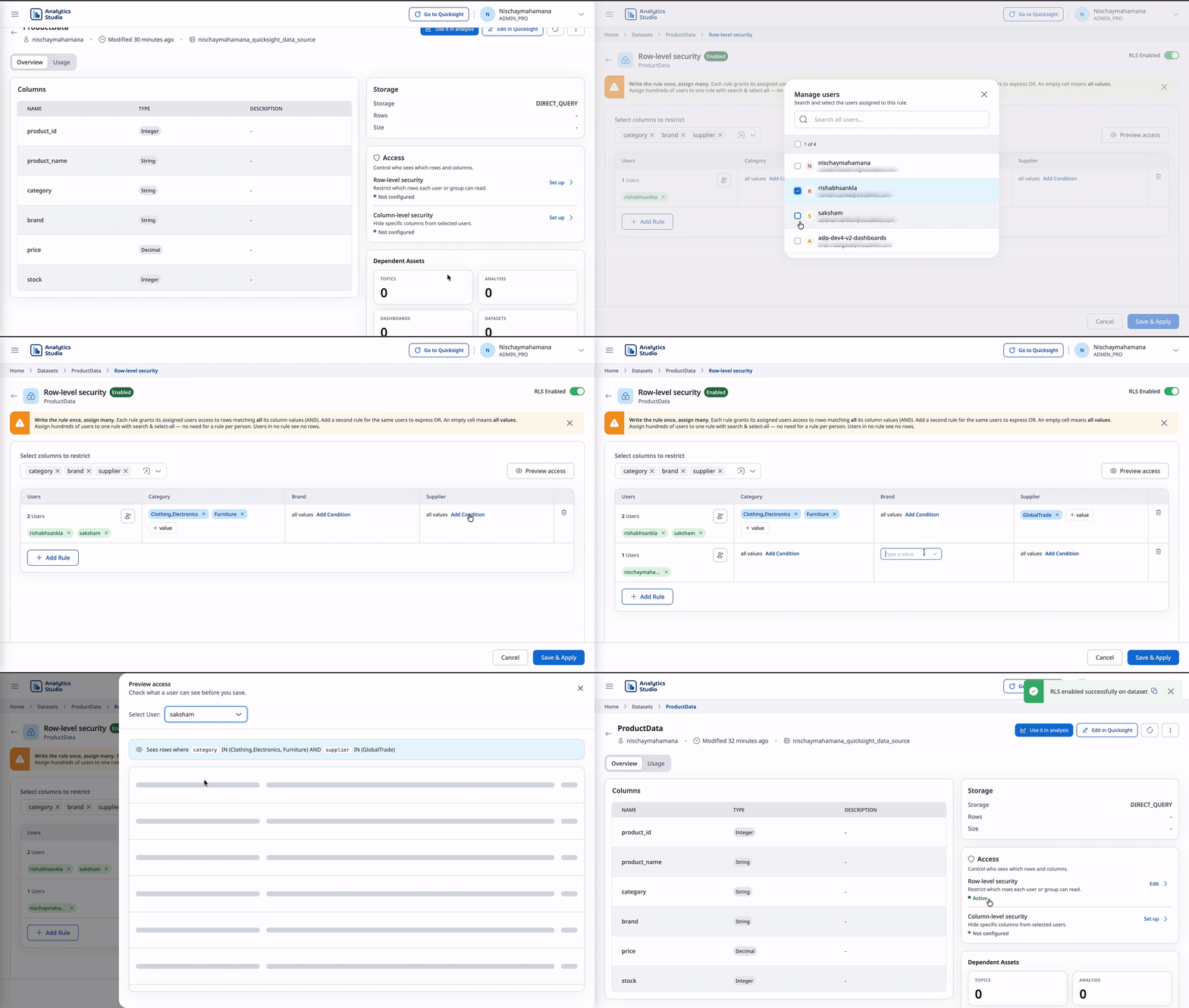
How to configure RLS
- Open the dataset, go to Access details, and select Row-level security.
- Turn on the RLS toggle and confirm.
- Select the eligible string-type columns that you want to restrict.
- For each rule, select the users to whom the rule applies and specify the allowed value(s) for each restricted column. Add additional rules as needed.
- Optionally, use Preview access to select a user and review a sample of up to 10 rows that the user can access before saving. If no rule is assigned to the selected user, the preview indicates that the user has no row access.
- Each rule must include at least one restricted column and at least one assigned user before the configuration can be saved. If RLS is no longer required, turn it off instead.
- Select Save & Apply.
Behind the scenes, a QuickSight rules dataset is created for the RLS configuration and applied as the dataset's row-level permission dataset. The RLS configuration is kept in sync in both directions between Analytics Studio and QuickSight.
Disabling RLS turns off enforcement while retaining the existing rule configuration. When RLS is enabled again, the previously configured rules are restored and can be edited or removed as needed without being re-entered. Once configured, RLS can be updated at any time from the Access details.
- Allowed values must exactly match the corresponding values in the target dataset, including case.
- When creating or editing an RLS rules dataset in QuickSight, a field value containing commas (for example,
US,UK) is interpreted as multiple allowed values (USandUK). To treatUS,UKas a single value, wrap the entire value in double quotation marks (for example,"US,UK"). - For more details on how QuickSight applies row-level security, refer to the Amazon QuickSight row-level security documentation.
Column-level security (CLS)
CLS restricts which columns of a dataset each user can access. CLS follows a default-allow model: any column that is not explicitly restricted remains visible to all users who have access to the dataset. CLS can be applied to columns regardless of their data type.
Each CLS rule grants one or more users access to a specified set of columns.
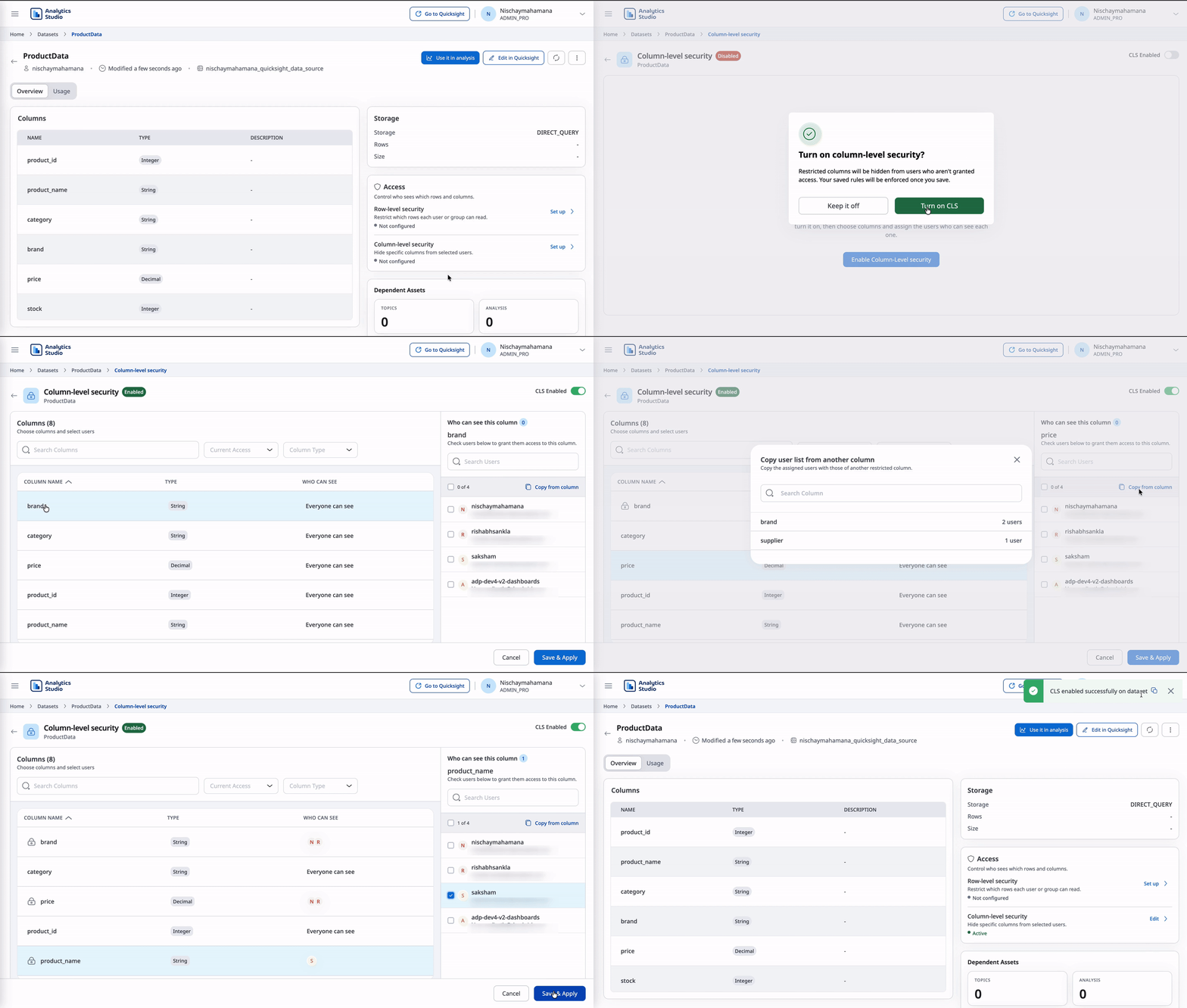
How to configure CLS
- Open the dataset, go to Access details, and select Column-level security.
- Turn on the CLS toggle and confirm.
- Select a column from the list to configure its access. Each column indicates whether it is Restricted or visible to Everyone.
- For the selected column, choose the users who should be able to access it. A column can be granted to up to 100 users. You can also copy the user list from another column that already has access configured.
- Repeat this process for each column you want to restrict.
- At least one column must have one or more users granted before the configuration can be saved. If CLS is no longer required, turn it off instead.
- Select Save & Apply.
CLS is applied directly to the dataset through its column-level permission rules. The CLS configuration is kept in sync in both directions between Analytics Studio and QuickSight.
Disabling CLS turns off enforcement while retaining the existing grant configuration. When CLS is enabled again, the previously configured grants are restored and can be edited or removed as needed without being re-entered. Once configured, CLS can be updated at any time from the Access details.
- A dataset with CLS enabled cannot be added to a Topic. Disable CLS on the dataset first if you need to use it in a Topic.
- For more details on how QuickSight applies column-level security, refer to the Amazon QuickSight column-level security documentation.
Syncing of dataset create, edit, and delete operations is supported in the Analytics Studio app. Changes made in QuickSight are reflected in Analytics Studio, so dataset lifecycle updates stay consistent across both interfaces.