
Lakeformation Datasets
Lakeformation extends S3-Athena datasets with added security and supports CSV, TSV, XLSX, JSON, NDJSON, JSONLand Parquet files. It also checks data integrity and offers ACID transactions, data compaction, and time-travel queries.
Lakeformation includes optional partial data validation, which is enabled by default. The validation process helps detect and correct corrupt or invalid data files
The AWS Athena CSV Parser/SerDe has the following limitations:
- Embedded line breaks in CSV files are not supported.
- Empty fields in columns defined as a numeric data type are not supported.
As a workaround, Users can import them as string columns and create views on top of it by casting them to the required data types.
For Datasets with JSON, NDJSON or JSONL file type:
- AWS Limitations
- It uses the OpenX JSON SerDe with the following limitations:
- It expect data to be on a single line (not formatted), with records separated by a new line character.
- Comma character is not allowed at the end of each line.
- The full data in the file should not be enclosed in square brackets.
- Views are not supported on top of Lakeformation JSON, NDJSON or JSONL datasets.
- It uses the OpenX JSON SerDe with the following limitations:
- Amorphic feature limitations (Not Applicable)
- Malware Detection
- Data Profiling
Below is an example of an invalid JSON, NDJSON or JSONL file:
[
    {
    "EmailId": "test-cwdl@cloudwick.com",
    "IsAdmin": "no",
    "UserId": "testuser"
    },
    {
    "EmailId": "test1-cwdl@cloudwick.com",
    "IsAdmin": "no",
    "UserId": "testuser1"
    }
]
Below is an example of a valid JSON, NDJSON or JSONL file:
{ "EmailId": "test-cwdl1@cloudwick.com", "IsAdmin": "no", "UserId": "testuser1" }
{ "EmailId": "test-cwdl2@cloudwick.com", "IsAdmin": "no", "UserId": "testuser2" }
{ "EmailId": "test-cwdl3@cloudwick.com", "IsAdmin": "yes", "UserId": "testuser3" }
{ "EmailId": "test-cwdl4@cloudwick.com", "IsAdmin": "no", "UserId": "testuser4" }
{ "EmailId": "test-cwdl5@cloudwick.com", "IsAdmin": "yes", "UserId": "testuser5" }
For JSON, NDJSON or JSONL files, if dataset validation is enabled then column names in the files must exactly match the column names in the dataset schema
Supported data types
Lake Formation datasets use the same Glue/Athena native type support as S3Athena datasets, including date, timestamp, and nested array, struct, and map types.
For file-format rules, examples, and limitations, see Supported data types in the Athena Datasets documentation.
Table and SerDe Properties
Lake Formation datasets support the same optional SerDe, SerdeProperties, TableProperties, and InputRegex behavior as S3Athena datasets. These properties are applied to the Glue table used by Athena/Lake Formation.
For allowed keys by SerDe, file-type compatibility, and update rules, see Table and SerDe Properties in the Athena Datasets documentation.
These Hive SerDe and Table properties do not apply to Iceberg, Hudi, or Delta Lake datasets and are ignored on create and update.
Create Lakeformation Datasets
Users can create LakeFormation datasets by selecting Lake Formation as target location, and file type as CSV, TSV, XLSX, JSON, NDJSON, JSONL or Parquet, Dataset can be created by using either of the three ways:
- Using already defined LakeFormation Datasets Templates
- Importing required JSON payload
- Using the form and entering the required details

Loading Data into Lakeformation Datasets
Loading of Lakeformation datasets is same as S3-Athena datasets. To know more, refer to Athena Datasets for more detail.
Fine grained permissions with Lakeformation Datasets
Lakeformation datasets provide an additional layer of security for the data stored in Amorphic. Dataset access is applied in this order, from highest to lowest: Owner, Editor, Read-only, then Filter.
Owners and Editors of the datasets are provided with full column access by default and cannot be modified.
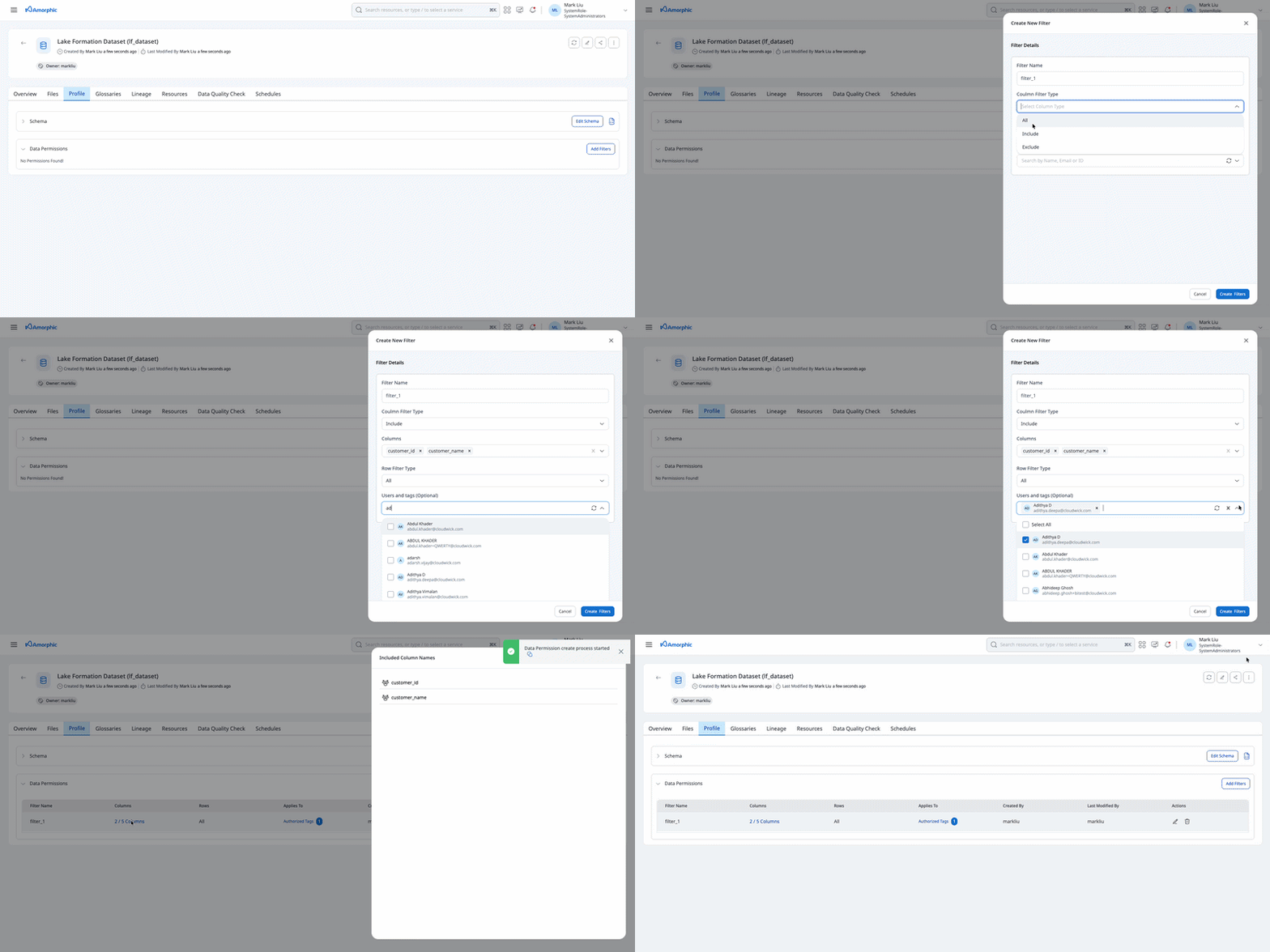
Fine-grained access (a data filter) is the lowest access level. It lets dataset owners and editors grant access to specific columns or rows without first granting read-only on the dataset. Filter-only users can still open dataset details in Amorphic; when they query the dataset, results are limited to the columns and rows defined in the filter.
A data filter cannot be granted to a principal that already has Owner, Editor, or Read-only access on the dataset:
- For a group tag, the tag cannot already have owner, editor, or read-only on this dataset.
- For a user, the user cannot already have direct owner, editor, or read-only on this dataset. Access that the user only has through a group tag does not block a user-level filter grant.
If a user already has read-only or higher (for example through a group tag), that higher access is not reduced to the data filter. Read-only already includes full table select, and filter is lower priority, so Amorphic does not replace table-level read-only with filter-only access.
Filter-only access is managed on the data filter. You cannot revoke or change that access from dataset sharing; remove the principal from the filter or delete the filter instead.
Each data filter defines column and row access:
- Columns
- Include — only the listed columns are allowed.
- Exclude — all columns are allowed except the listed columns.
- All — every column in the dataset is allowed.
- Rows
- All — every row is allowed.
- Custom — only rows that match the row expression are allowed.
Multiple data filters
A user can receive more than one data filter on the same dataset (for example, one granted to the user and another granted through a group tag). Lake Formation evaluates those filters as a union: the user can see any column or row that is allowed by at least one of the filters.
- Include + include — allowed columns are the union of both include lists. Allowed rows are the union of both row expressions.
- Include + exclude — allowed columns are the union of the include list and all columns that are not in the exclude list. Allowed rows are still the union of both row expressions.
- Exclude + exclude — allowed columns are the union of both “all columns except …” sets, which is typically every column except those excluded by every filter.
Example (columns): Dataset columns are id, name, salary, and ssn.
- Filter A includes
idandname. Filter B includessalary. The user can queryid,name, andsalary. - Filter A includes
idandname. Filter B excludesssn. The user can query every column exceptssn.
Example (rows): Filter A allows region = 'US'. Filter B allows region = 'EU'. The user can query rows from either region.
Please find the list of examples on how user permissions are applied based on Authorized Users and Tags.
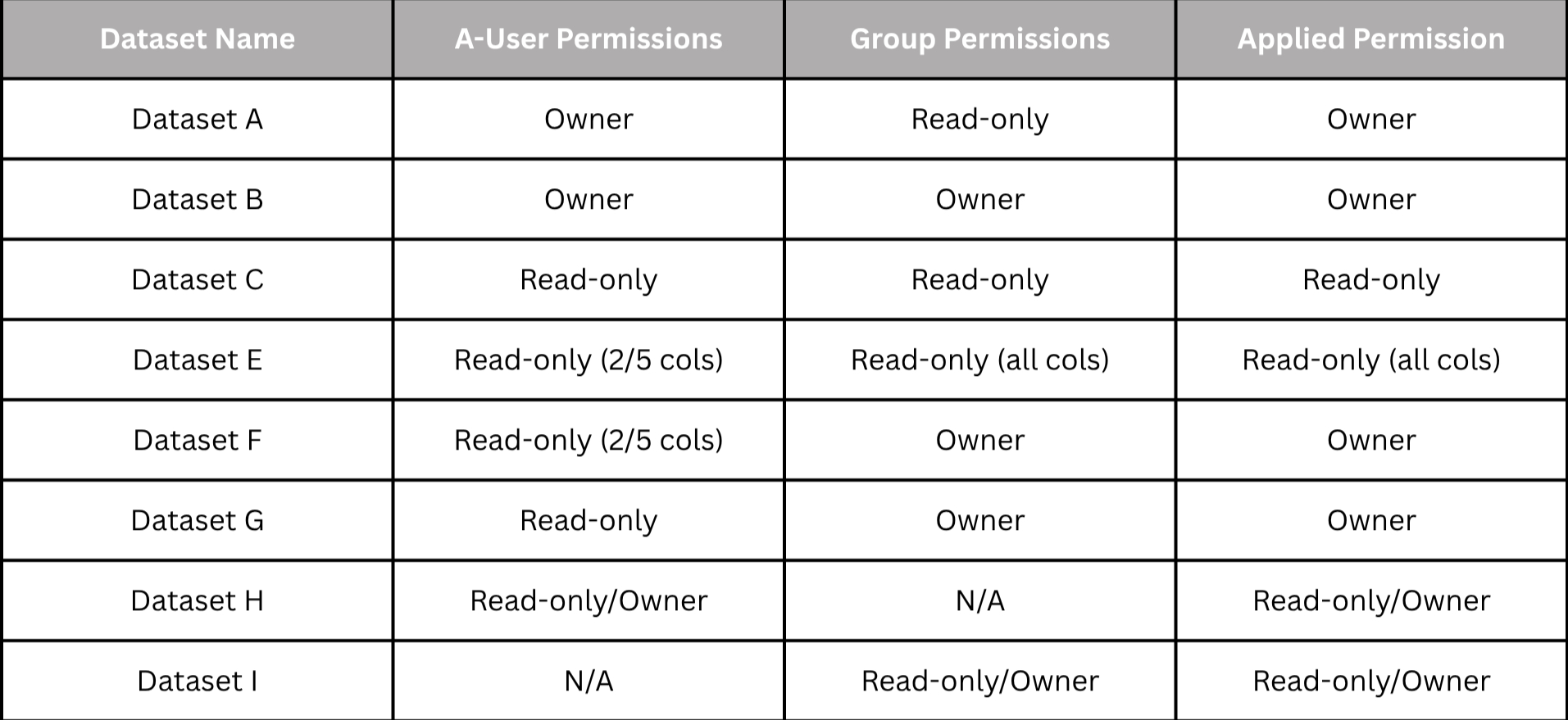
This feature has certain limitations. For more information, refer to the limitations section.
Below animation shows how to apply fine grained permissions on LF dataset:
Edit a data filter
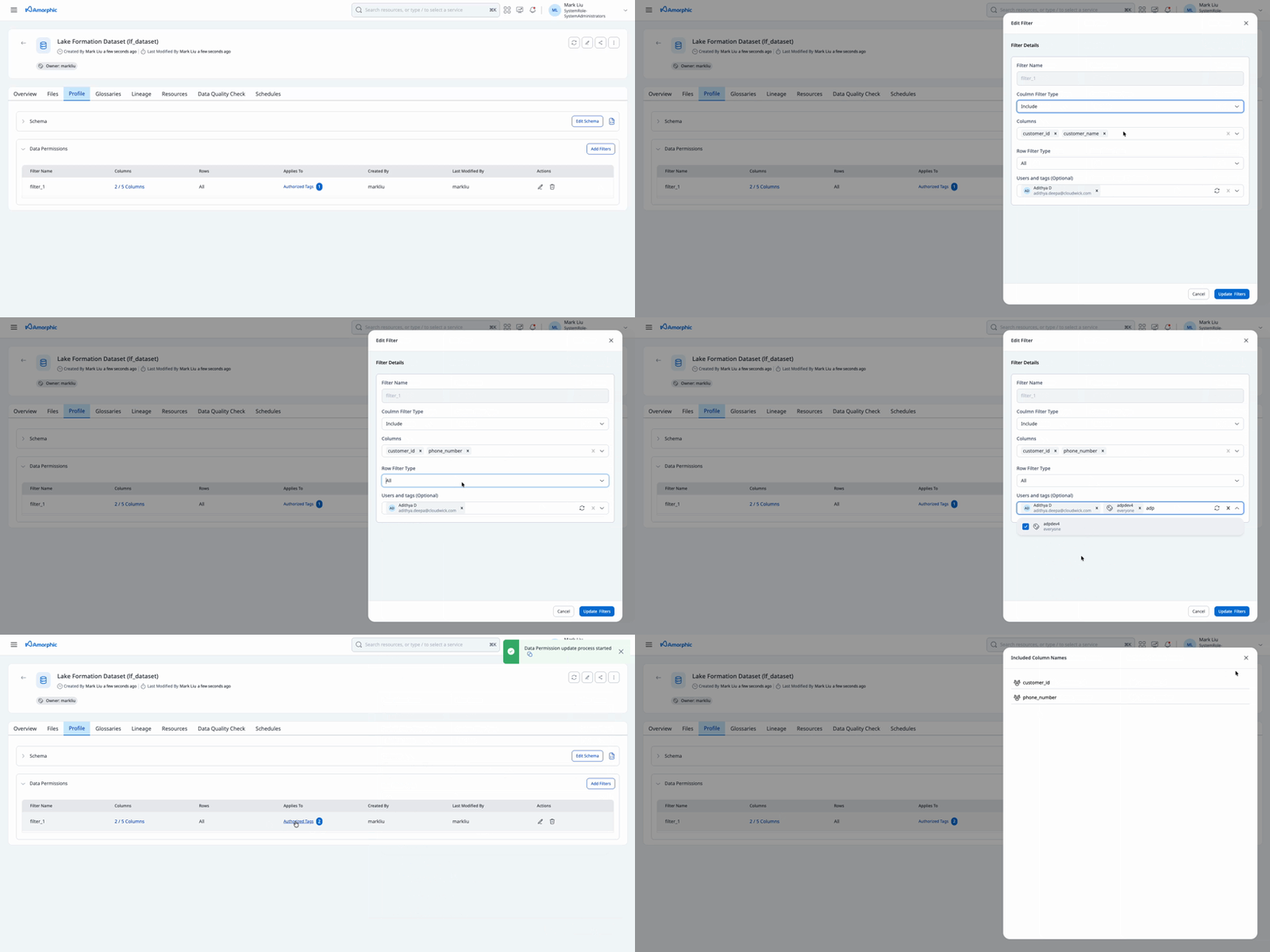
Dataset owners and editors can edit an existing data filter from the dataset details page (edit icon next to the filter).
When you edit a filter, you can update:
- Authorized users and tags — add or remove principals that receive the filter.
- Column rules — change include, exclude, or all-column access.
- Row rules — change all rows or the custom row expression.
The filter name cannot be changed after creation. To rename a filter, delete it and create a new one.
The same grant rules apply when you add principals during edit: group tags with owner, editor, or read-only on the dataset, and users with direct owner, editor, or read-only, cannot be added to the filter.
Updating a data filter runs in the background. Lake Formation clears existing filter grants when the filter definition is updated, so Amorphic re-grants access to every remaining authorized user and tag. Principals removed from the filter lose that filter access.
Below animation shows how to edit a data filter on a Lake Formation dataset:
Query Datasets
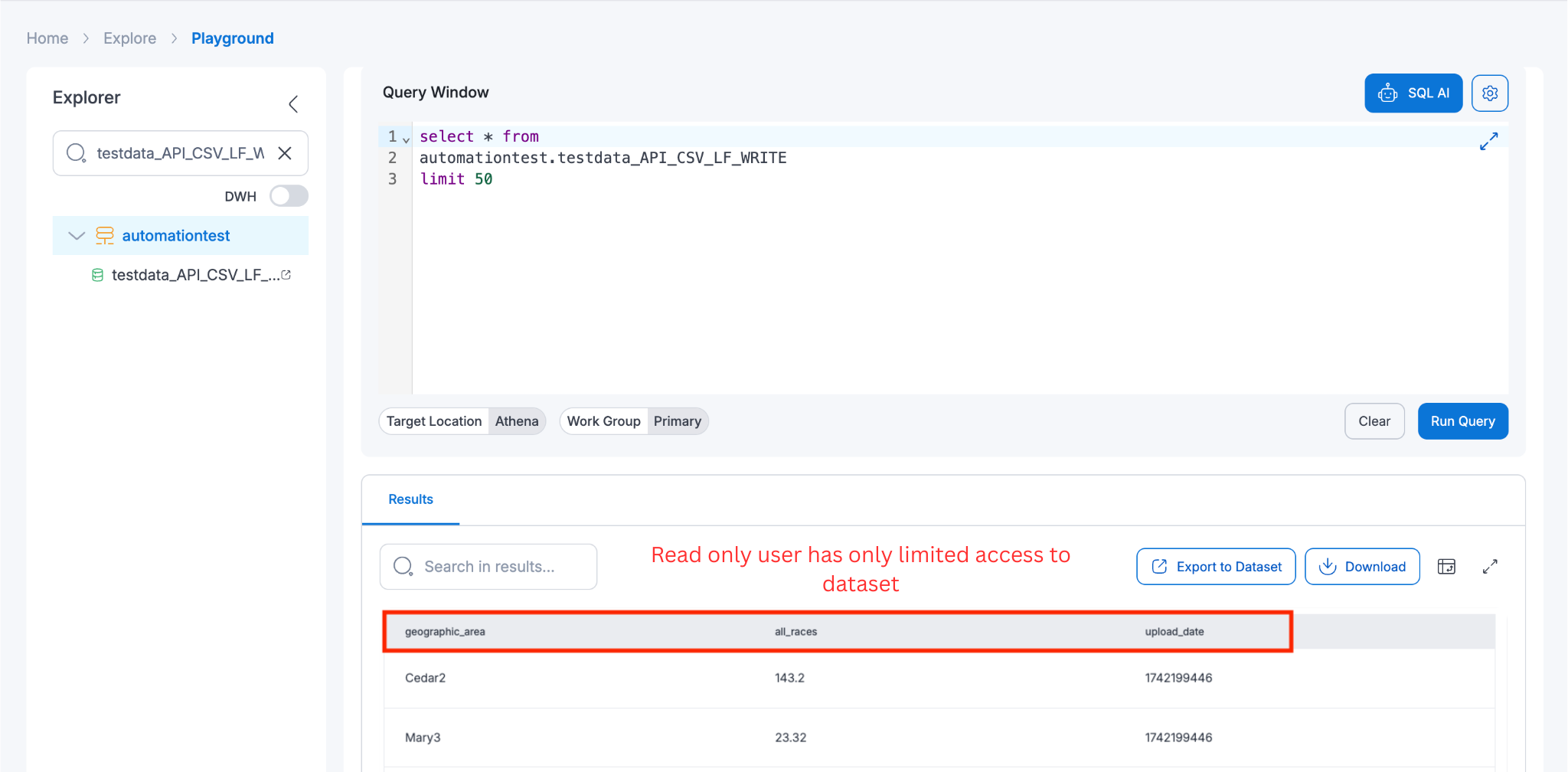
Once data is loaded into the dataset, users can query and analyze it directly from the Playground.
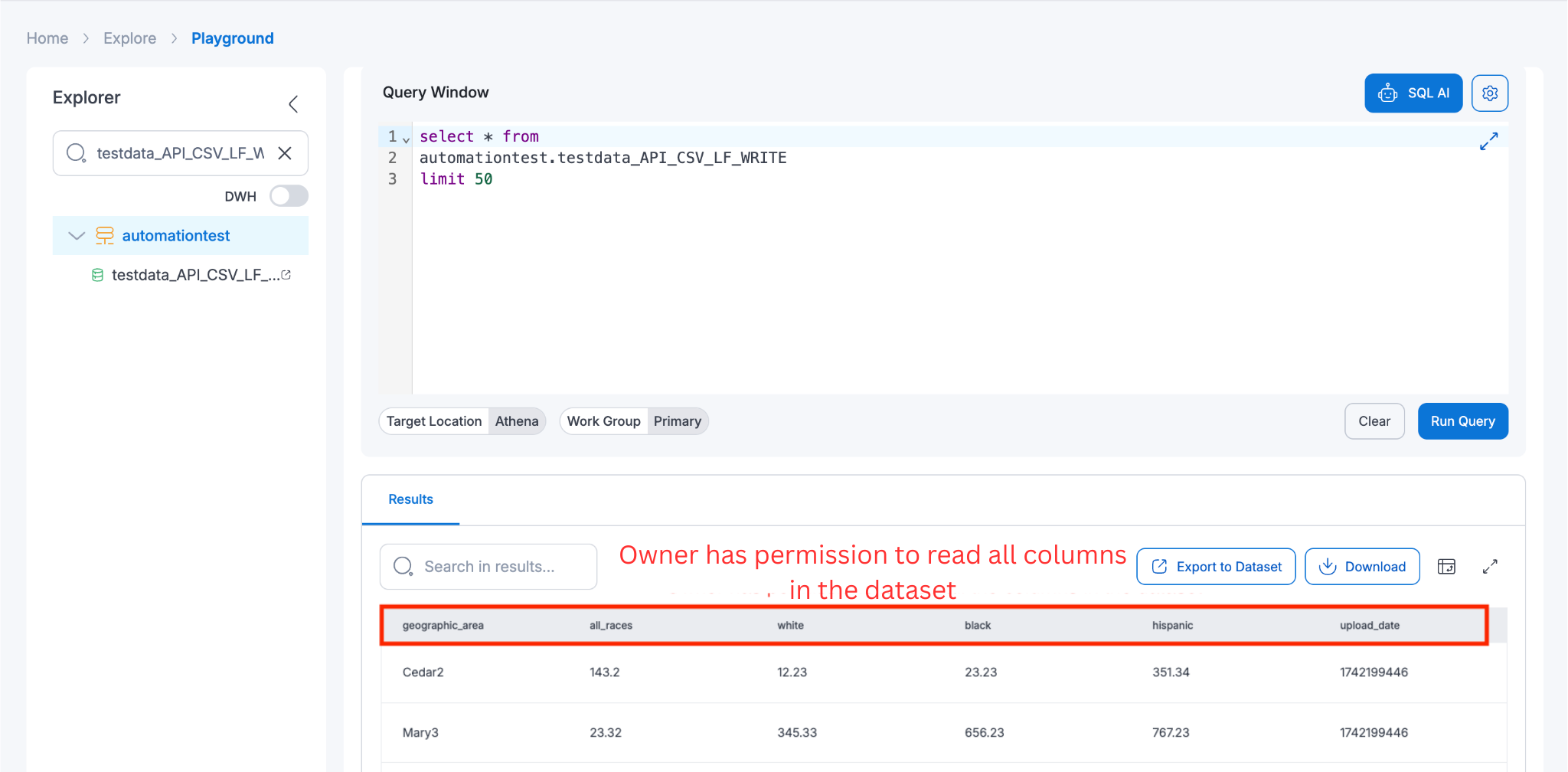
If the user has filter access, displayed results are limited to the columns and rows allowed by the data filter. Users with read-only or higher keep full table access and are not narrowed by a data filter.
Lakeformation governed datasets are deprecated as of v2.3. Users can utilize Iceberg datasets instead of the Lakeformation Governed datasets which provide the same features and more:
* Read the data
* Upsert records
* Delete records
* Time travel and version travel queries
* View History and Snapshots
Limitations
- AWS Lake Formation allows an unlimited number of data filters on a table, but a single principal (user or role) can be granted at most 100 data filters on the same table. Do not assign more than 100 filters to the same user on one Lake Formation dataset.
- Data filters cannot be granted to a group tag that already has owner, editor, or read-only on the dataset, or to a user who already has direct owner, editor, or read-only on the dataset.
- Having both tag-based read-only (or higher) and a user-level data filter does not narrow query access to the filter. The higher access remains in effect.
- Filter-only access cannot be revoked or switched from dataset sharing. Update or delete the data filter instead.
- Views:
- View permissions needs to be aligned with Dataset permissions i.e Owner of the view needs to provide the dataset access of the underlying lakeformation dataset before granting the view access.
- When the owner of the Lakeformation dataset updates the access control using authorized users or tags, querying the view fails with a message saying "view is stale; it must be re-created". The owner of the view needs to either use the
CREATE OR REPLACEstatement to recreate the view, or delete and re-create the view with the necessary user permissions. For more details, please check the AWS Documentation on this topic. - When creating a view from Lake Formation datasets, if the user does not have access to all columns in the source dataset, they will be able to create the view but will not be able to query it. However, they can still edit the view using only the columns they have access to.
- DMS tasks doesn't support loading of data to Lakeformation target datasets.