
Default Amorphic Datasource
The Default Amorphic Datasource is the built-in catalog datasource for your current Amorphic environment. It holds searchable metadata for platform resources created in this deployment-datasets, jobs, pipelines, glossaries, domains, tenants, and more so they appear under Data Discovery → Catalog.
Unlike JDBC, S3, Streams, Email, or ArcGIS datasources, you do not create this datasource yourself. Amorphic provisions it automatically during platform deployment and keeps it available on subsequent platform updates.
With this datasource you can:
- Discover local Amorphic resources in Catalog search
- Keep catalog metadata continuously up to date as resources change
- Run a Catalog Sync Job when you need to reconcile Catalog with the resources in this environment
- Browse assets scoped to this environment via the datasource detail page
This datasource indexes metadata about resources that already live in this environment. It does not pull files from S3/JDBC or load data into datasets.
External Amorphic is user-created and copies catalog metadata from another Amorphic environment. The default datasource always represents local resources only.
How to find it
- Go to Data Workflows → Datasources.
- Locate the system entry named
Amorphic-{PROJECT_SHORT_NAME}(for example,Amorphic-ADP).
The project short name is always uppercased in the default datasource name, whatever casing the deployment uses for it. A project short name of adp, Adp, or ADP all produce the same datasource name, Amorphic-ADP.
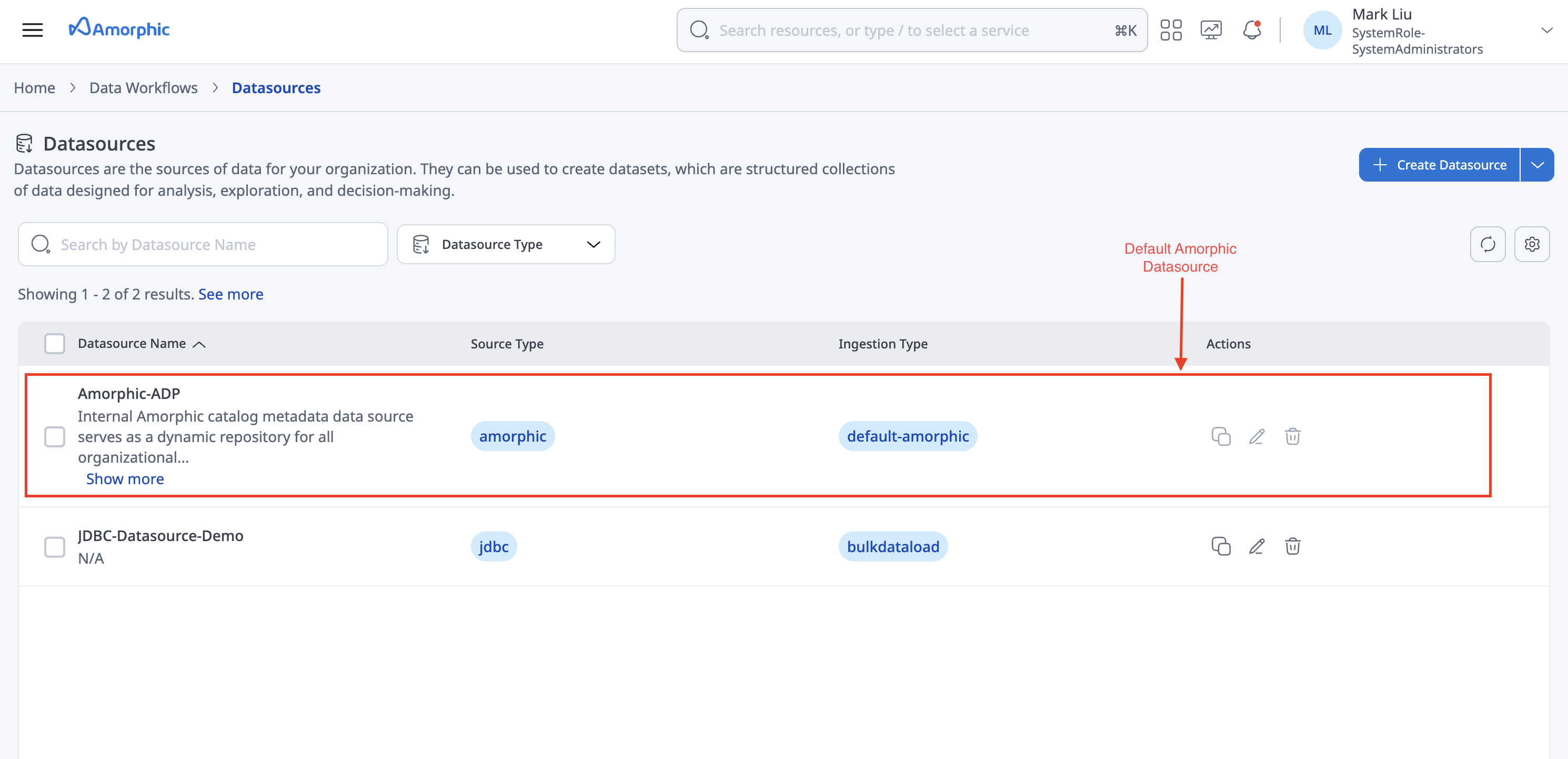
| Attribute | Description |
|---|---|
| Datasource Name | Amorphic-{PROJECT_SHORT_NAME} - reserved name for this environment, with the short name uppercased |
| Datasource Type | Amorphic |
| Ingestion Type | default-amorphic (internal / Default Amorphic) |
| Description | Internal Amorphic catalog metadata data source that serves as a dynamic repository for organizational resources within the current Amorphic deployment |
| Created By | System |
| Datasource Config | Contains the deployment Account ID only |
| Access | Everyone in the environment receives Editor access so catalog operations remain available |
When it is created
During initial stack deployment (and again on platform Update), Amorphic:
- Creates the default datasource record if one does not already exist.
- Updates OpenSearch index field mappings when required.
- Provisions the Catalog Sync Glue job used for full catalog reconciliation.
Users cannot create another datasource with this reserved name, and they cannot delete or update the default datasource like a normal connection.
How it works
Catalog for local resources
When you create or change Amorphic resources (for example, a dataset, job, or glossary), the platform registers a catalog asset under this datasource. That metadata powers:
- Catalog search - keyword and semantic (when AI services are enabled)
- Asset detail pages - schema, dependencies, glossary links, custom metadata
- Access-aware discovery - owners, editors, and viewers reflected on the asset
Real-time indexing
For most local resource types, catalog updates happen continuously as resources change. Stream processing:
- Prepares asset records under the default datasource
- Indexes them into OpenSearch
- Preserves existing Custom Metadata and Glossary Details on updates where applicable
- Removes catalog entries when the underlying resource is deleted
This is the primary day-to-day path that keeps Catalog in sync.
Full catalog sync
The Catalog Sync Job reconciles Catalog against the Amorphic resource tables. It is the fallback for anything real-time indexing has not kept up with — after a major upgrade, after bulk changes, or when assets are missing, stale, or left behind by deleted resources.
See Catalog Sync Job for how to run it, what changed recently, and when to run it instead of a reindex.
The first catalog sync after a major upgrade or migration may take longer and can incur higher cost. See Catalog for initial setup guidance.
Supported catalog resources
When the Catalog Sync Job runs against the default datasource, it can index:
| Resource type | Catalog asset type | Notes |
|---|---|---|
datasets | dataset | Includes views; schema and dependencies attached where available |
glossaries | glossary | Glossary-level catalog entries |
datasources | datasource | User-created datasource metadata also appears in Catalog |
datalabs | datalab | |
datalabs-lifecycle-configurations | shared-resource | |
data-pipelines | datapipeline | |
jobs | job | |
jobslibs | shared-resource | Job libraries |
dashboards | dashboard | |
code-repositories | shared-resource | |
domains | domain | |
tenants | tenant | |
files | file | Dataset file metadata |
Libraries, lifecycle configurations, and code repositories are stored with asset type shared-resource and will be available in the catalog search UI under the Shared Resources tab.
Catalog Sync Job
The Catalog Sync Job reads Amorphic's resource tables, builds catalog asset metadata from them, and indexes that metadata for search. It is the reconciliation path that backs up real-time indexing.
For non-file resources, a run processes only what has changed since the last successful sync rather than re-scanning everything, so routine runs stay short. Use force sync (see Triggering sync through the API) when you need a complete re-scan regardless of last sync time.
Resource-scoped sync
A sync job can be limited to specific resource types instead of covering the entire Catalog. When only one area has changed — jobs, or datasets, or pipelines — scoping the run keeps it short and avoids touching unrelated assets.
Pick the scope in the Sync Jobs panel: each resource type under Asset Type has its own checkbox, so you can tick just the ones you need. Select All covers every supported type, which is also what a run with no selection does.
Scope the run whenever you know what changed. A datasets-only sync finishes far sooner than a full-Catalog run, and leaves every other asset type untouched.
Orphan cleanup
Orphan detection — finding catalog assets whose backing resource no longer exists — runs as part of the sync job itself, so removing stale entries no longer needs a separate cleanup pass.
Turn on Cleanup Orphaned Resources in the Sync Jobs panel to include it in the run. It removes resources that no longer exist in the source but are still linked to this datasource.
Cleanup is per run and off by default, so a routine sync never deletes anything unless you ask it to. The run's metrics report how many orphans were deleted and how many failed.
How to run a catalog sync job
- Open Data Workflows → Datasources.
- Select the default datasource (
Amorphic-{PROJECT_SHORT_NAME}). - Open the Sync Jobs section and click Sync.
- In the Sync Jobs panel, choose what the run should cover:
- Turn on Cleanup Orphaned Resources to remove catalog assets whose backing resource no longer exists.
- Under Asset Type, tick the resource types to sync, or use Select All.
- Click Sync Now to start the run.
You need at least Editor access on the datasource (granted to everyone by default); Owners qualify too, read-only users do not. Only one sync job may run per datasource at a time.
How long a sync takes
Sync runtime is driven by the number of items being indexed, not just by the number of resource types selected. High-cardinality types such as files and datasets dominate the run; low-count types finish in a couple of seconds each. Scoping the run under Asset Type is therefore only worth doing when it lets you skip one of the large types.
A full sync (all resource types, force sync and orphan cleanup on) in one of our test environments indexed roughly 380,000 items totalling 461 MB of metadata. The OpenSearch cluster for this environment was configured with 3 nodes of t3.medium.search instance type. Time was concentrated almost entirely in two resource types:
| Resource type | Items | Sync duration |
|---|---|---|
files | 314,331 | ~71 minutes |
datasets | 118,033 | ~21 minutes |
| retry of previously failed items | 52,331 | ~30 seconds |
domains | 415 | ~3 seconds |
| every remaining type | 1-63 each | under 2 seconds each |
The run reported an Execution Time of about 1 hour 17 minutes.
Treat these as rough orders of magnitude, not guarantees. Indexing throughput depends heavily on the search cluster's instance type and node count, so a larger or smaller cluster will shift these numbers, as will environment size, resource mix, and load.
Stopping and resuming a sync job
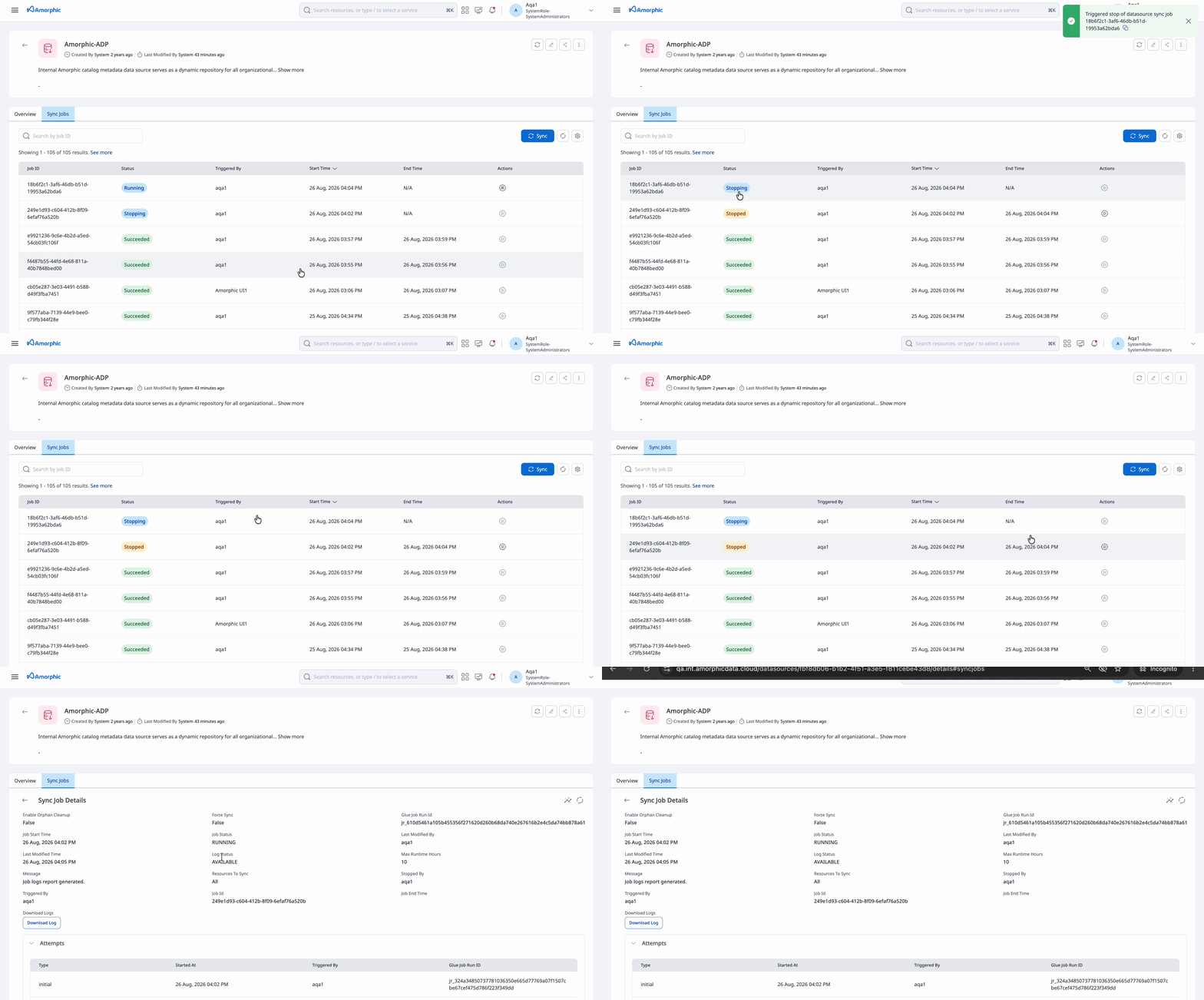
A running sync job can be stopped from the Sync Jobs section without waiting for it to finish — useful when a run was started by mistake, was scoped more broadly than intended, or needs to give up the datasource so a more targeted sync can run instead.
Stopping is paired with resume: a STOPPED or FAILED job can be picked up again from where it left off. The resumed run continues against the same saved progress for that execution instead of starting the scan over, so work already completed is not repeated.
Attempts
Because stop and resume operate on the same sync job rather than creating new ones, the job details page shows an Attempts table recording every run that has contributed to it:
| Column | Description |
|---|---|
| Type | initial for the original run, resume for each subsequent resume |
| Started At | When that attempt began |
| Triggered By | The user who started or resumed the run |
| Glue Job Run ID | Identifier of the underlying run, for log correlation |
A job that was never stopped shows a single initial attempt. Each stop-and-resume cycle appends another resume row, so the table reads as the stop/resume timeline for that sync job.
Use the Glue Job Run ID from the relevant attempt when correlating logs — each attempt has its own run, so logs for a resumed job are split across the runs listed here.
Resume continues an existing run rather than creating a new one, so its metrics and history stay on the same job record. To sync from a clean slate instead, start a new sync job.
Sync job statuses
| Status | Meaning |
|---|---|
| STARTING | Run has been claimed and is being handed to the underlying job; transient |
| RUNNING | Catalog sync job is in progress |
| STOPPING | A stop has been requested and the run is winding down; transient |
| STOPPED | Run stopped; can be resumed |
| SUCCEEDED | Sync completed; job metrics populated |
| FAILED | Sync failed; check job logs and metrics — can be resumed |
Stopping a run is not instantaneous. The job moves to STOPPING while the underlying run winds down, and flips to STOPPED on its own once the run has actually terminated and its end time is recorded. Wait for STOPPED before resuming — a run can only be resumed from STOPPED or FAILED.
Job metrics
Every sync job run records execution metrics. Open a run from the Sync Jobs list and open the Job Insights panel, which presents them in three sections.
1. Summary
Headline totals for the run as a whole, shown as stat cards:
| Card | Meaning |
|---|---|
| Indexing Successful | Assets successfully written to the search index across every resource type |
| Indexing Failed | Assets that could not be indexed; a non-zero value is the cue to check the run's logs |
| Orphans Deleted | Catalog assets removed because their backing resource no longer exists. Only non-zero when the run had Cleanup Orphaned Resources turned on |
| Size Indexed | Total volume of asset metadata written during the run |
| Execution Time | How long the latest attempt ran. For a job that was stopped and resumed, see the note below |
Execution Time covers the latest attempt only, so it is not a running total.
Each resume starts a new run on the same sync job, and when that run finishes it replaces the old Execution Time with its own. Earlier attempts and the time the job spent STOPPED are not counted.
A job that was never stopped has just one attempt, so its Execution Time is the whole run.
| To find | Use |
|---|---|
| Duration of the latest attempt | Execution Time on the summary card |
| Total sync duration | The job's start and end times — the start time stays at the original trigger, and a resume does not reset it |
| When each attempt began | The Attempts table |
2. Resource Breakdown
A doughnut chart showing how the indexed items were distributed across resource types, so you can see at a glance which types dominated the run. Each slice is one resource type, sized by the number of items successfully indexed for it.
The legend beside the chart lists every resource type covered by the run with its status, indexed item count, and indexed size — useful for spotting a type that finished with zero items when you expected data.
3. Resource Details
One card per resource type, breaking the run down type by type. Each card carries a status badge and the following metrics:
| Metric | Meaning |
|---|---|
| Status | in_progress while that resource type is still being synced, completed once its loop has finished |
| Total Count | Total number of items of this type present in the system, counted at the start of the sync. This is the size of the population, not the number processed — on an incremental run most of them are legitimately left alone |
| Indexing Successful | Items of this type successfully written to the search index |
| Indexing Failed | Items of this type that could not be indexed |
| Skipped | Items that could not be turned into a catalog asset, so they never reached the indexing step. |
| Size Indexed | Volume of metadata indexed for this resource type |
| Duration | Elapsed time since this resource type started syncing |
Total Count is the denominator, not a target. On an incremental run it is normal to see a large Total Count next to a small Indexing Successful — unchanged items are filtered out before processing and are counted in neither Skipped nor Indexing Failed.
A non-zero value in either is worth checking in the run's logs, which record the affected asset IDs and the reason.
Alongside the real resource types, the breakdown may include entries for the run's other phases — such as the deletion pass and the retry of items that failed to index on an earlier run — so their outcome is visible in the same place.
Per-resource metrics are flushed periodically while the job runs, not only at the end. Opening Job Insights on a RUNNING job shows progress so far, with the resource type currently being processed marked in_progress.
Triggering sync through the API
Sync can also be triggered programmatically. Force sync is available only through the API; the other options map to the controls in the Sync Jobs panel.
POST /datasources/{datasource_id}/sync-jobs
| Parameter | Location | Description | In the UI |
|---|---|---|---|
Resources | Request body | Optional list of resource types to sync (subset of the supported catalog resources above) | Asset Type checkboxes |
enable_orphan_cleanup | Query | When True, remove catalog assets whose source resource no longer exists | Cleanup Orphaned Resources toggle |
force_sync | Query | When True, re-index all resources in scope regardless of last sync time | API only |
{
  "Resources": [
    "datasets",
    "jobs"
  ]
}
If Resources is omitted, the job syncs all supported resource types.
Triggering sync through the API requires at least Editor access on the datasource, the same as the UI. Stopping and resuming a run require the same level; only the read endpoints accept read-only access.
Sync job vs. Reindexing
Catalog is built in two stages, and the two operations act on different stages. That is why picking the wrong one usually means waiting through a long run that changes nothing.
Read it as a chain: a resource becomes findable only once it has been turned into an asset (①) and that asset has been indexed (②).
- Something wrong at ① — the asset is missing, or its values are out of date — is a sync job problem. A reindex will faithfully rebuild the same wrong picture.
- Something wrong at ② — the asset is correct but search cannot find it — is a reindex problem. A sync job will re-write assets that were already fine.
| Catalog Sync Job | Repair Catalog Metadata (Reindex) | |
|---|---|---|
| Reads from | Amorphic resource tables — datasets, jobs, pipelines, and so on | Existing catalog asset metadata |
| Produces | Catalog assets, which are then indexed for search | A freshly rebuilt search index |
| Effect on the index | Adds and updates entries in place | Deletes the index, then rebuilds it |
| Scope | One datasource at a time; can be narrowed to selected resource types | The whole catalog index for the environment |
| Who can run it | Any user with Editor access or higher on the datasource | Administrators only |
| Where | Data Workflows → Datasources → Sync Jobs | Administration → Catalog Engine |
| Runtime | Minutes; shorter still on incremental runs | Longer — everything is rebuilt from scratch |
Which one should you run?
| What you are seeing | Run this |
|---|---|
| A recently created resource is missing from Catalog | Sync job — it has not been turned into an asset yet |
| Assets look stale after a bulk change or an upgrade | Sync job; add force sync if values still look old |
| Deleted resources still show up as assets | Sync job with orphan cleanup enabled |
| Only one area changed, such as jobs or pipelines | Sync job scoped to those resource types |
| Assets open fine individually, but search returns nothing or errors out | Reindex — the search index itself is the problem |
| Search behaves oddly right after an index mapping change | Reindex |
| Catalog is completely empty across every asset type | Reindex first, then run a sync job |
When the symptom is ambiguous, run the sync job first. It is scoped to one datasource, can be further narrowed down to a few resource types, needs only Editor access (or higher), and leaves the index in place while it works. Reindexing is the heavier, administrator-level fallback — it tears down the whole environment's index before rebuilding it, so Catalog search is degraded until the rebuild finishes.
How to view catalog assets
- Go to Data Discovery → Catalog.
- Search or browse assets.
- Use the Datasource Name filter and select
Amorphic-{PROJECT_SHORT_NAME}to show local catalog entries only.
From the datasource detail page you can also list assets for that datasource.
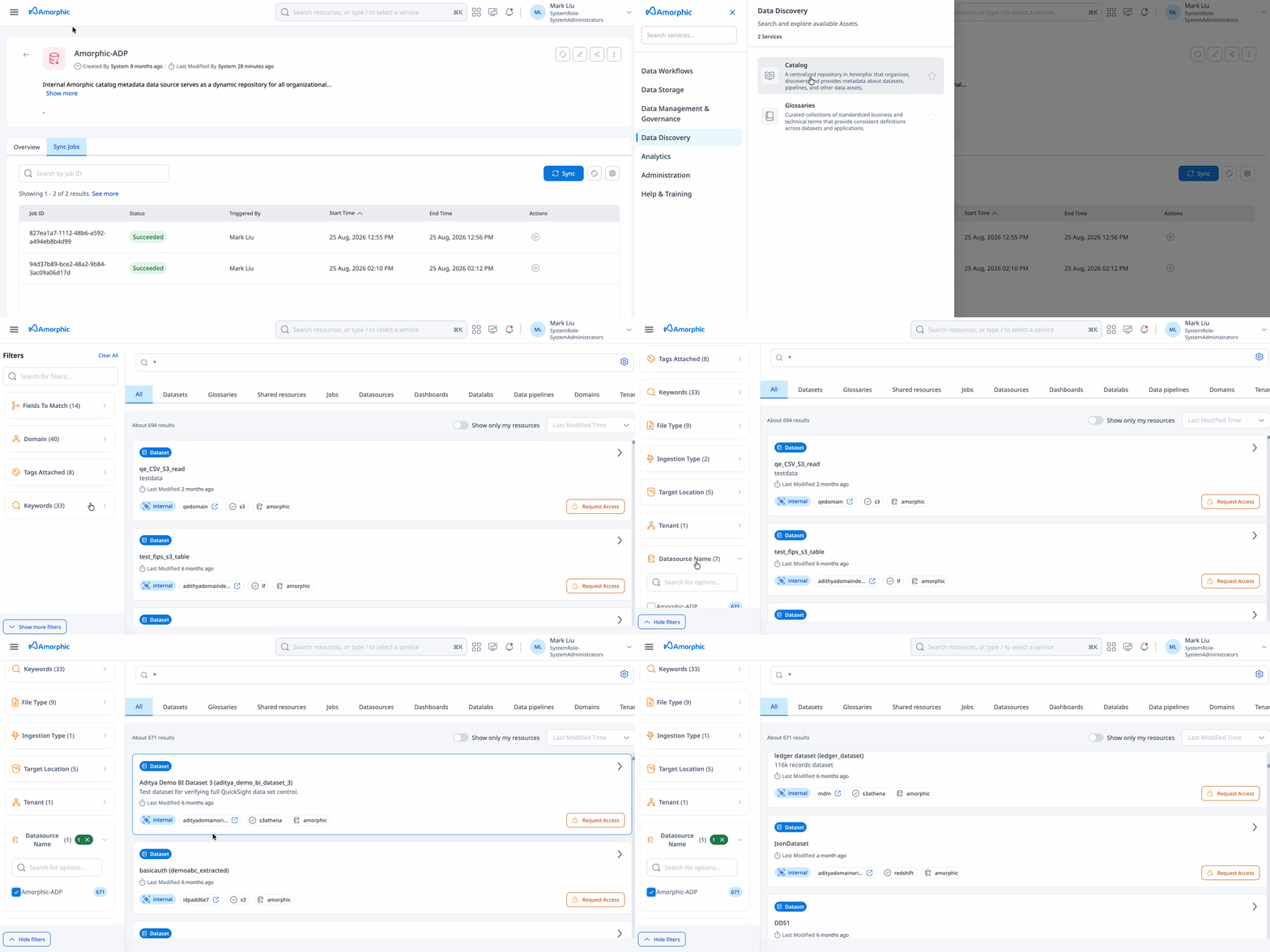
For asset-level features (schema, AI suggestions, dependencies, access requests), see Catalog Assets.
What you can and cannot do
| Action | Allowed |
|---|---|
| View datasource and assets | Yes |
| Search assets in Catalog | Yes |
| Trigger catalog sync jobs (Editor access or higher) | Yes |
| Create a datasource with the reserved name | No |
| Delete the default datasource | No |
| Update connection settings (URL, token, schedule) | No |
| Use for data ingestion (S3 / JDBC / Streams) | No |
Administration and repair
Repair Catalog Metadata
If OpenSearch index corruption or mapping drift occurs, administrators can run Repair Catalog Metadata from Administration → Catalog Engine (OpenSearch Management). This rebuilds the search index from asset metadata tables.
After platform upgrades
Release notes may instruct you to run the Catalog Sync Job once after upgrading (for example, when domains or tenants migrate into Catalog). Trigger sync from the default datasource’s Sync Jobs page.
Best practices
- Run a full catalog sync once after initial deployment or major upgrades if Catalog search returns incomplete results.
- Use Datasource Name filters in Catalog to separate local assets from federated (External Amorphic) assets.
- Scope the sync under Asset Type when only one area changed, to shorten job runtime.
- Turn on Cleanup Orphaned Resources during maintenance windows when resources were deleted outside normal stream processing.
- Use
force_sync=True(API) when assets look stale after bulk changes — routine runs are incremental and skip unchanged resources. - Stop a long-running sync when you need to free the datasource for a different run, and resume it later; the run continues from where it stopped.
- Check the per-resource-type metrics on a run before re-triggering, to see which resource type actually failed.
- Reach for Repair Catalog Metadata only when search itself is broken — see Sync job vs. reindexing.
- Do not attempt to recreate the default datasource manually - use sync or repair tools instead.