
Schedules
Schedules automate or event-drive work in Amorphic. A schedule binds a trigger (time, on-demand, event, or external) to a job type and an underlying resource—such as an ETL job, dataset, datasource, or Traditional Data Pipeline.
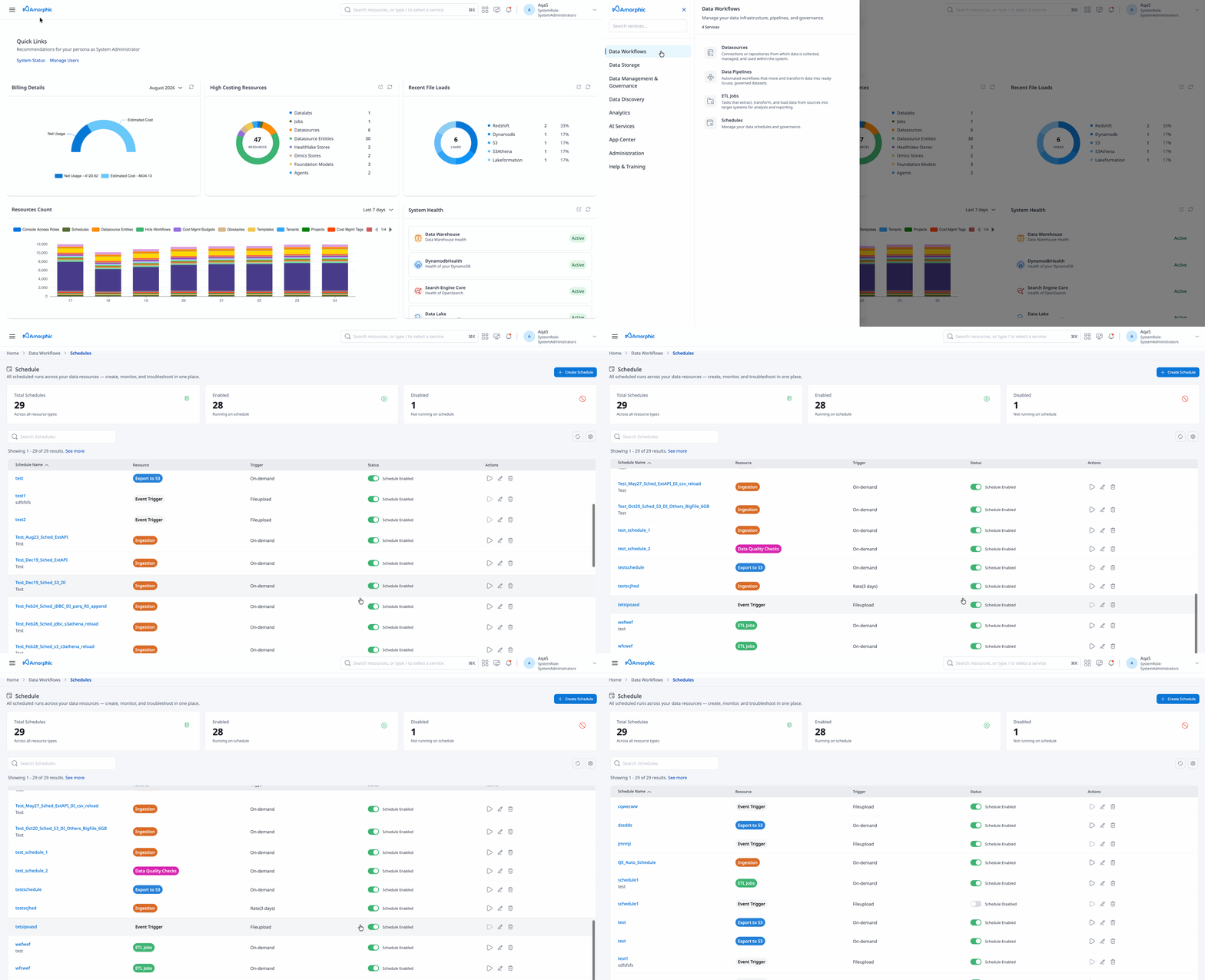
Use Data Workflows > Schedules to see every schedule you can access in one place, or create and manage schedules on a resource’s Schedules tab. The global list also includes SageMaker notebook datalab start/stop schedules when you have access to those datalabs.
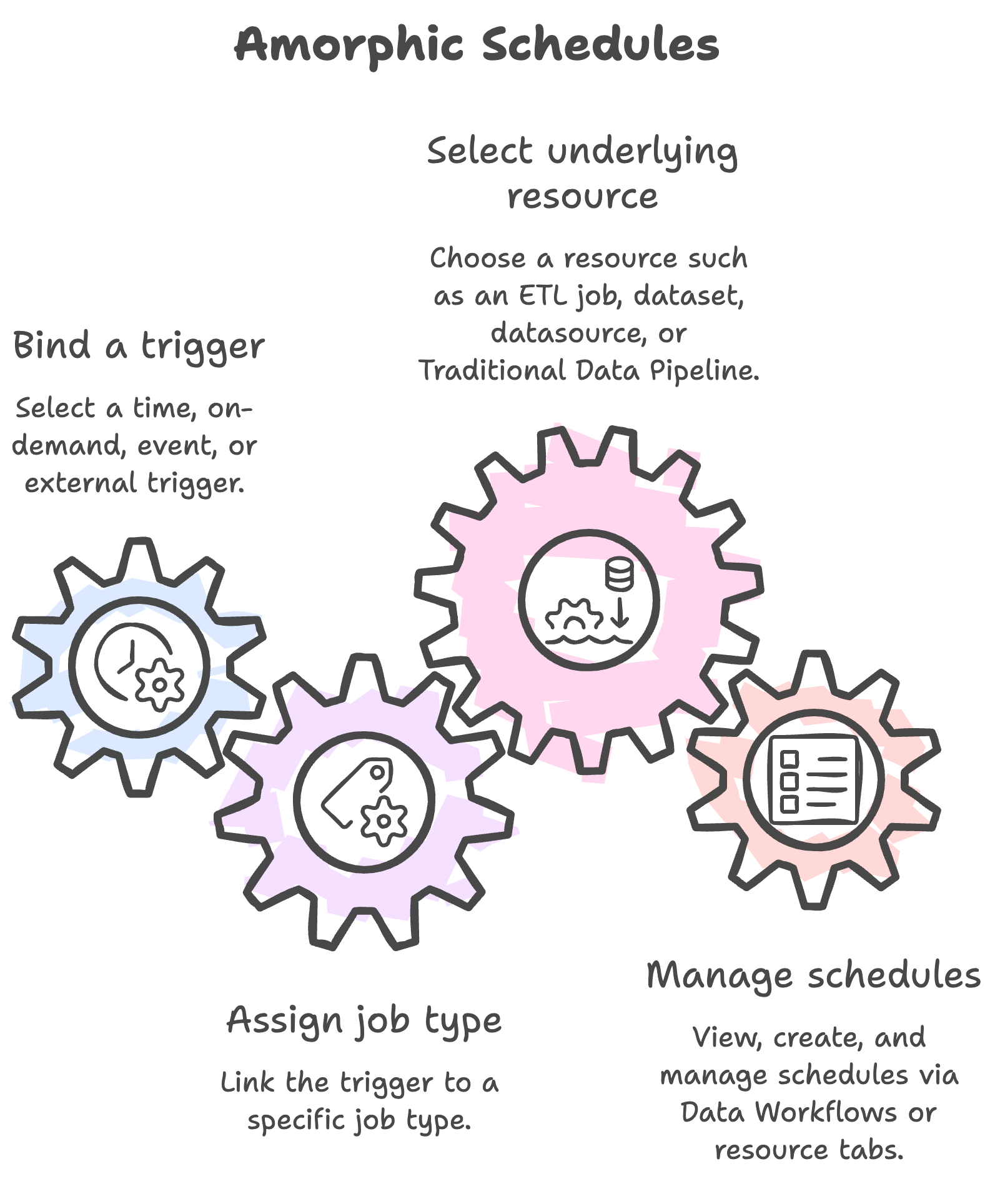
Schedule types
| Type | When it runs |
|---|---|
| Time-based | On a cron or rate expression. Cron expressions are evaluated in UTC. |
| On-demand | Only when you use Run now—no automatic trigger. |
| Event trigger | When a configured event occurs (for example file upload or ingestion completion on a dataset). |
| External trigger | When a message arrives on a linked Amazon SNS topic (ETL jobs and Traditional data pipelines). |
For event-trigger and external-trigger setup, prerequisites, and message formats, see How to: Schedules.
What schedules can run
Schedules are created in the context of a resource. The job type determines what runs.
| Resource area | Example job types |
|---|---|
| Jobs | ETL job |
| Datasets | Data ingestion, data quality checks, export to S3, health imaging data conversion |
| Datasources | JDBC CDC, JDBC full load, ArcGIS full/incremental load |
| Data pipelines | Traditional data pipeline |
| HCLS | HCLS store import (when HCLS is enabled) |
A compact job-type reference and supported arguments live in How to: Schedules.
- A schedule name must be unique for that resource. You can reuse the same name on a different resource.
- Schedule sharing follows the associated resource: if that resource is shared with a user, the schedule is shared with them as well.
- For ingestion on reload datasets, scheduled and manual runs perform a reload of data. See the how-to for ingestion-specific arguments (workers, timeout, file concurrency, and similar).
- AI Data Pipelines currently do not support platform schedules. Use Traditional Data Pipelines for scheduled pipeline runs.
Schedule operations
- List schedules
- Create a schedule
- View a schedule
- Update a schedule
- Delete a schedule
- Run a schedule now
- Enable or disable a schedule
- Schedule executions
List schedules
- Go to Data Workflows > Schedules.
- Review the list: schedule name, trigger, linked resource, State (
ENABLEDorDISABLED), and last modified time. - Use filters and sorting to find schedules (for example by name or state).
- Open a row to view schedule details.
Executions for a job may also appear on the underlying resource (for example the Executions tab on an ETL job).
Create a schedule
You can create a schedule in either place:
- Global hub — Go to Data Workflows > Schedules and start Create (or equivalent), then choose the target resource and job type.
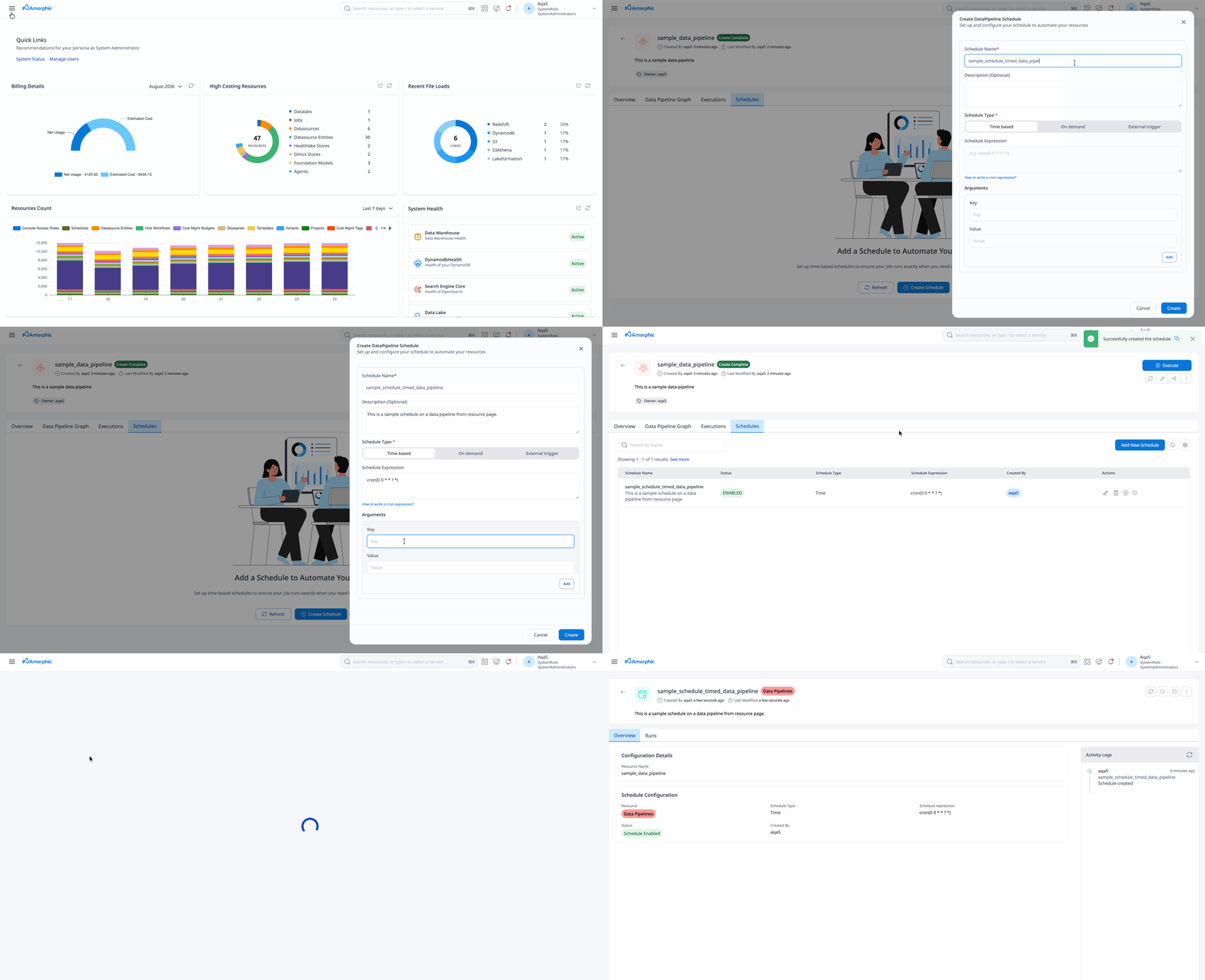
- From a resource — Open the resource (job, dataset, datasource, pipeline, and so on), open the Schedules tab, and add a new schedule.
In both flows you typically provide:
| Field | Description |
|---|---|
| Schedule name | Identifies the schedule; unique per resource. |
| Job type | What to run (ETL, ingestion, data pipeline, and so on). |
| Schedule type | Time-based, on-demand, event trigger, or external trigger. |
| Schedule expression | Required for time-based schedules (cron or rate). |
| Arguments | Optional parameters passed to the job or pipeline at run time (varies by job type). |
| Description / keywords | Metadata for search and documentation. |
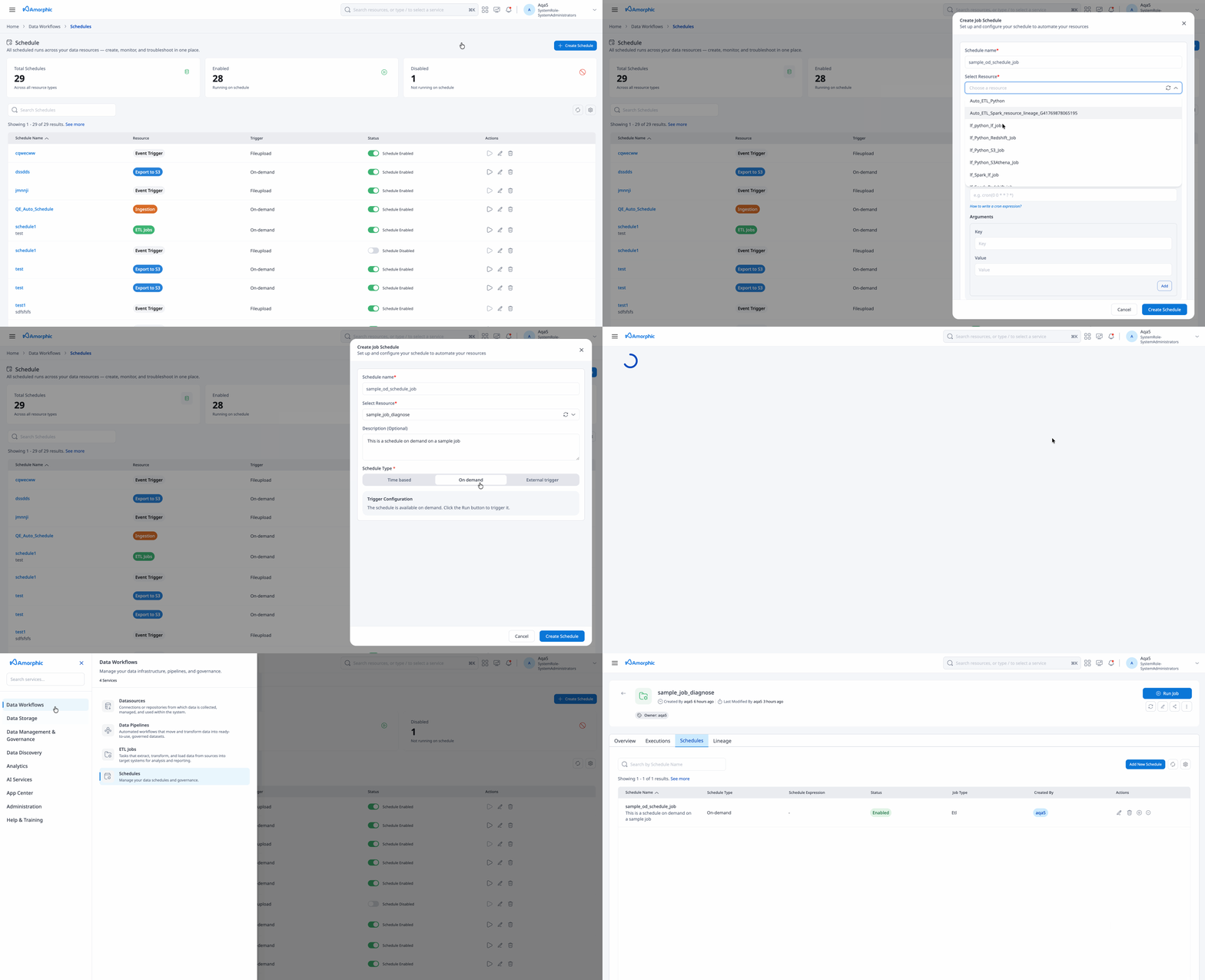
You can also create a schedule from the resource itself: open the job, dataset, datasource, pipeline, or other supported resource, go to its Schedules tab, and add a new schedule. For step-by-step guidance by job type (including event and external triggers), see How to: Schedules.
View a schedule
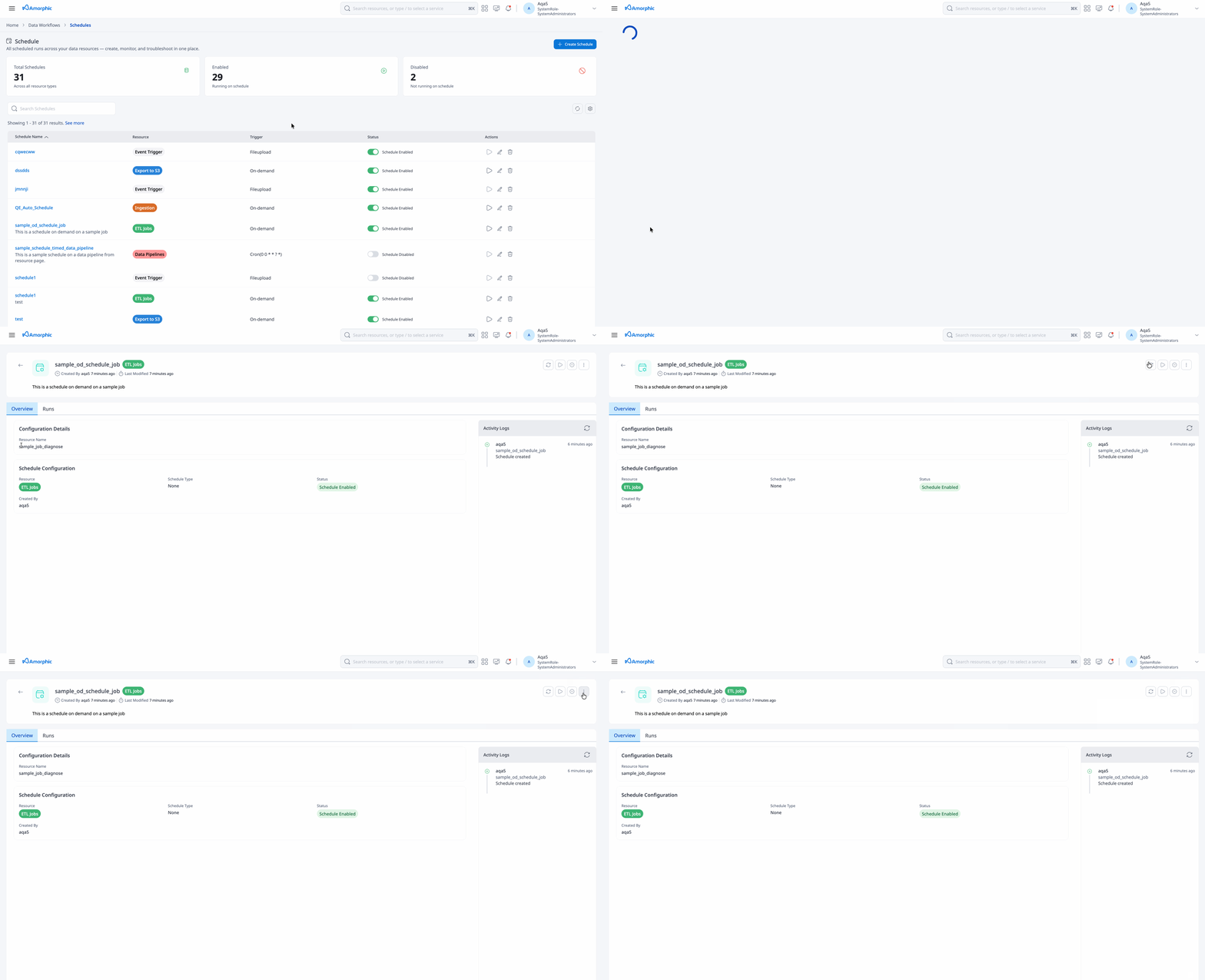
Open a schedule from the global list or from a resource Schedules tab. Read-only access is enough to view a schedule and its executions.
The details page shows configuration you need to operate the schedule:
- Schedule name, description, and keywords
- Schedule type and trigger (expression, event type, or external source)
- Target resource and job type
- Arguments stored on the schedule
- State (enabled or disabled)
- Your access level on the schedule
Update a schedule
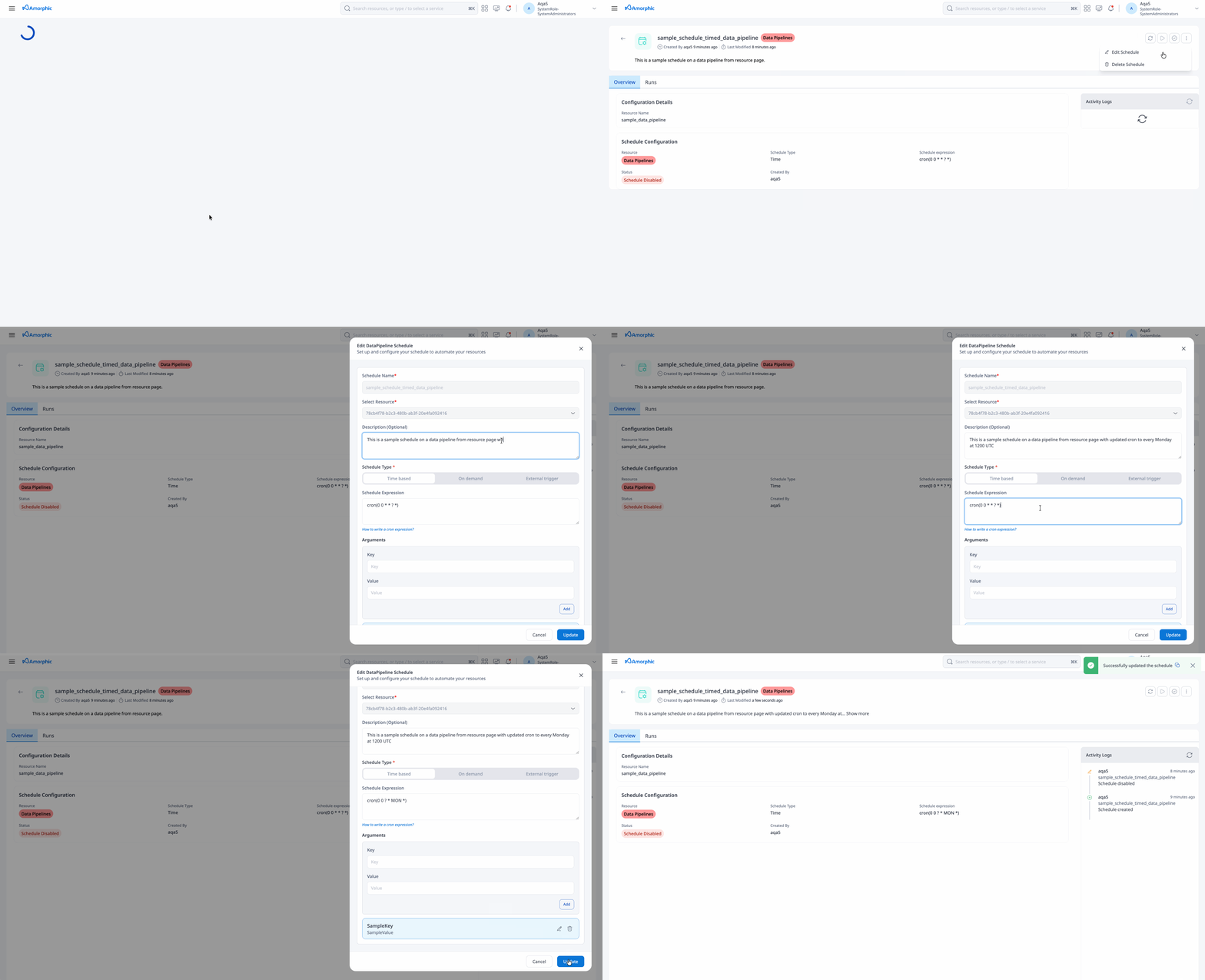
Editors can update a schedule from the schedule details page. What you can change depends on the schedule type:
| Schedule type | Typical editable fields |
|---|---|
| Time-based | Description, keywords, schedule expression |
| On-demand | Description, keywords |
| Event trigger | Description, keywords, event targets, arguments |
| External trigger | Description, source ARN, arguments |
| Data pipeline (time or on-demand) | Above fields plus arguments (execution properties) |
You cannot retarget a schedule to a different underlying resource through edit; create a new schedule if the resource changes.
Notebook datalab schedules (start/stop windows) follow the datalab scheduling flow. They appear in the global Schedules list but are managed in the datalab context. See SageMaker notebooks for datalab lifecycle.
Delete a schedule
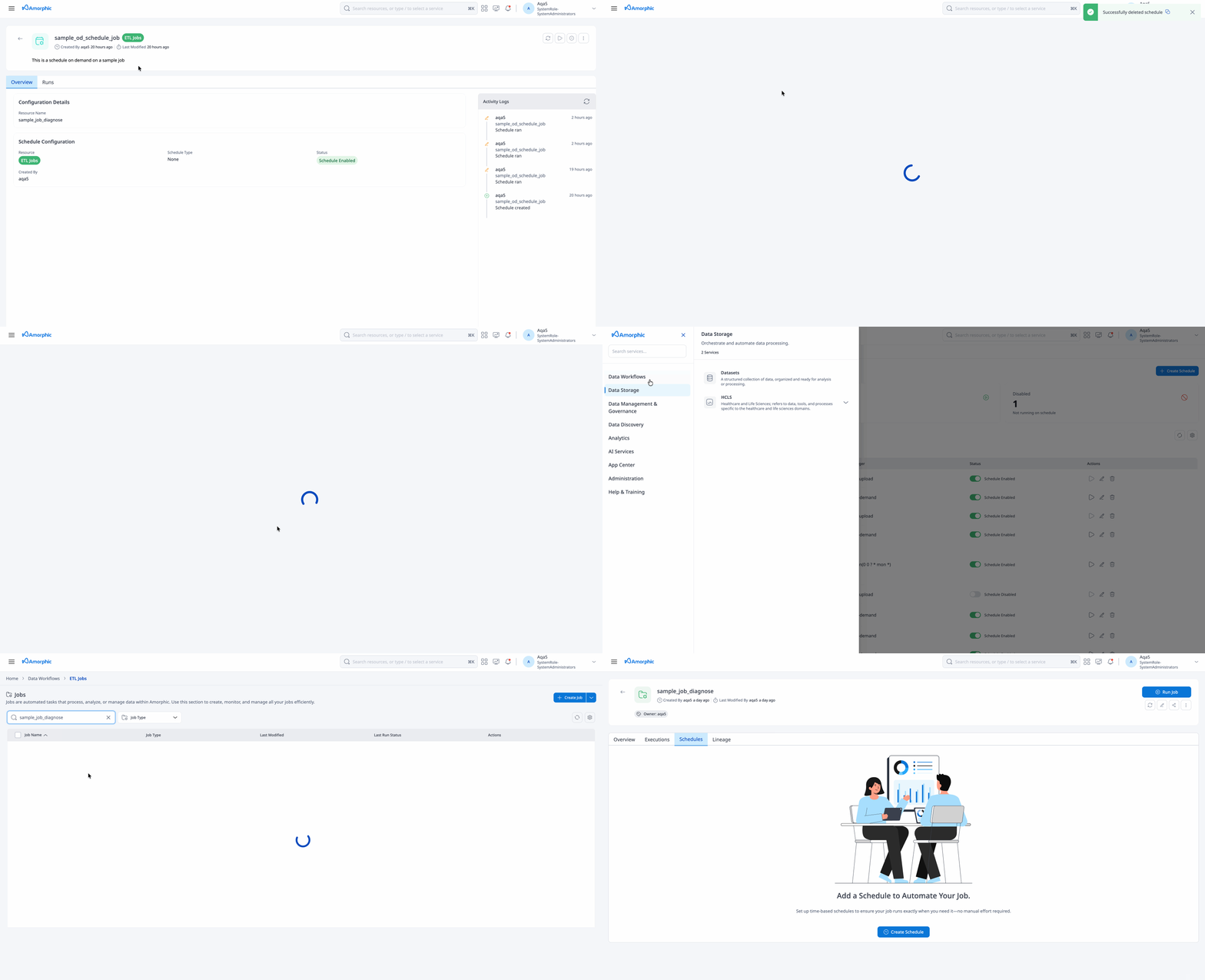
Owners or editors can delete a schedule when it is no longer needed.
- Deletion is irreversible.
- For external trigger schedules, the platform unsubscribes from the SNS topic when no other schedule uses the same topic.
Run a schedule now
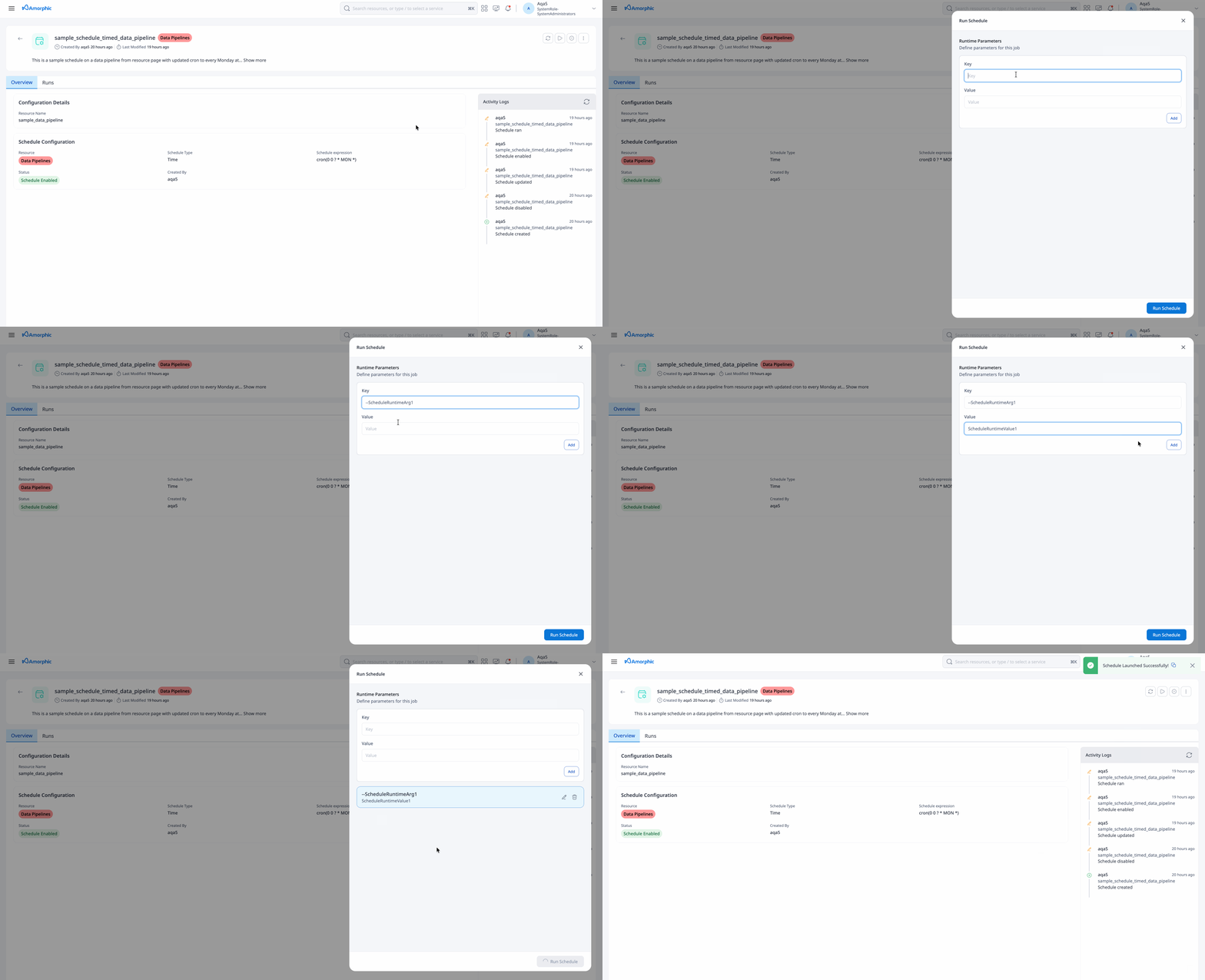
Use Run now (or Run schedule) to start an ad hoc run without waiting for the next cron tick.
- Open the schedule details page.
- Ensure the schedule is enabled.
- Choose Run now.
- Optionally override arguments for this run (supported for ETL jobs, Traditional data pipelines, and some data ingestion schedules).
Run now is not available for event trigger or external trigger schedules. Those run when the platform receives the configured event or external message.
- The schedule must be in ENABLED state before Run now succeeds.
- Changing schedule arguments at run time requires editor access on the schedule.
Enable or disable a schedule
Enable and Disable control whether a schedule can fire automatically (time-based) and whether operational actions such as Run now are allowed.
- Disable a schedule to pause automated runs without deleting configuration.
- Enable again when you are ready to resume.
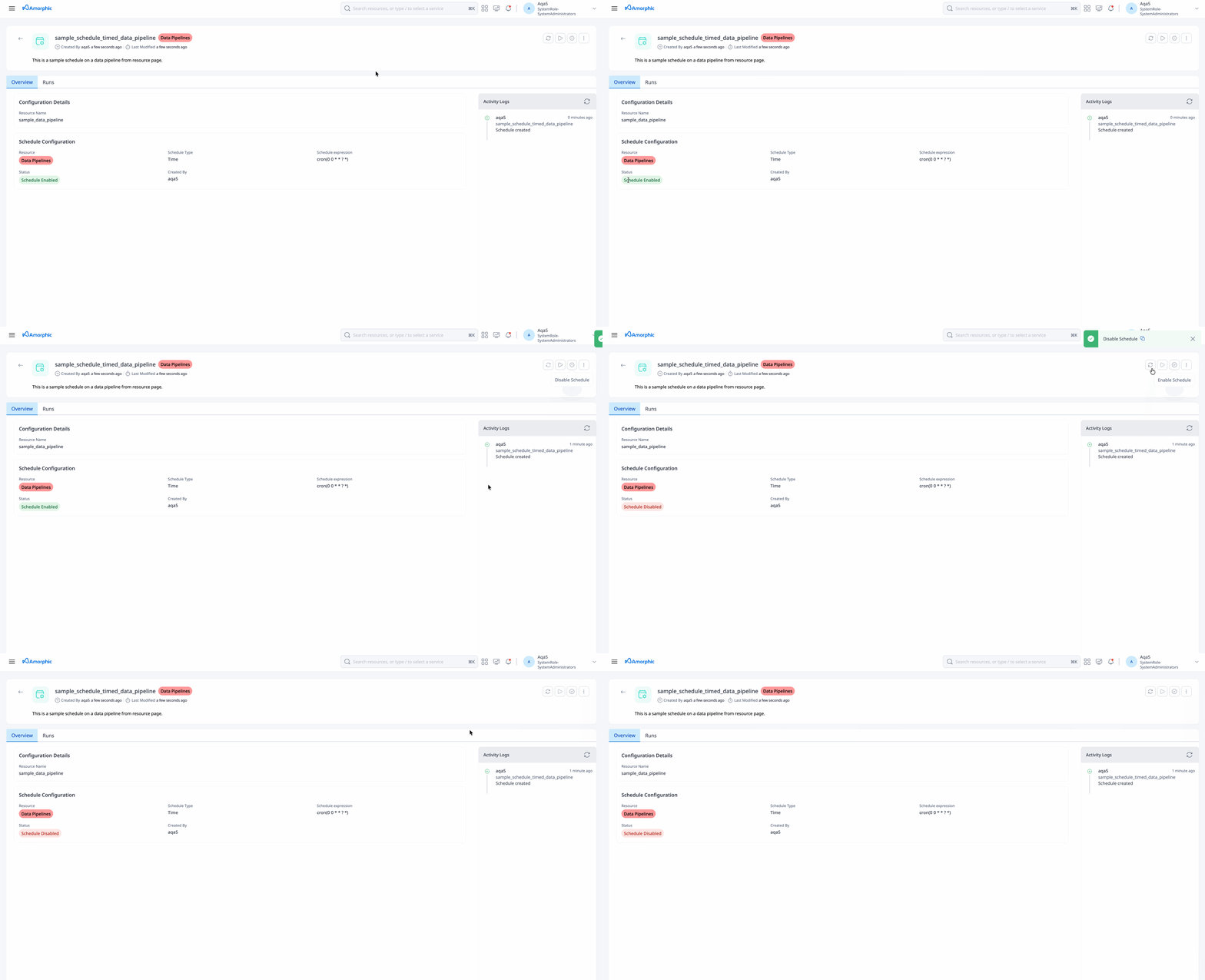
Enable, disable, run, update, and delete require at least editor access on the schedule.
Schedule executions
Each run—scheduled, manual, or event-driven—creates an execution you can inspect from the schedule.
- Open schedule details.
- Open Executions (or the executions panel).
- Review status (running, succeeded, failed, stopped, and so on), start/end time, and links to logs where available.
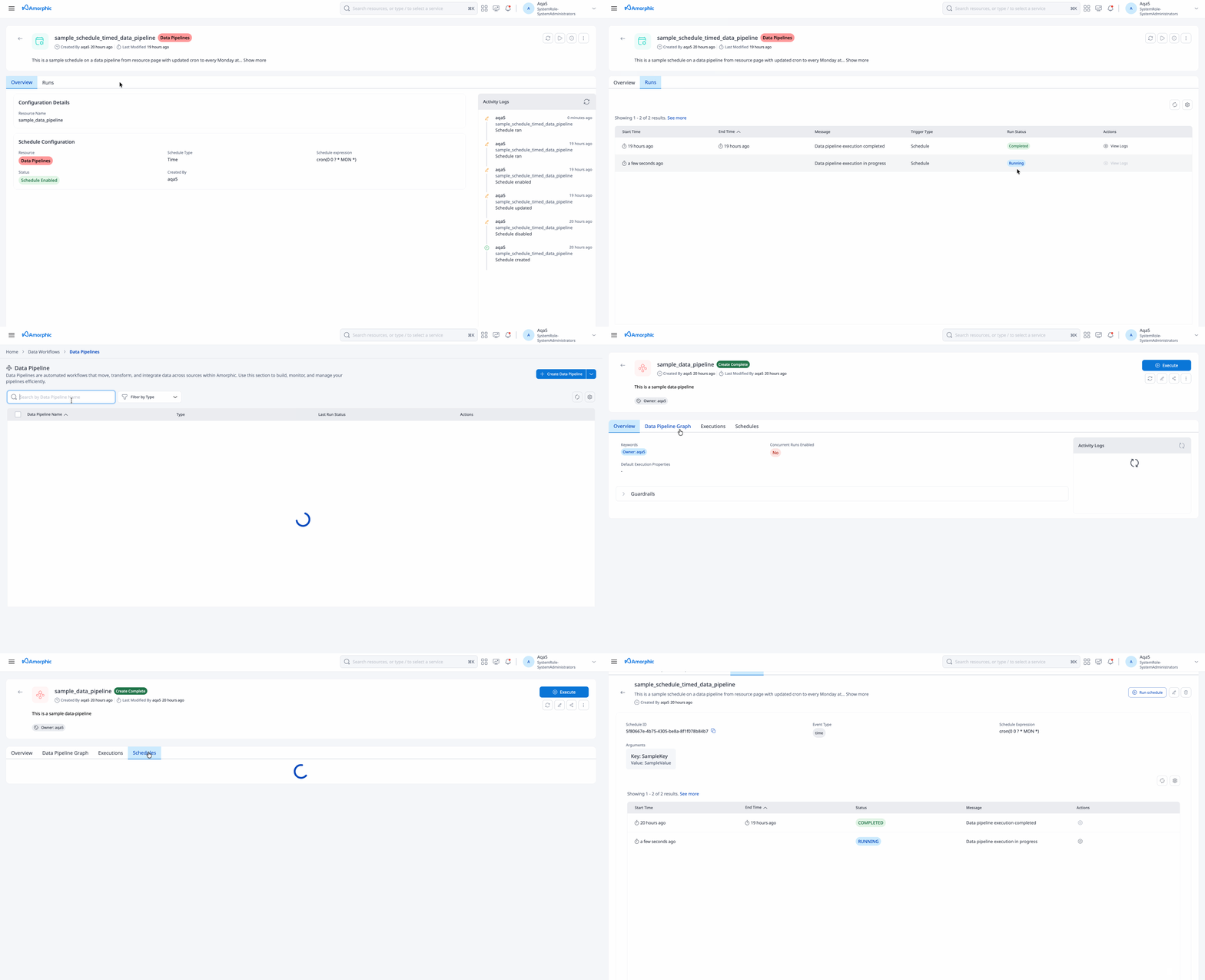
For Glue ETL, Traditional data pipeline, and data quality check runs, you may stop an in-progress execution when the platform allows it (for example while status is running or starting). When a run completes, notifications may be sent according to your notification settings.
Stop is not supported for event trigger or external trigger schedule executions. For a failed event trigger run, use Re-trigger on the execution instead. See How to: Schedules.
Related documentation
- How to: Schedules — Job-type matrix, ingestion arguments, event trigger, external trigger
- ETL Jobs
- Traditional Data Pipelines
- Datasources
- Datasets
- Data quality checks