
Proxy Maintenance
The Squid proxy is Amorphic's internet egress gateway for workloads inside the VPC. If this proxy is down or outdated, Amorphic services that need outbound connectivity can be affected.
Proxy Maintenance lets Admins check which security patches the proxy is missing and apply them from the Amorphic UI, without direct access to the underlying AWS account. Amorphic uses AWS Systems Manager in the background to scan and install approved patches. Scan and Install are separate, asynchronous actions: use Scan to check for missing patches, and Install only when ready to apply them. Both run in the background and may take a few minutes to complete.
This feature is available only when Amorphic manages the Squid proxy. It is not available for customer-managed VPCs or deployments that do not use a Squid proxy.
Navigate to Administration → Infrastructure → Squid Proxy → Proxy Maintenance.
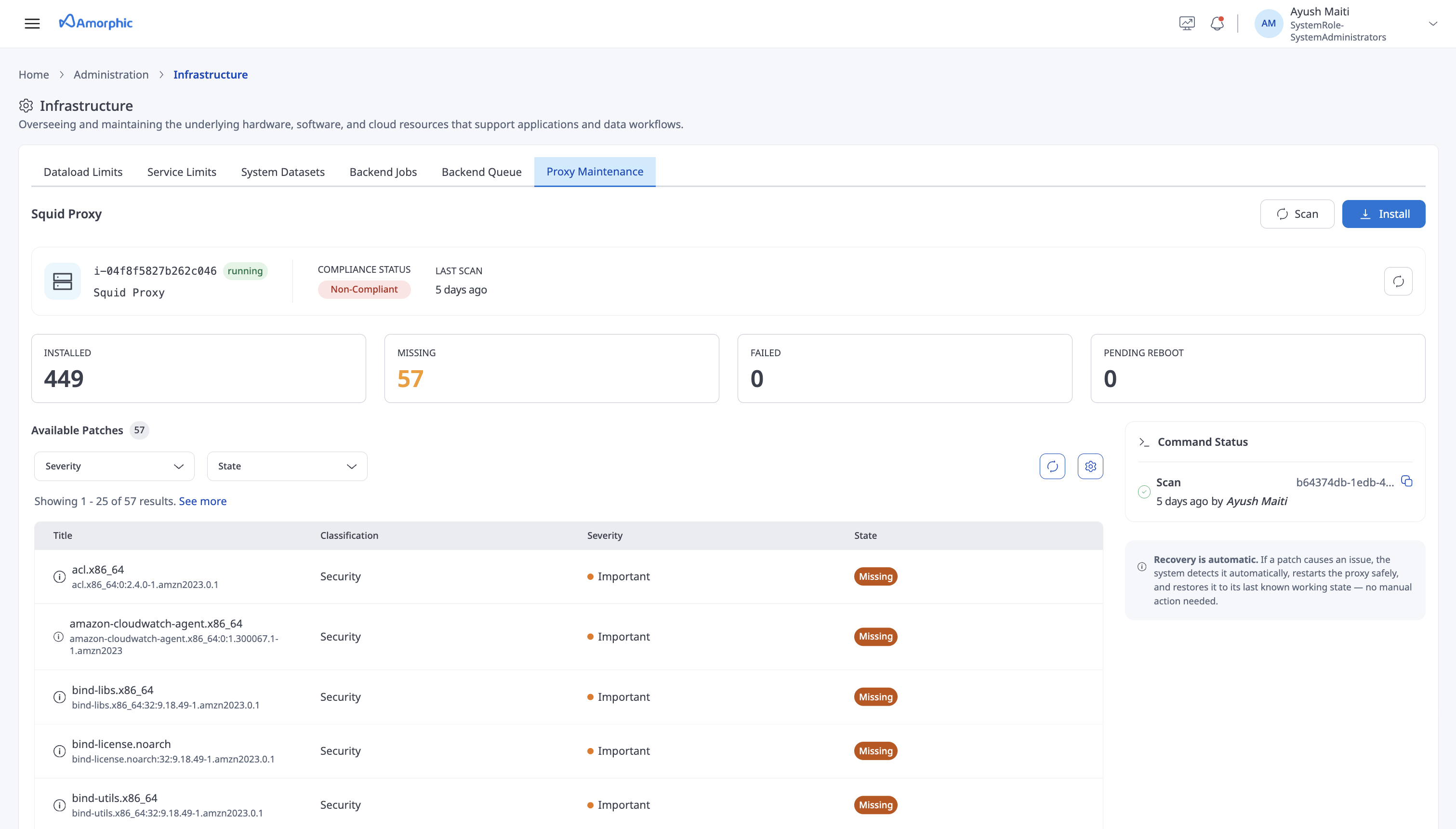
What you see on the page
- Instance details — Identifies the Squid proxy instance and shows whether it is running. The instance ID helps Amorphic support locate the resource in AWS
- Compliance status — Whether the proxy has all applicable patches. Compliant means no patches are missing; Non-Compliant means one or more patches still need to be installed
- Last scan — Timestamp of the most recent scan that refreshed the proxy's patch compliance data
- Summary counts — The total number of applicable patches, with a breakdown of how many are Critical or Important
- Available patches — Details of the individual patches that apply to the proxy, including type, severity, and current state
- Command status — Recent scan and install operations, including whether each is waiting, running, completed, or failed
Amorphic does not start this maintenance automatically. Admins start it during a suitable maintenance window, after which the operation runs in the background and may take several minutes to complete.
The available patches are based on the most recent scan. If the last scan is a day or older, the list may be outdated. Run Scan to refresh it before deciding whether maintenance is required.
Available Patches
When the Squid proxy is Non-Compliant, one or more recommended patches have not yet been applied. Patches may contain security fixes, bug fixes, or other improvements.
The Available patches table shows which patches apply to the proxy and whether any action is required. Each row includes:
- Patch — The name and unique identifier of the patch
- Classification — The type of patch, such as Security, BugFix, or Recommended
- Severity — The importance of the patch, such as Critical, Important, or Moderate. Review higher-severity patches first
- State — The current status of the patch on the proxy:
- Installed — Already applied; no action required
- Missing — Not yet applied and available to install
- Failed — An install was attempted but did not complete successfully
- Pending Reboot — Installed, but the proxy must restart before the patch takes effect
Scan for available patches
Use Scan to check whether the Squid proxy is up to date. A scan checks the proxy for applicable patches and refreshes the compliance information on the page. It does not install anything or change the proxy.
After starting a scan, track its progress under Command status. When it completes, review the updated Compliance status, Last scan, summary counts, and Available patches table:
- If the proxy is Compliant, no patches are missing and no action is required.
- If the proxy is Non-Compliant, review the missing patches and their severity before deciding whether to install them.
Install
Use Install when ready to apply missing patches. This operation scans the proxy again and then installs the applicable patches. Because installation may restart the proxy, run it during a suitable maintenance window.
- Run Scan and review the updated compliance status and available patches.
- Confirm that no jobs or other activities relying on outbound connectivity are running.
- Click Install.
- Review the confirmation dialog. No patches are applied until you click Scan & Install; click Cancel to return without making changes.
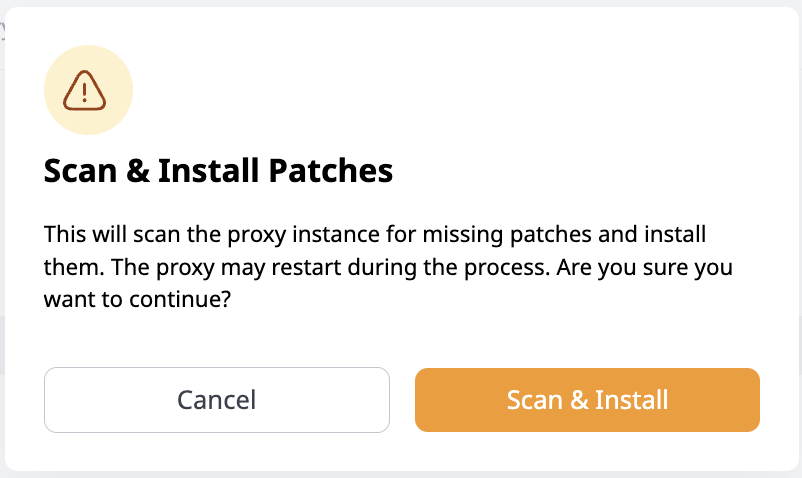
The proxy may briefly restart while patches are applied, which can temporarily interrupt Amorphic operations. Confirm that no jobs or other activities are running before continuing.
- Track the operation under Command status. Install stays disabled while an operation is running, which prevents another patch operation from starting at the same time.
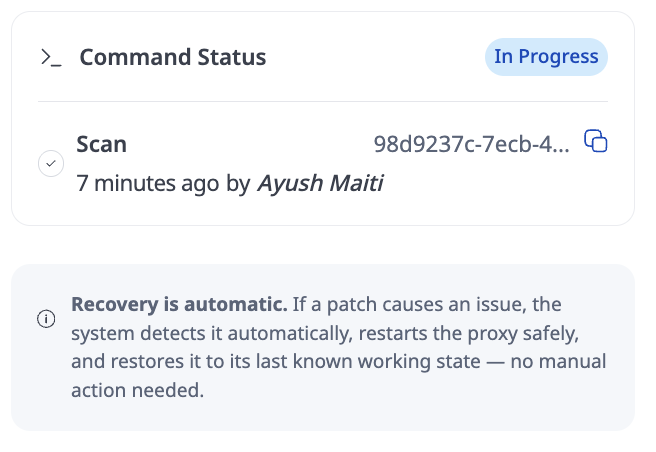
- When the operation succeeds and no patches remain missing, the proxy status changes to Compliant. If it fails, review the details under Command status before trying again.
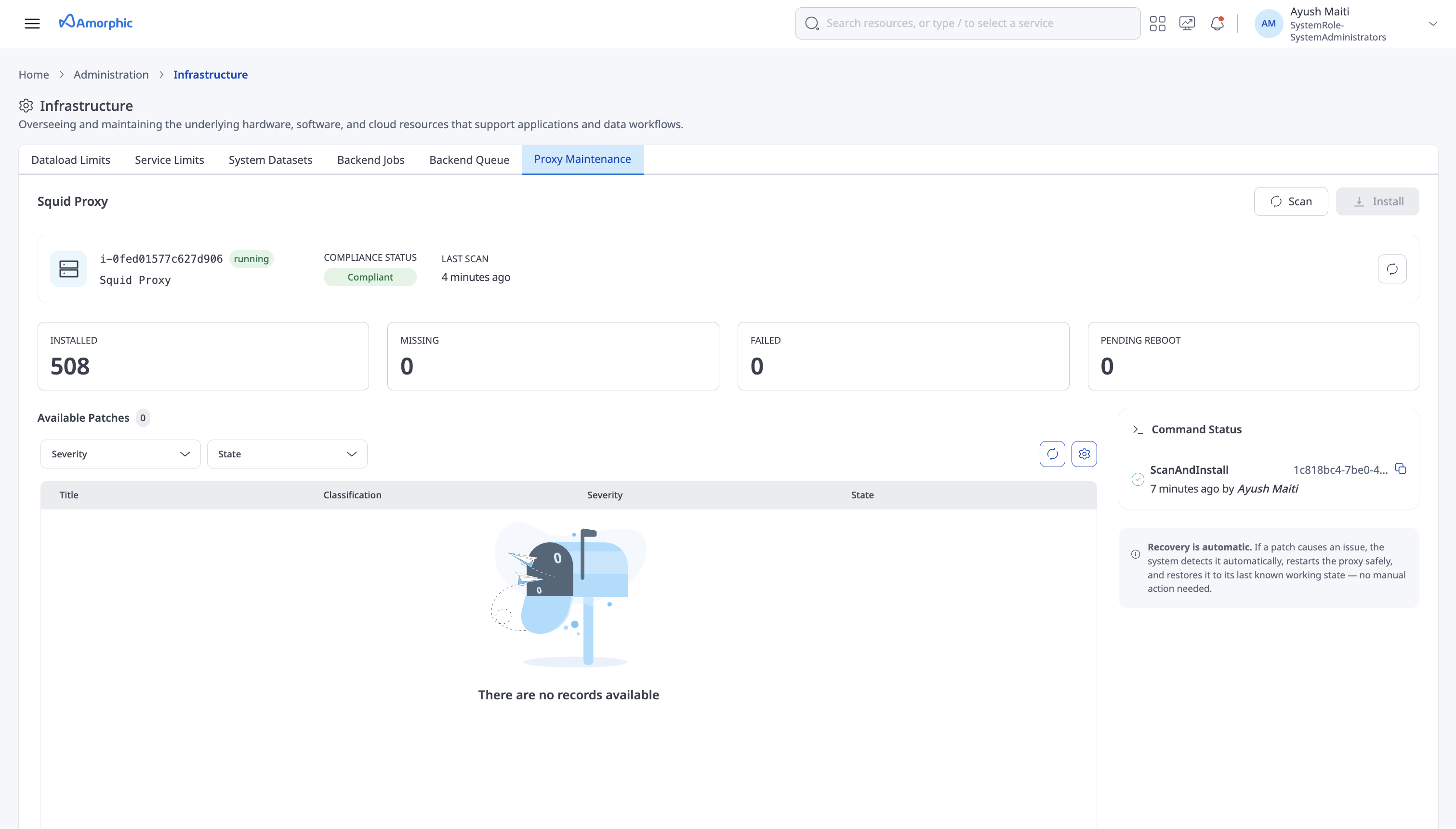
Only one patch operation can run at a time. If a command is already pending or in progress, wait for it to finish before starting another.
Recovery with the last known good version
After patches are applied, Amorphic checks that the Squid proxy is still working correctly. If that check fails, Amorphic automatically restores service by replacing the unhealthy proxy with the last known good version — a previously saved, healthy copy of the proxy for your deployment.
In most cases, no action is required. Wait a few minutes, then confirm the Squid proxy is healthy on System Status.
If automatic recovery does not complete, or Admins are alerted that the Squid proxy is not working, Admins can restore the last known good version manually from the AWS Console:
- Sign in to the AWS Console with an account that can manage the Amorphic environment, and select the Region where Amorphic is deployed.
- Open EC2 → Auto Scaling Groups.
- Find the group whose name starts with
<ProjectShortName>-<Environment>-infra-stack-rProxiesResourceStack-, using your project and environment values. - Open the group, go to the Instance management tab, select the unhealthy proxy instance, and choose Actions → Detach. Detaching removes the faulty instance without deleting any data.
- In the confirmation dialog, leave Replace instance selected, type
detachto confirm, then choose Detach instance.
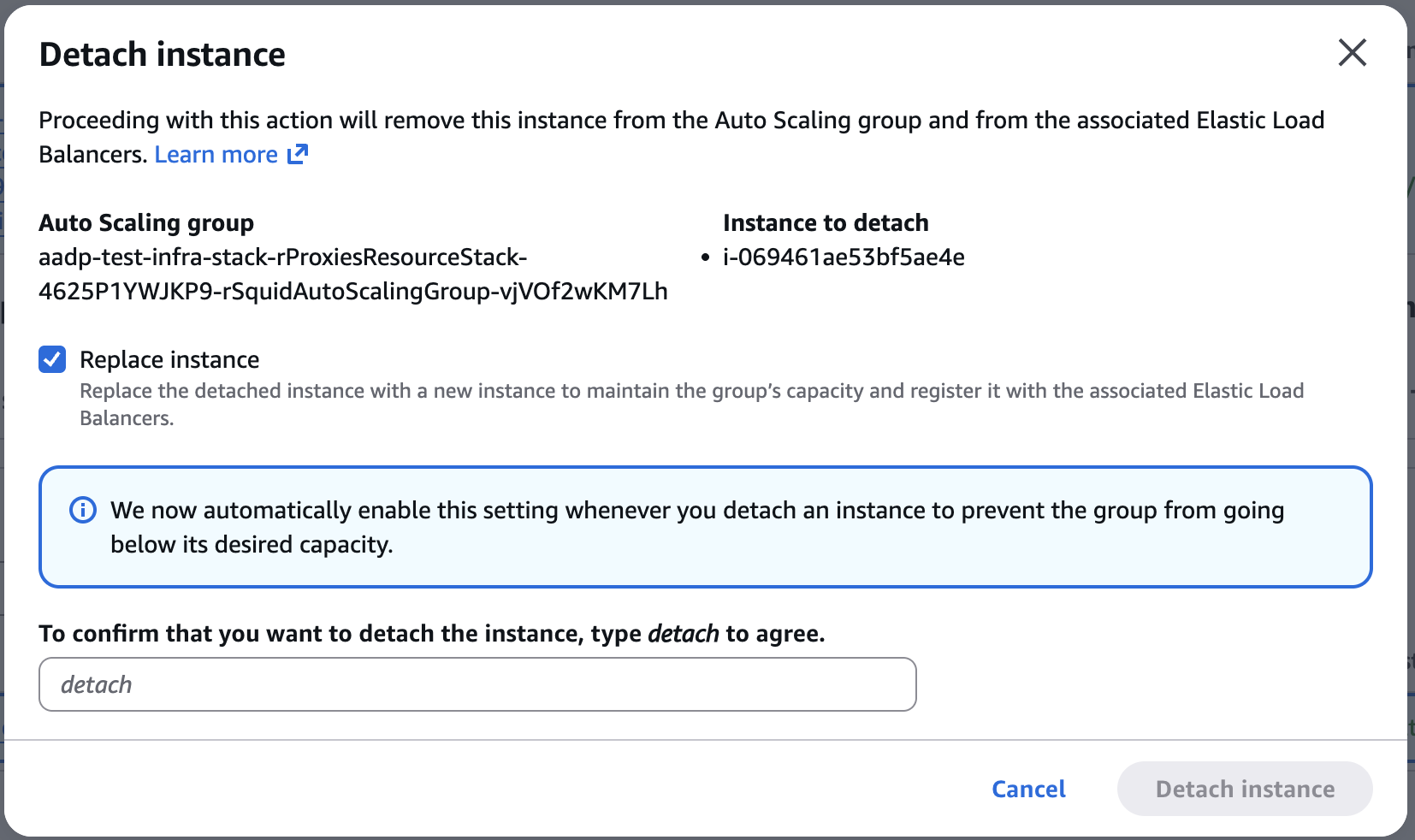
Keep Replace instance checked so the Auto Scaling Group launches a new proxy from the last known good AMI and maintains capacity. Clearing this option removes the faulty instance without starting a replacement.
The Auto Scaling Group then launches a new instance from the last known good AMI — a saved snapshot of a healthy proxy — usually within a few minutes. When it finishes, confirm the Squid proxy is healthy on System Status.
If you are unsure which group or image to use, contact Amorphic support before making changes. For related symptoms and the same recovery steps, see Error messages.
Command Status
The Command status panel lists recent scan and install operations to track what ran and whether it completed. Common statuses include Pending, In progress, Success, and Failed.
Pay special attention to Superseded. This means the command ran on a previous proxy instance that has since been replaced — for example after recovery. Those results no longer apply to the current proxy. Run Scan again on the current instance to get up-to-date compliance information.
Related
- System Status — Squid proxy health
- Whitelisted Proxy Domains — outbound domain allowlisting for the proxy
- Error messages — Squid Proxy unavailable recovery steps