
Unified Record Hub
Overview
- The Unified Record Hub serves as the primary hub for visualizing and interacting with the unified master records generated from workflows and Policy Engine.
- Users can see all output records and further scope down to see details about an individual record.
- By default, records that are in Pending Review state are listed. Users can use search functionality to filter out the desired list of records.
Data Engineers, Data Stewards, and Admins can modify each attribute of a record as they deem fit, and the Amorphic unified master dataset will be updated accordingly.
App Viewers can only view unified master records; they cannot modify them.
Unified Record Hub View
Workflow section
Components
- Unified Record — The single, authoritative view of a record after matching and merging. It shows the final values for each field in the mastered record: the system has identified which source records refer to the same real-world object (e.g. the same customer or product), merged them according to your rules, and applied survivorship so each attribute has one chosen value. The Unified Record is the unified master record your organization can use for reporting, analytics, and downstream systems.
- Match Context — Lists the source records along with matching rules that were analysed and merged to form that unified master record.
- Source Lineage — Shows the contributing source records along with the fields that each source contributed to the unified master record.
- Potential Matches — Displays match clusters tied to the unified record. Each cluster lists the source records that matched under a rule, along with the match reason. Stewards can review clusters, approve merges, or publish individual source records as new golden records in the output dataset (see Publish source records from a match cluster).
- Activity — Tracks the operations performed over the record (e.g. edits, merges, approvals) for audit and history.
Publish source records from a match cluster
When the workflow groups source records into a match cluster, not every record may belong in the same unified master record. From the Potential Matches tab on a workflow record, you can publish one or more selected source records as separate golden records in the workflow output dataset instead of merging them into the current unified record.
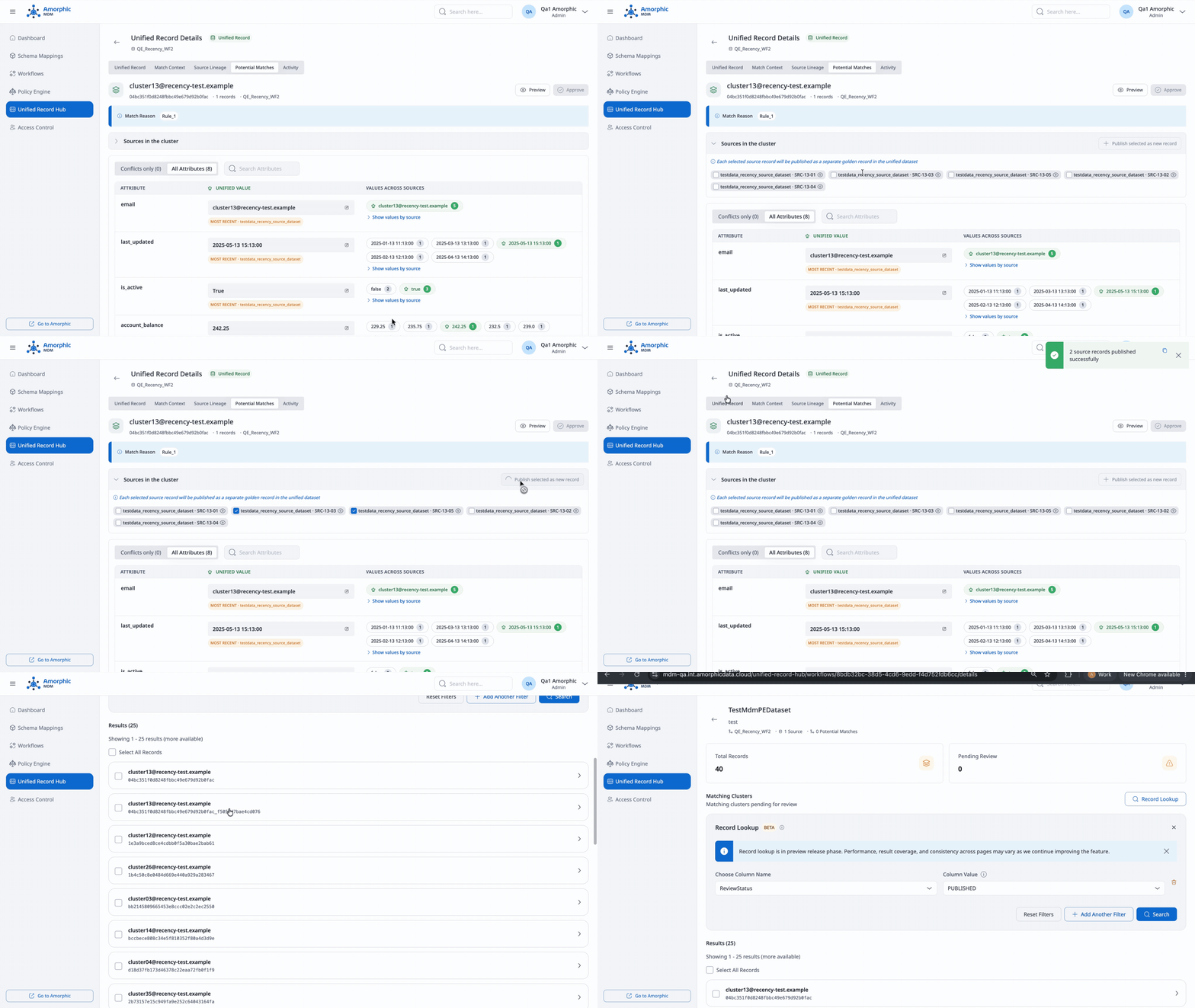
- Open Unified Record Hub and select a workflow record (use the arrow on the right of the row).
- On Unified Record Details, open the Potential Matches tab.
- Select a match cluster. The cluster header shows the cluster identifier, record count, and workflow name; Match Reason shows which matching rule produced the cluster.
- Expand Sources in the cluster and select the source records to publish. Each chip shows the source dataset and record ID; use the eye icon to preview a source record before selecting it.
- Click Publish selected as new record.
Each checked source record is written to the workflow output table as its own golden record. The banner under Sources in the cluster confirms this behavior: Each selected source record will be published as a separate golden record in the unified dataset.
Use Preview to inspect the cluster before acting, and Approve when the remaining cluster members should be merged into the current unified record as usual.
Publishing selected sources creates new output rows; it does not replace the standard approve-and-merge flow for records that should stay in the same unified master record.
Update single unified master record
Data stewards can directly edit the values of data fields in the unified master dataset.
- Click on the right pointing arrow sign present in right side of all records.
- There you can see the source records that were synthesised to generate the given record
- On the right side, In the Unified Record Vs Potential Match section, under the Match value section we have edit option.
- Enter the update value and press the Save button to persist the changes and then press Merge to update the value.
- User can Approve the record by pressing the button with same name present just above the mentioned section on right side.
Update unified master records in bulk
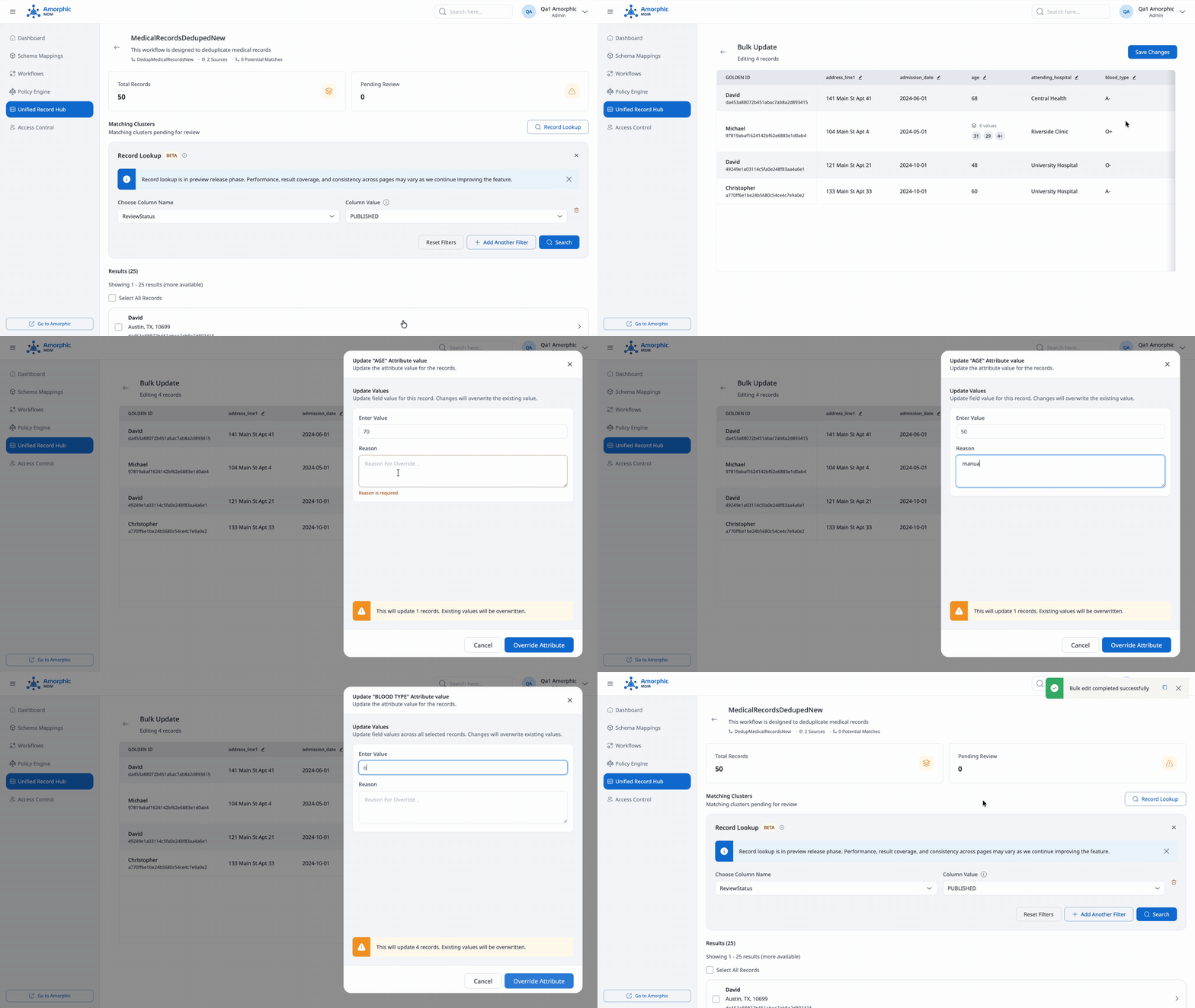
- Select the records, and a option to update records will appear.
- Clicking the button will redirect to a bulk edit page where we can update values of desired attributes.
- Click on edit symbol present along with every attribute name in column headers section.
- Type the new value along with the reason and then press Override Attribute button to temporarily persist the changes.
- Hit Save changes button present on top of edit pane on right side to update the values of all given record with the single value.
- Data stewards can edit multiple records in a single request.
- Up to 1000 records are allowed in one edit request.
Policy Engine section
Components
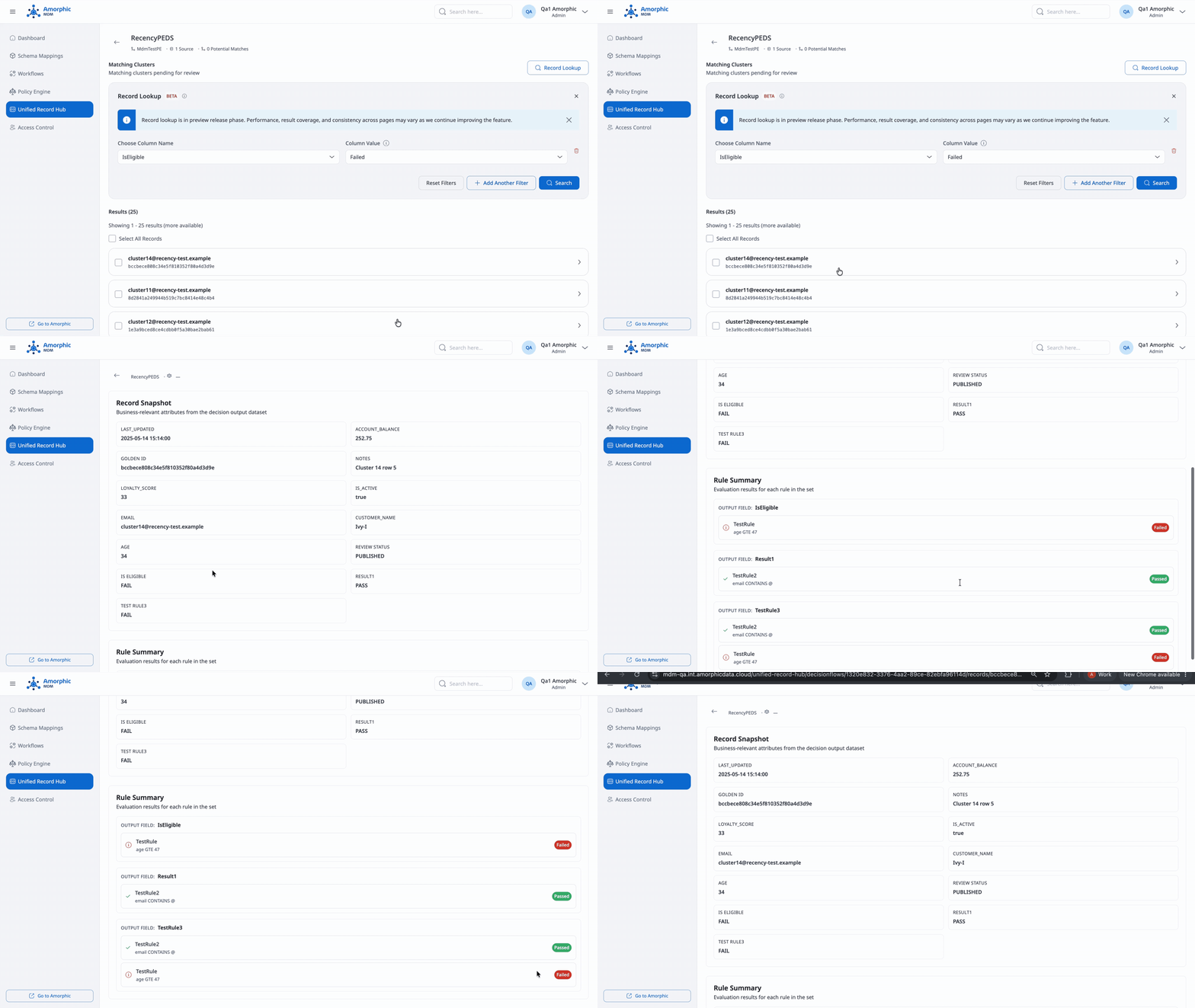
- Record Snapshot - Business-relevant attributes from the decision output dataset
- Failed Rule Set - Displays the name of the Policy Engine used for evalutation along with the set of rules which were not statisfied by the record in concern.
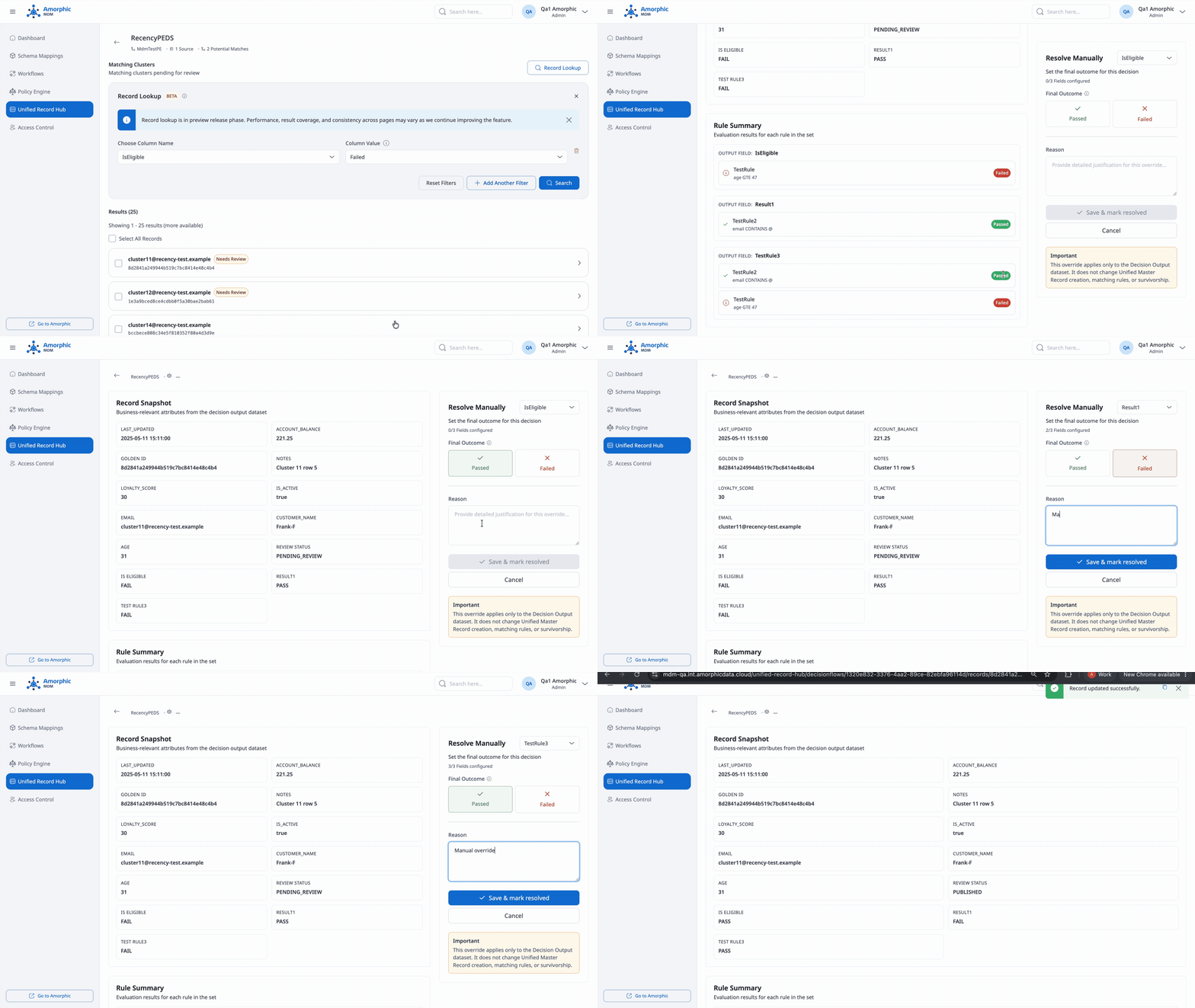
- Manual Resolution - Manually set the final outcome for this decision
Update single Policy Engine record
- Click on the right pointing arrow sign present in right side of all records.
- In the Resolve Manually section select the eligibility of the record and mention a reason for your action.
- Then press Save & mark as resolved button below the reason input text box.
Update Policy Engine records in bulk
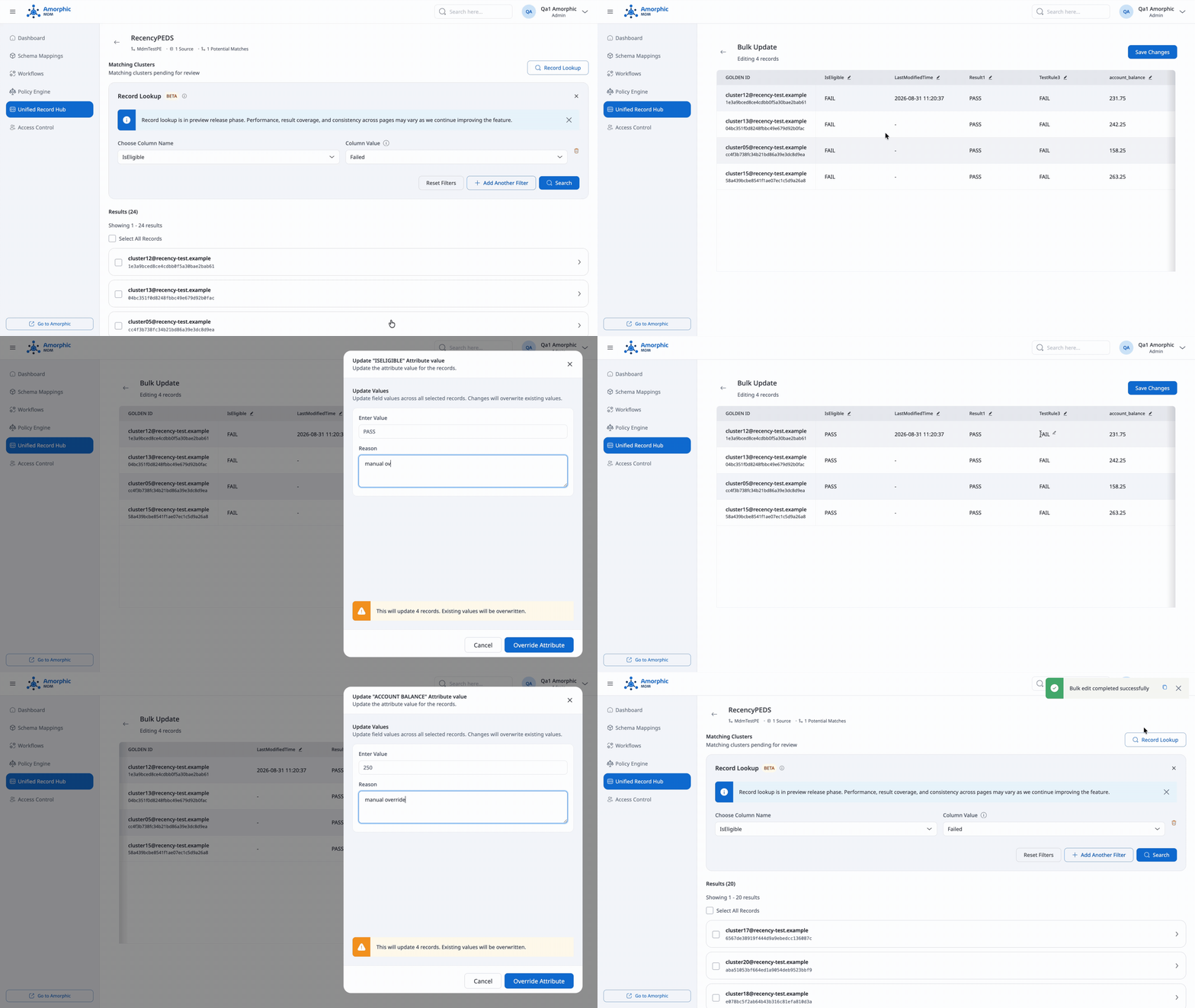
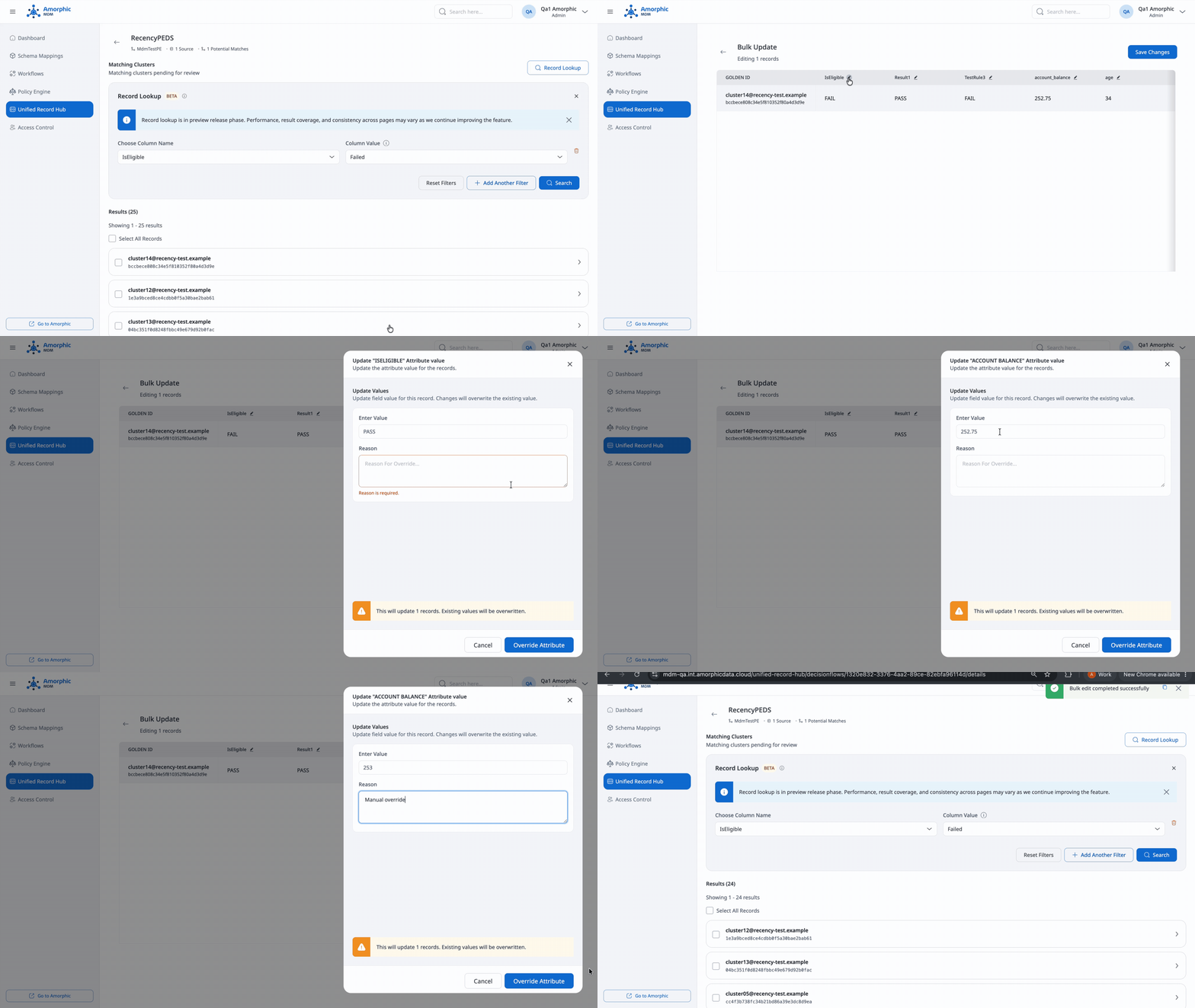
- Select the records, and a option to update records will appear.
- Clicking the button will redirect to a bulk edit page where we can update values of desired attributes.
- Click on edit symbol present along with every attribute name in column headers section.
- Type the new value along with the reason and then press Override Attribute button to temporarily persist the changes.
- Hit Save changes button present on top of edit pane on right side to update the values of all given record with the single value.
This override applies only to the Decision Output dataset. It does not change Unified Master Record creation, matching rules, or survivorship.
Records search
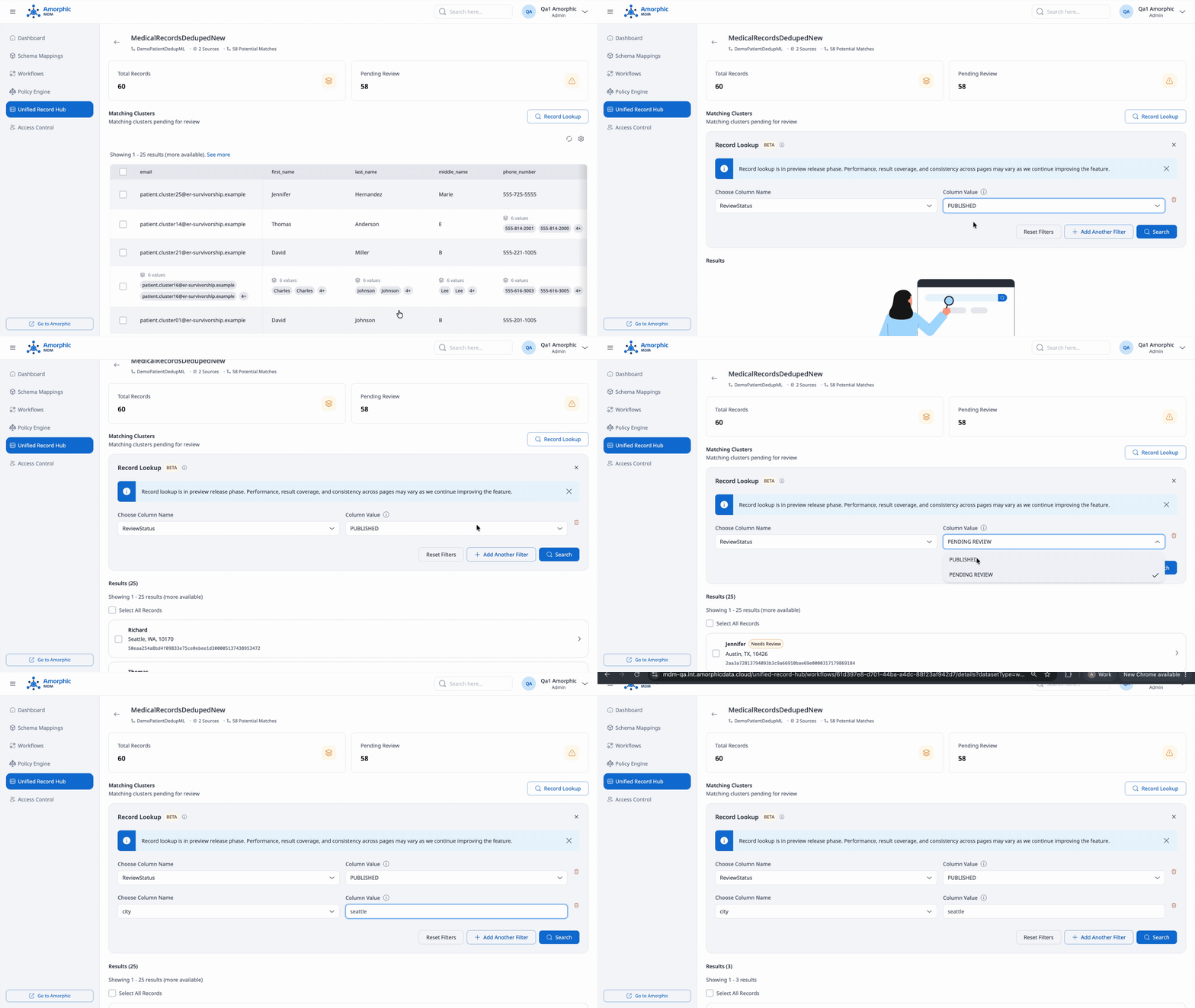
You can search and fetch all unified master records where a chosen field has a specific value. Use this to find every record that shares the same value for a given field (e.g. all records with the same email, ID, or status) across the dataset.
- Press the Record lookup button.
- Select the attributes and type value to set the filtering criteria and press Search.
Combining Search with the ReviewStatus filter typically returns results faster than using search criteria alone, because fewer records are evaluated when review status is applied.