
Data Labs Lifecycle Configurations
A lifecycle configuration (LCC) provides shell scripts that customize a Data Lab. These scripts can install packages or sample notebooks onto a datalab, configure networking and security, or apply other customizations.
Amorphic supports two LCC types:
| Type | Applies to | Scripts |
|---|---|---|
| notebook | SageMaker Notebook Data Labs | Optional On-Create and/or On-Start scripts |
| studio | SageMaker Studio Data Labs (JupyterLab) | Required On-Start script only (mapped to the AWS Studio lifecycle configuration for the JupyterLab app) |
Users can create, update and share these scripts with other users. Once created, these scripts can be attached to the Data Lab. Users can check the Data Lab using this configuration under the Resources tab available on the details page of the lifecycle configuration.\
There will be also be some default system created lifecycle configurations which will be available to all the users. Details regarding the use case for these scripts can be found in the description on the details page of the respective lifecycle configuration.

- Scripts cannot run for longer than 5 minutes. If a script runs for longer than 5 minutes, it fails and the notebook instance is not created or started.
- Based on the requirements, the necessary permissions (list/create/update/view/delete) must be added to the Amorphic role linked to the users.
- Notebook and studio lifecycle configurations are separate resources. A notebook LCC cannot be attached to a Studio Data Lab, and a studio LCC cannot be attached to a Notebook Data Lab.
Data Lab Lifecycle Configuration Operations
Below is the list of operations allowed on the Data Lab Lifecycle Configurations:
- Create Data Labs Lifecycle Configuration: Create a new Lifecycle Configuration
- Edit Data Labs Lifecycle Configuration: Edit an existing Lifecycle Configuration
- Attach a Lifecycle Configuration: Attach a Lifecycle Configuration to a Data Lab
- Delete Data Labs Lifecycle Configuration: Delete an existing Lifecycle Configuration
Create Data Labs Lifecycle Configuration
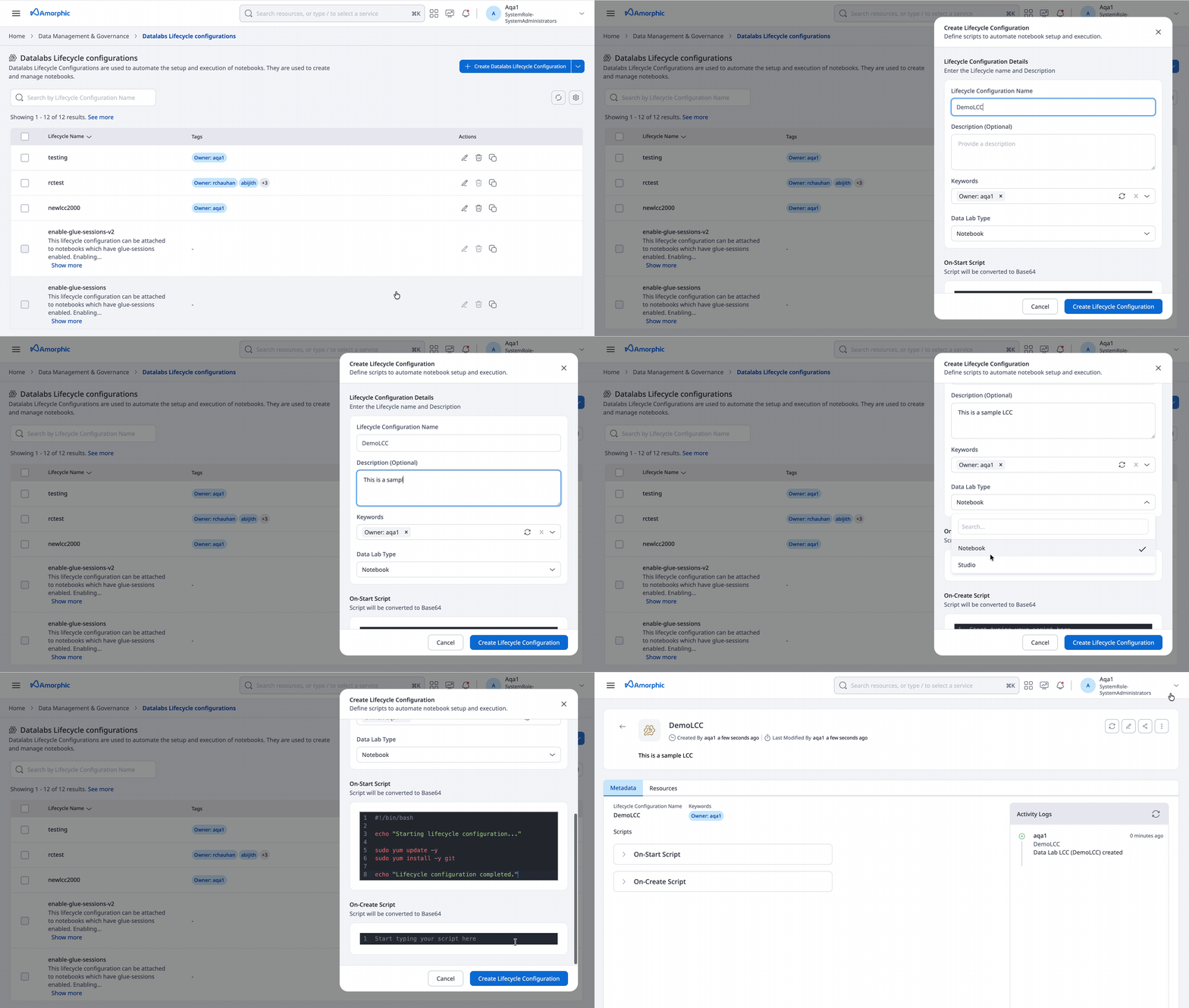
To create a Lifecycle Configuration:
- Click on
+ New Lifecycle Configuration. User can even import any existing template to create a lifecycle configuration. - Select the Type (
notebookorstudio). - Fill in the details shown in the table:
| Attribute | Description |
|---|---|
| Lifecycle Name | The name used to create the lifecycle configuration. The name must be unique across the Amorphic platform. The name can be up to 63 characters. |
| Type | notebook (default) or studio. Determines which Data Lab type the configuration can be attached to and which scripts are required. |
| Description | A brief description describing the purpose of the lifecycle configuration and other important details. |
| Keywords | Keywords are indexed and searchable in the app to help you find things quickly. |
| On-Start Script | Script that runs when the Data Lab starts. Optional for notebook LCCs. Required for studio LCCs (JupyterLab). Script length limit: 16384 characters (base64-encoded content). |
| On-Create Script | Script that runs the first time a notebook Data Lab is created. Optional for notebook LCCs. Not applicable for studio LCCs. Script length limit: 16384 characters (base64-encoded content). |
Sample lifecycle configuration scripts:
- Notebook LCCs: SageMaker notebook instance lifecycle config samples
- Studio (JupyterLab) LCCs: SageMaker Studio lifecycle config examples
Many sample scripts need extra setup, such as updating IAM permissions linked to the Data Lab. Manual role updates may be required for those scripts to work.
Edit Data Labs Lifecycle Configuration
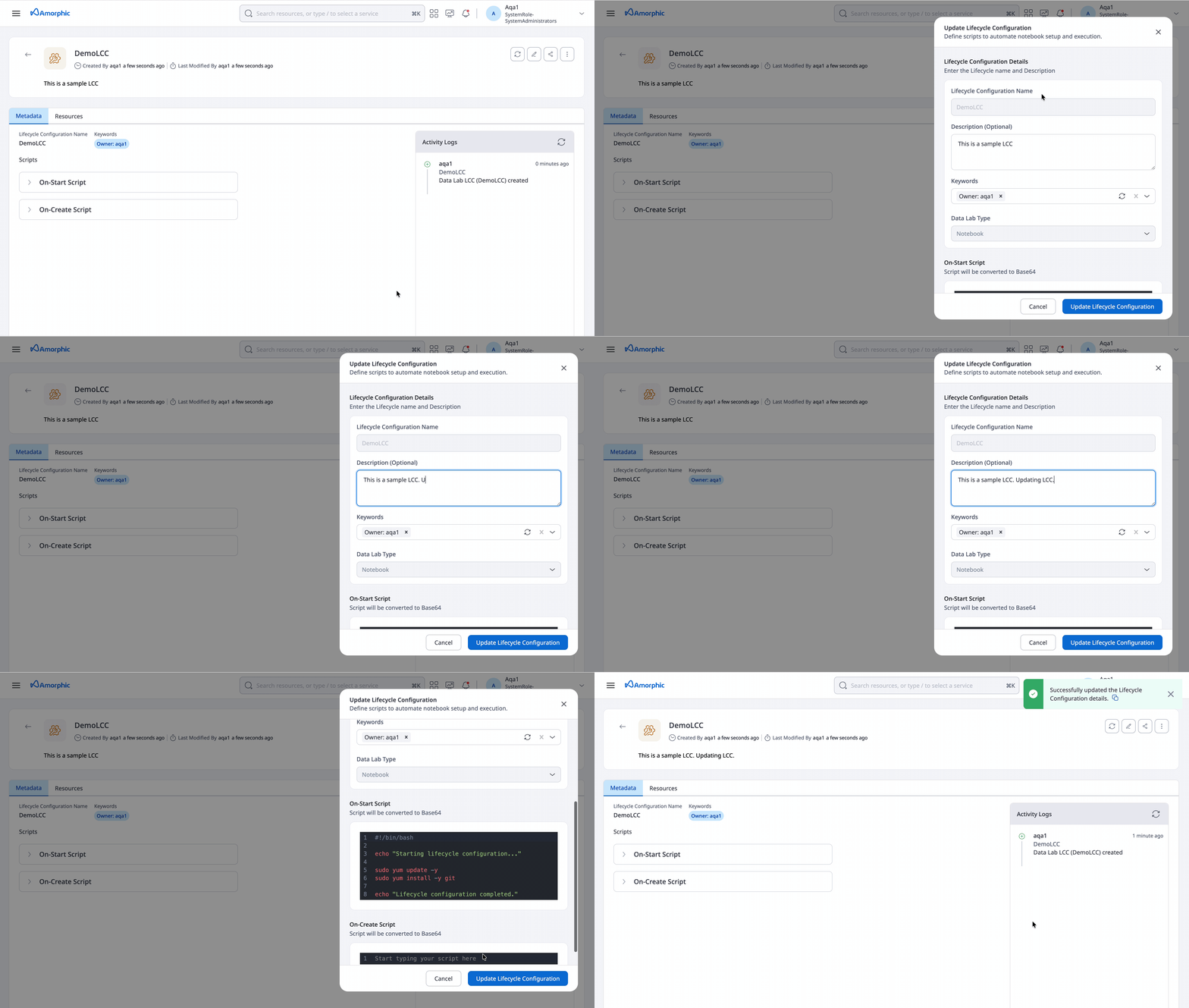
To update a notebook Lifecycle Configuration, click on the edit icon from the details or the listing page. Both the on-start and on-create scripts can be updated. Updating a Lifecycle Configuration would affect the Data Lab instances that are linked to it.
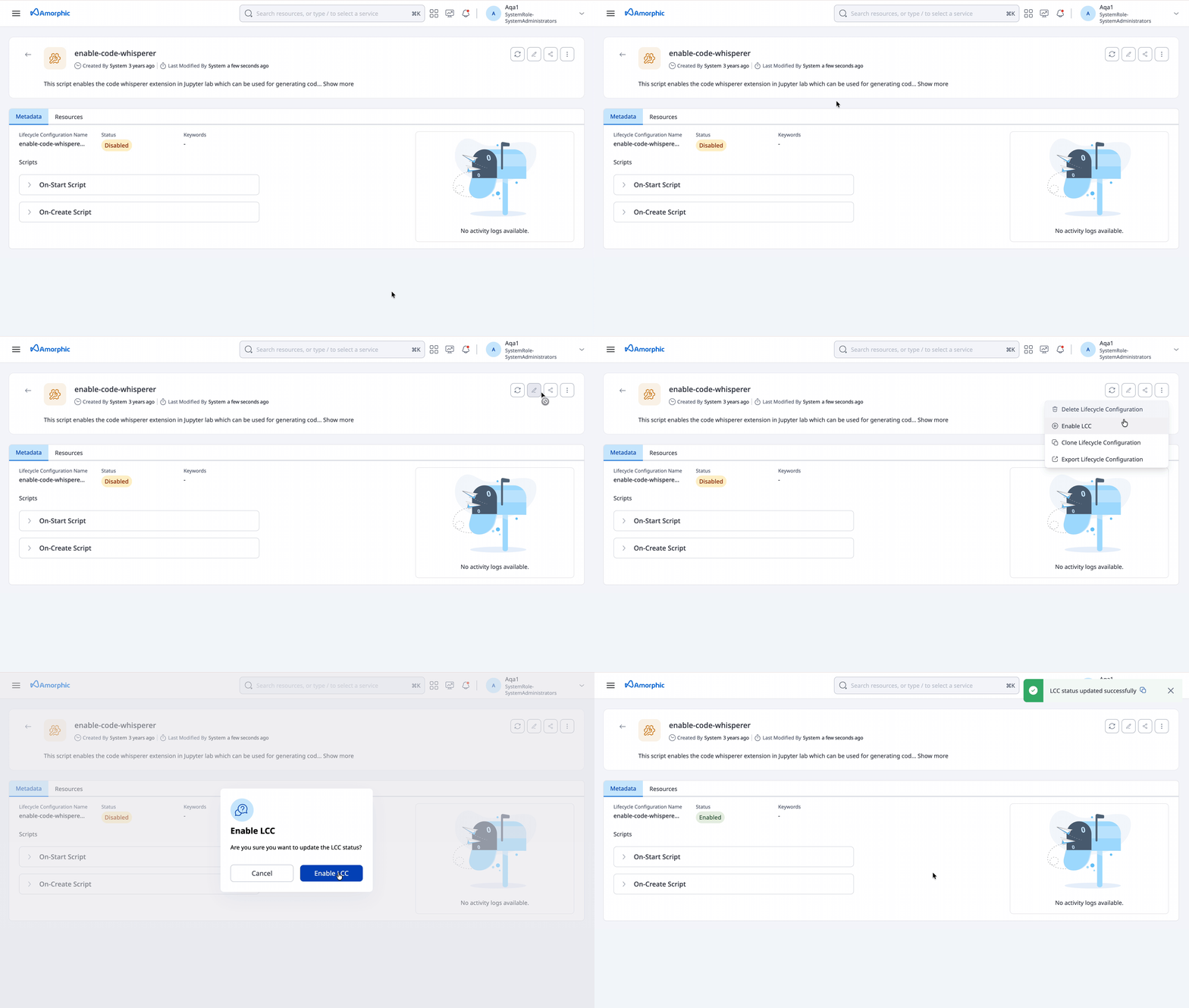
- System generated default Data Lab Lifecycle Configurations cannot be edited, but user can enable or disable them for use; granted permission to do so (namely most admins).
- Studio lifecycle configurations cannot be updated after creation. To change a studio LCC script, create a new studio LCC and attach it to the Studio Data Lab (and detach or replace the previous one as needed).
Attach a Lifecycle Configuration to a Data Lab
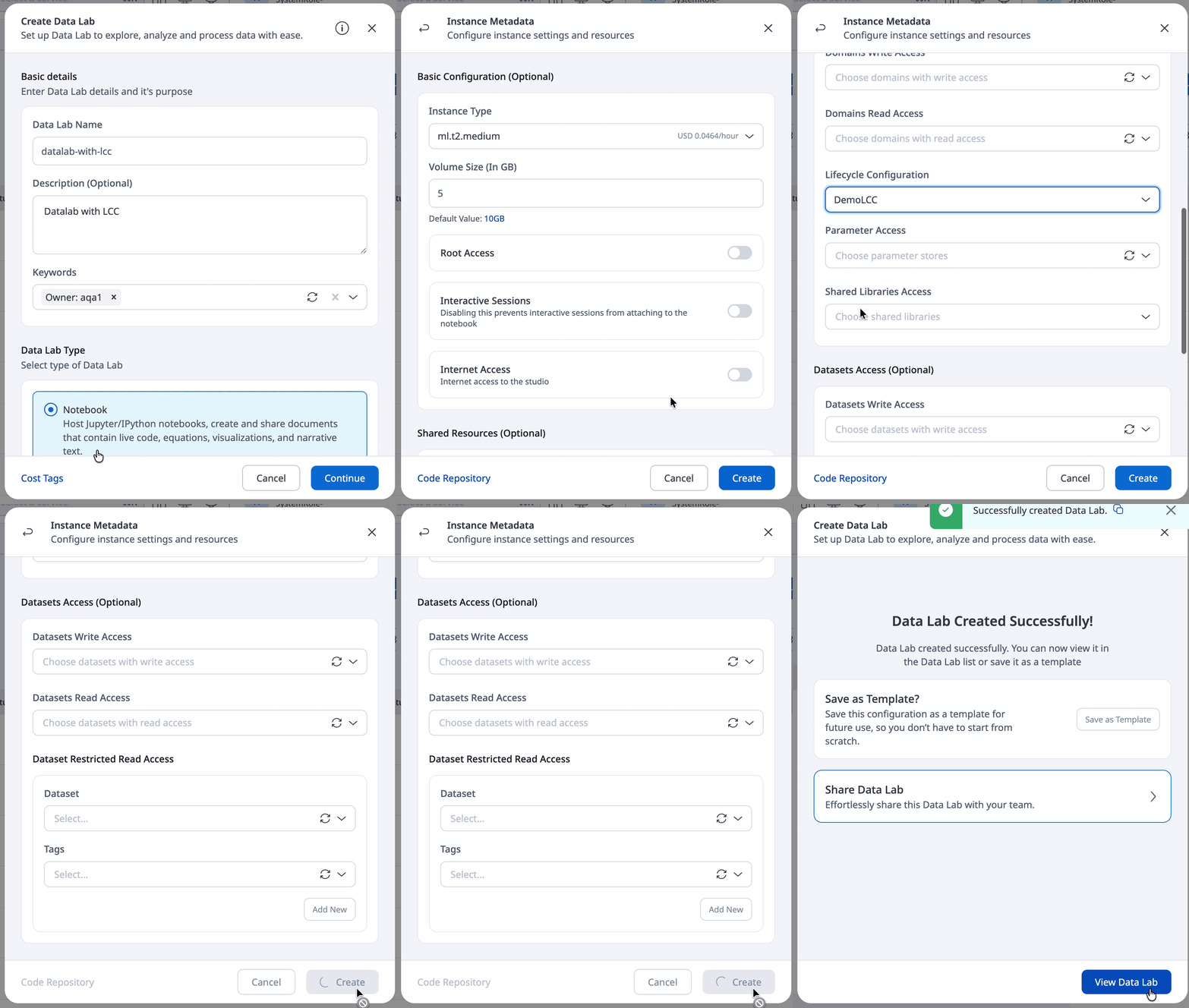
While creating a Data Lab (notebook or studio), users can optionally attach a lifecycle configuration that they have access to of the matching Type from the Lifecycle Configuration field. Select it from the dropdown in the Lifecycle Configuration field while creating the Data Lab.
- Attach only LCCs whose Type matches the Data Lab (
notebook→ notebook Data Lab,studio→ Studio Data Lab). The user must have access to the LCC (or it must be a system-enabled public LCC). Disabled LCCs cannot be attached. - For Studio Data Labs, the LCC applies to the JupyterLab app. When the Studio Data Lab is InService, Amorphic syncs the selected lifecycle configuration to the SageMaker Studio domain's JupyterLab settings. Clearing the field detaches the configuration.
- When creating a sessions-enabled notebook, the system-generated lifecycle configuration
enable-glue-sessionis attached by default. However, if you attach a custom lifecycle configuration with Glue sessions enabled, the base scripts present inenable-glue-sessionmust be included along with your additional custom steps; otherwise, Glue sessions will not be created. - Currently, Amorphic notebook Lifecycle Configurations (LCCs) are used to install libraries and perform various actions, such as enabling Glue sessions. There is currently no impact on, or violation of, Anaconda's Terms of Service regarding the commercial use of these Amorphic-provided LCCs within the platform. However, users are advised to exercise discretion when utilizing Anaconda channels in custom LCCs. Organizations with more than 200 employees typically require a commercial Anaconda license to continue using the Anaconda repository. To ensure compliance and avoid interruptions to your workflows, review the licensing requirements and make any necessary licensing arrangements.

Delete Data Labs Lifecycle Configuration
To delete a Lifecycle configuration, click on the delete icon, either from the details page or the listing page. If there are any dependent Data Labs (notebooks or studios) using this configuration, the lifecycle configuration cannot be deleted until those dependencies are removed.
Default System Data Labs Lifecycle Configurations
Amorphic comes with four default system lifecycle configurations which are available to all users. These configurations are created by the system and cannot be edited. However, users can enable or disable them for use. The default configurations are:
auto-stop-idle-notebook
enable-glue-session
disable-uninstall-ssm-agent
enable-code-wisperer

These defaults can only be enabled or disabled by users who have the necessary permissions to do so. (In most scenarios, this would be the system Admins.) These default system LCCs apply to notebook Data Labs.