
Overview
Amorphic Data Pipelines let you orchestrate and visualize analytical workflows by connecting tasks in a directed graph. You combine ETL jobs, machine learning inference, datasource loads, email steps, and AWS AI services (Textract, Translate, Comprehend, and others) into dependency chains that run in order or on conditional triggers.
Use Data Workflows > Data Pipelines to list, filter, create, and open pipelines by name, creator, keywords, and creation time.
When you create a pipeline, choose Traditional Data Pipeline (visual Glue-based orchestration — this page) or AI Data Pipeline (Bedrock Flows with knowledge bases, Lambda functions, and intelligent routing). For AI Data Pipelines, see AI Data Pipelines and AI Flow Nodes.

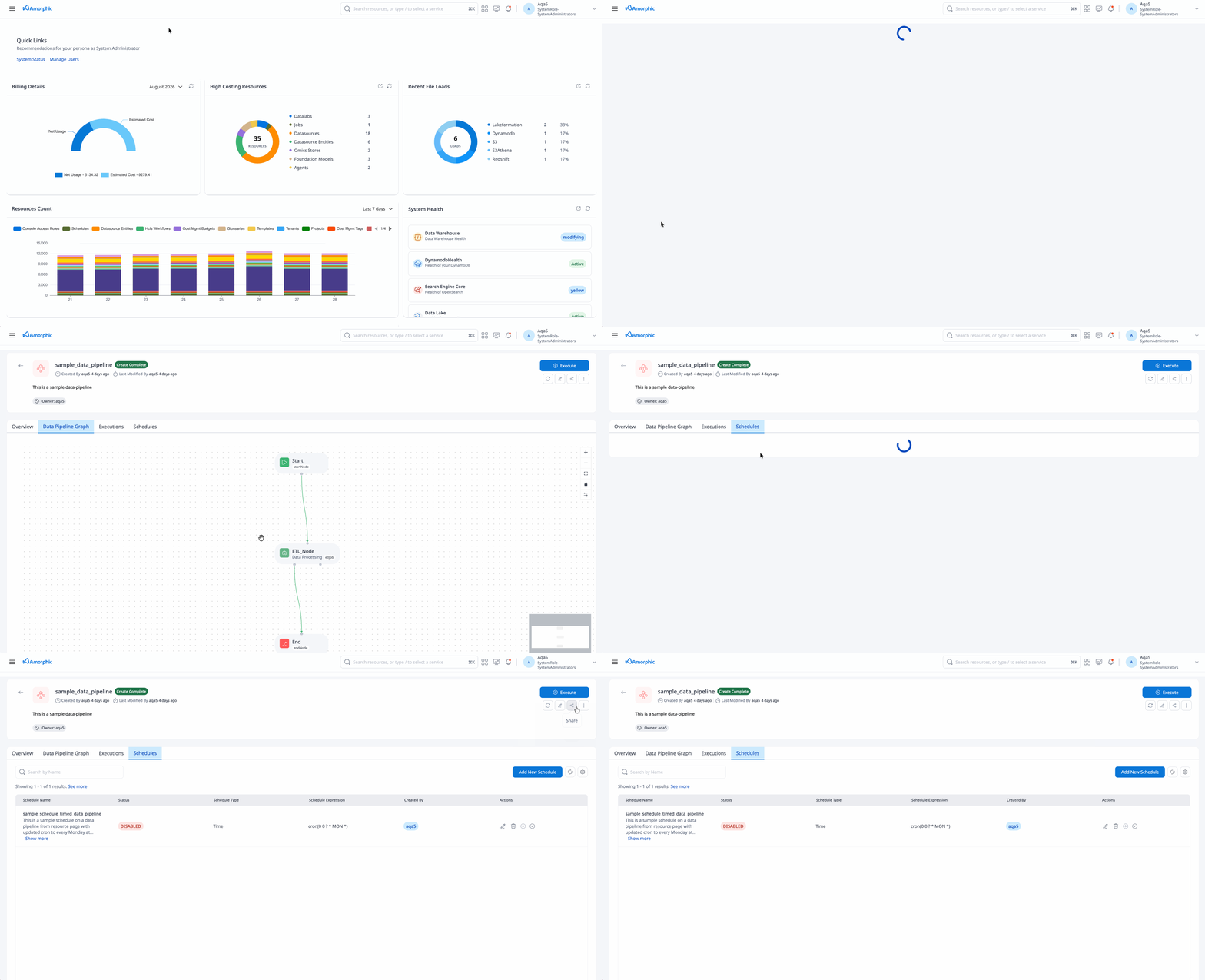
View data pipelines
- Go to Data Workflows > Data Pipelines.
- Use filters and sorting to find pipelines (for example by name, creator, or keywords).
- Open a pipeline to see the graph, metadata, Executions, Schedules, and other detail tabs.
Creating Traditional Data Pipelines
To create a Traditional Data Pipeline:
- Start Create from Data Workflows > Data Pipelines and select Traditional Data Pipeline.
- Add nodes by importing pre-configured Amorphic modules and connect them on the canvas.
- Set pipeline metadata, execution properties, and concurrency as needed, then save.
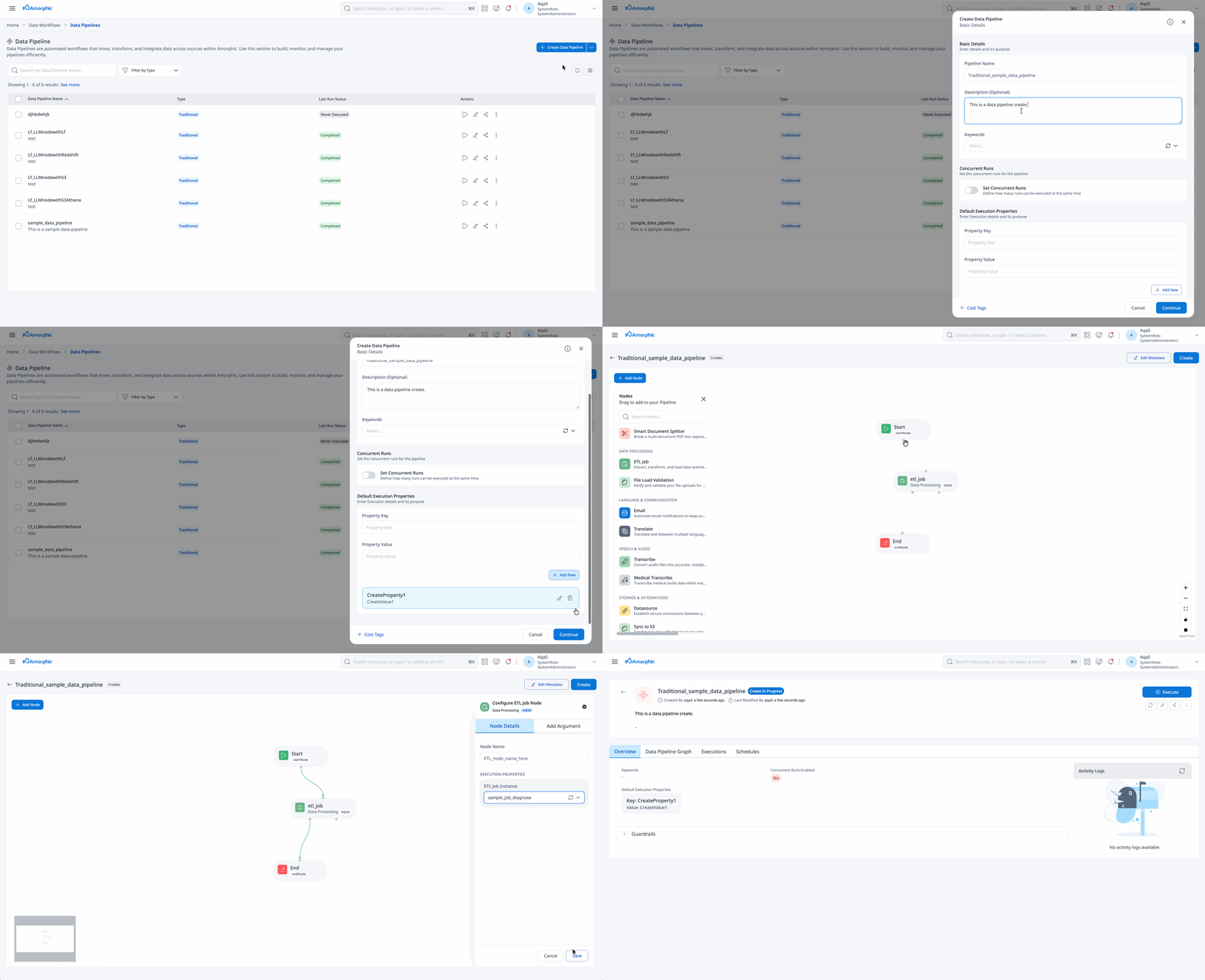
Each node typically requires:
| Attribute | Description |
|---|---|
| Module Type | Pre-configured building block (ETL job, ML inference, datasource, email, AWS AI service, sync, validation, nested pipeline, and others). |
| Resource | Resource available for the module type (for example an ETL job from the jobs you can access). |
| Node Name | Unique name for the node in this pipeline. |
| Input Configurations | Arguments or keys passed into the node at run time. |
Field-level requirements for every node type are documented on Data Pipeline Nodes.
Data pipeline preparation
Saving a new pipeline or applying a large update starts background provisioning. While that work runs, the pipeline may show an in progress status. You can run the pipeline only when provisioning has finished and the status is create complete or update complete. Older pipelines with no status value behave as ready.
If a run is rejected while the pipeline is still updating, wait for the status to complete, refresh the page, and try again.
Do not start a pipeline run while create or update is in progress. Wait until the status is create complete or update complete.
Attempting to perform actions while create or update is in progress will raise an error:
DP-1038 - Data pipeline is not ready for execution (expected no status or create_complete / update_complete).
Limits and validation (Traditional)
| Limit | Value |
|---|---|
| Maximum nodes per pipeline | 75 |
| Maximum nested Data Pipeline (sub-workflow) nodes | 10 |
| Task nodes | At least one node besides optional start and end nodes |
| Node names | Must be unique within the pipeline |
| Duplicate resources | The same ETL job or datasource cannot be used twice where the product enforces uniqueness |
| Maximum concurrent runs (default) | 1 if you do not set a value; allowed range 1–600 |
Concurrent executions
You can allow multiple pipeline runs in parallel by setting maximum concurrent executions between 1 and 600. If you do not set a value, the default is 1.
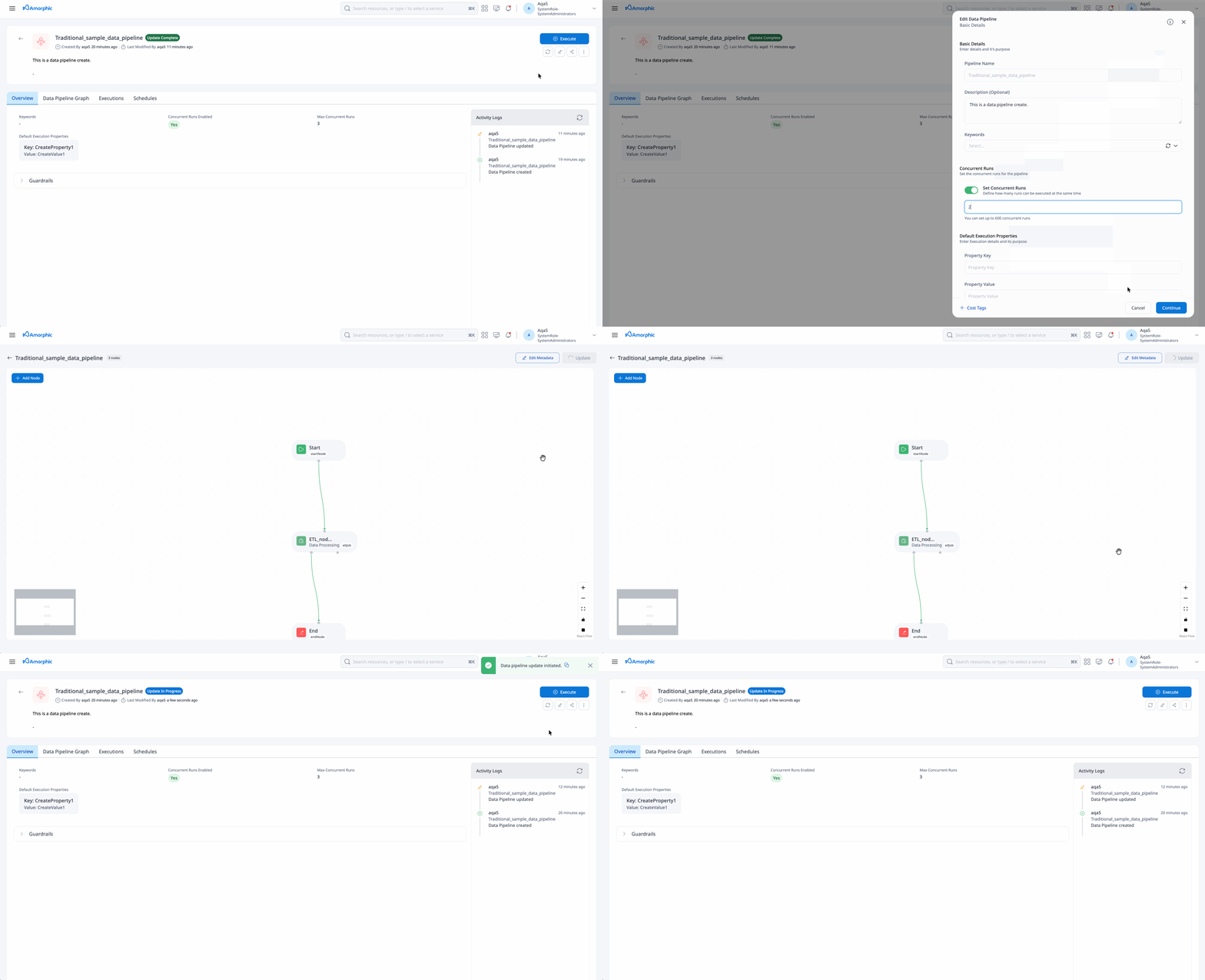
These node types do not support multiple concurrent executions at the pipeline level (maximum concurrency is effectively 1 when they are present):
- Sync to S3
- File Load Validation
- Data Pipeline (nested / sub-workflow)
- Datasource
Additional rules when other nodes are present:
- ETL Job: Pipeline concurrency cannot exceed the ETL job's configured maximum concurrent runs.
- ML Model: If the node uses pre-processor and/or post-processor ETL jobs, pipeline concurrency cannot exceed the lowest of those jobs' concurrency limits.
If pipeline concurrency is higher than what the attached job(s) allow, create and update fail. For example, an ETL or pre/post-processor job with concurrency 2 and a pipeline set to 5 is rejected.
Pipeline execution properties
Execution properties are key-value pairs you define at create or edit time. They are available for the duration of a run and can drive email content, file names, and other dynamic behavior.
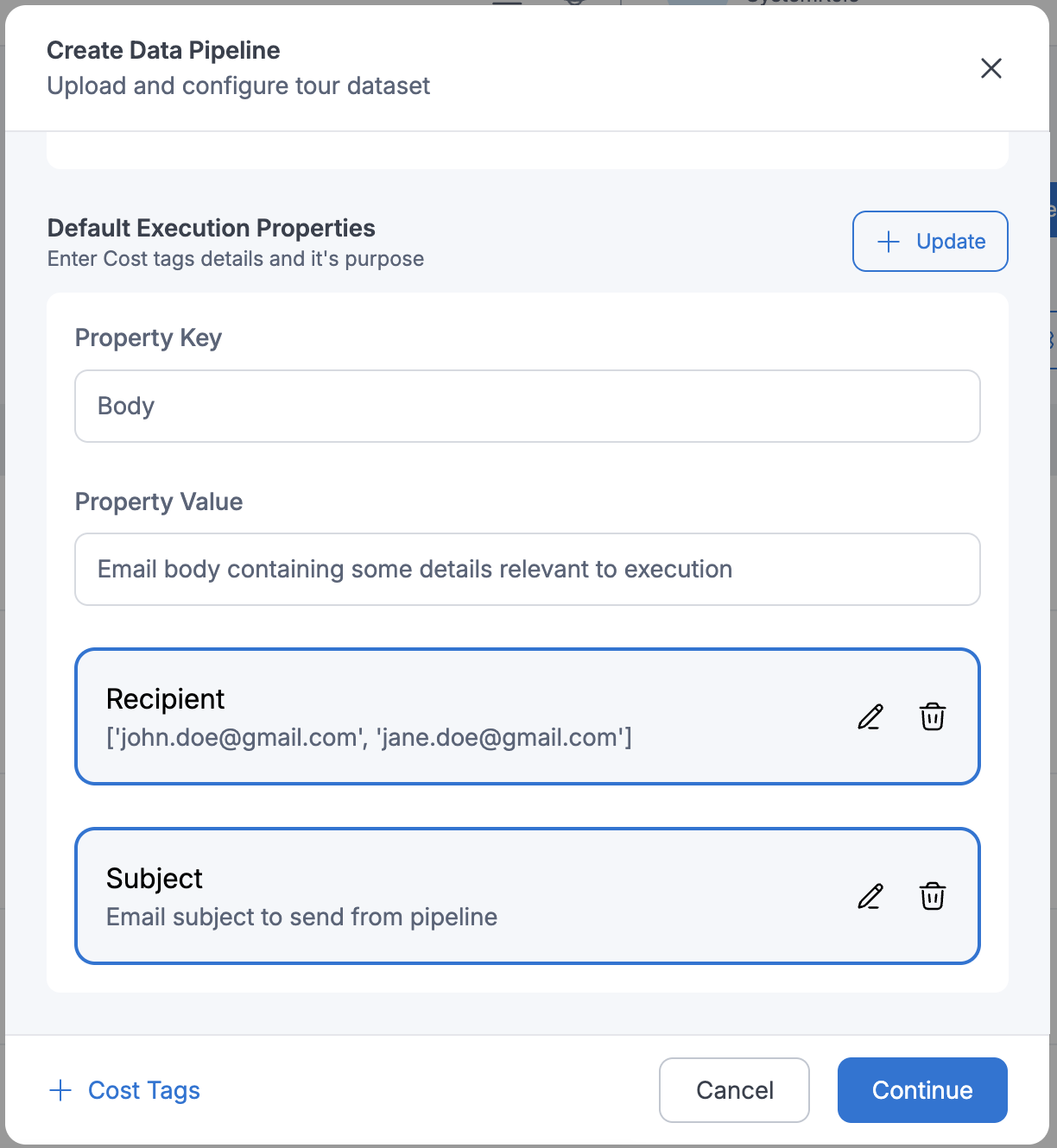
Users can also pass execution properties during execution of the pipeline itself.
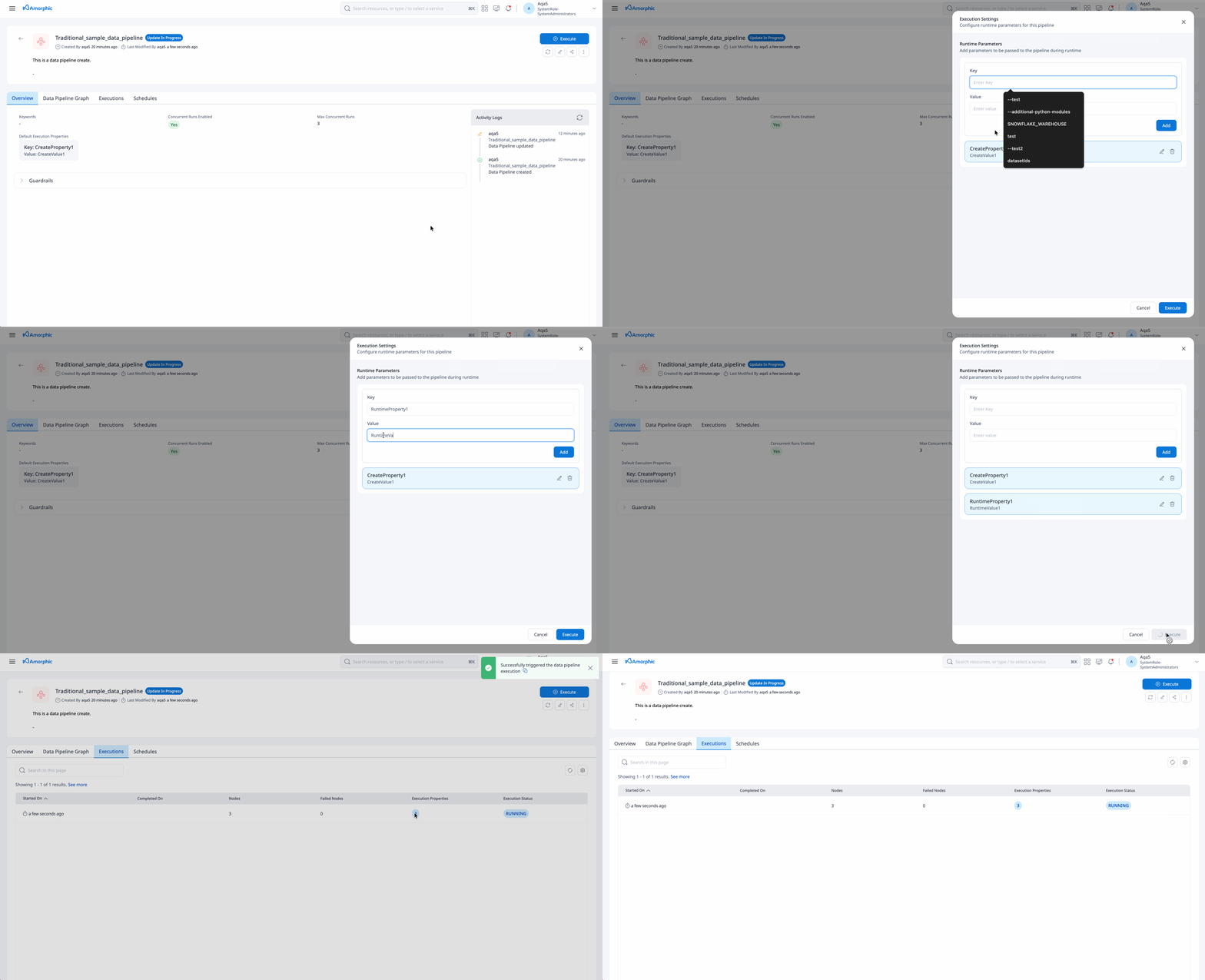
For custom ETL jobs that read or update workflow run properties during a Traditional pipeline run:
Retrieving pipeline execution properties:
import sys
import boto3
from awsglue.transforms import *
from awsglue.utils import getResolvedOptions
from awsglue.context import GlueContext
from pyspark.context import SparkContext

glue_client = boto3.client("glue")
args = getResolvedOptions(sys.argv, ['JOB_NAME','WORKFLOW_NAME', 'WORKFLOW_RUN_ID'])
workflow_name = args['WORKFLOW_NAME']
workflow_run_id = args['WORKFLOW_RUN_ID']
workflow_params = glue_client.get_workflow_run_properties(Name=workflow_name,
                                        RunId=workflow_run_id)["RunProperties"]

email_to = workflow_params['email_to']
email_body = workflow_params['email_body']
email_subject = workflow_params['email_subject']
file_name_ml_model_inference = workflow_params['file_name_ml_model_inference']
Modifying pipeline execution properties:
import sys
import boto3
from awsglue.transforms import *
from awsglue.utils import getResolvedOptions
from awsglue.context import GlueContext
from pyspark.context import SparkContext

glue_client = boto3.client("glue")
args = getResolvedOptions(sys.argv, ['JOB_NAME','WORKFLOW_NAME', 'WORKFLOW_RUN_ID'])
workflow_name = args['WORKFLOW_NAME']
workflow_run_id = args['WORKFLOW_RUN_ID']
workflow_params = glue_client.get_workflow_run_properties(Name=workflow_name,
                                        RunId=workflow_run_id)["RunProperties"]

workflow_params['email_subject'] = 'Coupon: Grab and go!'
glue_client.put_workflow_run_properties(Name=workflow_name, RunId=workflow_run_id, RunProperties=workflow_params)
Pipeline nodes
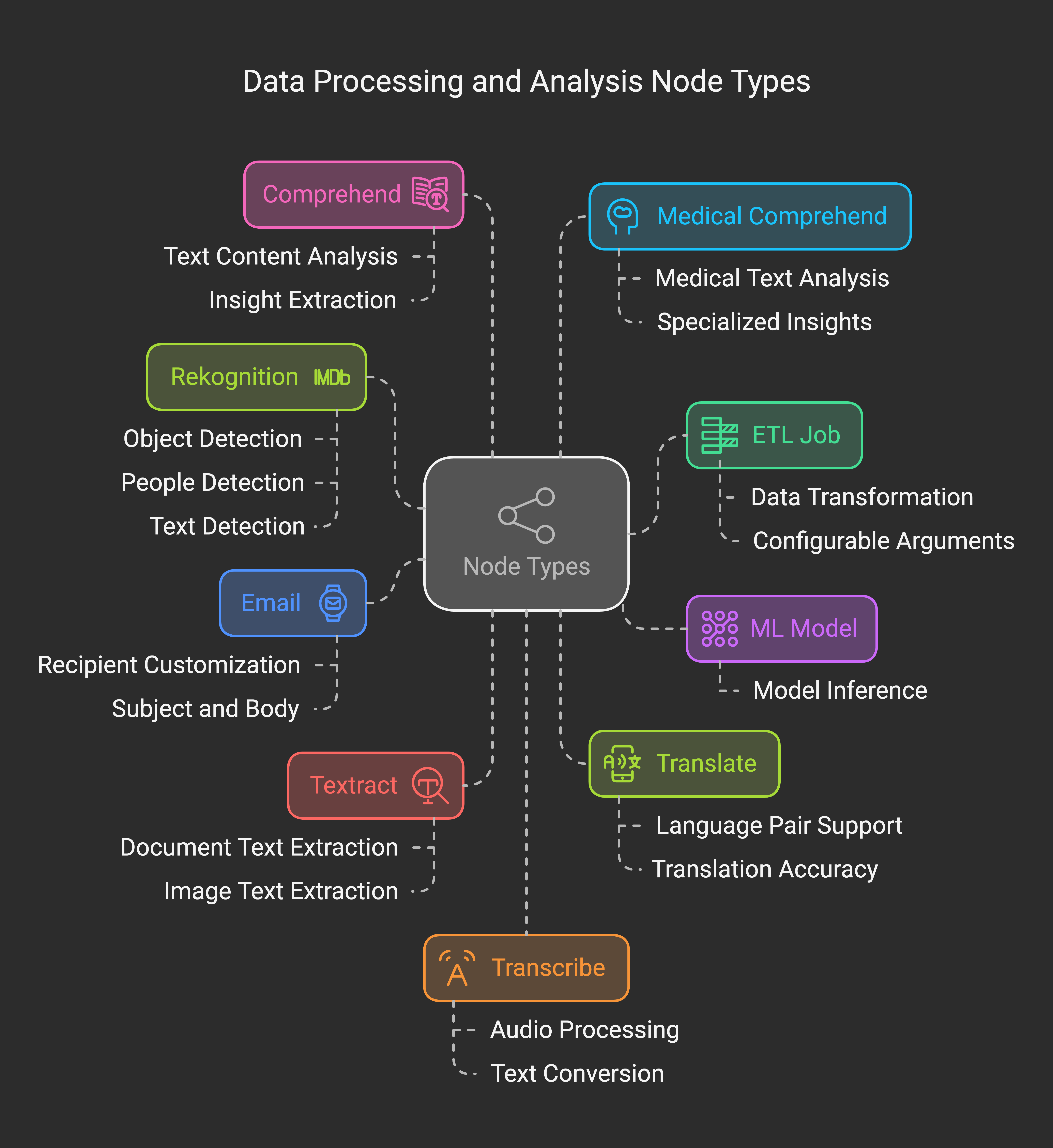
Nodes are the building blocks of a pipeline. Each node is a task type you configure and connect with dependencies.
Common categories include ETL Job, ML Model, Datasource, Email, AWS AI services (Textract, Rekognition, Translate, Comprehend, Transcribe, and medical variants), BDA, Data Pipeline (nested run), Sync to S3, File Load Validation, and AI-assisted nodes such as LLM, Intelligent Field Extractor, and Smart Document Splitter, plus optional Start and End nodes.
See Data Pipeline Nodes for the full catalog, required fields, and examples.
Edit and delete pipelines
Edit — Open the pipeline and update the graph, nodes, execution properties, concurrency, keywords, or description, then save. Large updates follow the same readiness rules as create (see Data pipeline preparation).
Delete — Remove the pipeline from the action menu. Deletion is permanent and removes notification subscriptions tied to that pipeline. Pipelines that reference this one as a nested step are updated in the background.
Deleting a data pipeline cannot be undone. Confirm that downstream schedules and nested pipelines no longer depend on it.
Run, schedule, and stop executions
Run now — From the pipeline detail page, start an execution when the pipeline is ready (status create complete or update complete).

Schedules — On the pipeline Schedules tab, or from Data Workflows > Schedules, create time-based, on-demand, event, or external triggers for Traditional pipelines. See Schedules for trigger types and arguments.
AI Data Pipelines do not support platform schedules today. Use a Traditional Data Pipeline when you need scheduled or externally triggered orchestration.
Stop — For an active run, use Stop Execution from the pipeline context menu (three dots).
The Executions tab lists runs and per-node status. Refresh or reopen the execution to see updated node outcomes.
From the pipeline action menu, open Notification Settings to subscribe to email and/or push (including NodeExecutionFailure when a node fails). Email alerts also require Alert Preferences under Profile Settings; that is separate from system infrastructure alert subscription. Push for node failures needs only the pipeline subscription. An Email node in the graph is different—it sends mail from the workflow using execution properties.
Conditional node execution
Amorphic supports conditional node execution based on the success or failure of predecessor nodes. This enables error handling and branching within pipelines.
Example scenario:
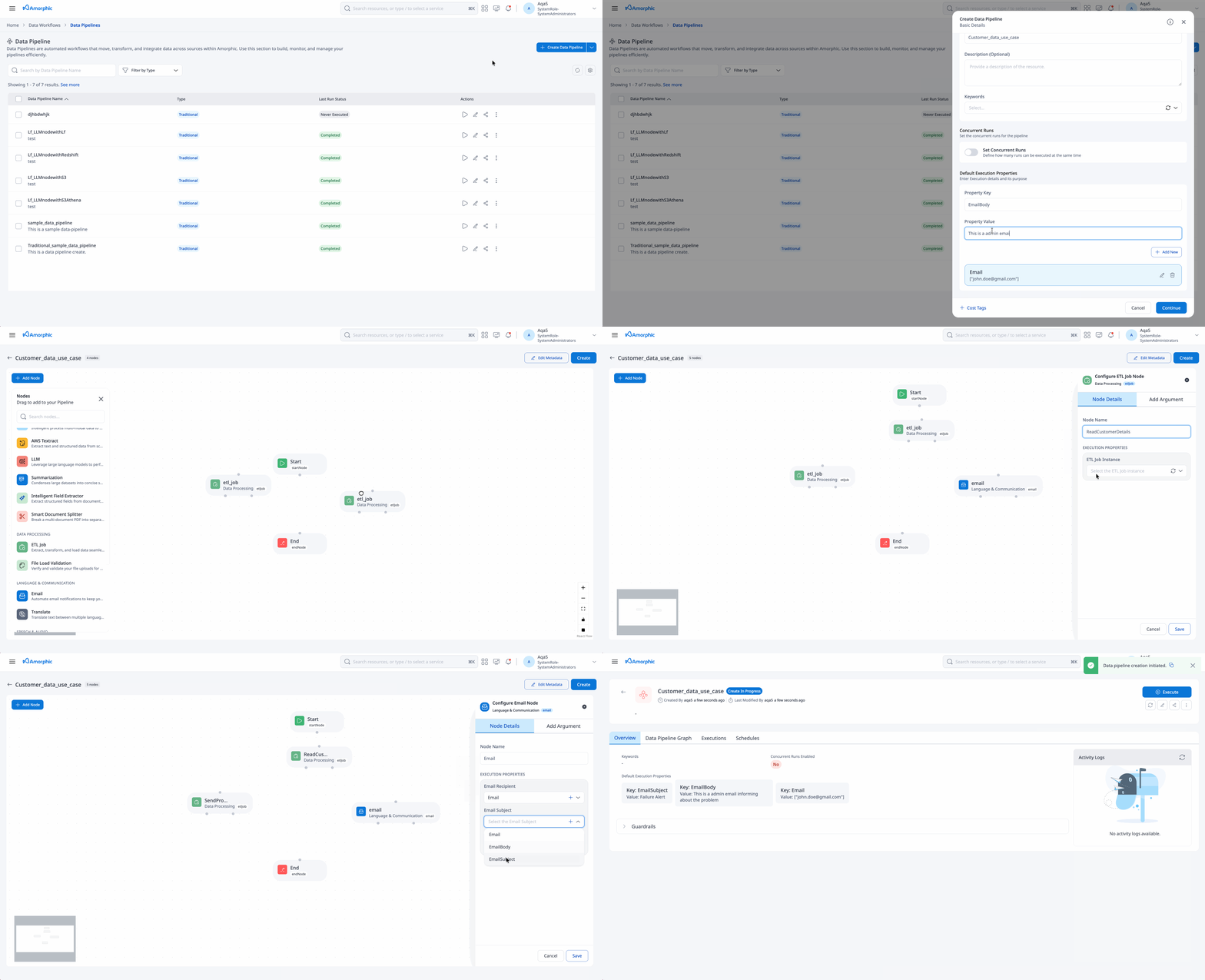
In this example:
- The SendPromotionalEmails ETL job runs only after ReadCustomerDetails succeeds.
- If ReadCustomerDetails fails, the FailureAlertGenerator node sends notification emails.

Complex ETL example:

Execution rules:
- node_one: Executes at pipeline start
- node_two: Executes when node_one succeeds
- node_three: Executes when node_two succeeds
- node_four: Executes when node_six succeeds AND node_two succeeds AND node_three fails
- node_five: Executes at pipeline start
- node_six: Executes when node_five fails AND node_one succeeds
Existing pipelines keep their behavior without mandatory changes. You can edit triggers and dependencies when requirements change.
Example use case
Consider a document processing pipeline:
- Text extraction from images (Textract node)
- Text analysis (Comprehend node)
- Completion notification (Email node)
Each step runs after the previous one succeeds, preserving processing order.
Execution logs
Pipeline execution logs are retained for 90 days. Attempts to access older logs fail.
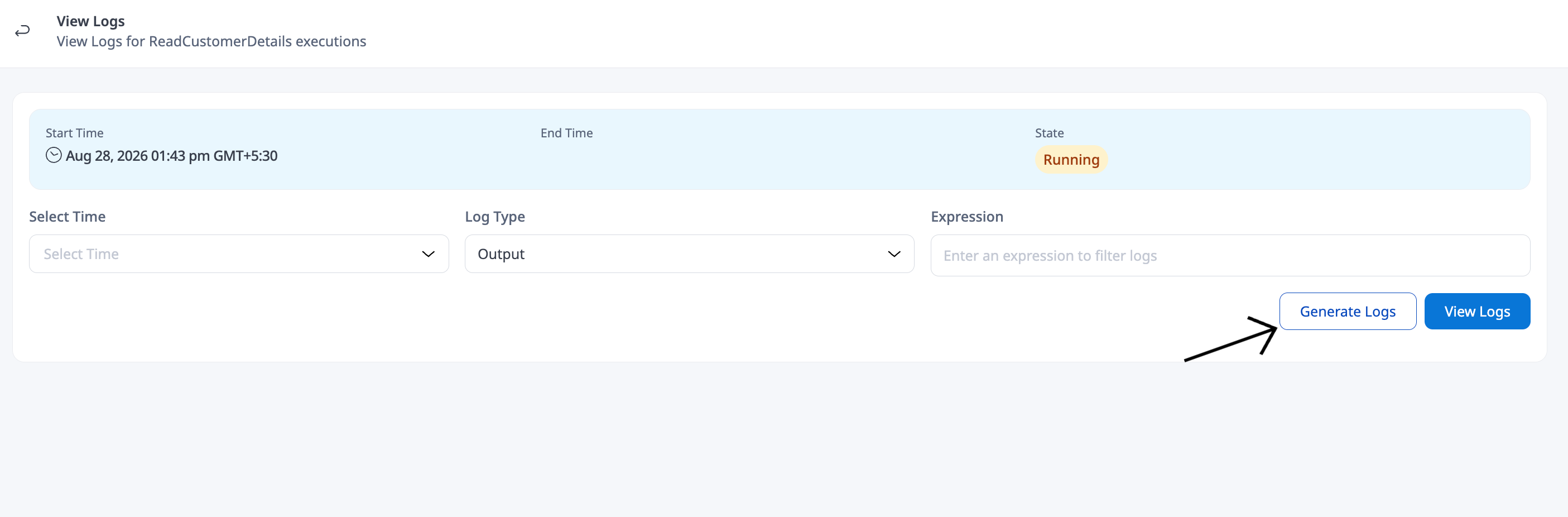
Amorphic provides logging for ETL Job and Datasource nodes. Open an execution and use the execution details tab:
Preview logs
Preview logs for a time range. By default, logs span from execution start to the current time (if still running) or execution end.
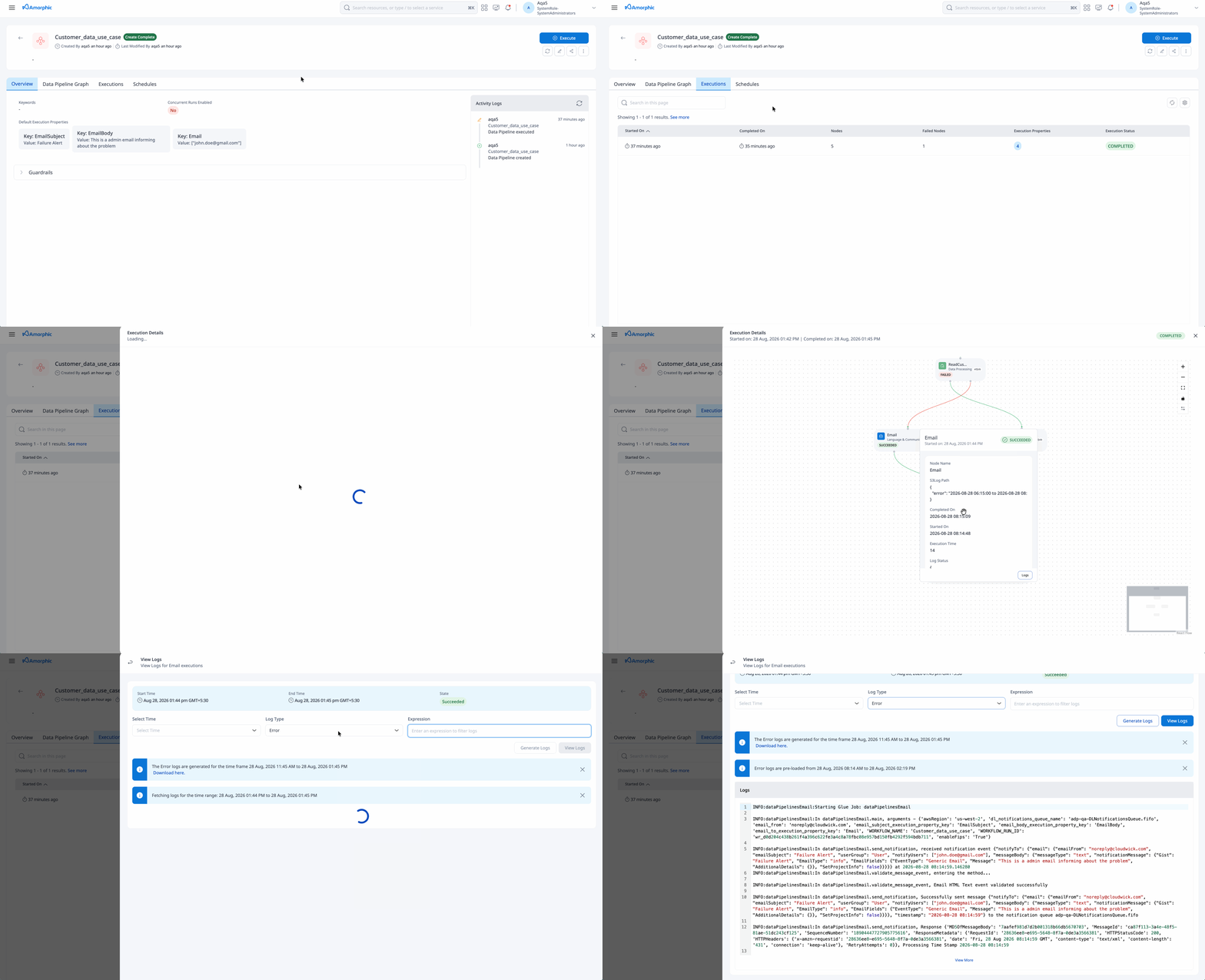
Generate logs
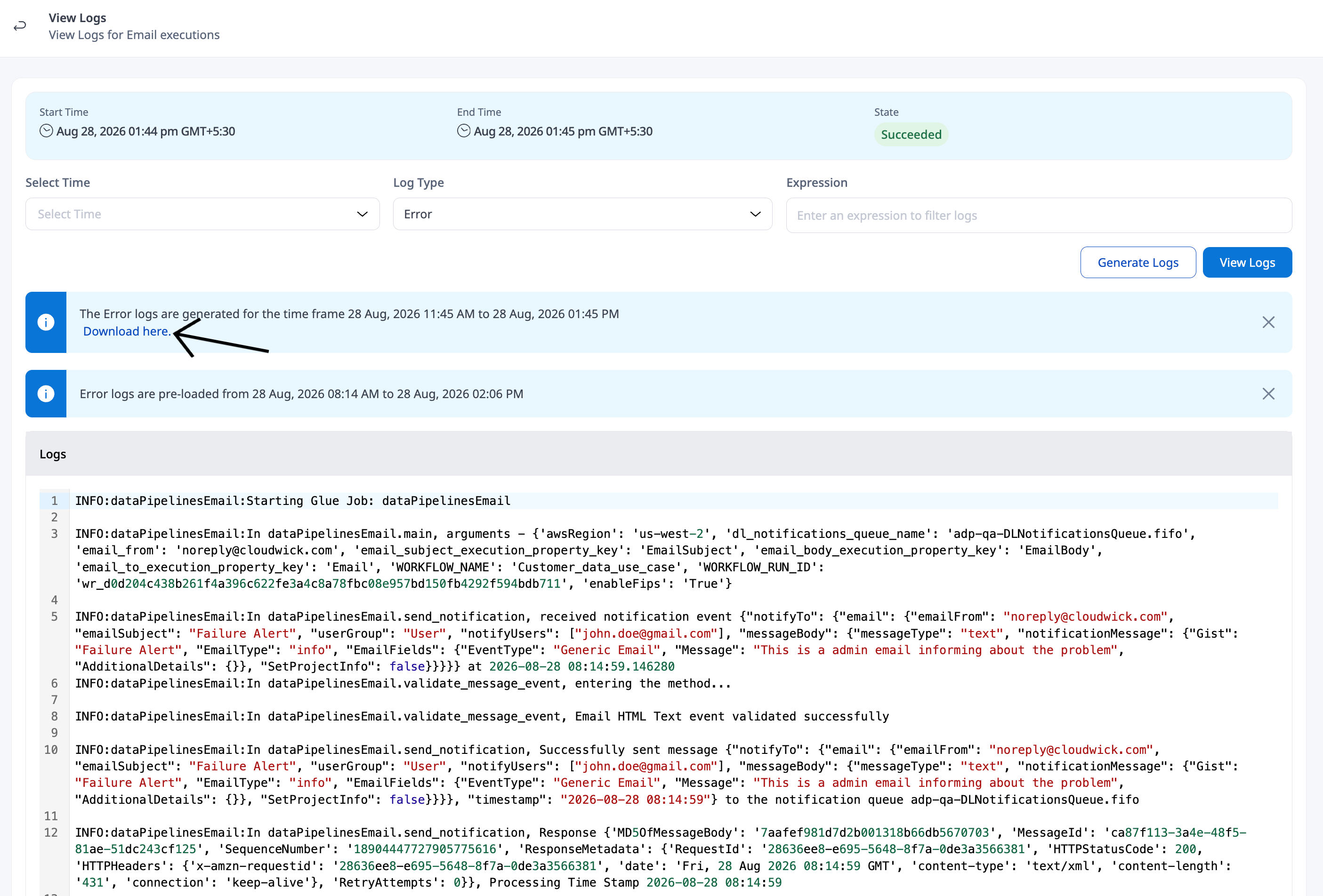
For large log volumes, generate logs for a chosen time range. Generation runs in the background; you receive an email alert when the logs are ready to download.
Download logs
Download logs from the execution details tab when available. Generating logs for a new time range replaces the previous download for that execution.
Related documentation
| Topic | Where to read |
|---|---|
| Node types and fields | Data Pipeline Nodes |
| File Load Validation patterns | Advanced usage — File Load Validation |
| Scheduled and triggered runs | Schedules |
| Global email and push opt-in | Notification Settings |