
Policy Engine
What is the Policy Engine?
The Policy Engine is a policy-based evaluation system that allows you to create rule sets to verify and validate unified master records produced by Entity Resolution workflows. The Policy Engine enables you to define business rules and policies that evaluate data quality, compliance, and business logic against your resolved entity data.
For example, a Supplier Risk Assessment policy rule set might evaluate supplier unified master records to determine if they meet financial stability requirements, compliance standards, and operational metrics. The system evaluates each record against the defined rules and produces pass/fail results that can be used for downstream decision-making, data stewardship, or automated workflows.
How does the Policy Engine work?
The Policy Engine operates on unified master records that have been created by Entity Resolution workflows. The process consists of three main stages:
-
Basic Details: Define the policy rule set name, description, and select the workflow and input unified master record dataset that will be evaluated.
-
Configure Rules: Define the evaluation rules that will be applied to each unified master record. Rules consist of conditions that check field values against thresholds, ranges, or specific criteria using logical operators.
-
Output Configuration: Configure where the evaluation results are written, including the output dataset, field names, and how results are structured.
Once configured, policy rule sets can be executed to evaluate unified master records. Each record is evaluated against all defined rules, and the results indicate whether records passed or failed the evaluation criteria. The system tracks pass rates, records evaluated, and items requiring review, providing visibility into data quality and compliance metrics.
The Policy Engine integrates with the MDM platform by:
- Consuming unified master records from Entity Resolution workflows
- Applying business rules and policies to validate data quality
- Producing evaluation results that can be used for data stewardship, reporting, or downstream processes
- Tracking evaluation history and metrics over time
How to create a Policy Rule Set
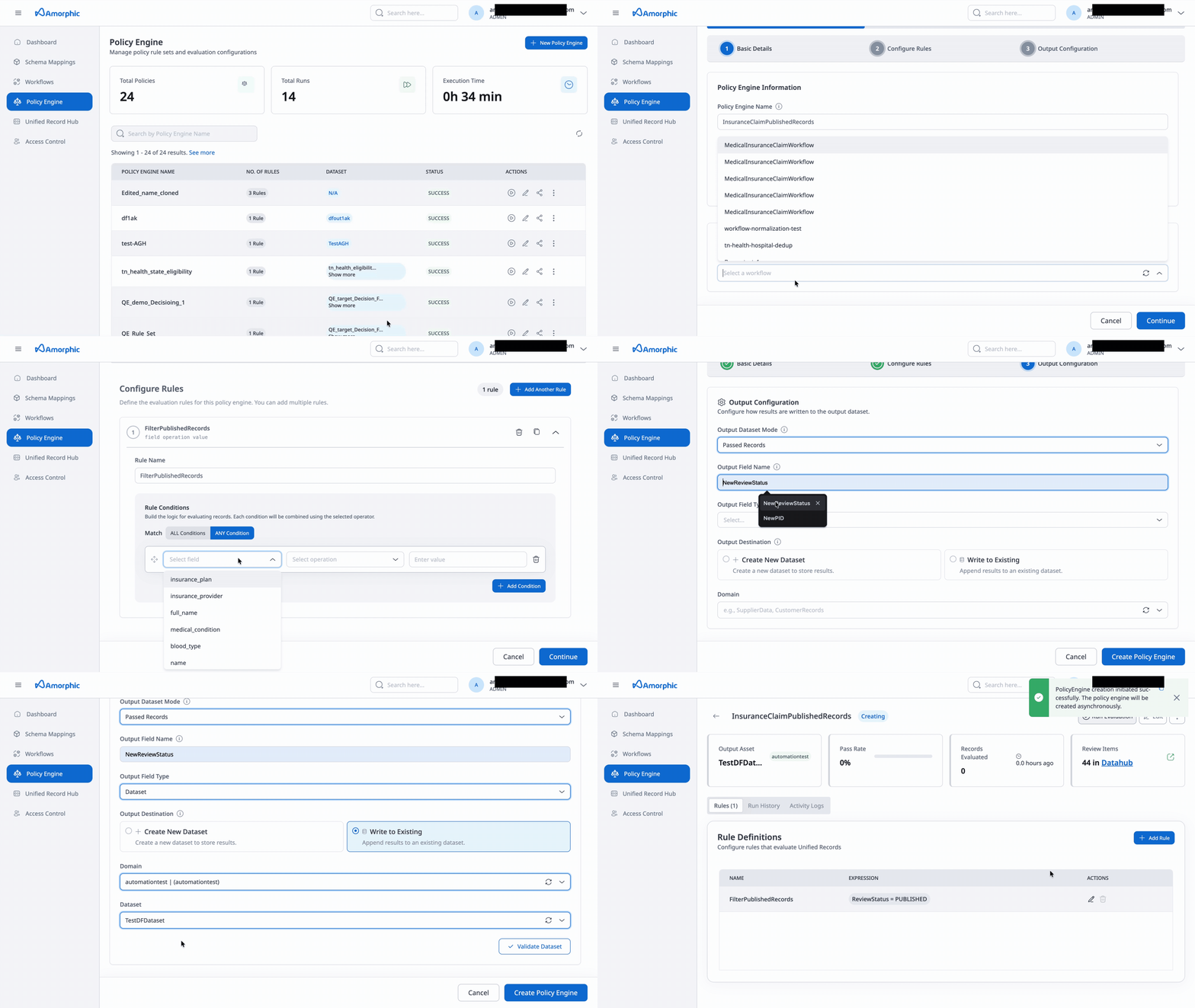
Follow these steps to create a Policy Rule Set:
Data Engineers and Admins can create, edit, and run policy rule sets. Data Stewards and App Viewers can only view policy rule sets.
Step 1: Basic Details
-
Enter Rule Set Name: Provide a unique name for your policy rule set. Use a descriptive name that indicates the purpose, such as
Supplier Risk AssessmentorCustomer Eligibility Check. -
Add Description (Optional): Optionally provide a description that explains the purpose or scope of this rule set. For example, "Calculates supplier risk score based on financial stability, compliance history, and operational metrics."
-
Select Workflow: Choose the Entity Resolution workflow that produces the unified master records you want to evaluate. This workflow must have been created and executed to generate unified master records.
- Select the workflow from the dropdown
- The workflow determines which entity schema and unified master records will be available for evaluation
- Only workflows that have produced unified master records are available for selection
-
Select Input unified master record dataset (Required): Choose the unified master record dataset that will be evaluated by this policy rule set. This dataset contains the resolved entity records produced by the selected workflow.
- Select the dataset from the dropdown
- The dataset must be from the Amorphic Gold Zone
- The dataset schema determines which fields are available for rule conditions
- The asterisk (*) indicates this field is required
Step 2: Configure Rules
Define the evaluation rules that will be applied to each unified master record. Rules consist of conditions that evaluate field values using operators and logical combinations.
Rule Definitions
You can create multiple rules for a single policy rule set. Each rule evaluates records independently, and you can mark rules as Required or Optional:
- Required Rules: Records must pass all required rules to be considered compliant
- Optional Rules: Records can pass or fail optional rules; they provide additional context but don't block compliance
Adding a Rule
-
Click "+ Add Rule": Click the button to open the rule configuration dialog.
-
Enter Rule Name (Required): Provide a descriptive name for the rule, such as
Financial Stability,Compliance History, orOperational Capacity. The rule name helps identify the purpose of the rule in reports and evaluations. -
Configure Rule Conditions: Build the logic for evaluating records. Each condition checks a field value against a criterion using an operator.
Match Operator: Choose how multiple conditions are combined:
- ALL conditions: All conditions must be true for the rule to pass (logical AND)
- ANY condition: At least one condition must be true for the rule to pass (logical OR)
Add Conditions: For each condition, specify:
- Field: Select the field from the unified master record dataset schema. The field type (string, number, date, etc.) determines available operators.
- Operator: Choose the comparison operator based on the field type:
- String fields: equals, not equals, contains, not contains, starts with, ends with, includes
- Number fields: equals, not equals, is greater than, is greater than or equal to, is less than, is less than or equal to
- Date fields: equals, not equals, is before, is after, is on or before, is on or after
- Value: Enter the value to compare against. For string fields, use quotes (e.g.,
"BBB"). For number fields, enter numeric values (e.g.,0.6,5). For date fields, use date format.
Example Conditions:
credit_rating >= "BBB"(string comparison)debt_ratio < 0.6(numeric comparison)years_in_business >= 5(numeric comparison)compliance_violations = 0(numeric comparison)certifications INCLUDES "ISO"(string inclusion)
-
Generated Expression: The system automatically generates a logical expression from your conditions. Review the expression to ensure it matches your intended logic.
Example generated expression:
credit_rating = "BBB" AND debt_ratio < 0.6 AND years_in_business ≥ 5 -
Set Rule Type: Choose whether this rule is Required or Optional:
- Required: Records must pass this rule to be considered compliant
- Optional: Records can pass or fail this rule; it provides additional evaluation context
-
Save Rule: Click "Save rule" to add the rule to your policy rule set. You can edit or delete rules after creation.
Managing Rules
- Edit Rule: Click the edit (pencil) icon to modify an existing rule
- Delete Rule: Click the delete (trash) icon to remove a rule. You will be prompted to confirm deletion.
- Duplicate Rule: Use the duplicate icon to create a copy of an existing rule
- Reorder Rules: Rules are evaluated in the order they appear. Use drag handles or arrow buttons to reorder rules if needed
You can add multiple rules to a single policy rule set. Each rule is evaluated independently, and the overall evaluation result depends on whether required rules pass or fail.
You can create a policy engine rule set against deleted workflows as well. Unified Records produced by those workflows are preserved after the workflow is deleted, so you can still select them as the input source and define rules as usual.
Rule Condition Examples
Example 1: Financial Stability Rule
- Rule Name:
Financial Stability - Match Operator:
ALL conditions - Conditions:
credit_rating >= "BBB"debt_ratio < 0.6
- Generated Expression:
credit_rating >= "BBB" AND debt_ratio < 0.6 - Rule Type: Required
Example 2: Compliance History Rule
- Rule Name:
Compliance History - Match Operator:
ALL conditions - Conditions:
compliance_violations = 0certifications INCLUDES "ISO"
- Generated Expression:
compliance_violations = 0 AND certifications INCLUDES "ISO" - Rule Type: Optional
Example 3: Operational Capacity Rule
- Rule Name:
Operational Capacity - Match Operator:
ALL conditions - Conditions:
on_time_delivery_rate >= 0.95quality_score >= 4.0
- Generated Expression:
on_time_delivery_rate >= 0.95 AND quality_score >= 4.0 - Rule Type: Required
Step 3: Output Configuration
Configure how evaluation results are written to the output dataset.
Output Dataset Mode
Choose how results are written:
-
All Records with Output Field: All records from the input dataset are written to the output, with an additional field indicating the evaluation result (pass/fail).
-
Only Passed Records: Only records that passed all required rules are written to the output.
-
Only Failed Records: Only records that failed one or more required rules are written to the output.
Output Field Configuration
-
Output Field Name: Specify the name of the field that will contain the evaluation result. Use a descriptive name such as
is_eligible,risk_assessment, orcompliance_status.- Field name must be unique within the output dataset schema
- Use lowercase letters, numbers, and underscores
- Example:
is_eligible,supplier_risk_score,compliance_passed
-
Output Field Type: Select the data type for the output field:
- String: Text values (e.g., "PASS", "FAIL", "REVIEW")
- Number: Numeric values (e.g., 1 for pass, 0 for fail)
- Boolean: True/false values
Output Destination
Choose where evaluation results are stored:
-
Create New Dataset: Create a new dataset in the Amorphic Gold Zone to store results.
- Domain: Enter or select the domain name (e.g.,
SupplierData,CustomerRecords) - New Dataset Name: Enter a unique dataset name (e.g.,
policy_engine_results,supplier_risk_assessment) - Description: Optionally provide a description explaining the purpose of this dataset
- Target Location: Select the storage location (e.g.,
DynamoDB,S3)
NoteThe new dataset will be created in the Amorphic Gold Zone. All records from the input dataset will be included (based on the Output Dataset Mode), with the evaluation result stored in the specified output field.
- Domain: Enter or select the domain name (e.g.,
-
Write to Existing Dataset: Append results to an existing dataset.
- Domain: Select the domain from the dropdown
- Dataset: Select the existing dataset from the dropdown
- Click "Validate Dataset" to verify that the selected dataset exists and is accessible
ImportantWhen writing to an existing dataset, ensure the dataset schema is compatible with the output field configuration. The output field will be added to existing records, or records will be appended if the dataset is empty.
Completing Policy Rule Set Creation
Once all three steps are completed:
- Review your configuration, especially the rule conditions and output settings
- Click "Create Rule Set" to save and create the policy rule set
- The policy rule set will be created and can be executed immediately
- Click "Cancel" at any time to discard your changes
After creating a policy rule set, you can edit it at any time. However, changes to rules or output configuration may affect evaluation results, so consider creating a new version for significant changes.
How to run a Policy Rule Set
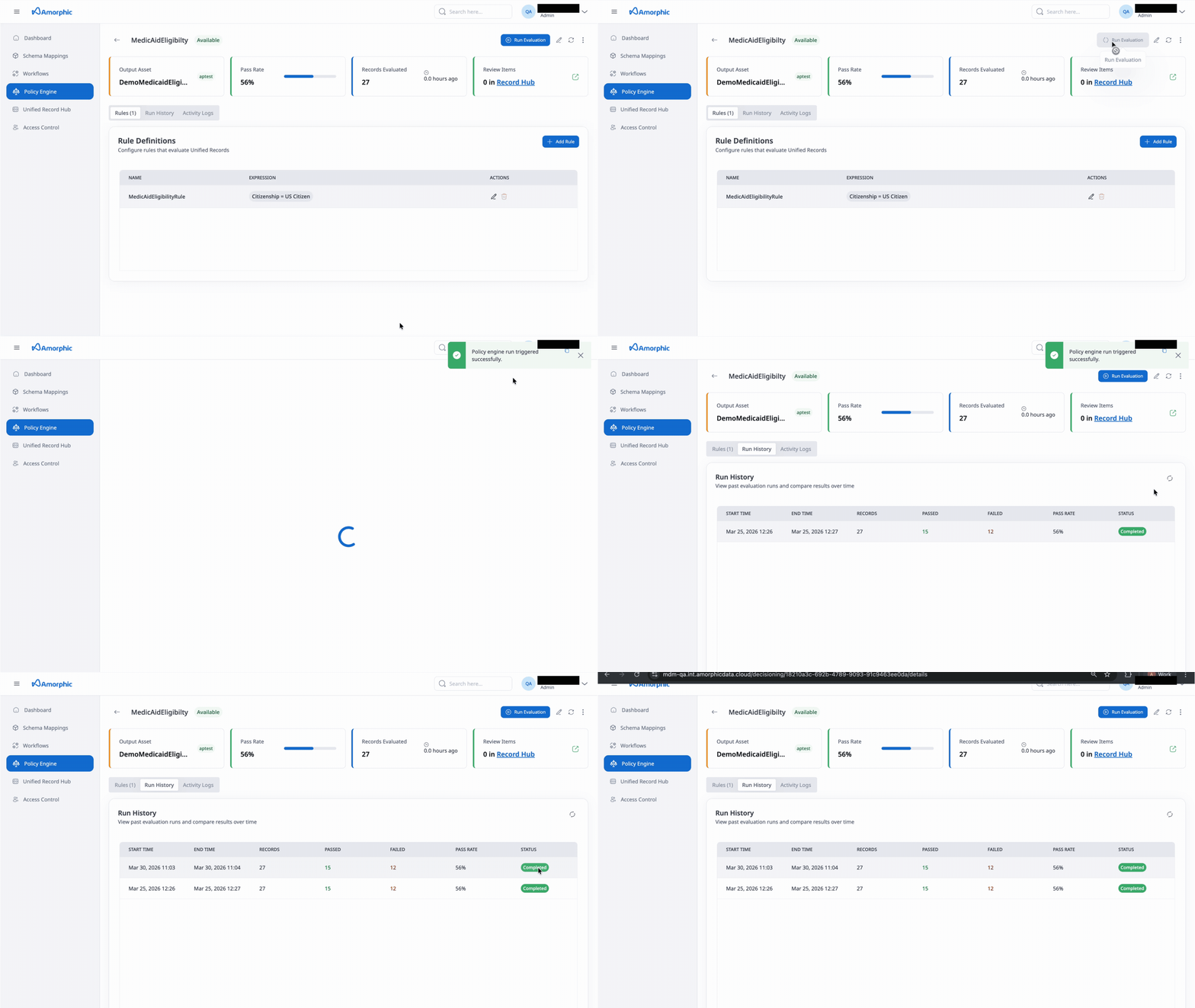
You can execute a Policy Rule Set to evaluate unified master records against the defined rules:
- Navigate to the Policy Engine page
- Find the policy rule set you want to run in the list, or open the policy rule set details page
- Click the "Run Evaluation" button (play icon)
- The evaluation will start processing unified master records from the input dataset
- Monitor the evaluation progress in the Run History tab
Monitoring Evaluation Execution
-
Run History Tab: View the complete history of evaluation executions:
- START TIME: When the evaluation execution began
- END TIME: When the evaluation execution completed
- RECORDS: Total number of records processed
- PASSED: Number of records that passed all required rules (displayed in green)
- FAILED: Number of records that failed one or more required rules (displayed in red)
- PASS RATE: Percentage of records that passed the evaluation
- STATUS: Current or final state of the evaluation (Running, Completed, Failed, Stopped)
-
Activity Logs Tab: View recent changes and events for the policy rule set, including:
- Rule set updates
- Rule set edits
- Rule set creation
- User actions and timestamps
-
Overview Metrics: View key performance indicators:
- Output Dataset: The dataset where results are stored, with domain name
- Pass Rate: Overall percentage of records that passed evaluation, displayed with a progress bar
- Records Evaluated: Total number of records evaluated, with timestamp of last evaluation
- Review Items: Number of records requiring manual review (if configured), with link to Unified Record Hub
Evaluation Execution Status
Policy rule set evaluations can have the following statuses:
- Running: The evaluation is currently executing and processing records
- Completed: The evaluation finished successfully and results are available
- Failed: The evaluation encountered an error and did not complete
- Stopped: The evaluation was manually stopped before completion
How to update a Policy Rule Set
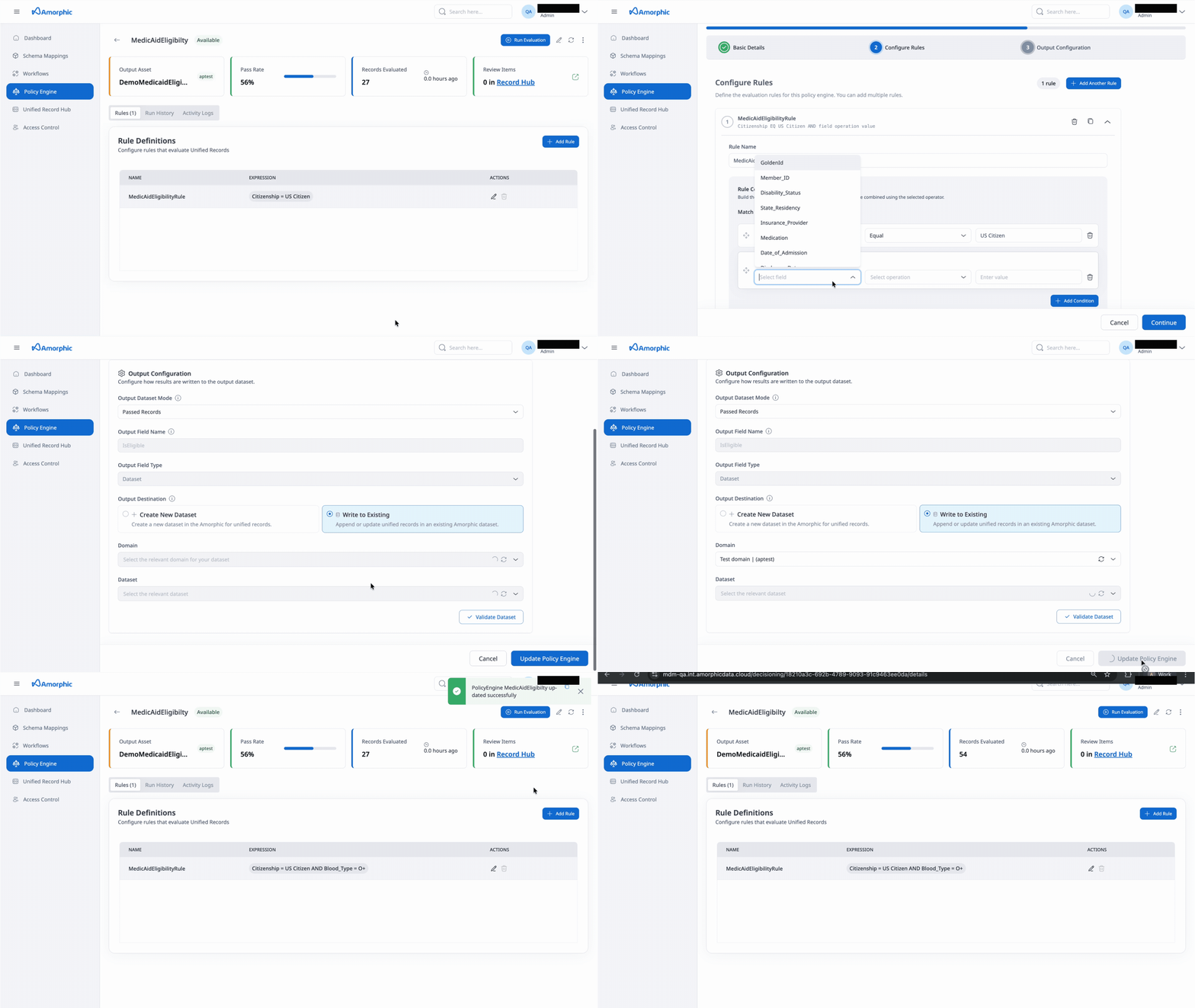
You can update a Policy Rule Set to modify its configuration:
- Navigate to the Policy Engine page
- Find the policy rule set you want to update
- Click the Edit icon in the Actions column, or open the policy rule set details page and click the "Edit" button
- The policy rule set creation wizard will open with your current configuration
- Navigate through the steps to modify any settings:
- Update rule set name or description
- Change workflow or input dataset
- Modify, add, or remove rules
- Update output configuration
- Click "Save" or "Update Rule Set" to save your changes
When you update a policy rule set:
- Changes to rules will affect new evaluations but not historical results
- Changing the input dataset may require re-running evaluations
- Modifying output configuration may affect where new results are written
- Existing evaluation results are not automatically updated when you change rules
- You may need to re-run evaluations to apply changes to existing data
Editing Rule Set Details
- Rule Set Name: Can be updated, but must remain unique
- Description: Can be updated at any time
- Workflow: Can be changed, but the new workflow must have produced unified master records
- Input unified master record dataset: Can be changed to evaluate different datasets
Editing Rules
- Add Rules: Click "+ Add Rule" to create new evaluation rules
- Edit Rules: Click the edit icon to modify existing rules, including conditions, operators, and rule type
- Delete Rules: Click the delete icon to remove rules. You will be prompted to confirm deletion
- Reorder Rules: Rules are evaluated in order; use drag handles or arrows to reorder
Editing Output Configuration
- Output Dataset Mode: Can be changed to modify which records are included in output
- Output Field Name: Can be changed, but may affect downstream processes that reference the field
- Output Field Type: Can be changed, but ensure compatibility with existing data
- Output Destination: Can be changed, but writing to a different dataset will create new records rather than updating existing ones
How to delete a Policy Rule Set
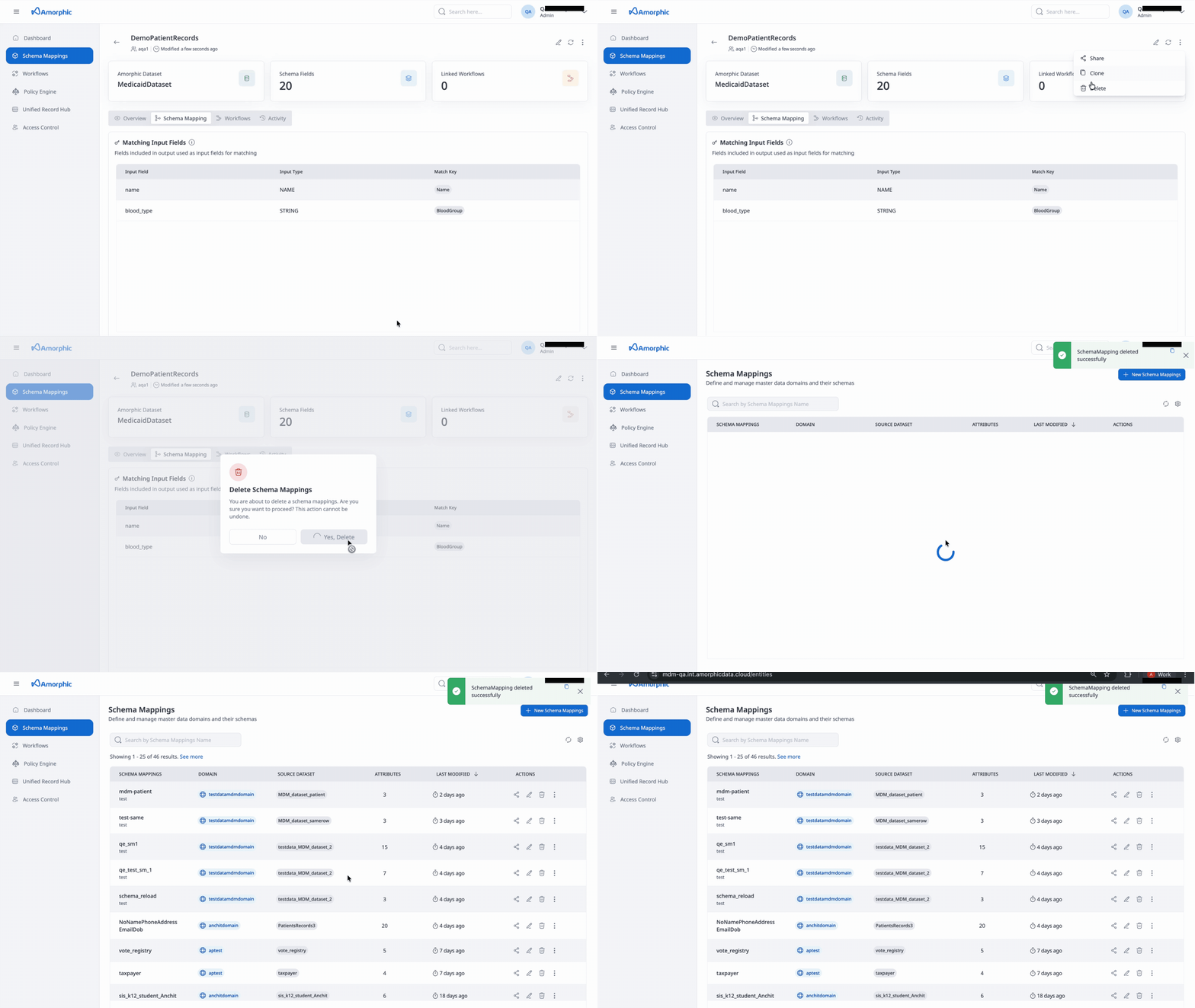
To delete a Policy Rule Set:
- Navigate to the Policy Engine page
- Find the policy rule set you want to delete
- Click the three vertical dots (ellipsis) icon in the Actions column
- Select "Delete" from the dropdown menu
- Confirm the deletion in the dialog that appears
Deleting a policy rule set:
- Cannot be undone
- Does not delete the output datasets or evaluation results that were created
- Does not delete the run history (historical execution records may be retained for audit purposes)
- You should ensure that no other processes or workflows depend on this policy rule set before deleting it
Before Deleting a Policy Rule Set
Consider the following:
- Check Dependencies: Verify that no other processes, workflows, or reports reference this policy rule set
- Backup Configuration: If needed, document the rule set configuration before deletion
- Review Output Data: Ensure you have access to the output datasets if you need evaluation results later
- Notify Team Members: Inform team members who may be using or monitoring this policy rule set
Data Engineers and Admins can delete policy rule sets. Data Stewards and App Viewers cannot delete policy rule sets.
Rule Configuration Details
Supported Operators
The following operators are available for rule conditions, depending on the field type:
String Field Operators
| Operator | Description | Example |
|---|---|---|
| equals | Exact string match | credit_rating = "BBB" |
| not equals | String does not match | status != "INACTIVE" |
| contains | String contains substring | description CONTAINS "certified" |
| not contains | String does not contain substring | notes NOT CONTAINS "flagged" |
| starts with | String starts with prefix | name STARTS WITH "Acme" |
| ends with | String ends with suffix | email ENDS WITH "@company.com" |
| includes | String includes value in list | certifications INCLUDES "ISO" |
Number Field Operators
| Operator | Description | Example |
|---|---|---|
| equals | Exact numeric match | violations = 0 |
| not equals | Number does not match | score != 100 |
| is greater than | Number is greater than value | debt_ratio > 0.5 |
| is greater than or equal to | Number is greater than or equal to value | years_in_business >= 5 |
| is less than | Number is less than value | debt_ratio < 0.6 |
| is less than or equal to | Number is less than or equal to value | age <= 65 |
Date Field Operators
| Operator | Description | Example |
|---|---|---|
| equals | Exact date match | created_date = "2024-01-15" |
| not equals | Date does not match | expiry_date != "2024-12-31" |
| is before | Date is before value | created_date < "2024-01-01" |
| is after | Date is after value | expiry_date > "2024-12-31" |
| is on or before | Date is on or before value | created_date <= "2024-01-15" |
| is on or after | Date is on or after value | expiry_date >= "2024-12-31" |
Match Operators
When combining multiple conditions in a rule:
-
ALL conditions (AND): All conditions must be true for the rule to pass
- Example:
credit_rating >= "BBB" AND debt_ratio < 0.6 AND years_in_business >= 5 - Use when all criteria must be met
- Example:
-
ANY condition (OR): At least one condition must be true for the rule to pass
- Example:
status = "ACTIVE" OR status = "PENDING" - Use when any of several criteria is acceptable
- Example:
Rule Type
-
Required: Records must pass this rule to be considered compliant. If a record fails any required rule, it is marked as failed overall.
-
Optional: Records can pass or fail this rule. Optional rules provide additional evaluation context but do not affect the overall pass/fail status.
A record passes the overall evaluation if it passes all required rules. Optional rules are evaluated but do not affect the pass/fail determination.
Evaluation Results and Output
Result Structure
When a policy rule set is executed, each unified master record is evaluated against all defined rules. The evaluation produces:
- Per-Rule Results: Each rule is evaluated independently, producing a pass/fail result for that specific rule
- Overall Result: The overall evaluation result is determined by whether all required rules passed
- Output Field Value: The result is written to the specified output field in the output dataset
Output Dataset Schema
The output dataset includes:
- All Original Fields: All fields from the input unified master record dataset are preserved
- Output Field: The evaluation result field (as specified in Output Configuration)
- Field name: As specified in "Output Field Name"
- Field type: As specified in "Output Field Type" (String, Number, or Boolean)
- Field value: Indicates pass/fail status based on the evaluation
Pass/Fail Determination
A record passes the evaluation if:
- All required rules pass (evaluate to true)
- Optional rules can pass or fail without affecting the overall result
A record fails the evaluation if:
- Any required rule fails (evaluates to false)
- The overall result is determined by required rules only
Metrics and Reporting
The system tracks the following metrics for each evaluation run:
- Total Records: Number of records processed
- Passed Records: Number of records that passed all required rules
- Failed Records: Number of records that failed one or more required rules
- Pass Rate: Percentage of records that passed (Passed Records / Total Records × 100)
These metrics are displayed in:
- Run History table
- Overview metrics cards
- Evaluation reports
Error Handling
Validation Errors
The following validation errors may occur during policy rule set creation or execution:
-
Missing Required Fields:
- Error: "Rule Set Name is required"
- Solution: Provide a unique rule set name
-
Invalid Workflow Selection:
- Error: "Selected workflow has no unified master records"
- Solution: Ensure the workflow has been executed and produced unified master records
-
Invalid Dataset Selection:
- Error: "Dataset not found or inaccessible"
- Solution: Verify the dataset exists in the Amorphic Gold Zone and you have access permissions
-
Invalid Rule Configuration:
- Error: "Rule must have at least one condition"
- Solution: Add at least one condition to the rule
-
Invalid Field Reference:
- Error: "Field not found in dataset schema"
- Solution: Verify the field exists in the input unified master record dataset schema
-
Invalid Operator for Field Type:
- Error: "Operator not supported for field type"
- Solution: Select an operator that is compatible with the field's data type
-
Invalid Output Configuration:
- Error: "Output field name conflicts with existing schema"
- Solution: Choose a different output field name that doesn't conflict with existing fields
Runtime Errors
During evaluation execution, the following errors may occur:
-
Dataset Access Error:
- Error: "Cannot access input dataset"
- Solution: Verify dataset permissions and availability
-
Schema Mismatch:
- Error: "Field schema does not match expected type"
- Solution: Verify the input dataset schema matches the rule conditions
-
Evaluation Timeout:
- Error: "Evaluation exceeded maximum execution time"
- Solution: Consider processing records in smaller batches or optimizing rule conditions
-
Output Write Error:
- Error: "Cannot write to output dataset"
- Solution: Verify output dataset permissions and storage availability
Debugging Tips
If you encounter errors:
- Check Rule Conditions: Verify that field names match the dataset schema exactly
- Validate Data Types: Ensure operators are compatible with field data types
- Review Generated Expressions: Check that the generated expression matches your intended logic
- Test with Sample Data: Run evaluations on small datasets first to identify issues
- Check Run History: Review error messages in the Run History tab for specific failure details
- Verify Permissions: Ensure you have read access to input datasets and write access to output datasets
Permissions and Access Control
Role-Based Access
Data Engineers and Admins can:
- Create new policy rule sets
- Edit existing policy rule sets
- Run evaluations
- Delete policy rule sets
- View all evaluation results and metrics
Data Stewards can:
- View policy rule sets
- View evaluation results
- Access review items in Unified Record Hub
- Cannot create, edit, or delete policy rule sets
App Viewers can:
- View policy rule sets
- View evaluation results
- Cannot create, edit, delete, or run evaluations
Required Permissions
To create and execute policy rule sets, users need:
-
Read Access:
- Read access to input unified master record datasets
- Read access to workflow configurations
-
Write Access:
- Write access to output datasets (when creating new datasets or writing to existing ones)
- Write access to the Amorphic Gold Zone domain
-
Execution Permissions:
- Permissions to execute evaluation jobs
- Access to compute resources for processing evaluations
Dataset Permissions
- Input datasets must be accessible and readable by the evaluation process
- Output datasets must be writable by the evaluation process
- Users creating policy rule sets must have permissions to both input and output datasets
If you encounter permission errors, contact your system administrator to grant the necessary dataset and execution permissions.